1. Introduction
The Ubiquiti UniFi G5 Dome Camera (UVC-G5-Dome) is a next-generation 2K HD PoE ceiling camera designed for surveillance applications. It features enhanced dynamic range and low-light performance, making it suitable for various indoor and outdoor environments. This manual provides detailed instructions for the installation, operation, maintenance, and troubleshooting of your UniFi G5 Dome Camera.
2. Safety Information
Please read and follow these safety guidelines to ensure proper operation and prevent damage to the device or injury.
- Use only power sources specified for this device (Power over Ethernet - PoE).
- Do not expose the device to extreme temperatures or humidity.
- Ensure proper ventilation to prevent overheating.
- Do not attempt to disassemble or modify the device. Refer all servicing to qualified personnel.
- Mount the camera securely to prevent it from falling.
- Keep the device away from water or other liquids.
3. Package Contents
Verify that all items are present in your package:
- UniFi G5 Dome Camera (UVC-G5-Dome)
- Mounting Plate
- Mounting Screws and Wall Anchors
- Quick Start Guide
4. Product Overview
4.1 Components and Features
The UniFi G5 Dome Camera is equipped with several key components for optimal performance:

Figure 4.1: UniFi G5 Dome Camera Labeled Diagram
This diagram illustrates the various components of the G5 Dome Camera, including the LED indicator for status, integrated speaker and microphone for audio, IR LEDs for night vision, and the camera lens with its wide 102.4° viewing angle. It also highlights the IK08-rated vandal resistance and IPX4-rated weatherproof enclosure.
- LED Indicator: Provides status feedback.
- Speaker: For audio output.
- Microphone: For audio input.
- IR LED: Infrared illumination for night vision up to 10m (30 ft).
- AI Detections: Supports advanced artificial intelligence detection capabilities.
- 102.4° Viewing Angle: Wide-angle lens for broad coverage.
- IK08-rated Vandal Resistance: Provides protection against impact.
- Weatherproof IPX4-rated Enclosure: Suitable for outdoor use, resistant to splashing water.
- 2K (4MP) 30 FPS Camera: High-resolution video capture.
4.2 Physical Views

Figure 4.2.1: Front View
This image displays the front of the G5 Dome Camera, highlighting its sleek dome design and central camera lens.

Figure 4.2.2: Angled View
An angled perspective of the camera, illustrating its compact and discreet form factor suitable for ceiling or wall mounting.
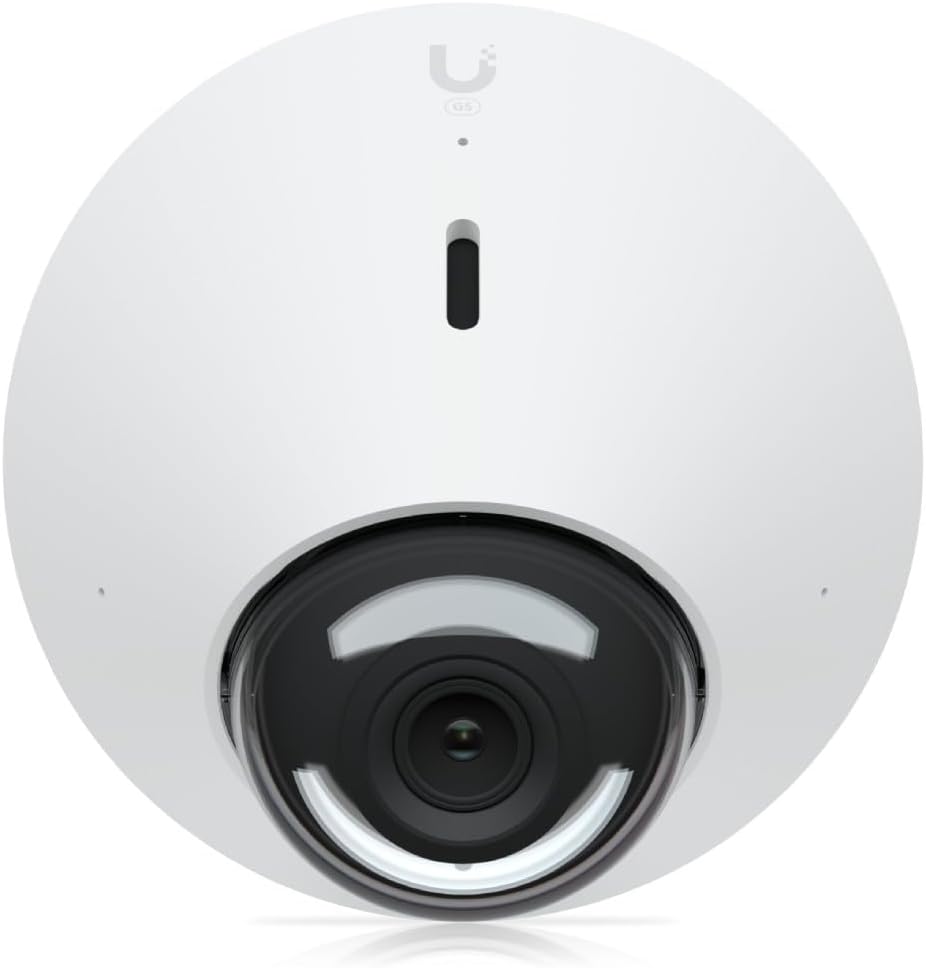
Figure 4.2.3: Top-Down View
This view from directly above the camera shows its circular base and the UniFi logo, indicating its orientation when mounted.

Figure 4.2.4: Bottom View
The underside of the camera reveals the PoE IN port for network and power connection, and the reset button. The model number M/N: UVC-G5-Dome and IPX4 rating are also visible.
5. Setup and Installation
5.1 Mounting the Camera
The UniFi G5 Dome Camera can be mounted on a ceiling or wall. Ensure the mounting surface is strong enough to support the camera's weight.
- Choose a suitable mounting location that provides the desired viewing angle and network access.
- Use the included mounting plate as a template to mark the drill holes on the ceiling or wall.
- Drill pilot holes and insert the wall anchors if necessary.
- Secure the mounting plate to the surface using the provided screws.
- Attach the camera to the mounting plate, twisting it to lock it into place.
5.2 Connecting to the Network
The UniFi G5 Dome Camera is powered and connected via Power over Ethernet (PoE).

Figure 5.2.1: UniFi Protect System Diagram
This diagram illustrates a typical UniFi Protect system setup. The G5 Dome Camera connects via PoE to a Professional Switch, which is managed by a Cloud Gateway and records to a Video Recorder. The video feed can be viewed on a display via a Viewport.
- Connect an Ethernet cable from a PoE-enabled switch (e.g., UniFi Professional Switch) to the PoE IN port on the bottom of the G5 Dome Camera.
- Ensure your UniFi Protect application is running on a UniFi Cloud Gateway or Network Video Recorder (NVR).
- The camera will power on and attempt to connect to your UniFi Protect system.
- Use the UniFi Protect application (web or mobile) to adopt and configure the camera.
6. Operating Instructions
6.1 UniFi Protect Application
The UniFi G5 Dome Camera is managed exclusively through the UniFi Protect application. Ensure you have UniFi Protect application version 2.2.7 or 2.7.18 and later (web) or 1.10.0 and later (mobile) installed.
- Live View: Access real-time video feeds from your camera.
- Recording: Configure continuous recording, motion-triggered recording, or scheduled recording.
- Motion Detection: Set up motion detection zones and sensitivity.
- AI Detections: Utilize advanced AI features for person, vehicle, or other object detection (if supported by your UniFi Protect version).
- Audio: Enable two-way audio communication using the built-in microphone and speaker.
- Night Vision: The camera automatically switches to IR night vision in low-light conditions.
- Settings: Adjust video quality, frame rate, OSD (On-Screen Display) settings, and more.
6.2 Resetting the Camera
To reset the camera to factory default settings, locate the reset button on the bottom of the camera (refer to Figure 4.2.4).
- Ensure the camera is powered on.
- Use a paperclip or a similar pointed object to press and hold the reset button for approximately 10 seconds.
- Release the button when the LED indicator changes, signaling a reset.
7. Maintenance
Regular maintenance helps ensure the longevity and optimal performance of your UniFi G5 Dome Camera.
- Cleaning: Gently wipe the camera lens and housing with a soft, dry cloth. Do not use harsh chemicals or abrasive cleaners.
- Firmware Updates: Regularly check for and install firmware updates through the UniFi Protect application to ensure the camera has the latest features and security enhancements.
- Environmental Check: Periodically inspect the camera's mounting and cabling for any signs of wear or damage, especially if installed outdoors.
8. Troubleshooting
This section addresses common issues you might encounter with your UniFi G5 Dome Camera.
| Problem | Possible Cause | Solution |
|---|---|---|
| Camera not powering on. | No PoE connection or faulty Ethernet cable. | Ensure the Ethernet cable is securely connected to a PoE-enabled switch. Test with a different cable or PoE port. |
| Camera not appearing in UniFi Protect. | Not adopted, network issue, or incorrect UniFi Protect version. | Ensure the camera is on the same network as your UniFi Protect controller. Check UniFi Protect application version. Try resetting the camera. |
| Poor video quality. | Low bandwidth, dirty lens, or incorrect settings. | Check network bandwidth. Clean the camera lens. Adjust video quality settings in UniFi Protect. |
| Night vision not working. | IR LEDs obstructed or disabled. | Ensure nothing is blocking the IR LEDs. Check night vision settings in UniFi Protect. |
9. Specifications
Detailed technical specifications for the UniFi G5 Dome Camera:
| Feature | Specification |
|---|---|
| Model Name | G5 Dome |
| Indoor/Outdoor Usage | Outdoor |
| Power Source | Corded Electric (PoE) |
| Connectivity Technology | Wireless (Wi-Fi for management), Wired (Ethernet for data/PoE) |
| Mounting Type | Ceiling Mount |
| Video Capture Resolution | 2K HD (1080p, Effective 5MP) |
| Frame Rate | 30 frames_per_second |
| Viewing Angle | 102.4 degrees |
| Low Light Technology | Night Color, IR Night Vision (up to 10m) |
| Water Resistance Level | Water Resistant (IPX4-rated enclosure) |
| Vandal Resistance | IK08-rated |
| Material | Plastic |
| Color | White |
| Voltage | 57 Volts |
| Wattage | 5 watts |
| Item Dimensions (L x W x H) | 19.69 x 19.69 x 11.02 inches |
| Item Weight | 0.014 ounces (0.39 Grams) |
| Manufacturer | Ubiquiti |
| Model Number | W128229897 |
| UPC | 810084690208 |
10. Warranty and Support
10.1 Warranty Information
The Ubiquiti UniFi G5 Dome Camera comes with a three-year warranty against manufacturing defects. Please retain your proof of purchase for warranty claims.
10.2 Technical Support
For technical assistance, troubleshooting, or further information, please visit the official Ubiquiti support website or contact their customer service. Online resources often include FAQs, knowledge base articles, and community forums.
For the latest documentation and support, please refer to the official Ubiquiti UniFi website: www.ui.com/support