
1. Introduction
This manual provides detailed instructions for the installation, operation, and maintenance of your INQMEGA Solar Security Camera. Please read this manual thoroughly before using the product to ensure proper function and safety. Keep this manual for future reference.
2. Product Overview
2.1 Package Contents
Verify that all components are present in your package:
- 1 x Solar Tuya Camera
- 1 x Solar Panel
- 1 x Bracket
- 1 x User Manual
- 1 x 5M long cable
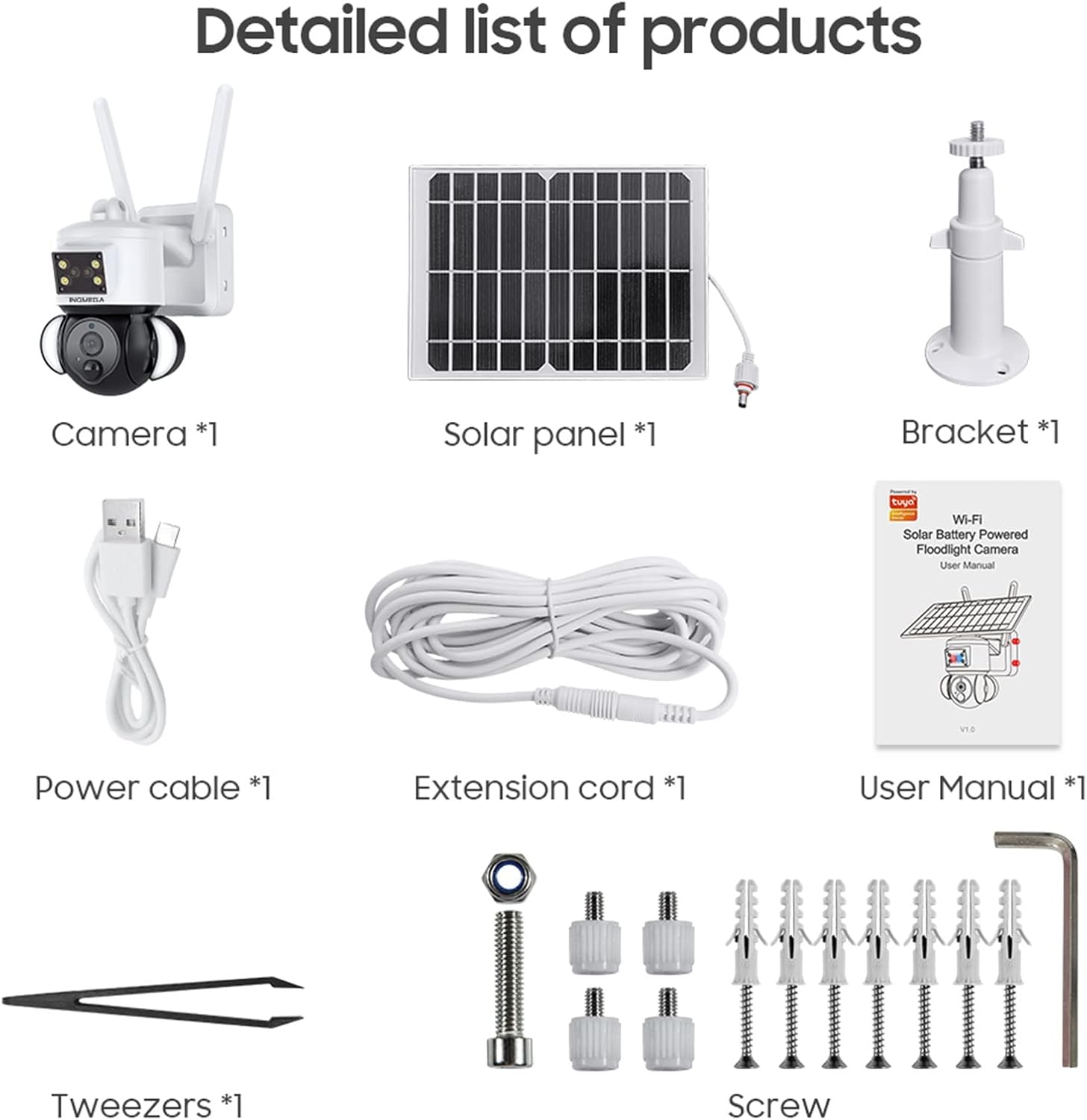
Figure 1: Package Contents. This image displays all items included in the INQMEGA Solar Security Camera package, such as the camera unit, solar panel, mounting bracket, power cable, extension cord, user manual, and installation hardware.
2.2 Key Features
- 3MP FHD Resolution: Captures clear and detailed video footage.
- Solar Powered: Equipped with a 15000mAh rechargeable battery and a solar panel for continuous operation with 2-3 hours of daily sunlight.
- 360° View (Pan & Tilt): Offers 355° horizontal pan and 120° vertical tilt for comprehensive area coverage, controllable via the TUYA SMART LIFE app.
- PIR Motion Detection: Built-in radar PIR motion sensor provides high sensitivity detection, sending instant alerts to your app.
- Floodlight with Siren: Features 10 LEDs for color night vision up to 90ft, with the floodlight activating upon motion detection. Includes a siren for deterrence.
- Two-Way Audio: Allows real-time communication through the camera via the app.
- 2.4GHz WiFi Connectivity: Ensures stable network reception with 5dBi dual antennas. (Note: Does not support 5G WiFi).
- Storage Options: Supports 8-128GB SD card (not included) and cloud storage.
- Alexa Compatibility: Can be paired with Alexa-enabled smart speakers for voice control.
- Weatherproof: IP66 International Protection Rating for outdoor use in various weather conditions.

Figure 2: PIR Human Detection. This image illustrates the camera's ability to detect human motion, activate a smart floodlight, and send phone alarms.

Figure 3: 3MP HD Image Quality and PTZ Control. This image demonstrates the camera's high-definition video capture and the pan-tilt-zoom functionality controlled through a mobile application.
3. Setup Instructions
3.1 Initial Power On
- Unpack all components and ensure they are intact.
- Connect the solar panel cable to the camera's power input.
- Locate the power button/switch on the camera and turn it on.
- Observe the LED indicator. It should blink RED initially, then turn to blink BLUE, indicating it is ready for connection.
3.2 App Installation and Connection
- Download the "TUYA SMART LIFE" app from your smartphone's app store (iOS or Android).
- Register or log in to your account.
- In the app, select "Add Device" or the "+" icon to add a new camera.
- Follow the on-screen prompts to select your device type (e.g., "Security Camera").
- Confirm that the camera's LED is blinking blue.
- Enter your 2.4GHz Wi-Fi network name and password. (Note: 5GHz Wi-Fi is not supported).
- The app will generate a QR code. Aim your phone screen, displaying the QR code, in front of the camera lens at a distance of approximately 4-8 inches.
- The camera will emit a confirmation sound once the QR code is successfully scanned and connected.
- Once connected, you can name your camera and begin live viewing.
Video 1: INQMEGA 528 Solar Security Cameras Packing list. This video demonstrates the unboxing and initial setup process for the INQMEGA solar security camera, including powering on and connecting to the mobile application.
3.3 Mounting the Camera
- Choose a suitable outdoor location with ample sunlight for the solar panel and a clear view for the camera.
- Use the provided bracket and screws to securely mount the camera to a wall or other stable surface.
- Ensure the solar panel is positioned to receive maximum direct sunlight throughout the day.
- Adjust the camera's angle for optimal surveillance coverage.

Figure 4: Outdoor Mounting and Solar Power. This image shows the camera and solar panel installed outdoors, emphasizing the solar charging capability and the use of a 16ft extension cord for flexible positioning of the solar panel.
4. Operating Instructions
4.1 Live View and Playback
- Open the TUYA SMART LIFE app and select your camera to view the live feed.
- Use the playback function to review recorded footage stored on the SD card or cloud.
4.2 Pan and Tilt Control
- Within the live view interface, use the directional controls to remotely adjust the camera's horizontal (355°) and vertical (120°) angles.

Figure 5: PTZ App Control. This image illustrates how to control the camera's pan (355°) and tilt (90°) movements using the mobile application.
4.3 Two-Way Audio
- Tap the microphone icon in the app to speak through the camera's speaker.
- Tap the speaker icon to listen to audio from the camera's location.

Figure 6: Two-Way Audio Communication. This image shows the camera's two-way audio function, allowing users to speak and listen through the device via their smartphone.
4.4 Night Vision and Floodlight
- The camera automatically switches to night vision mode in low light conditions.
- Color night vision is enabled by the built-in floodlight, which activates upon motion detection.
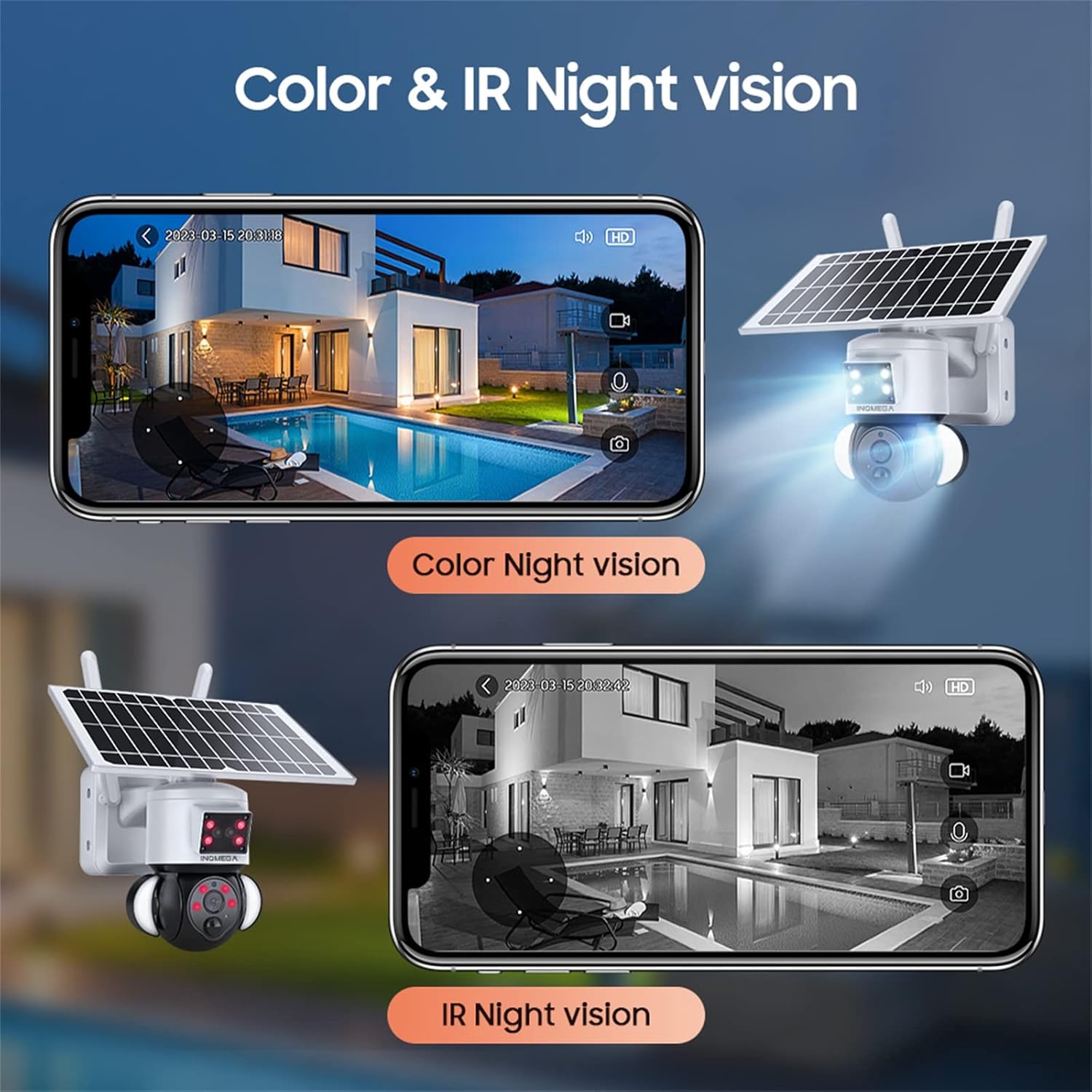
Figure 7: Color and IR Night Vision. This image compares the camera's color night vision, enabled by its floodlight, with traditional infrared (IR) night vision, both displayed on a smartphone.
4.5 Motion Detection and Alerts
- The PIR motion sensor detects movement and triggers recording.
- Receive instant alerts on your TUYA SMART LIFE app when motion is detected.
- Adjust sensitivity settings within the app to minimize false alarms.
5. Maintenance
- Solar Panel Cleaning: Regularly wipe the solar panel with a soft, damp cloth to remove dust, dirt, and debris. A clean panel ensures optimal charging efficiency.
- Camera Lens Cleaning: Gently clean the camera lens with a microfiber cloth to maintain clear image quality. Avoid abrasive materials.
- Firmware Updates: Check the TUYA SMART LIFE app periodically for available firmware updates to ensure your camera has the latest features and security enhancements.
- Battery Health: While solar-powered, ensure the camera receives adequate sunlight. If the camera is in a shaded area for extended periods, consider temporarily relocating it or manually charging the battery if possible (refer to product specifications for charging options).
- Environmental Protection: Although the camera is IP66 rated, avoid direct high-pressure water jets or prolonged submersion.
6. Troubleshooting
- Camera Not Connecting to Wi-Fi:
- Ensure your Wi-Fi network is 2.4GHz. The camera does not support 5GHz Wi-Fi.
- Verify the Wi-Fi password is entered correctly in the app.
- Check that the camera is within range of your Wi-Fi router.
- Restart the camera and your router, then attempt the connection process again.
- Ensure the camera's LED is blinking blue before scanning the QR code.
- Poor Image Quality:
- Clean the camera lens.
- Ensure there are no obstructions in the camera's field of view.
- Check your Wi-Fi signal strength; a weak signal can affect streaming quality.
- Battery Not Charging:
- Ensure the solar panel is clean and free from obstructions.
- Verify the solar panel is receiving direct sunlight for at least 2-3 hours daily.
- Check the connection between the solar panel and the camera.
- Motion Detection Not Working or Too Sensitive:
- Adjust the PIR motion detection sensitivity settings in the TUYA SMART LIFE app.
- Ensure the camera's view is not obstructed.
- No Audio or Poor Two-Way Audio:
- Check the volume settings on your smartphone and within the app.
- Ensure there is no interference near the camera's microphone or speaker.
7. Specifications
| Feature | Specification |
|---|---|
| Model Name | ST-S528M-3M-TY |
| Brand | INQMEGA |
| Indoor/Outdoor Usage | Outdoor |
| Power Source | Solar Powered |
| Connectivity Protocol | Wi-Fi (2.4GHz only) |
| Video Capture Resolution | 3 MP |
| Mounting Type | Wall Mount |
| Night Vision Range | Up to 90ft (Color Night Vision) |
| Material | Plastic |
| Item Dimensions (L x W x H) | 6 x 8.5 x 6 inches |
| Item Weight | 3.74 pounds (1.7 Kilograms) |
| Batteries | 3 Lithium Polymer batteries required (15000mAh capacity) |
| International Protection Rating | IP66 |
| Control Method | App (TUYA SMART LIFE) |
| Special Features | Motion Sensor, Night Vision, Floodlight, Two-Way Audio |
8. Warranty and Support
For warranty information, please refer to the documentation included with your product packaging or contact INQMEGA customer support directly. INQMEGA is committed to providing reliable brand reputation and professional technical services. If you encounter any product problems, please contact support in a timely manner.
For further assistance, please visit the official INQMEGA website or refer to the TUYA SMART LIFE app's help section.


