
ORICO G2A
ORICO M.2 NVMe SSD Enclosure User Manual
Model: G2A
Introduction
This manual provides detailed instructions for the installation, operation, and maintenance of your ORICO M.2 NVMe SSD Enclosure. This device allows you to convert an M.2 NVMe SSD into a portable external storage solution, offering high-speed data transfer capabilities. Please read this manual thoroughly before use to ensure proper functionality and longevity of the product.
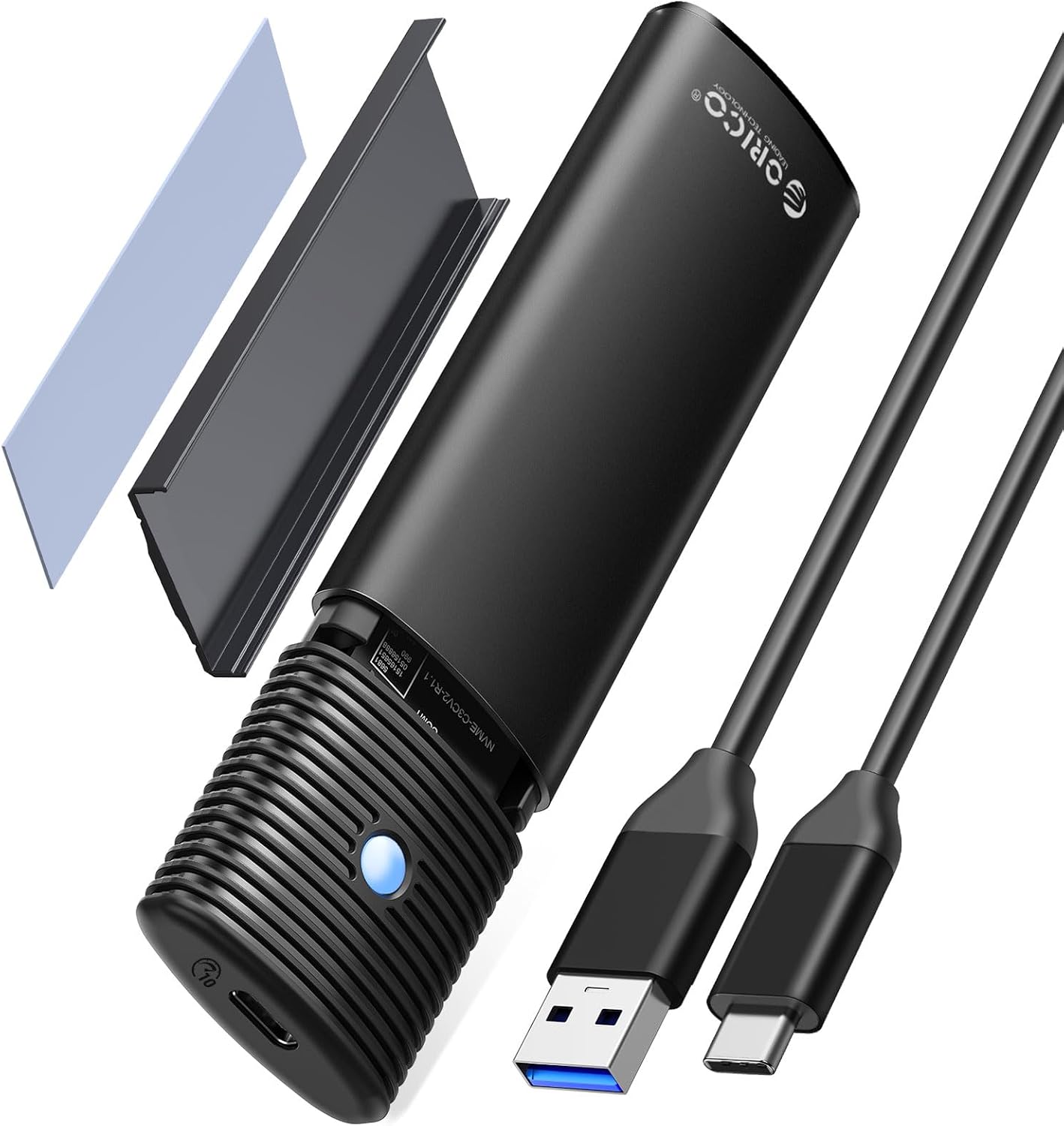
Image: The ORICO M.2 NVMe SSD Enclosure, showcasing its compact design, included USB-C to USB-A cable, thermal pad, and heatsink.
Safety Information
- Do not expose the device to water or excessive moisture.
- Avoid dropping or subjecting the device to strong impacts.
- Do not attempt to disassemble or modify the enclosure, as this may void the warranty and cause damage.
- Keep out of reach of children.
- Ensure proper ventilation during operation to prevent overheating.
Package Contents
Verify that all items are present in the package:
- 1 x M.2 NVMe SSD Enclosure
- 1 x USB-C to USB-A Cable
- 1 x Thermal Pad
- 2 x Rubber Fasteners
- 1 x Cooling Vest (Heatsink)
- 1 x Instruction Book (this manual)

Image: A visual representation of the ORICO M.2 NVMe SSD Enclosure package contents, including the enclosure, cables, and accessories.
Setup and Installation (Tool-Free)
Follow these steps to install your M.2 NVMe SSD into the enclosure:
- Open the Enclosure: Slide the button cover to the left and gently pull the inner tray out of the aluminum shell.
- Prepare the SSD: If desired, apply the thermal pad to the top surface of your M.2 NVMe SSD. Then, place the cooling vest (heatsink) on top of the thermal pad. This aids in heat dissipation.
- Insert the SSD: Align your M.2 NVMe SSD with the slot on the inner tray. Insert the SSD firmly into the M-Key slot. Secure the other end of the SSD using one of the provided rubber fasteners by pushing it into the corresponding hole on the tray.
- Close the Enclosure: Carefully slide the inner tray back into the aluminum shell until it clicks into place. Ensure the button cover is securely closed.

Image: A four-panel illustration demonstrating the tool-free installation process: opening the enclosure, applying thermal accessories, inserting the SSD, and closing the enclosure.
Operating Instructions
Once the SSD is installed, connect the enclosure to your device:
- Connect the Cable: Use the provided USB-C to USB-A cable to connect the enclosure's USB-C port to an available USB-A port on your computer or compatible device. If your device only has USB-C ports, you will need a USB-C to USB-C cable or adapter (not included).
- Device Recognition: The enclosure is plug-and-play and does not require drivers for most operating systems. Your computer should automatically detect the new storage device.
- Initialization (New SSDs): For a brand new SSD, it may need to be initialized and formatted before it can be used.
- Windows: Go to Disk Management, find the unallocated disk, initialize it (GPT recommended for larger drives), and create a new simple volume.
- macOS: Use Disk Utility to erase and format the drive.
- Data Transfer: You can now transfer files to and from the SSD enclosure. The enclosure supports USB 3.2 Gen2, offering data transfer speeds up to 10Gbps (approximately 1000MB/s), depending on your SSD and host device capabilities.

Image: A laptop screen displaying video editing software, with the ORICO NVMe SSD Enclosure connected via USB, illustrating its capability for high-speed data transfer up to 1054 MB/s.

Image: The ORICO NVMe SSD Enclosure connected to a laptop, highlighting its plug-and-play functionality and compatibility with Mac OS, iOS, Windows, Android, and Linux operating systems.
Compatibility
This enclosure is designed for broad compatibility:
- SSD Type: Compatible with M.2 NVMe PCIe M-Key and PCIe B&M Key SSDs.
- Not Compatible: M.2 PCIe AHCI and SATA SSDs are not supported.
- SSD Sizes: Supports M.2 NVMe SSDs in sizes 2230, 2242, 2260, and 2280.
- Maximum Capacity: Supports up to 4TB M.2 NVMe SSDs.
- Operating Systems: Compatible with Windows, Mac OS, Linux, and Android.
- Devices: Can be used with PCs, laptops, smart TVs, smart routers, PS4, and other devices with a compatible USB port.
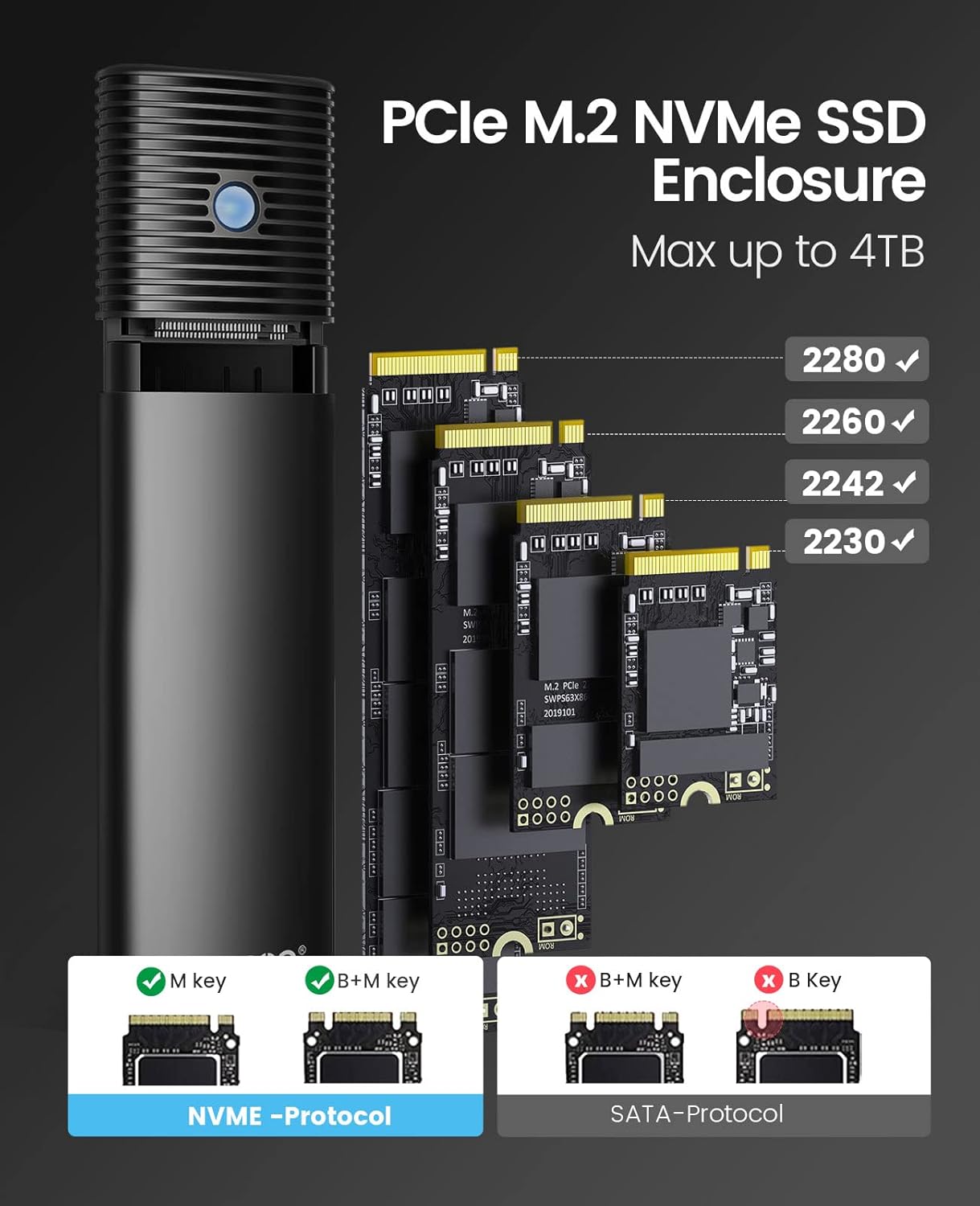
Image: A diagram illustrating the compatibility of the ORICO enclosure with various M.2 NVMe SSD sizes (2230, 2242, 2260, 2280) and M-Key/B+M Key NVMe protocols, while explicitly showing incompatibility with SATA protocols.
Heat Dissipation
The ORICO NVMe SSD Enclosure is designed with multiple layers of heat dissipation to maintain optimal performance and extend the lifespan of your SSD:
- Silicone Thermal Pad: Facilitates efficient heat transfer from the SSD.
- Cooling Vest (Heatsink): Directly absorbs heat from the SSD.
- Aluminum Alloy Body: The outer shell acts as a large heatsink, quickly dissipating heat into the environment.
This three-layer design helps prevent thermal throttling and ensures stable performance during prolonged use.
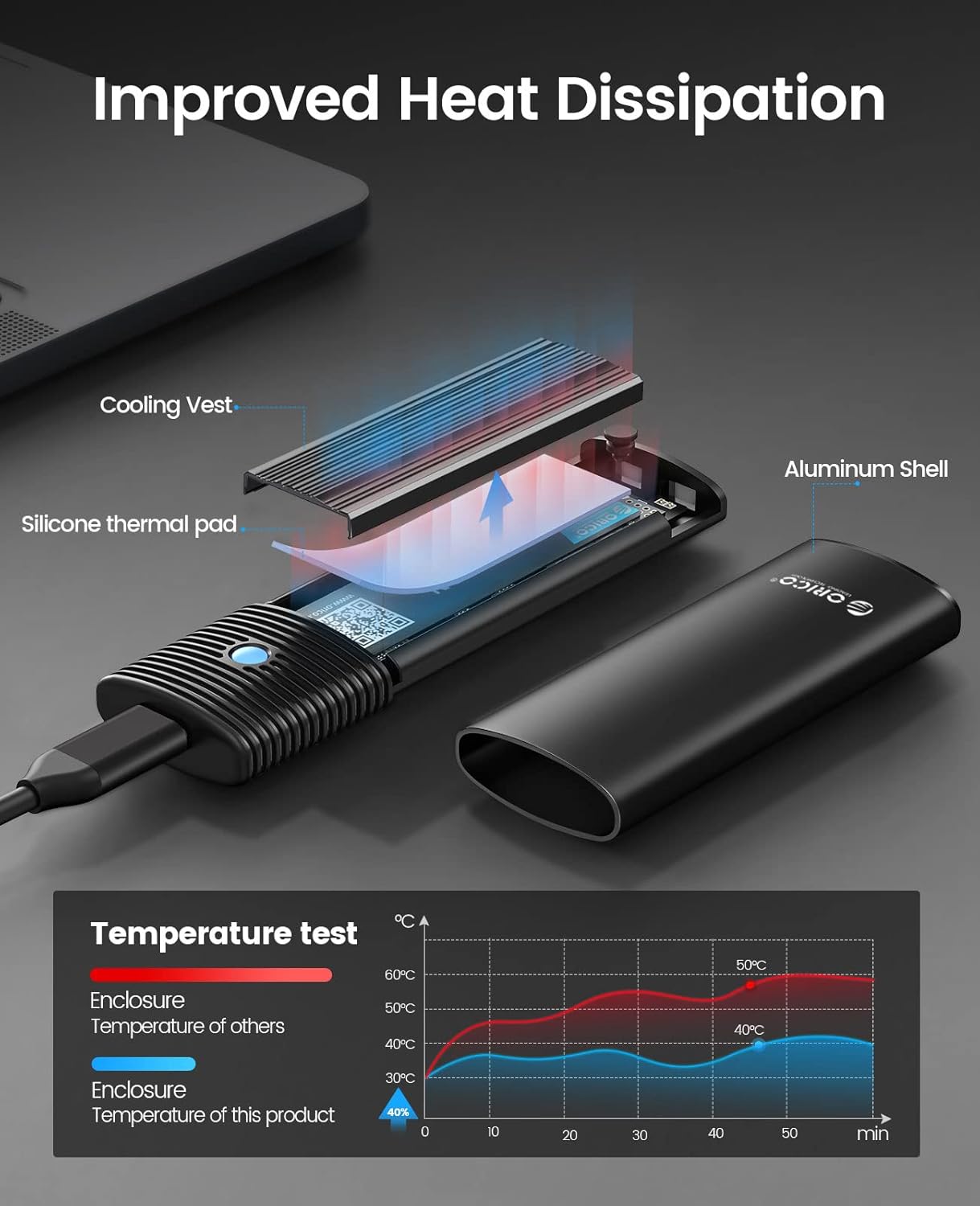
Image: An exploded view of the ORICO NVMe SSD Enclosure showing the silicone thermal pad, cooling vest (heatsink), and aluminum shell, along with a temperature test graph comparing its cooling performance to other enclosures.
Specifications
| Model | G2A |
| Material | Aluminum Alloy |
| Interface | USB 3.2 Gen2 Type-C (10Gbps) |
| Compatible SSDs | M.2 NVMe PCIe M-Key / B&M Key (2230, 2242, 2260, 2280) |
| Max Capacity | 4TB |
| Data Transfer Rate | Up to 10Gbps |
| Dimensions | 4.25 x 1.34 x 0.45 inches (108 x 34 x 11.5 mm) |
| Weight | 3.2 ounces (90.7 g) |
| Features | Tool-Free Installation, Intelligent Sleep Technology, TRIM, UASP |
Troubleshooting
- Device Not Detected:
- Ensure the USB cable is securely connected to both the enclosure and the host device.
- Try a different USB port on your computer.
- Verify that the M.2 NVMe SSD is correctly seated in the enclosure and secured with the rubber fastener.
- Check if the SSD is a compatible NVMe M-Key or B&M Key type, not SATA or AHCI.
- For new SSDs, ensure it has been initialized and formatted in Disk Management (Windows) or Disk Utility (macOS).
- Slow Transfer Speeds:
- Ensure your host device's USB port supports USB 3.2 Gen2 (10Gbps) or Thunderbolt 3/4. Connecting to a slower USB 2.0 or 3.0 port will limit speeds.
- Verify the SSD itself is capable of high speeds.
- Ensure the cable used is rated for 10Gbps data transfer.
- Check for background processes that might be consuming system resources or disk I/O.
- Enclosure Gets Warm:
- It is normal for the aluminum enclosure to become warm during high-speed data transfer, as it is designed to dissipate heat from the SSD.
- Ensure the thermal pad and cooling vest are correctly installed on the SSD.
- Avoid placing the enclosure in enclosed spaces that restrict airflow.
- Frequent Disconnections:
- Ensure the USB cable is not loose or damaged.
- Try connecting to a different USB port or a different host device to rule out port issues.
- Update your computer's USB drivers.
Maintenance
- Keep the enclosure clean and free from dust. Use a soft, dry cloth for cleaning.
- Store the enclosure in a cool, dry place when not in use.
- Avoid exposing the device to extreme temperatures.
- Regularly back up important data stored on the SSD.
Warranty and Support
ORICO products typically come with a limited warranty. For specific warranty terms, technical support, or service inquiries, please refer to the official ORICO website or contact their customer support directly. Keep your purchase receipt as proof of purchase for warranty claims.
ORICO Official Website: www.orico.com.cn
Related documentsG2A


Ask a question about this manual
Ask about setup, troubleshooting, compatibility, parts, safety, or missing instructions. Manuals+ will review the question and use this page’s manual context to help answer it.