
ESR 6B016
ESR Rebound Magnetic Keyboard Case User Manual
Model: 6B016 | Brand: ESR
Introduction
Thank you for choosing the ESR Rebound Magnetic Keyboard Case. This manual provides detailed instructions on how to set up, operate, and maintain your keyboard case to maximize its functionality and lifespan. Please read this manual thoroughly before use.
Compatibility
This keyboard case is designed for specific iPad Pro 12.9-inch models. Ensure your iPad model is compatible before use.
- iPad Pro 12.9 inch (6th Generation, 2022) - Models: A2436, A2764, A2437, A2766
- iPad Pro 12.9 inch (5th Generation, 2021) - Models: A2378, A2461, A2379, A2462
- iPad Pro 12.9 inch (4th Generation, 2020) - Models: A2229, A2069, A2232, A2233
- iPad Pro 12.9 inch (3rd Generation, 2018) - Models: A1876, A2014, A1895, A1983
Note: This case is NOT compatible with iPad Pro 13 inch (M4) 2024 models (A2925, A2926, A3007).
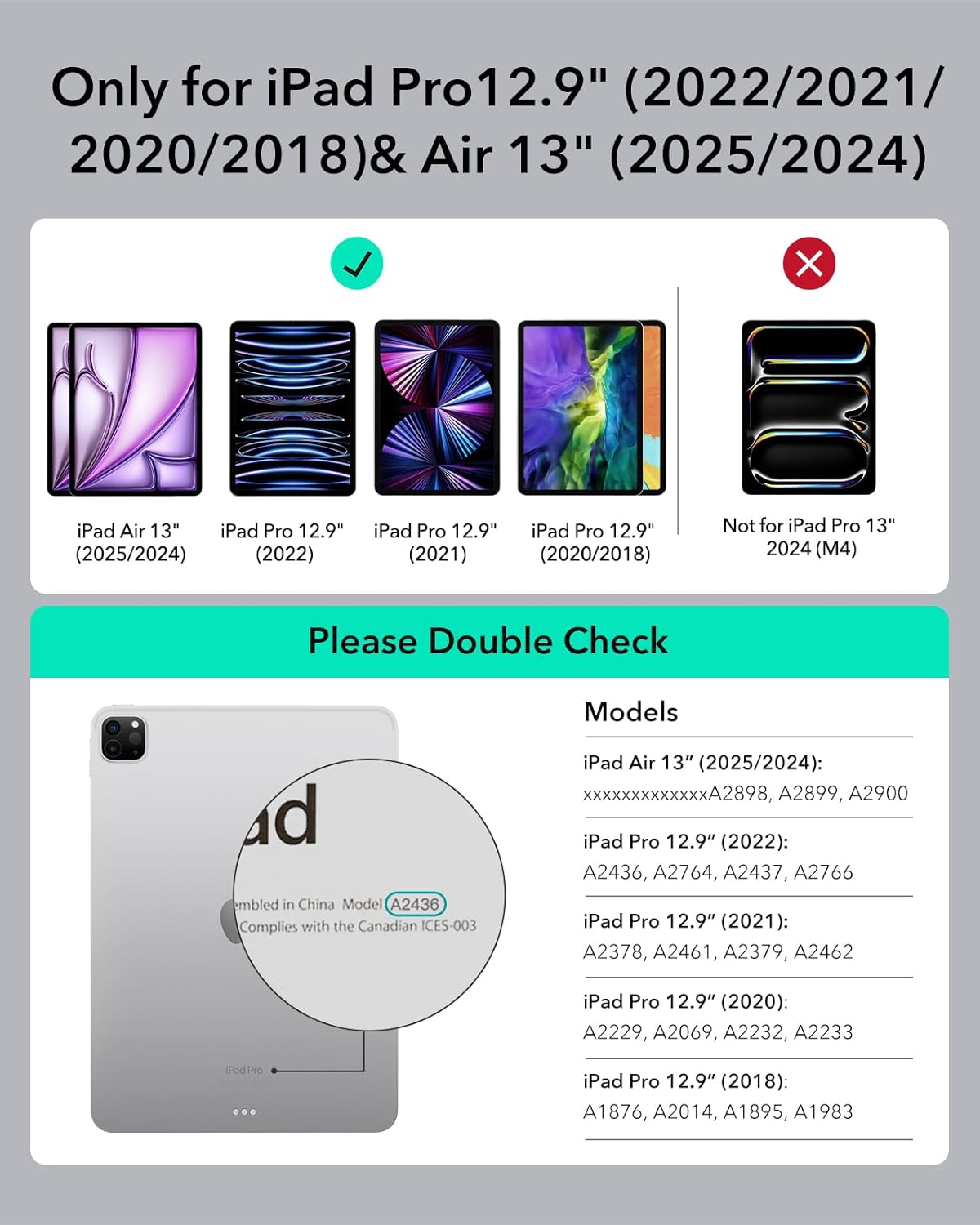
Image: Compatibility chart for ESR Rebound Magnetic Keyboard Case, detailing compatible iPad Pro 12.9-inch models and explicitly stating incompatibility with the iPad Pro 13-inch (M4) 2024 model.

Image: Visual confirmation that the ESR Rebound Magnetic Keyboard Case is not compatible with the iPad Pro 13-inch (M4) 2024 model.
To verify your iPad model, find the model number on the back of your iPad or go to Settings > General > About.
What's in the Box
Upon opening the package, you should find the following items:
- ESR Rebound Magnetic Keyboard Case
- Multi-Touch Trackpad (integrated)
Setup
1. Attaching Your iPad
- Ensure your iPad is clean and free of debris.
- Align your compatible iPad Pro 12.9-inch with the magnetic back panel of the keyboard case. The powerful magnets will securely snap your iPad into place.
- The case provides a strong magnetic hold, keeping your iPad secure with 1,800g of holding force.

Image: The ESR Rebound Magnetic Keyboard Case with an iPad securely attached, demonstrating its free-floating stand design.

Image: Detail of the strong magnetic connection, ensuring the iPad remains firmly attached to the keyboard case.
2. Initial Bluetooth Pairing
- Turn on the keyboard (if applicable, specific instruction not provided in data, assuming standard keyboard power).
- On your iPad, go to Settings > Bluetooth.
- Ensure Bluetooth is turned On.
- Look for "ESR Keyboard" or a similar name in the "Other Devices" list and tap to connect.
- Once paired, the keyboard will automatically connect to your iPad when turned on and within range.
Operating Instructions
Using the Free-Floating Stand
The keyboard case features a magnetic quick-set stand. Simply open the case, and the free-floating stand will allow you to achieve the perfect viewing or typing angle. The ultra-strong magnets ensure stability.

Image: Demonstrating the quick-set magnetic stand, allowing for easy adjustment of the iPad to an optimal viewing angle.
Keyboard Functionality
The keyboard features larger, perfectly arranged keys with a quality scissor mechanism, providing a responsive and comfortable typing experience. The keys are designed for quiet, fluid, and accurate typing.
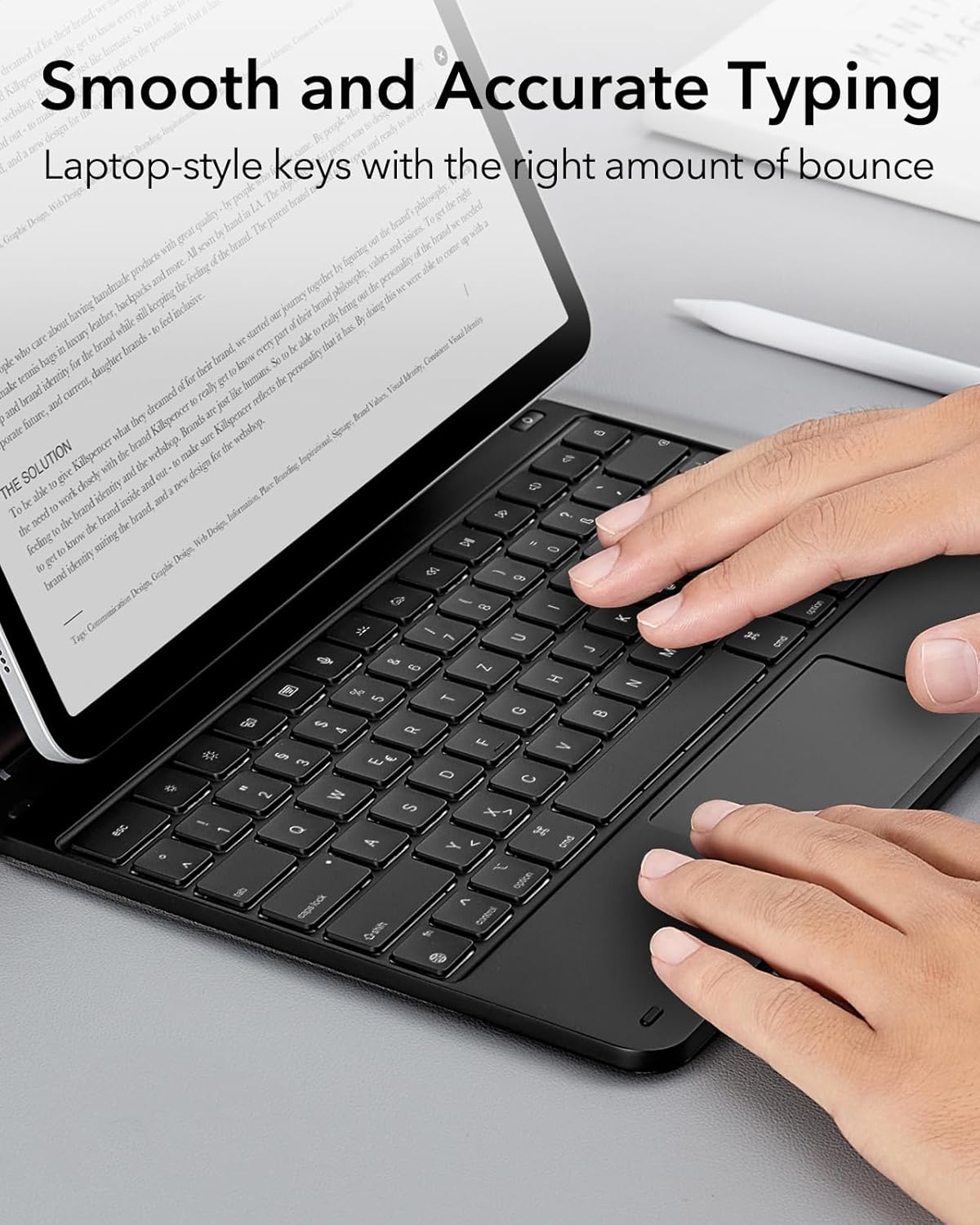
Image: Detailed view of the keyboard, emphasizing the laptop-style keys and their layout for efficient and accurate typing.
The keyboard also features backlit keys for use in low-light conditions.
Multi-Touch Trackpad
The extended, ultra-sensitive multi-touch trackpad allows for precise control of your iPad. You can type, drag, and swipe with perfect precision, navigating your iPad in a new way. Multi-touch gestures require iPadOS 14.5 or higher.

Image: A user demonstrating the use of the multi-touch trackpad, highlighting its responsiveness and gesture capabilities.
Secure Magnetic Clasp and Pencil Holder
The case includes a secure magnetic clasp that supports the Apple Pencil 2 for charging and storage. It also features a dedicated pencil holder to keep your Apple Pencil secure when not in use, and the clasp helps secure the iPad within the case.

Image: Illustration of the secure magnetic clasp, demonstrating its function for Apple Pencil 2 support, integrated pencil holder, and overall iPad security.
Maintenance
To ensure the longevity and optimal performance of your ESR Rebound Magnetic Keyboard Case, follow these maintenance guidelines:
- Cleaning: Use a soft, lint-free cloth to wipe down the keyboard and case. For stubborn marks, slightly dampen the cloth with water. Avoid harsh chemicals or abrasive materials.
- Protection: The case offers 360° total protection against drops, bumps, and scratches. However, avoid exposing the case to extreme temperatures, direct sunlight, or liquids.
- Storage: When not in use for extended periods, store the keyboard case in a cool, dry place.

Image: The ESR Rebound Magnetic Keyboard Case providing comprehensive 360-degree protection for the iPad against daily wear and tear.
Troubleshooting
If you encounter any issues with your ESR Rebound Magnetic Keyboard Case, please refer to the following common solutions:
| Problem | Possible Solution |
|---|---|
| Keyboard not connecting via Bluetooth |
|
| Keys not responding |
|
| Trackpad not working |
|
| iPad not securely held by magnets |
|
Specifications
| Feature | Detail |
|---|---|
| Model Number | 6B016 |
| Brand | ESR |
| Compatibility | iPad Pro 12.9 inch (2022/2021/2020/2018) |
| Connectivity | Bluetooth |
| Keyboard Type | Integrated, Laptop-style keys with scissor mechanism |
| Trackpad | Multi-Touch Trackpad |
| Magnetic Hold Force | 1,800 g |
| Protection | 360° Total Protection |
| Dimensions | 28 x 23 x 1.5 cm |
| Weight | 940 g |
| Battery | 1 Lithium Polymer battery required (500 Watt Hours energy content, contained in equipment) |
| Color | Grey |
| Material | Plastic |
Warranty and Support
ESR provides comprehensive customer support for the Rebound Magnetic Keyboard Case.
- Warranty: The product comes with a comprehensive 12-month warranty.
- Support: Lifetime support and personalized help are available.
- Resources: Detailed setup videos and FAQs can be found on the official ESR website or support channels.
- For further assistance, please visit the ESR Store on Amazon or contact ESR customer service directly.
Related documents6B016


Ask a question about this manual
Ask about setup, troubleshooting, compatibility, parts, safety, or missing instructions. Manuals+ will review the question and use this page’s manual context to help answer it.