
1. Introduction
Thank you for choosing the ORICO USB 3.0 Hub. This manual provides essential information for the proper setup, operation, and maintenance of your device. Please read it thoroughly before use to ensure optimal performance and longevity of the product.
2. Safety Information
- Keep the device away from water, fire, high temperatures, and corrosive substances.
- Do not attempt to disassemble, repair, or modify the device.
- Avoid dropping or subjecting the device to strong impacts.
- This hub is designed for data transfer and does not support charging for phones or other devices.
- For a stable connection, avoid connecting devices that exceed a total of 900 mA.
3. Package Contents
The package should contain the following items:
- 1x ORICO 4-Port USB 3.0 Hub with 6ft Cable
- 1x User Manual
4. Product Overview
The ORICO USB 3.0 Hub expands one USB port into four USB 3.0 ports, offering high-speed data transfer and broad compatibility in a compact design.

Image: The ORICO 4-Port USB 3.0 Hub connected to a laptop, showing four USB 3.0 ports in use with various USB devices. This hub allows simultaneous connection of up to four USB devices.
Key Features:
- 4-Port Expansion: Easily expand one USB port into four USB 3.0 ports.
- 5Gbps Data Transfer: Experience stable data transfer speeds up to 5 Gbps, 10 times faster than USB 2.0.
- Ultra Slim and Portable: Its thin and lightweight design makes it ideal for travel and on-the-go use.
- Plug and Play: No drivers required for installation.
- Built-in Protection: High-performance chip ensures device and data safety with over-current protection.
- Blue LED Indicator: A subtle blue LED light indicates operational status without being distracting.
- Extended Cable: The 6ft (1.8M) cable provides flexibility for various setups.
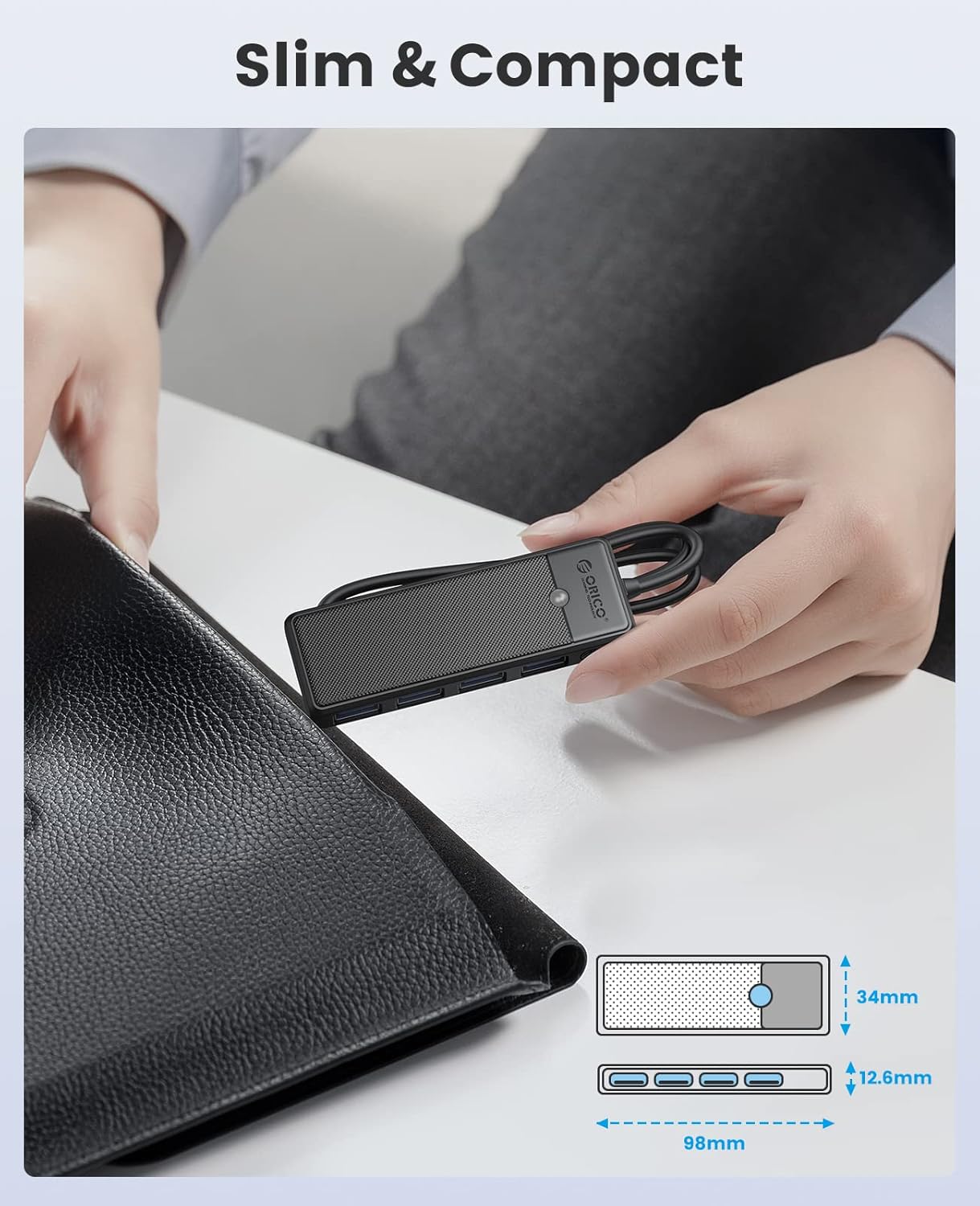
Image: A hand holding the ORICO USB 3.0 Hub, highlighting its slim and compact design. An illustration below shows the dimensions: 98mm length, 34mm width, and 12.6mm thickness.
5. Setup
Setting up your ORICO USB 3.0 Hub is straightforward. No special drivers are required.
- Connect to Host Device: Plug the USB-A connector of the hub's integrated cable into an available USB 3.0 port on your computer (laptop, desktop, etc.).
- Power Indicator: A blue LED light on the hub will illuminate, indicating that the hub is powered on and ready for use.
- Connect Peripherals: Insert your USB devices (e.g., flash drives, external hard drives, keyboards, mice) into the four available USB 3.0 ports on the hub.
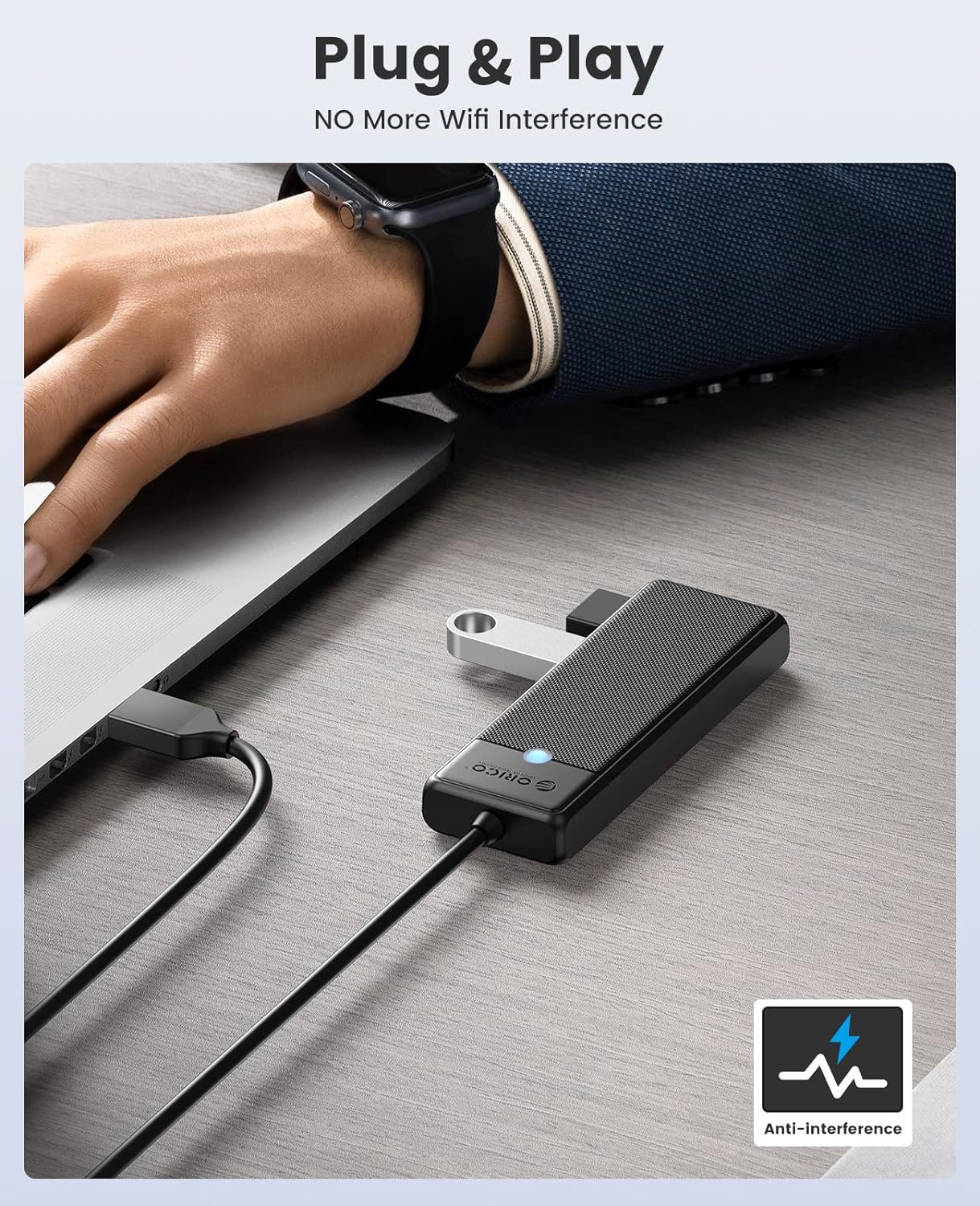
Image: The ORICO USB 3.0 Hub plugged into a laptop, with a USB flash drive connected to one of its ports. The image emphasizes its "Plug & Play" nature and "Anti-Interference" capabilities, ensuring stable connections without Wi-Fi interference.
Compatibility:
The hub is widely compatible with various operating systems and devices, including:
- PC, Laptop, MacBook Pro, iMac, Mac mini, Surface Pro, XPS
- Gaming Consoles: PS5, PS4, PS3, Xbox
- Peripherals: Mouse, Keyboard, Flash Drives, Mobile HDD, Card Readers, SSDs
It is backward compatible with USB 2.0 (480Mbps) and USB 1.1 (12Mbps) devices.

Image: A visual representation of the ORICO USB 3.0 Hub's broad compatibility. It shows the hub connecting to a laptop, with examples of compatible devices such as PCs, laptops, mice, USB drives, PS5/PS4/PS3, Xbox, card readers, and SSDs.
6. Operating Instructions
Once connected, the ORICO USB 3.0 Hub functions as a direct extension of your computer's USB ports.
- Data Transfer: Insert your USB 3.0 compatible devices into the blue USB ports for high-speed data transfer. Files will transfer at up to 5Gbps.
- Peripheral Connection: Connect your mouse, keyboard, or other low-power USB peripherals. The hub ensures a sensitive connection without delay or freezing.
- Simultaneous Use: All four ports can be used simultaneously for data transfer or connecting peripherals.
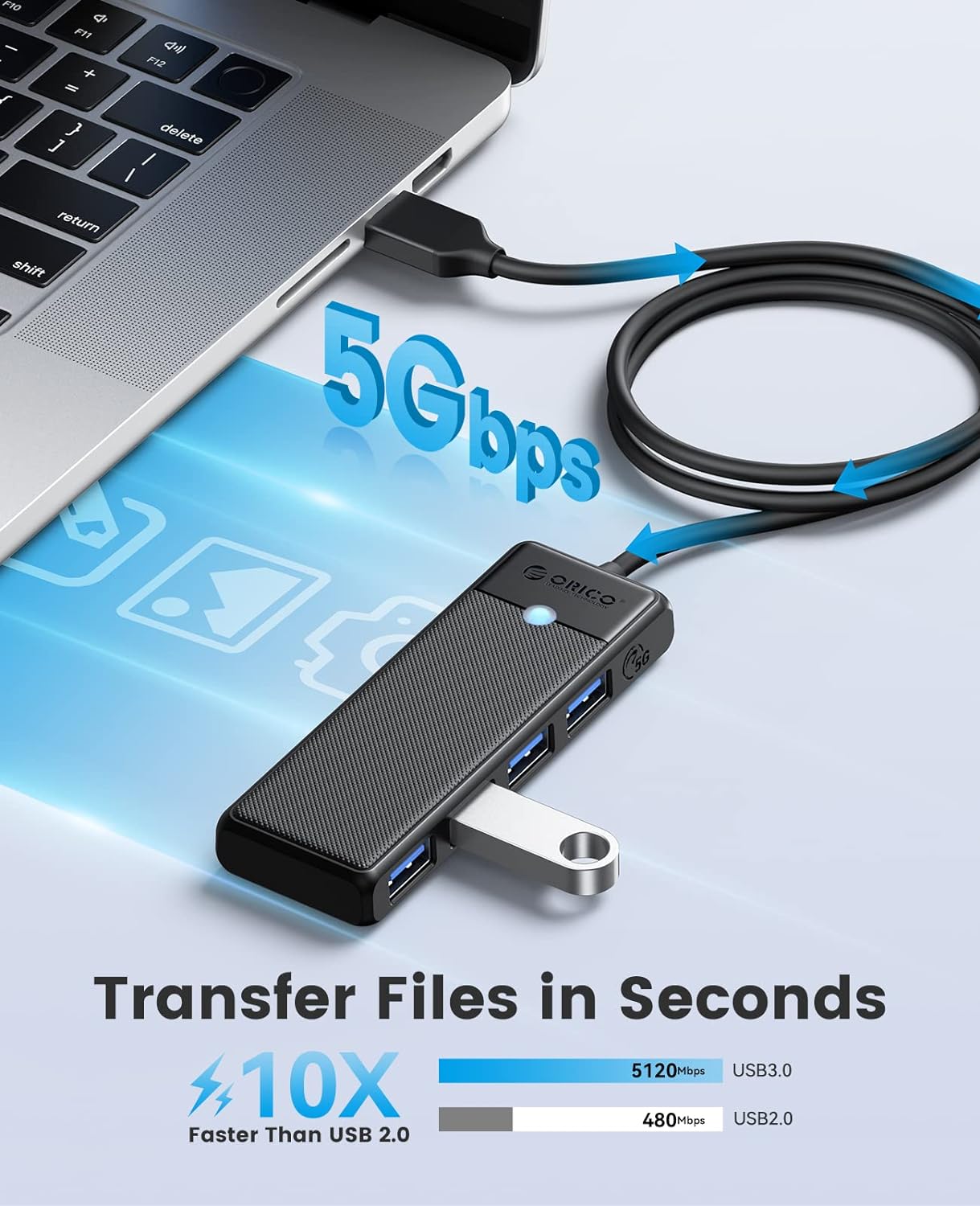
Image: The ORICO USB 3.0 Hub connected to a laptop, illustrating a 5Gbps data transfer speed. The image highlights that this speed is 10 times faster than USB 2.0, enabling quick transfer of large files.

Image: The ORICO USB 3.0 Hub in a desktop environment, with a wireless mouse and keyboard receiver plugged into its ports. This setup demonstrates the hub's ability to maintain sensitive connections for input devices without lag.
Important Notes:
- The hub does not support charging for mobile phones or other devices.
- For optimal performance and to prevent instability, ensure the total current draw of connected devices does not exceed 900 mA.
7. Maintenance
To ensure the longevity and proper functioning of your ORICO USB 3.0 Hub, follow these maintenance guidelines:
- Cleaning: Use a soft, dry cloth to clean the surface of the hub. Avoid liquid cleaners or abrasive materials.
- Storage: When not in use, store the hub in a cool, dry place away from direct sunlight and extreme temperatures.
- Cable Care: Avoid bending or twisting the cable excessively to prevent internal damage.
- Port Protection: Keep the USB ports free from dust and debris.
8. Troubleshooting
| Problem | Possible Cause | Solution |
|---|---|---|
| Device not recognized | Loose connection, faulty port, or excessive power draw. | Ensure the hub is securely plugged into the computer. Try a different USB port on your computer. Disconnect other devices from the hub to check for power overload. |
| Slow data transfer speed | Device connected to a USB 2.0 port, or using a USB 2.0 cable/device. | Ensure both the hub and the connected device are using USB 3.0 ports and cables. Verify your computer's USB port supports USB 3.0. |
| Hub LED not lighting up | No power or faulty connection. | Ensure the hub is properly connected to a powered USB port on your computer. Try a different USB port. |
9. Specifications
| Feature | Detail |
|---|---|
| Model Number | ORICO-PAPW4A-U3-18-BK |
| Ports | 4 x USB 3.0 Type-A |
| Data Transfer Speed | Up to 5 Gbps (USB 3.0) |
| Cable Length | 6.0 Ft (1.8 Meters) |
| Dimensions | 3.86 x 1.34 x 0.51 inches (98 x 34 x 12.6 mm) |
| Weight | 1.59 ounces |
| Color | Black |
| Hardware Interface | USB 3.0 |
| Special Feature | Fast Data Transfer, Plug and Play |
| Manufacturer | SHENZHEN ORICO TECHNOLOGIES CO.,LTD |
10. Product Videos
ORICO 4 Ports USB HUB for PC
Video: This video demonstrates the ORICO 4-Port USB Hub in use with a PC, showcasing its ease of connection and how it expands available USB ports for various peripherals. It highlights the hub's compact design and efficient data transfer capabilities.
USB 3.0 Hub, ORICO 4-Port USB Hub, Ultra Slim USB Splitter
Video: An overview of the ORICO 4-Port USB 3.0 Hub, emphasizing its ultra-slim design and functionality as a USB splitter. The video illustrates how the hub can be used to connect multiple USB devices to a laptop or desktop, improving productivity and reducing cable clutter.
ORICO 4 Ports USB Splitter for PC (Preview)
Video: A short preview demonstrating the ORICO 4-Port USB Splitter for PC. It quickly shows the hub connected to a computer and multiple devices plugged in, highlighting its immediate usability and compact form factor.
11. Warranty and Support
For warranty information and technical support, please refer to the official ORICO website or contact their customer service directly. Keep your purchase receipt for warranty claims.
Official ORICO Store: ORICO Amazon Store


