1. Introduction
This user manual provides essential information for the proper setup, operation, and maintenance of your Beelink MINI S12 Mini PC. Please read this manual thoroughly before using the device to ensure optimal performance and longevity.
2. Package Contents
Verify that all items are present in the package:
- Beelink MINI S12 Mini PC
- Power Adapter (Optional: US / EU / UK / JP / AU plug types)
- HDMI Cables (2 included)
- Wall-mounted Bracket (VESA mount)
- User Manual

Image: Included accessories for the Beelink MINI S12 Mini PC, showing the user manual, VESA mount, HDMI cables, and various power adapter options.
3. Product Overview
3.1 Front and Rear Panel Interfaces
The Beelink MINI S12 Mini PC features a variety of ports for connectivity:

Image: Detailed view of the front and rear interfaces of the Beelink MINI S12 Mini PC. The front panel includes an RTC Key, two USB 3.2 Gen2 (10Gbps) ports, an earphone jack, and a power button. The rear panel features two USB 3.2 Gen2 (10Gbps) ports, a 2.5G LAN port, two 4K 60Hz HDMI ports, a DC power input, and a locking slot.
- Front Panel: RTC Key, 2x USB 3.2 Gen2 (10Gbps), 3.5mm Earphone Jack, Power Button.
- Rear Panel: 2x USB 3.2 Gen2 (10Gbps), 1x 2.5G LAN Port, 2x 4K 60Hz HDMI Ports, DC Power Input, Locking Slot.
3.2 Internal Components and Expansion
The MINI S12 supports high-speed storage and memory configurations:

Image: Internal view of the Beelink MINI S12 Mini PC highlighting the dual M.2 2280 SSD slots. One slot supports PCIe 3.0 x1 (not compatible with SATA3 SSDs), and the other supports PCIe 3.0 x4 (compatible with SATA3 SSDs). The device ships with a SATA3 SSD, with optional 256GB or 512GB configurations.
- Storage: Built-in 256GB M.2 SATA3 SSD. Supports M.2 2280 NVMe/SATA3 SSD, configurable up to 4TB storage.
- Memory: 8GB DDR4 RAM. Single-channel support up to 16GB (dependent on memory type), optional single-channel 8GB/16GB memory.

Image: A SO-DIMM DDR4 3200MHz memory module, illustrating the type of high-quality memory used in the Beelink MINI S12 for stable operation.
3.3 Processor and Cooling
The MINI S12 is powered by an Intel N95 Processor and features an efficient cooling system.

Image: A data comparison table highlighting the specifications of the Intel N95 processor (4 cores, 4 threads, 3.4GHz Max Turbo Frequency, 1.7GHz Base Frequency, 25W TDP-up) against the N5105 processor.
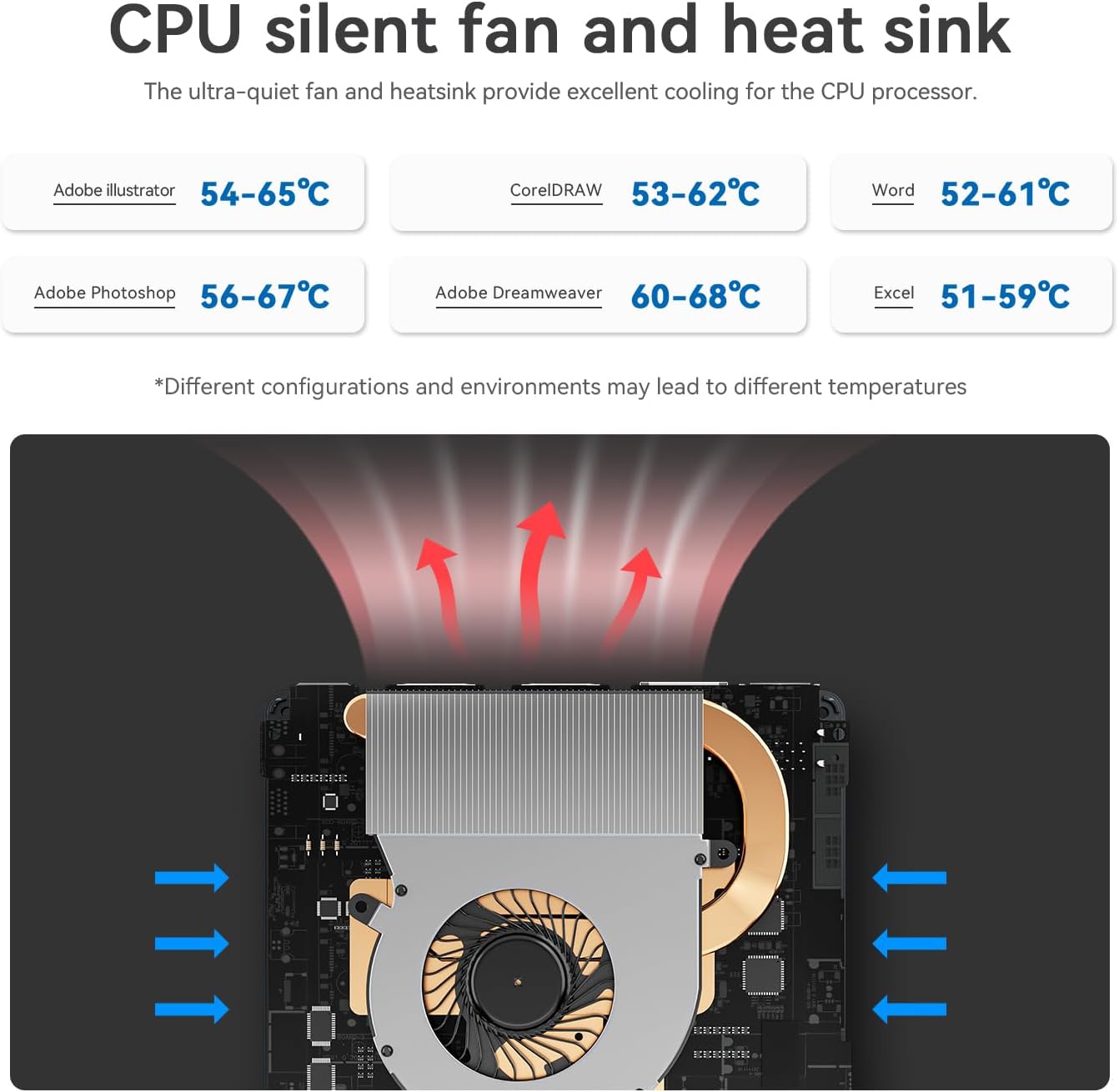
Image: Diagram illustrating the CPU silent fan and heat sink, designed to provide excellent cooling for the processor. It shows air intake and exhaust paths, with typical operating temperatures for various applications.
3.4 Key Features
- Energy Saving: Designed for low power consumption.
- Wireless Connectivity: WiFi5 (802.11ax) for fast data transfer and Bluetooth 4.2.
- Network: 2.5G LAN port for high-speed wired internet.
- Display: Dual HDMI ports supporting 4K FPS video playback and dual-screen 4K display.
- Wake on LAN: Supports auto power on via network signal.
- Mounting: VESA mount included for behind-monitor or wall installation.

Image: Infographic displaying key features such as energy saving, WiFi5 (867Mbps), Wake on LAN/Auto Power On, Dual Display support (4K resolution), LAN 2.5G (312.5MB/s), and Wall Mount capability.
4. Setup Guide
4.1 Connecting Peripherals
- Connect your monitor(s) to the HDMI ports on the rear panel using the provided HDMI cables.
- Connect your keyboard and mouse to the available USB ports.
- For wired internet, connect an Ethernet cable to the 2.5G LAN port. For wireless internet, ensure your WiFi network is available.
- If desired, mount the Mini PC using the VESA bracket on the back of your monitor or a wall.
4.2 Powering On
- Connect the power adapter to the DC power input port on the rear panel.
- Plug the power adapter into a power outlet.
- Press the Power Button on the front panel to turn on the Mini PC.
The Mini PC comes pre-installed with Windows 11 Home. Follow the on-screen instructions for initial Windows setup.
Video: An official product video from Beelink Limited showcasing the Beelink MINI S12 N95 Mini PC, demonstrating its compact size, various ports, internal components, and dual-screen 4K display capabilities. This video provides a visual overview of the product's features and setup.
5. Operating Instructions
5.1 Basic Operation
- Power On: Press the power button on the front panel.
- Power Off: Use the standard Windows shutdown procedure (Start Menu > Power > Shut down).
- Restart: Use the standard Windows restart procedure (Start Menu > Power > Restart).
- Sleep: Use the standard Windows sleep procedure (Start Menu > Power > Sleep).
5.2 Dual Display Setup
To utilize the dual 4K display feature:
- Connect two monitors to the two HDMI ports on the rear of the Mini PC.
- Once both monitors are connected and powered on, Windows should automatically detect them.
- Right-click on the desktop, select "Display settings," and configure your preferred display mode (e.g., Extend, Duplicate) and resolution.
6. Maintenance
6.1 Cleaning
- Regularly clean the exterior of the Mini PC with a soft, dry cloth.
- Use compressed air to gently clear dust from the ventilation grilles to maintain optimal airflow and cooling.
- Do not use liquid cleaners or solvents directly on the device.
6.2 Software Updates
- Keep your Windows operating system updated by regularly checking for updates via "Settings > Windows Update."
- Ensure your device drivers are up-to-date for optimal performance and compatibility. Visit the official Beelink website for the latest drivers if needed.
7. Troubleshooting
7.1 No Power
- Ensure the power adapter is securely connected to both the Mini PC and a working power outlet.
- Verify the power outlet is functional by plugging in another device.
- Try a different power adapter if available and compatible.
7.2 No Display
- Check that the HDMI cables are securely connected to both the Mini PC and the monitor(s).
- Ensure the monitor is powered on and set to the correct input source (HDMI 1, HDMI 2, etc.).
- Try connecting to a different monitor or using a different HDMI cable.
7.3 Network Connectivity Issues
- Wired (LAN): Check the Ethernet cable connection. Verify your router/modem is working correctly.
- Wireless (WiFi): Ensure WiFi is enabled in Windows settings. Check if your WiFi network is visible and enter the correct password. Restart your router/modem.
7.4 System Slowdown
- Close unnecessary applications running in the background.
- Check for and install any pending Windows updates or driver updates.
- Ensure there is sufficient free space on your SSD.
- Run a virus scan to check for malware.
8. Specifications
| Feature | Specification |
|---|---|
| Processor | Intel N95 (up to 3.4 GHz, 4C/4T, 4M Cache) |
| RAM | 8 GB DDR4 |
| Storage | 256 GB M.2 SATA3 SSD (Expandable up to 4TB) |
| Graphics | Intel UHD Graphics |
| Operating System | Windows 11 Home |
| Wireless Connectivity | WiFi5 (802.11ax), Bluetooth 4.2 |
| LAN | 2.5G Ethernet |
| Video Output | 2x HDMI (4K @ 60Hz) |
| USB Ports | 4x USB 3.2 Gen2 (10Gbps) |
| Audio | 3.5mm Earphone Jack |
| Dimensions | Approximately 4.52 x 4.01 x 1.54 inches |
| Weight | Approximately 1.57 pounds |
9. Warranty and Support
All Beelink products have obtained FCC, CE, and RoHS Certification. We offer a 1-year free warranty from the date of purchase. For technical assistance or any questions, please contact our customer support. We provide 7 days/24 hours serving.
If you require assistance with installing a Windows 10 system or have other inquiries, please send us a message through the official support channels.