
1. Introduction
This manual provides detailed instructions for the setup, operation, maintenance, and troubleshooting of your TourBox NEO and TourBox Elite creative consoles. These devices are designed to enhance your creative workflow across various software applications by providing intuitive, one-handed control.
The TourBox Elite offers advanced features such as dual-channel Bluetooth 5.0 connectivity and two-level haptic feedback, while the TourBox NEO provides reliable cable connection and silent rotation design. Both models feature a customizable button layout for efficient control.

Image: A comparison chart highlighting the differences between TourBox Elite and TourBox NEO, including connectivity, haptic feedback, material, and color options.
2. Setup
2.1 Package Contents
Verify that your package contains the following items:
- TourBox NEO or TourBox Elite creative console
- USB-C to USB-A cable (for TourBox NEO and charging Elite)
- Quick Start Guide
2.2 Software Installation
- Download the latest TourBox Console software from the official TourBox website.
- Install the software on your computer (Windows or macOS). Follow the on-screen instructions.
- Launch the TourBox Console application after installation.
2.3 Connecting Your Device
TourBox NEO (Cable Connection)
- Connect one end of the provided USB-C cable to the TourBox NEO.
- Connect the other end of the USB-A cable to an available USB port on your computer.
- The device will be automatically recognized by the TourBox Console software.
TourBox Elite (Bluetooth Connection)
- Ensure your TourBox Elite is charged.
- Turn on the TourBox Elite.
- Open your computer's Bluetooth settings.
- Select 'Add a device' and choose the TourBox Elite from the list of available devices.
- The TourBox Elite supports dual-channel Bluetooth 5.0, allowing connection to two devices simultaneously. Switch between devices as needed.
- The device will be recognized by the TourBox Console software.

Image: A close-up view of the TourBox Elite creative console, illustrating its compact design and various buttons.
3. Operating Instructions
3.1 Button Customization
The TourBox features 14 customizable buttons, including a knob, scroll wheel, and dial. Each button supports various actions:
- Single-click: Execute a single command.
- Double-click: Execute a different command.
- Press and hold: Activate a continuous action or a third command.
- Combos: Combine multiple button presses for complex actions.
Use the TourBox Console software to map keyboard shortcuts, macro commands (e.g., mouse move and drag), text inputs, built-in functions, or access the TourMenu panel. The software allows you to create custom presets for different applications.
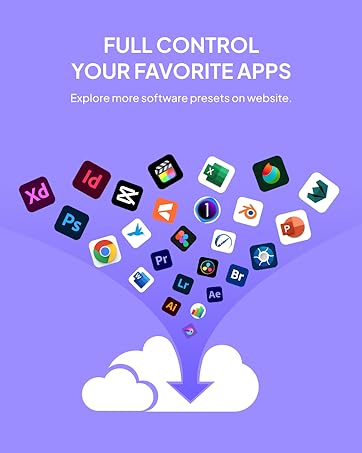
Image: A screenshot of the TourBox Console software, demonstrating the interface for customizing button functions and creating presets.
3.2 One-Handed Control
The ergonomic design and unique shapes of the buttons allow for intuitive, eye-free, one-handed operation. This enables you to maintain focus on your screen while making adjustments.
3.3 Haptic Feedback (TourBox Elite Only)
The TourBox Elite provides two-level haptic feedback, offering tactile confirmation for knob turns, scrolls, and dial adjustments. This feature can be enabled or disabled via the TourBox Console software.
3.4 Compatible Software
The TourBox creative consoles are compatible with a wide range of creative software, including but not limited to:
- Adobe Photoshop, Lightroom, Premiere Pro, Illustrator
- DaVinci Resolve, Final Cut Pro X (FCPX)
- Clip Studio Paint, Camera Raw, Capture One, SAI
- AutoCAD, Blender, Pro Tools
- General applications like Chrome, iTunes, Spotify

Image: The TourBox console being used alongside a computer screen displaying various software logos, indicating broad compatibility.
4. Maintenance
4.1 Cleaning
To clean your TourBox device, use a soft, dry, lint-free cloth. For stubborn marks, slightly dampen the cloth with water. Avoid using harsh chemicals, abrasive cleaners, or solvents, as these can damage the surface and internal components.
4.2 Storage
Store your TourBox in a cool, dry place away from direct sunlight and extreme temperatures. When not in use for extended periods, ensure the device is powered off (TourBox Elite) and disconnected.
5. Troubleshooting
5.1 Device Not Responding
- Check Connection: For TourBox NEO, ensure the USB cable is securely connected to both the device and your computer. For TourBox Elite, verify Bluetooth connection in your computer's settings and ensure the device is charged.
- Restart Software: Close and restart the TourBox Console software.
- Restart Computer: A system restart can resolve many connectivity issues.
- Try Different Port/Cable: If using a wired connection, try a different USB port or cable.
5.2 Buttons Not Functioning Correctly
- Check Presets: Ensure the correct preset is active for the application you are using within the TourBox Console software.
- Recalibrate: In the TourBox Console software, check for any calibration or reset options for buttons.
- Software Update: Ensure your TourBox Console software is up to date.
5.3 Haptic Feedback Issues (TourBox Elite Only)
- Enable in Software: Verify that haptic feedback is enabled in the TourBox Console settings.
- Battery Level: Low battery can affect haptic feedback performance. Ensure the device is sufficiently charged.
6. Specifications
| Feature | Specification |
|---|---|
| Brand | TOUR BOX |
| Compatible Devices | Computers (Windows, macOS), Android (Elite Plus Only) |
| Controller Type | Creative Console |
| Connectivity Technology | Bluetooth (Elite), USB Cable (NEO) |
| Color | Black |
| Additional Features | Wireless (Elite), Haptic Feedback (Elite) |
| Button Quantity | 14 |
| Power Source | Battery Powered (Elite), USB Powered (NEO) |
7. Warranty and Support
TOUR BOX is committed to providing excellent customer service and product reliability.
- 30-Day Refund/Replacement: Products are eligible for a refund or replacement within 30 days of purchase.
- 12-Month Warranty: A 12-month limited warranty covers manufacturing defects from the date of purchase.
- Lifetime Technical Support: Enjoy lifetime technical support for your TourBox device.
For technical assistance, warranty claims, or further inquiries, please visit the official TourBox support website or contact customer service.
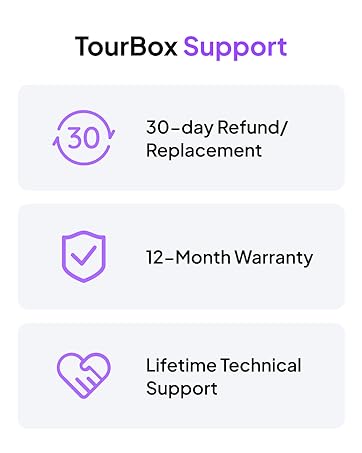
Image: An infographic detailing TourBox's support offerings, including refund policy, warranty period, and technical support availability.


