
Phomemo M220
Phomemo M220 Thermal Label Printer User Manual
Model: M220
1. Introduction
Thank you for choosing the Phomemo M220 Thermal Label Printer. This manual provides essential information for the safe and efficient use of your device. The M220 is an upgraded thermal label printer designed for various labeling needs, offering high-quality 203 DPI printing without the need for ink or toner. It supports label widths from 20mm to 75mm and connects via Bluetooth to mobile devices and USB to computers.
Please read this manual thoroughly before operating the printer and keep it for future reference.
2. Safety Information
To ensure safe operation and prevent damage, please observe the following precautions:
- Do not disassemble, repair, or modify the printer yourself.
- Keep the printer away from water, moisture, and direct sunlight.
- Use only Phomemo-approved power adapters and accessories.
- Avoid dropping the printer or subjecting it to strong impacts.
- Keep out of reach of children.
- Do not touch the print head immediately after printing, as it may be hot.
3. Package Contents
Verify that all items are present in your package:
- Phomemo M220 Thermal Label Printer
- USB Charging Cable (Type-C)
- User Manual (this document)
- Label Rolls (e.g., 1 roll of 40x30mm, 1 roll of 50x30mm, 1 roll of 70x80mm)
- Label Storage Case (may vary by package)
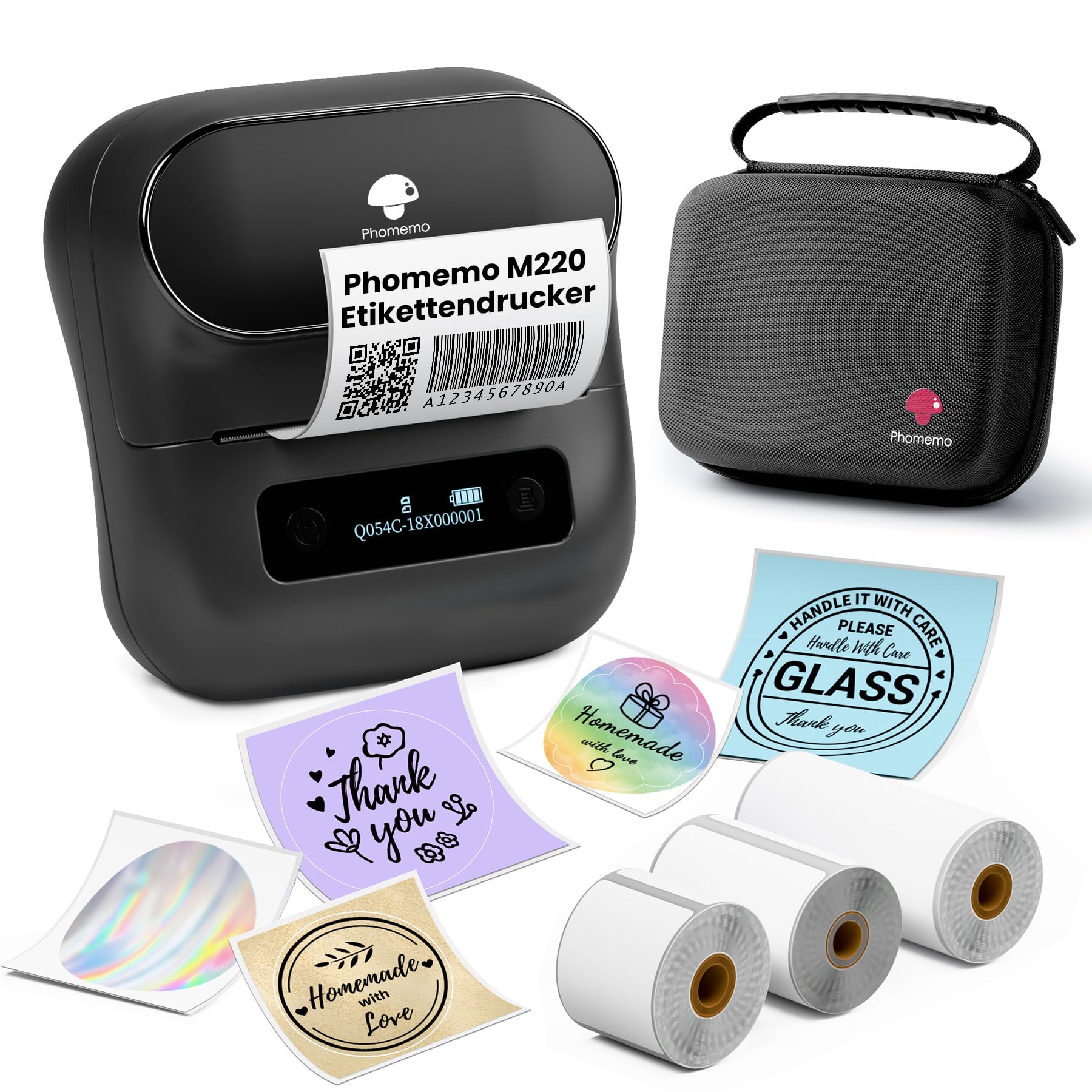
Image: Phomemo M220 printer with included accessories and labels.
4. Setup
4.1 Charging the Printer
The Phomemo M220 printer has a built-in 2200 mAh rechargeable battery.
- Connect the provided USB Type-C cable to the printer's charging port.
- Connect the other end of the cable to a USB power adapter (not included) or a computer's USB port.
- The indicator light will show charging status. Charge fully before first use.

Image: Phomemo M220 printer highlighting its 2200mAh battery and Type-C charging port.
4.2 Loading Label Rolls
Follow these steps to load a label roll into the printer:
- Open the printer cover.
- Insert the label roll with the printing side facing up.
- Pull a small portion of the labels out past the print head.
- Close the printer cover firmly until it clicks. The printer will automatically calibrate the label position.

Image: Phomemo M220 printer with an open cover, showing how to load a label roll.
4.3 App Installation and Connection
The Phomemo M220 printer connects via Bluetooth to mobile devices and via USB to computers.
For Mobile Devices (iOS/Android):
- Download the "Print Master" app from the App Store (iOS) or Google Play Store (Android).
- Ensure your phone's Bluetooth is enabled.
- Open the "Print Master" app.
- Turn on the M220 printer.
- In the app, tap the "printer" icon (usually in the top right corner) to search for and connect to your M220 printer. Note: Do not connect directly via your phone's Bluetooth settings; connect through the app.
For Computers (Mac OS/Windows/Linux/Chromebook):
- Download the "Labelife" software from the official Phomemo website.
- Install the software on your computer.
- Connect the M220 printer to your computer using the provided USB cable.
- Follow the software instructions to set up and print.

Image: Diagram illustrating various connection methods for the Phomemo M220 printer, including Bluetooth for mobile devices and USB for computers.
5. Operating Instructions
5.1 Using the "Print Master" App (Mobile)
The "Print Master" app offers a wide range of features for designing and printing labels.
- Design Your Label: Use the app's interface to create custom labels. Features include:
- Text input (multi-line)
- Barcode and QR code generation
- Image insertion
- Scanning functionality
- OCR (Optical Character Recognition)
- Voice recognition
- Various templates and icons
- Excel and PDF input for batch printing
- Preview: Before printing, use the preview function to ensure the label design is correct.
- Print: Once satisfied with the design, tap the print button in the app.

Image: Screenshot of the "Print Master" app interface, showing various design options like text, barcode, image, and templates.
5.2 Label Applications
The M220 printer is versatile and can be used for various labeling purposes:
- Barcode and QR Code labels
- Address and Shipping labels
- Product identification (logos, prices)
- Document and file organization
- Storage labels
- School and home labeling
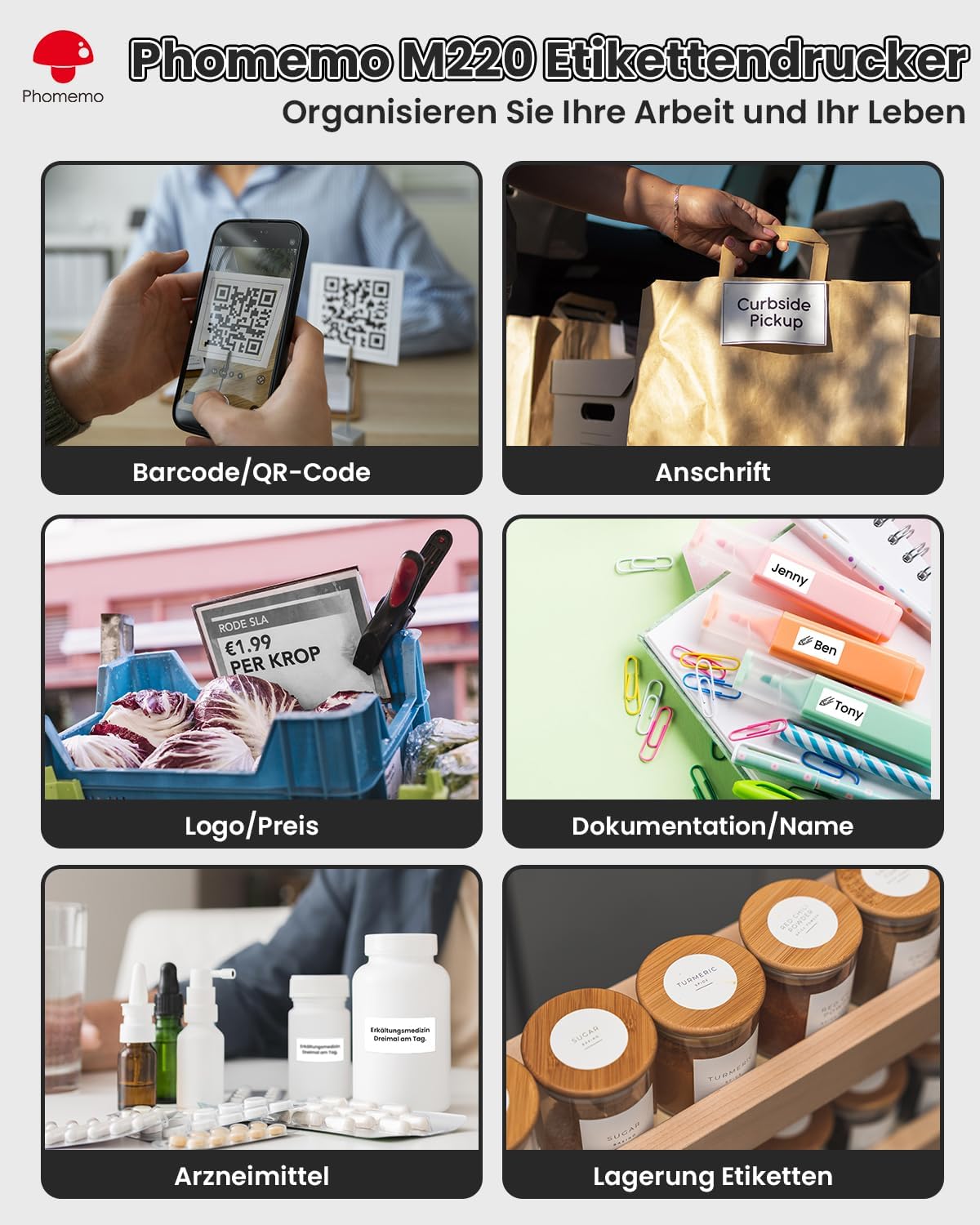
Image: Examples of labels created with the Phomemo M220, demonstrating applications for barcodes, addresses, prices, and organization.
6. Maintenance
6.1 Cleaning the Printer
Regular cleaning helps maintain print quality and extends the printer's lifespan.
- Ensure the printer is turned off and unplugged before cleaning.
- Use a soft, lint-free cloth lightly dampened with alcohol to clean the print head.
- Wipe the exterior of the printer with a dry, soft cloth.
- Do not use abrasive cleaners or solvents.
6.2 Battery Care
- Charge the printer regularly, even if not in frequent use, to maintain battery health.
- Avoid exposing the printer to extreme temperatures.
- If storing for an extended period, charge the battery to about 50% and store in a cool, dry place.
7. Troubleshooting
If you encounter issues with your Phomemo M220 printer, refer to the table below for common problems and solutions.
| Problem | Possible Cause | Solution |
|---|---|---|
| Printer does not turn on | Low battery or power issue | Charge the printer using the provided USB cable. Ensure the cable and power source are working. |
| Cannot connect via Bluetooth | Incorrect connection method or Bluetooth interference | Ensure you are connecting through the "Print Master" app, not directly via phone's Bluetooth settings. Restart both the printer and your mobile device. Move closer to the printer. |
| Poor print quality / Blank print | Incorrect label loading, dirty print head, or low battery | Check if the label roll is loaded correctly (printing side up). Clean the print head (see Maintenance section). Ensure the printer is sufficiently charged. |
| Labels are not feeding correctly | Label roll jammed or improperly loaded | Open the cover, remove the label roll, and re-insert it carefully, ensuring it's aligned. Remove any jammed labels. |
If the problem persists, please contact Phomemo customer support for assistance.
8. Specifications
| Feature | Detail |
|---|---|
| Model | M220 |
| Brand | Phomemo |
| Printing Technology | Thermal |
| Print Resolution | 203 DPI |
| Max Print Speed (Monochrome) | 50 mm/s |
| Connectivity | Bluetooth, USB (Type-C) |
| Compatible Devices | Smartphones (Android, iOS), Tablets (iPad), Computers (Mac OS, Windows 10+, Linux, Chromebook) |
| Battery | 2200 mAh Lithium-polymer (included) |
| Max Label Width | 20-75 mm (0.78-2.95 inches) |
| Product Dimensions (L x W x H) | 11 cm x 10 cm x 5 cm (approx.) |
| Special Features | Lightweight, Portable, Inkless Printing |
9. Warranty & Support
9.1 Warranty Information
The Phomemo M220 Thermal Label Printer comes with a limited warranty. For specific terms and conditions, including warranty duration and coverage, please refer to the warranty card included in your product packaging or visit the official Phomemo website.
9.2 Customer Support
If you require technical assistance, have questions about your product, or need to report an issue, please contact Phomemo customer support.
- Website: Visit the official Phomemo website for FAQs, driver downloads, and contact information.
- Email: Refer to your product packaging or the Phomemo website for the customer support email address.
Related documentsM220


Ask a question about this manual
Ask about setup, troubleshooting, compatibility, parts, safety, or missing instructions. Manuals+ will review the question and use this page’s manual context to help answer it.