
1. Introduction
The Electroline EL-4SPRO XPON ONU Router is designed as a Home Gateway Unit (HGU) for Fiber-to-the-Home (FTTH) solutions. This device integrates XPON technology to provide various services including high-speed internet via Wi-Fi and Ethernet, and Voice over IP (VoIP) functionality. It supports both EPON and GPON modes, automatically switching between them. This manual provides essential information for the proper installation, configuration, and maintenance of your EL-4SPRO router.
Important Note: This device is specifically designed for FTTH connections provided by Internet Service Providers (ISPs) from an Optical Line Terminal (OLT) to your home. It is not a standard router for ADSL/Cable modem connections. Please confirm your internet connection type before use.
2. Package Contents
Before proceeding with the installation, please verify that all items are present in the package:
- Electroline EL-4SPRO XPON ONU Router
- Power Adapter
- LAN Cable

Figure 2.1: Package Contents
This image displays the Electroline EL-4SPRO router, its power adapter, and an Ethernet LAN cable, as typically found inside the product packaging.
3. Product Features
The EL-4SPRO XPON ONU Router offers a range of features for robust home networking:
- PON Interface: 1 XPON BOB (Bosa on Board) with -28dBm receiving sensitivity and +1~+4dBm transmitting optical power, supporting a transmission distance of up to 20KM.
- Wavelength: TX: 1310nm, RX: 1490nm.
- Optical Interface: SC/UPC Connector.
- LAN Interface: 1 x 10/100/1000Mbps (GE) and 3 x 10/100Mbps (FE) auto-adaptive Ethernet interfaces with RJ45 connectors.
- Wireless: Compliant with IEEE802.11b/g/n standards, operating at 2.400-2.4835GHz with MIMO support, offering speeds up to 300Mbps. Features 4T4R and 4 external 5dBi antennas.
- Dual Mode Support: Automatically switches between EPON/GPON modes.
- Routing Modes: Supports Route mode for PPPoE/DHCP/Static IP and Bridge mode.
- IPv4 and IPv6: Supports dual-mode operation.
- Multiple SSID: Allows for multiple Wi-Fi networks.
- VoIP: Supports H248 and SIP VOIP protocols.
- Advanced Features: Port Mapping, Loop-Detect, Firewall, ACL, IGMP Snooping/Proxy multicast, TR069 remote configuration, OMCI and OAM support.
4. Hardware Overview
4.1 Front Panel and LED Indicators
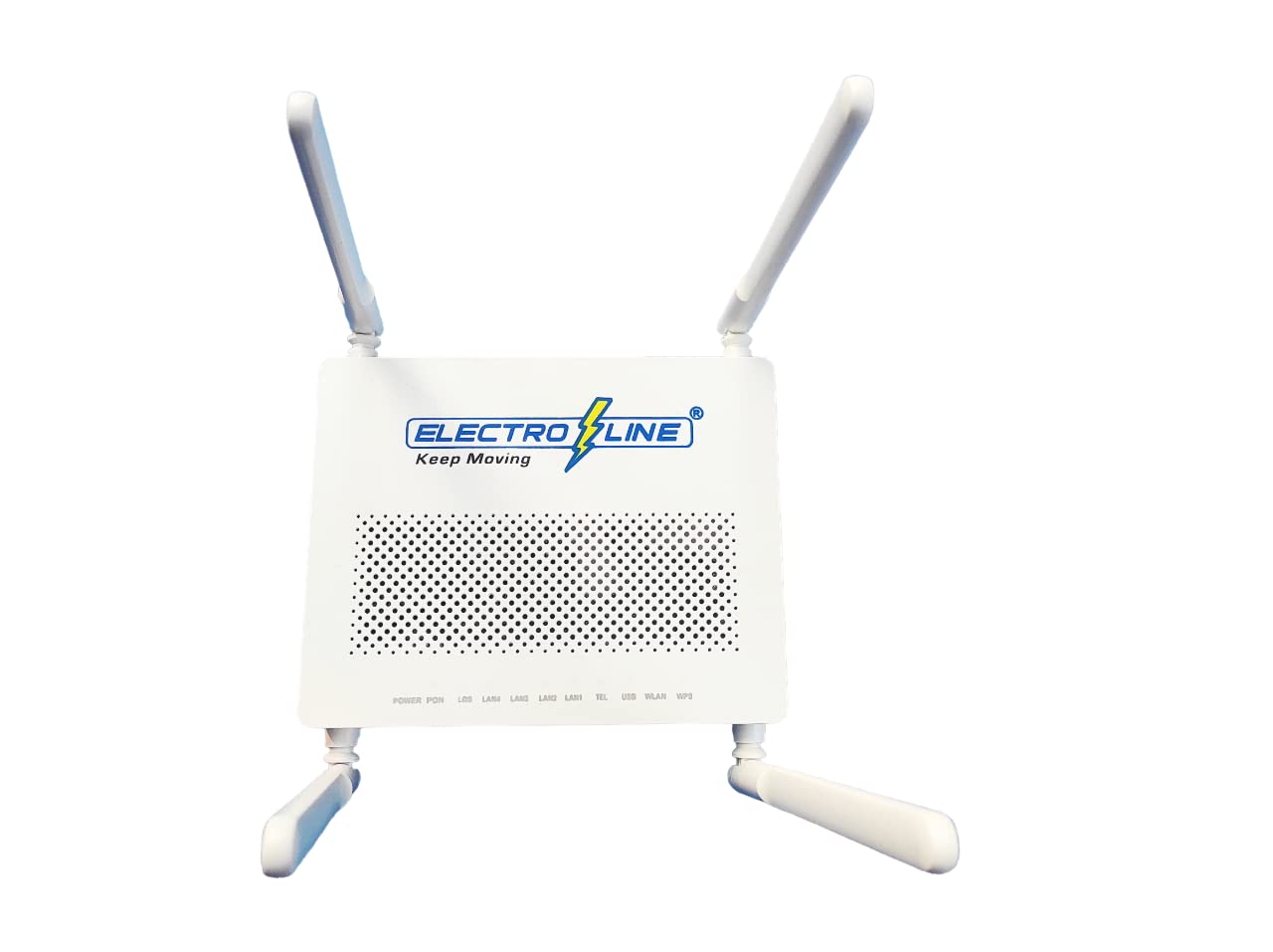
Figure 4.1: Front Panel LED Indicators
This image shows the front of the Electroline EL-4SPRO router, highlighting the LED indicators. These indicators provide real-time status of the device's operation.
| LED | Status | Description |
|---|---|---|
| PWR | On | The device is powered on. |
| PON | On | Successfully registered to the OLT. |
| Flashing | Registering to the OLT. | |
| LOS | On | Loss of optical signal. Check fiber connection. |
| LAN1-4 | On | Ethernet port is connected. |
| Flashing | Data is being transmitted/received. | |
| TEL | On | VoIP service is active. |
| USB | On | USB device is connected and active. |
| WLAN | On | Wi-Fi is enabled. |
| Flashing | Wi-Fi data is being transmitted/received. | |
| WPS | Flashing | WPS pairing in progress. |
4.2 Rear Panel and Ports

Figure 4.2: Rear Panel Ports and Buttons
This image illustrates the rear panel of the Electroline EL-4SPRO router, detailing the various ports and buttons available for connectivity and control.
- Power Input: Connect the provided power adapter here.
- PON Port: SC/UPC optical fiber connector for FTTH connection.
- LAN Ports (GE, FE): RJ45 Ethernet ports for connecting wired devices. One Gigabit Ethernet (GE) and three Fast Ethernet (FE) ports.
- TEL Port: RJ11 port for connecting a telephone for VoIP services.
- USB Port: For connecting USB devices (e.g., storage).
- Reset Button: Press and hold for 5-10 seconds to restore factory default settings.
- WLAN Button: Press to enable or disable Wi-Fi.
- WPS Button: Press to initiate Wi-Fi Protected Setup for easy device connection.
4.3 Antennas

Figure 4.3: Router with Antennas
This image shows the Electroline EL-4SPRO router from a top-down perspective, with its four external 5dBi antennas extended, designed to enhance wireless coverage.
5. Setup
Follow these steps to set up your Electroline EL-4SPRO XPON ONU Router:
- Connect the Optical Fiber: Carefully connect the SC/UPC optical fiber cable from your ISP to the PON port on the rear panel of the router. Ensure the connection is secure and clean.
- Connect Power: Connect the provided power adapter to the router's power input port and then plug it into an electrical outlet. The PWR LED on the front panel should light up.
- Verify PON Connection: Wait for the PON LED to turn solid green. If the LOS LED is on, it indicates a loss of optical signal; check the fiber connection or contact your ISP.
- Connect Wired Devices (Optional): Use an Ethernet cable to connect your computer or other wired devices to any of the LAN ports (LAN1-LAN4). The corresponding LAN LED will light up.
- Connect Telephone (Optional): If you have VoIP service, connect your telephone to the TEL port.
- Access Web Interface: Open a web browser on a connected computer. Enter the default IP address (usually
192.168.1.1or192.168.100.1, check the label on the device or consult your ISP) in the address bar and press Enter. - Login: Enter the default username and password (typically
admin/adminoruser/user, check the device label or ISP documentation). - Configure Internet Connection: Follow the on-screen wizard or navigate to the WAN settings to configure your internet connection type (PPPoE, DHCP, or Static IP) as provided by your ISP.
- Configure Wi-Fi: Navigate to the Wireless settings to change the Wi-Fi network name (SSID) and password for security.
6. Operating
6.1 Wi-Fi Connectivity
After configuring your Wi-Fi settings, you can connect wireless devices:
- On your device (smartphone, laptop, tablet), search for available Wi-Fi networks.
- Select the SSID you configured for your EL-4SPRO router.
- Enter the Wi-Fi password (security key) when prompted.
- The WLAN LED on the router will flash when data is being transmitted.
6.2 WPS Function
WPS (Wi-Fi Protected Setup) allows for easy connection of WPS-compatible devices without entering the password:
- Press the WPS button on the rear panel of the router. The WPS LED will start flashing.
- Within two minutes, activate WPS on your client device.
- The devices will automatically connect.
6.3 VoIP Service
If your ISP provides VoIP service through the EL-4SPRO, ensure your telephone is connected to the TEL port. Once configured by your ISP, the TEL LED will indicate service status. You can then make and receive calls as usual.
7. Maintenance
7.1 Firmware Updates
Periodically check the Electroline support website or consult your ISP for available firmware updates. Keeping your router's firmware up-to-date ensures optimal performance, security, and access to new features. Follow the instructions provided with the firmware update package carefully.
7.2 Factory Reset
If you encounter persistent issues or forget your login credentials, you can perform a factory reset:
- With the router powered on, use a paperclip or a thin object to press and hold the Reset button on the rear panel for approximately 5-10 seconds.
- Release the button when the LEDs flash or the router reboots.
- The router will revert to its factory default settings, requiring re-configuration.
7.3 Cleaning
To maintain proper ventilation and prevent overheating, regularly clean the router's vents and exterior with a soft, dry cloth. Do not use liquid cleaners or aerosols.
8. Troubleshooting
This section addresses common issues you might encounter:
- No Internet Connection:
- Check the PWR, PON, and LOS LEDs. If LOS is on, there's an optical signal issue; contact your ISP. If PON is off or flashing, the router is not registered; ensure fiber connection is secure.
- Verify your internet configuration (PPPoE, DHCP, Static IP) in the web interface.
- Ensure the Ethernet cable to your computer is properly connected and the corresponding LAN LED is on/flashing.
- Wi-Fi Not Working:
- Check if the WLAN LED is on. If not, press the WLAN button on the rear panel.
- Ensure your Wi-Fi settings (SSID, password, security type) are correct in the web interface and on your client device.
- Try restarting the router.
- Cannot Access Web Interface:
- Ensure your computer is connected to the router via Ethernet or Wi-Fi.
- Verify the router's IP address (check device label).
- Try clearing your browser's cache or using a different browser.
- If you forgot the password, perform a factory reset (see Section 7.2).
- VoIP Service Issues:
- Check the TEL LED. If off, the service might not be active or configured.
- Ensure the telephone is correctly connected to the TEL port.
- Contact your ISP for VoIP service activation and configuration details.
9. Specifications
| Feature | Detail |
|---|---|
| Model Name | EL-4SPRO |
| PON Interface | 1 XPON BOB (Bosa on Board), SC/UPC Connector |
| Receiving Sensitivity | -28dBm |
| Transmitting Optical Power | +1~+4dBm |
| Transmission Distance | 20KM |
| Wavelength | TX: 1310nm, RX: 1490nm |
| CPU Chipset | Hisilicon 5116H |
| Wi-Fi Chipset | RTL8192ER |
| Flash Memory | 1048Mbit ROM |
| RAM Memory | 128MB RAM |
| LAN Interface | 1 x 10/100/1000Mbps (GE), 3 x 10/100Mbps (FE) |
| Wireless Standard | IEEE802.11b/g/n |
| Operating Frequency | 2.400-2.4835GHz |
| Wi-Fi Speed | Up to 300Mbps |
| Antennas | 4 external 5dBi antennas |
| LED Indicators | PWR, PON, LOS, TEL, USB, WLAN, WPS, LAN1-LAN4 |
| Buttons | Reset, WLAN, WPS |
| Operating Temperature | 0°C ~ +60°C |
| Operating Humidity | 10% ~ 90% (non-condensing) |
| Security Protocol | WPS |
| Control Method | App (implied by product data, typically web UI) |
| Router Network Type | Hybrid |
| Is Modem Compatible | Yes (as an ONU) |
10. Warranty and Support
10.1 Warranty Information
The Electroline EL-4SPRO XPON ONU Router comes with a 1-year manufacturer warranty. This warranty is non-transferable and is valid for 1 year from the original date of purchase. Please retain your proof of purchase for warranty claims.
10.2 Technical Support
For technical assistance, troubleshooting beyond this manual, or warranty claims, please contact your Internet Service Provider (ISP) or the Electroline customer support. Refer to your ISP's documentation for their specific support contact information.
