Introduction
The ASUS VA34VCPSN is a 34-inch 21:9 (3440 x 1440) curved docking monitor designed for enhanced productivity and immersive viewing. It features a 1500R curvature, 100Hz refresh rate with Adaptive-Sync technology, and extensive connectivity options including USB-C with 65W power delivery, RJ45, HDMI, and DisplayPort. This monitor also incorporates ASUS Eye Care technologies for a comfortable viewing experience during extended use.

Figure 1: Front view of the ASUS VA34VCPSN monitor.
What's in the Box
Upon unboxing your ASUS VA34VCPSN monitor, please verify that all the following items are included:
- VA34VCPSN Monitor
- Power Cord
- USB-C cable
- HDMI cable
- Warranty card
- Quick Start Guide

Figure 2: Included accessories and cables with the monitor.
Key Features
- 34-inch Ultra-wide Display: 21:9 aspect ratio with 3440 x 1440 QHD resolution and 1500R curvature for an immersive viewing experience.
- Wide Viewing Angles: 178° wide viewing angle panel minimizes color shift from various perspectives.

Figure 3: Illustration of wide viewing angles and frameless design.
- 100Hz Refresh Rate with Adaptive Sync: Ensures smooth rendering and a crisp viewing experience, eliminating tracing.

Figure 4: Demonstrating the ultra-wide display and smooth rendering capabilities.
- USB-C Docking: A single USB-C cable provides data transmission, video signal to the display, and up to 65W charging for compatible laptops.

Figure 5: The versatile USB-C connection and other available ports.
- Extensive Connectivity: Includes HDMI, USB-C, DisplayPort, earphone jack, USB hub, and RJ45 LAN port for maximum flexibility.
- Ergonomic Design: Features tilt, swivel, and height adjustments for a comfortable and customizable viewing experience.

Figure 6: Ergonomic adjustments for optimal viewing comfort.
- ASUS Eye Care Technologies: TÜV Rheinland-certified Flicker-free and Low Blue Light technologies reduce eye strain during prolonged use.
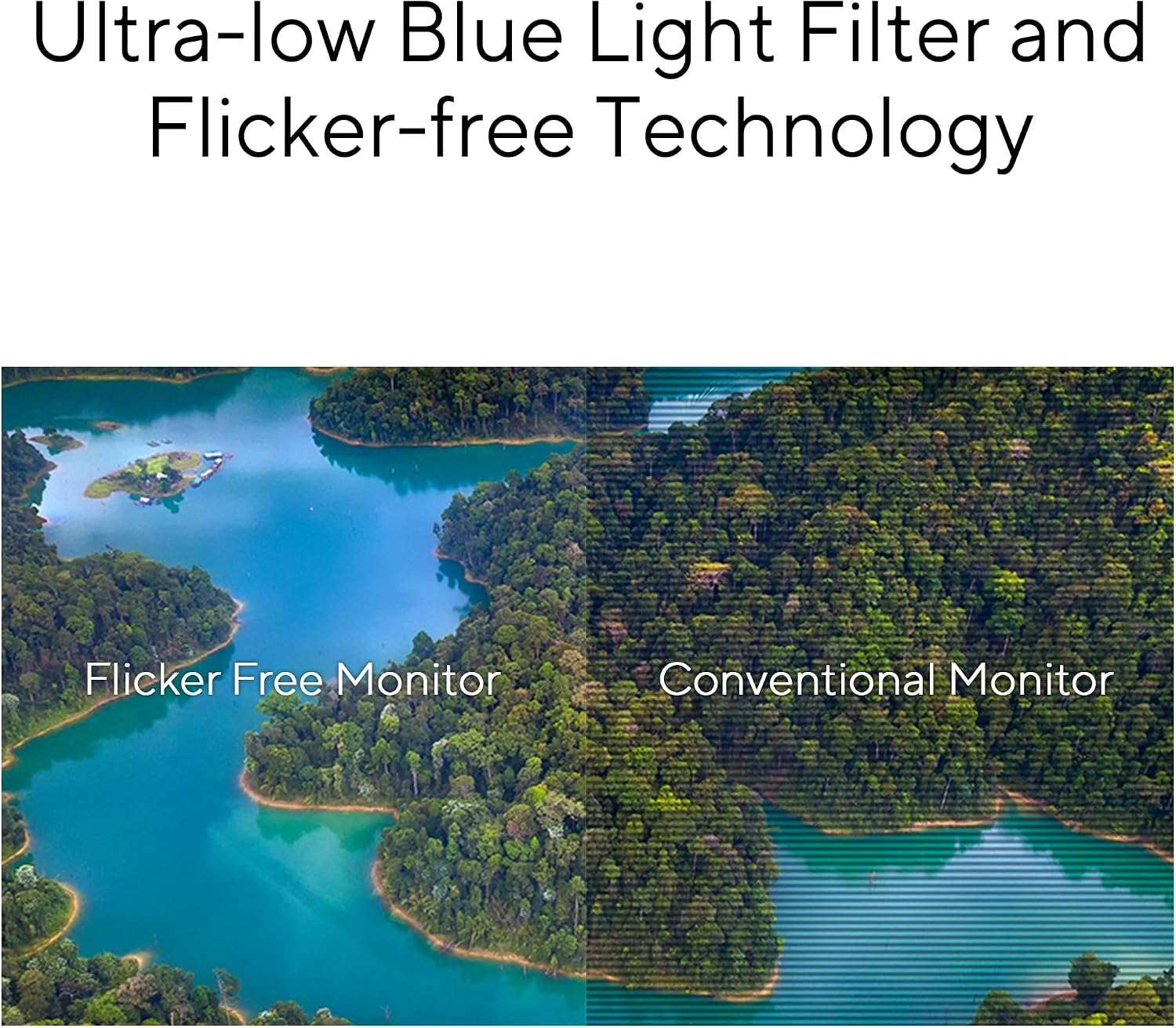
Figure 7: Visual comparison of flicker-free technology versus conventional monitors.
- Green Sustainability: Utilizes paper packaging and meets energy-efficient environmental standards.
Setup
- Assemble the Stand: Attach the base to the stand column, then secure the assembled stand to the back of the monitor. Ensure all screws are tightened appropriately.
- Connect Power: Plug the power cord into the monitor's power input, then connect the other end to a power outlet.
- Connect to Device:
- USB-C Connection: For compatible laptops, connect a single USB-C cable from your laptop to the monitor's USB-C port. This will provide video, data, and power delivery.
- HDMI/DisplayPort Connection: Connect an HDMI or DisplayPort cable from your computer's video output to the corresponding input on the monitor.
- USB Hub Connection (Optional): If using HDMI or DisplayPort, connect a USB-B to USB-A cable from your computer to the monitor's USB upstream port to enable the monitor's USB hub.
- RJ45 Connection (Optional): Connect an Ethernet cable from your router/modem to the monitor's RJ45 port for a stable wired network connection through the monitor.
- Adjust Ergonomics: Adjust the monitor's height, tilt, and swivel to your preferred viewing position.
- Power On: Press the power button on the monitor to turn it on.
Operating the Monitor
On-Screen Display (OSD) Menu
The OSD menu allows you to adjust various settings of your monitor. Use the buttons located on the monitor's bezel (usually on the bottom right or rear) to navigate and select options.
- Brightness/Contrast: Adjust the display's luminance and contrast levels.
- Color Settings: Modify color temperature, saturation, and hue.
- Input Select: Manually switch between HDMI, DisplayPort, and USB-C inputs.
- System Setup: Configure language, OSD timeout, and other general settings.
- Eye Care Features: Enable or adjust Low Blue Light and Flicker-free settings for eye comfort.
- Adaptive Sync: Enable or disable Adaptive Sync for smoother gaming and video playback.
Using the USB Hub and RJ45 Port
Once the USB-C cable is connected (or USB upstream cable for HDMI/DP), the monitor's integrated USB hub becomes active. You can connect peripherals like keyboards, mice, and external drives to the USB-A ports on the monitor. The RJ45 port provides a stable wired network connection for your connected laptop or PC, especially useful for devices without a built-in Ethernet port.
Maintenance
- Cleaning the Screen: Gently wipe the screen with a soft, lint-free cloth. For stubborn marks, use a monitor-specific cleaning solution applied to the cloth, not directly to the screen.
- Cleaning the Casing: Use a soft, dry cloth to clean the monitor's casing. Avoid using abrasive cleaners or solvents.
- Ventilation: Ensure the ventilation openings on the monitor are not blocked to prevent overheating.
- Power Off When Not in Use: For energy saving and prolonged lifespan, turn off the monitor when not in use for extended periods.
Troubleshooting
| Problem | Possible Solution |
|---|---|
| No image on screen |
|
| Image is blurry or distorted |
|
| No sound from monitor speakers |
|
| USB ports not working |
|
Specifications
| Feature | Detail |
|---|---|
| Model Number | VA34VCPSN |
| Screen Size | 34 Inches |
| Panel Type | VA (Vertical Alignment) |
| Curvature | 1500R |
| Resolution | 3440 x 1440 (QHD Ultrawide) |
| Aspect Ratio | 21:9 |
| Refresh Rate | Up to 100Hz |
| Viewing Angle | 178° (H)/178° (V) |
| Connectivity | 1x HDMI, 1x DisplayPort, 1x USB-C (with 65W PD), USB Hub, RJ45, Earphone Jack |
| Ergonomics | Tilt, Swivel, Height Adjustment |
| Eye Care Features | Flicker-free, Low Blue Light (TÜV Rheinland Certified) |
| VESA Mount Compatible | Yes |
| Dimensions (LxWxH) | 31.86 x 13.93 x 8.32 inches |
| Weight | 21 pounds |
Warranty and Support
The ASUS VA34VCPSN monitor comes with a manufacturer's warranty. Please refer to the included Warranty Card for specific terms, conditions, and duration applicable to your region. For technical support, driver downloads, or further assistance, please visit the official ASUS support website or contact their customer service. Keep your purchase receipt as proof of purchase for warranty claims.
You can find more information and support resources on the official ASUS website: www.asus.com


