
1. Setup and Installation
1.1 Pre-Installation Checklist
- System Compatibility: Ensure your motherboard has an available PCI Express 4.0 x16 slot.
- Power Supply: Verify your power supply unit (PSU) meets the minimum wattage requirements for the RTX 3060 Ti and has the necessary PCIe power connectors. Consult your PSU manual for details.
- Clearance: Confirm your PC case has adequate space for the graphics card dimensions.
- Drivers: Download the latest NVIDIA drivers from the official NVIDIA website before installation.
1.2 Physical Installation
- Power Off: Shut down your computer completely and disconnect the power cable.
- Open Case: Open your computer case to access the motherboard.
- Locate PCIe Slot: Identify an available PCI Express 4.0 x16 slot. Remove any expansion slot covers if necessary.
- Insert Graphics Card: Carefully align the graphics card with the PCIe slot and press down firmly until it is securely seated. You should hear a click from the slot's retention clip.
- Secure Card: Fasten the graphics card to the case using the screw or latch mechanism.
- Connect Power: Connect the appropriate PCIe power cables from your PSU to the graphics card. The PNY GeForce RTX 3060 Ti typically requires one 8-pin PCIe power connector. Ensure all pins are fully seated.
- Close Case: Close your computer case and reconnect the power cable.
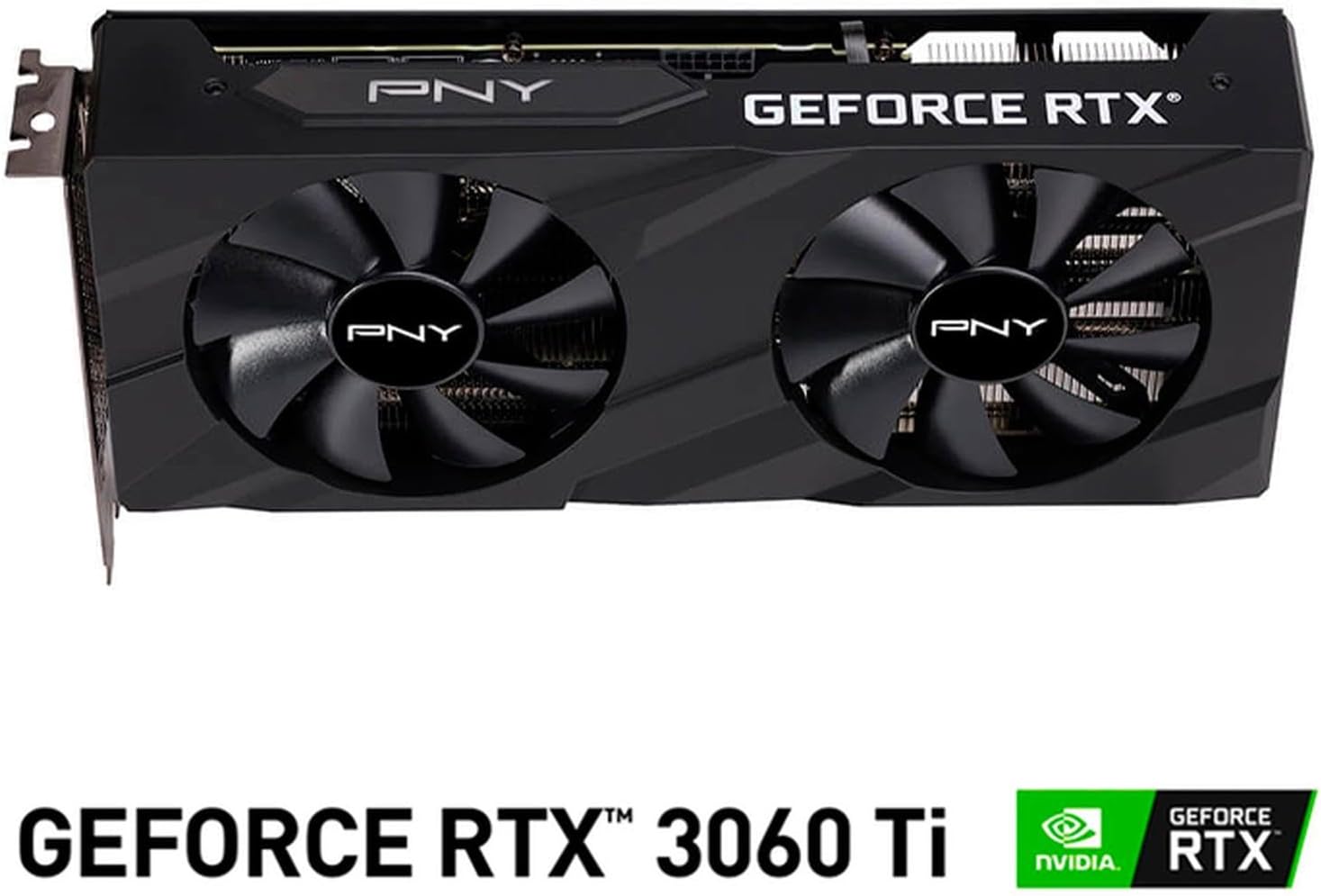
Image: Front view of the PNY GeForce RTX 3060 Ti Verto Dual Fan Graphics Card, showing the dual fans and PNY branding.
1.3 Driver Installation
- Boot System: Power on your computer. It may boot into a lower resolution or use generic display drivers initially.
- Install Drivers: Run the NVIDIA driver installer downloaded earlier. Follow the on-screen prompts to complete the installation. A restart may be required.
- Verify Installation: After restarting, open NVIDIA GeForce Experience or the NVIDIA Control Panel to confirm the graphics card is recognized and drivers are up to date.
2. Operation
2.1 Connecting Displays
The PNY GeForce RTX 3060 Ti features multiple video output interfaces for connecting displays:
- DisplayPort 1.4a: For high-resolution and high-refresh-rate monitors.
- HDMI 2.1: For connecting to TVs or monitors supporting 4K at higher refresh rates.
Connect your display cables to the appropriate ports on the graphics card. The card supports a maximum display resolution of 7680 x 4320 @60Hz.

Image: Angled view of the PNY GeForce RTX 3060 Ti Verto Dual Fan Graphics Card, highlighting the cooling solution and overall design.
2.2 NVIDIA GeForce Experience
NVIDIA GeForce Experience is a companion application for your graphics card. It allows you to:
- Optimize Game Settings: Automatically configure game settings for the best experience.
- Keep Drivers Up to Date: Receive notifications and easily install the latest NVIDIA Game Ready Drivers.
- Capture & Share: Record gameplay, take screenshots, and livestream with friends using features like ShadowPlay.
2.3 Performance Overview
The GeForce RTX 3060 Ti is built on NVIDIA’s 2nd generation RTX architecture (Ampere), featuring enhanced Ray Tracing Cores and Tensor Cores for advanced graphics and AI acceleration. Key performance specifications include:
- Core Clock: 1410MHz
- Boost Clock: 1665MHz
- Memory: 8GB GDDR6X (256-bit) with up to 608GB/sec bandwidth.
- CUDA Cores: 4864
3. Maintenance
3.1 Cleaning Your Graphics Card
Regular cleaning helps maintain optimal performance and extends the lifespan of your graphics card. Always power off your computer and disconnect the power cable before cleaning.
- Dust Removal: Use compressed air to gently blow dust from the fans and heatsink fins. Hold the fans to prevent them from spinning rapidly during cleaning.
- Surface Cleaning: Wipe the exterior surfaces with a soft, dry, lint-free cloth. Avoid using liquid cleaners directly on the card.
3.2 Driver Updates
Keep your graphics drivers updated to ensure compatibility with the latest games and applications, and to benefit from performance improvements and bug fixes. Use NVIDIA GeForce Experience or visit the official NVIDIA website to download and install the latest drivers.
4. Troubleshooting
4.1 Common Issues and Solutions
- No Display Output:
- Ensure display cables are securely connected to both the graphics card and the monitor.
- Verify the graphics card is fully seated in the PCIe slot and all power connectors are attached.
- Test with a different display cable or monitor if possible.
- System Instability or Crashes:
- Ensure your power supply meets the recommended wattage.
- Check for overheating. Monitor GPU temperatures using software like MSI Afterburner or HWMonitor.
- Perform a clean installation of the latest graphics drivers.
- Poor Performance in Games:
- Ensure you have the latest graphics drivers installed.
- Check in-game settings; reduce resolution or graphics quality if necessary.
- Verify that your system is not bottlenecked by other components (CPU, RAM).

Image: Side view of the PNY GeForce RTX 3060 Ti Verto Dual Fan Graphics Card, showing the heatsink fins and power connectors.
5. Specifications
Below are the detailed technical specifications for the PNY GeForce RTX 3060 Ti 8GB GDDR6X Verto Dual Fan Graphics Card:
| Feature | Specification |
|---|---|
| Graphics Coprocessor | NVIDIA GeForce RTX 3060 Ti |
| Brand | PNY |
| Graphics RAM Size | 8 GB |
| Graphics RAM Type | GDDR6X |
| GPU Clock Speed | 1410 MHz |
| Memory Clock Speed | 1410 MHz (Effective 19000 MHz) |
| Video Output Interface | DisplayPort, HDMI |
| Graphics Card Interface | PCI-Express x16 |
| Number of Fans | 2 |
| Display Resolution Maximum | 7680 x 4320 @60Hz |
| Compatible Devices | Desktop |
| Model Name | VERTO Dual Fan |
| Model Number | VCG3061T8LDFBPB1 |
| UPC | 751492767314 |
| Item Weight | 1 Kilogram |

Image: Back view of the PNY GeForce RTX 3060 Ti Verto Dual Fan Graphics Card, showing the backplate and PCB.
6. Warranty and Support
6.1 Product Warranty
This PNY GeForce RTX 3060 Ti Graphics Card comes with a 3-year warranty. For specific terms and conditions, please refer to the warranty documentation included with your product or visit the official PNY website.
6.2 Technical Support
If you encounter any issues not covered in this manual or require further assistance, please contact PNY Technical Support. You can typically find support contact information, FAQs, and driver downloads on the official PNY website:


