
ESR 6B005
ESR Ascend Keyboard Case Instruction Manual
Model: 6B005
Brand: ESR
Introduction
This manual provides comprehensive instructions for the setup, operation, and maintenance of your ESR Ascend Keyboard Case. Designed for enhanced productivity and protection, this keyboard case transforms your iPad into a versatile workstation.
Compatibility
The ESR Ascend Keyboard Case is specifically designed for the following iPad Pro 12.9 inch models:
- iPad Pro 12.9 inch (2022): Models A2764, A2437, A2436
- iPad Pro 12.9 inch (2021): Models A2378, A2379, A2461, A2462
- iPad Pro 12.9 inch (2020): Models A2229, A2069, A2232, A2233
- iPad Pro 12.9 inch (2018): Models A1876, A2014, A1895, A1983

Image: A visual guide detailing the compatible iPad Pro 12.9 inch models and their specific model numbers, ensuring users can verify their device's compatibility.
What's in the Box
Upon unboxing your ESR Ascend Keyboard Case, you should find the following items:
- ESR Ascend Keyboard Case (Bluetooth Keyboard with integrated trackpad)
- Magnetic Detachable Back Case
- USB-A to USB-C Charging Cable
- Instruction Manual
Video: An official product video demonstrating the unboxing and contents of the ESR Ascend Keyboard Case, including the keyboard, detachable back case, charging cable, and manual.
Setup
1. Attaching Your iPad
- Carefully align your iPad Pro 12.9 inch with the magnetic back case.
- The strong magnets will securely snap the iPad into place.
- Attach the magnetic back case with the iPad to the keyboard base.
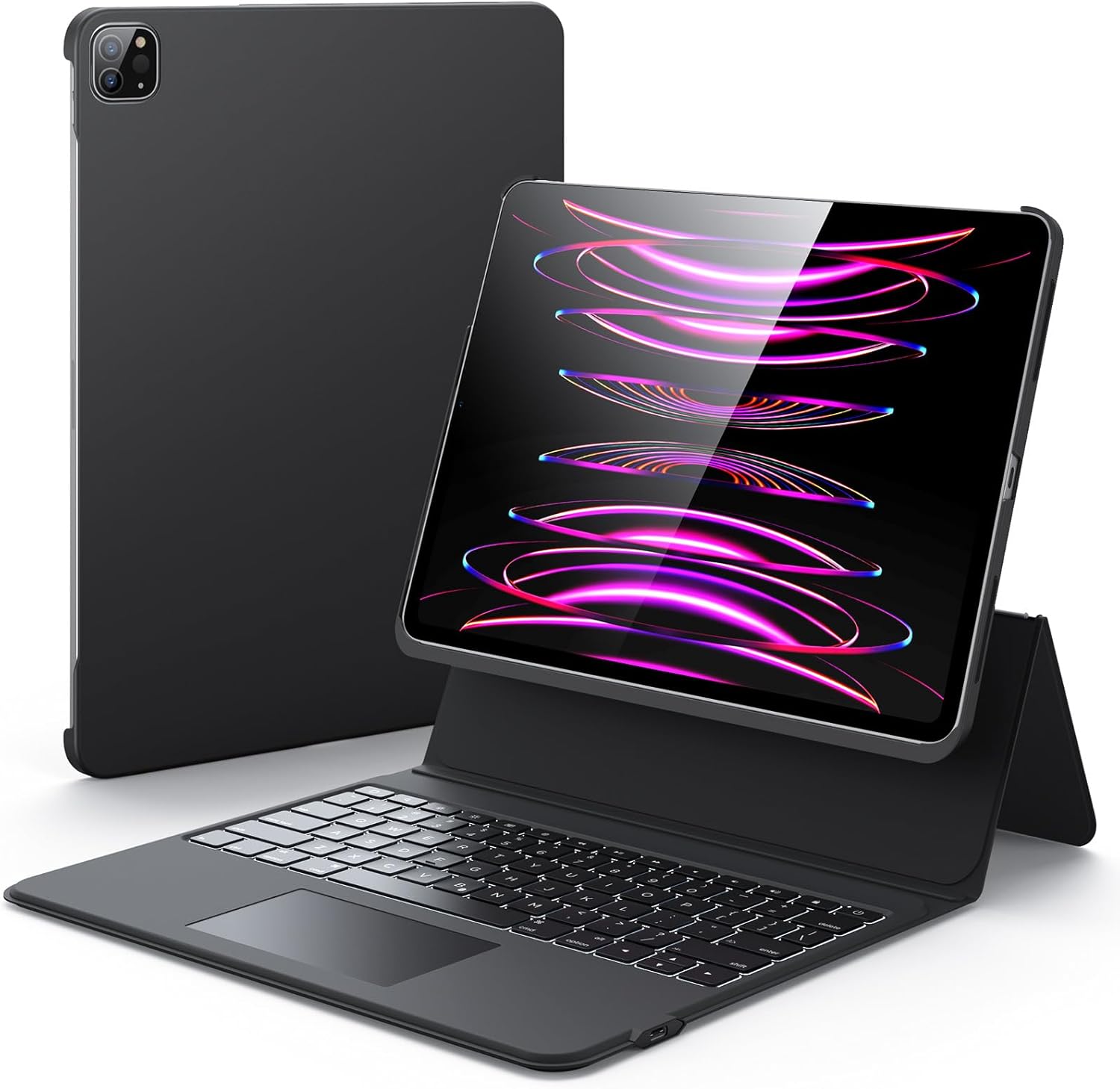
Image: The ESR Ascend Keyboard Case with an iPad securely attached, illustrating the product's integrated design and how the iPad fits into the case.
2. Bluetooth Pairing
- Power on the keyboard using the dedicated power button.
- Hold the Fn + B keys simultaneously for 3 seconds to enter pairing mode. The Bluetooth indicator light will flash.
- On your iPad, go to Settings > Bluetooth.
- Ensure Bluetooth is enabled.
- Under "Other Devices," select "ESR Keyboard" to connect.
Video: A step-by-step guide on how to power on the keyboard, activate Bluetooth pairing mode, and connect the ESR Keyboard to an iPad via Bluetooth settings.
3. Charging the Keyboard
Connect the provided USB-A to USB-C charging cable to the keyboard's USB-C port and a compatible power source. The charging indicator light will show the charging status.
Operating Instructions
Adjustable Stand
The case features a fully adjustable stand, allowing you to set your iPad at any angle between 15° and 180° for optimal viewing and typing comfort.

Image: An illustration demonstrating the wide range of adjustable angles (15° to 180°) supported by the integrated stand of the keyboard case.
Portrait and Landscape Viewing
Easily switch your iPad between portrait and landscape orientations by detaching and reattaching the magnetic case to the keyboard base. This flexibility is ideal for various tasks, from document editing to browsing.

Image: The keyboard case illustrating the seamless transition between portrait and landscape viewing modes for the iPad, enhancing usability.
Multi-touch Gesture Support
The integrated trackpad supports full multi-touch gestures, enhancing your productivity. This feature requires iPadOS 13.4 or later.
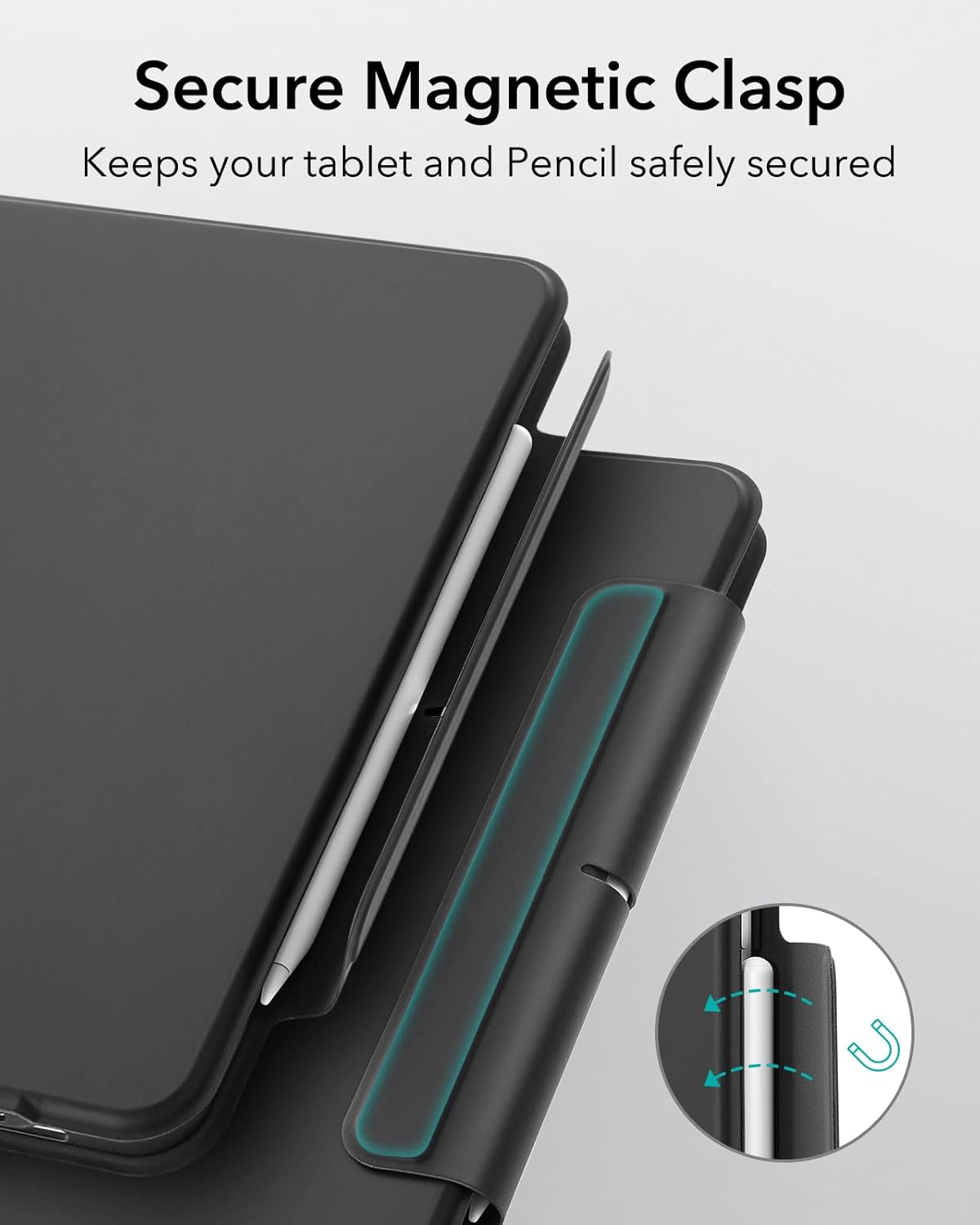
Image: A close-up view of the keyboard's trackpad, highlighting its multi-touch gesture capabilities for improved navigation and control.
Time-saving Shortcut Keys
Utilize the dedicated row of shortcut keys for quick access to common functions, improving efficiency.
Customizable Backlit Keys
The keyboard features customizable backlit keys with 7 color options and 3 brightness levels. Adjust the color by pressing Fn + Enter and brightness with Fn + Right Shift.

Image: The keyboard displaying its customizable backlit keys, illustrating the available 7 color options and 3 brightness levels for typing in various lighting conditions.
Magnetic Clasp and Auto Sleep/Wake
The magnetic clasp keeps your tablet and Apple Pencil securely fastened when closed. The case also supports auto sleep/wake functionality, preserving battery life.

Image: A close-up of the magnetic clasp, demonstrating how it securely holds both the iPad and an Apple Pencil in place when the case is closed.
Maintenance
To ensure the longevity and optimal performance of your ESR Ascend Keyboard Case, follow these maintenance guidelines:
- Clean the exterior surfaces with a soft, damp cloth. Avoid abrasive cleaners or solvents.
- Keep the keyboard free from dust and debris. Use a soft brush or compressed air to clean between keys.
- Avoid exposing the case to extreme temperatures or direct sunlight for prolonged periods.
- Do not submerge the case in water or any other liquids.
Troubleshooting
Touchscreen Unresponsive After Double-Clicking Trackpad
If your iPad's touchscreen becomes unresponsive after double-clicking the trackpad, this may be due to the AssistiveTouch feature. To resolve this:
- Go to Settings on your iPad.
- Navigate to Accessibility > Touch.
- Locate AssistiveTouch and turn it OFF.
Video: A demonstration of how to disable AssistiveTouch on iPad settings to resolve touchscreen unresponsiveness after using the keyboard's trackpad.
Incorrect Size/Fit Issues or Wrong Purchase
If you have received a keyboard case that does not fit your device or was an incorrect purchase, many issues can be quickly resolved by contacting customer service. This includes model exchanges, technical support, or compatibility concerns.
Video: Instructions on how to contact ESR customer service through Amazon for issues such as incorrect size, fit, or wrong purchases, emphasizing quick resolution for model exchanges or technical support.
Specifications
| Feature | Detail |
|---|---|
| Product Dimensions | 13.39"L x 10.04"W x 0.98"H |
| Item Weight | 2.82 pounds |
| Material | Polyurethane (PU), Aluminum, Polycarbonate |
| Keyboard Description | Backlit |
| Number of Keys | 78 |
| Connectivity Technology | USB (for charging) / Bluetooth (for connection) |
| Manufacturer | Electronic Silk Road Corp |
Warranty and Support
ESR products typically come with a standard warranty. For specific warranty details, product support, or to address any concerns, please visit the official ESR support website or contact their customer service directly. You can often find support links through your purchase history on the retailer's website.
For Amazon purchases, navigate to your Orders page, select the product, and click on "Get Product Support." From there, you can usually find an option to "Contact the Manufacturer" or "Visit ESR Support Website."
Related documents6B005

Ask a question about this manual
Ask about setup, troubleshooting, compatibility, parts, safety, or missing instructions. Manuals+ will review the question and use this page’s manual context to help answer it.