
wansview W7
wansview 2K Security Camera W7 User Manual
Model: W7
1. Product Overview
The wansview 2K Security Camera W7 is a high-resolution outdoor surveillance camera designed to provide comprehensive home security. Featuring 2K (3MP) video capture, full-color night vision, two-way audio, and advanced motion detection, it offers reliable monitoring day and night. The camera is IP65 waterproof, ensuring durability in various weather conditions, and supports both local SD card storage and cloud storage options.

Figure 1.1: wansview 2K Security Camera W7 and its mobile application interface.
2. Setup Guide
2.1. Package Contents
- wansview 2K Security Camera W7
- USB Power Cord
- Power Plug
- Installation Guide
- Mounting Screws (2 sets)
2.2. Initial Setup
- Power Connection: Connect the USB power cord to the camera and then to the power plug. Plug the power plug into a standard electrical outlet. The camera requires a wired power connection for operation.
- Download the App: Download the "Wansview Cloud" app from the Apple App Store or Google Play Store on your smartphone.
- Account Registration: Open the Wansview Cloud app and register for a new account or log in if you already have one.
- Add Device: Tap the "+" icon in the app to add a new device. Select the W7 camera model.
- Wi-Fi Connection: Follow the in-app instructions to connect the camera to your 2.4GHz Wi-Fi network. Ensure your Wi-Fi signal is strong at the camera's intended mounting location. You will be prompted to scan a QR code displayed on your phone screen with the camera's lens.
- Mounting: Once the camera is successfully connected, choose a suitable outdoor location for mounting. Use the provided mounting screws and the installation guide to securely attach the camera to a wall. The camera is designed for wall-mounted installation.

Figure 2.1: Key features and weather resistance of the wansview W7 camera.
3. Operating Instructions
3.1. Live View and Pan/Tilt Control
Access the live video feed from your camera through the Wansview Cloud app. You can remotely control the camera's viewing angle with its 350° pan and 55° tilt capabilities to monitor a wide area.
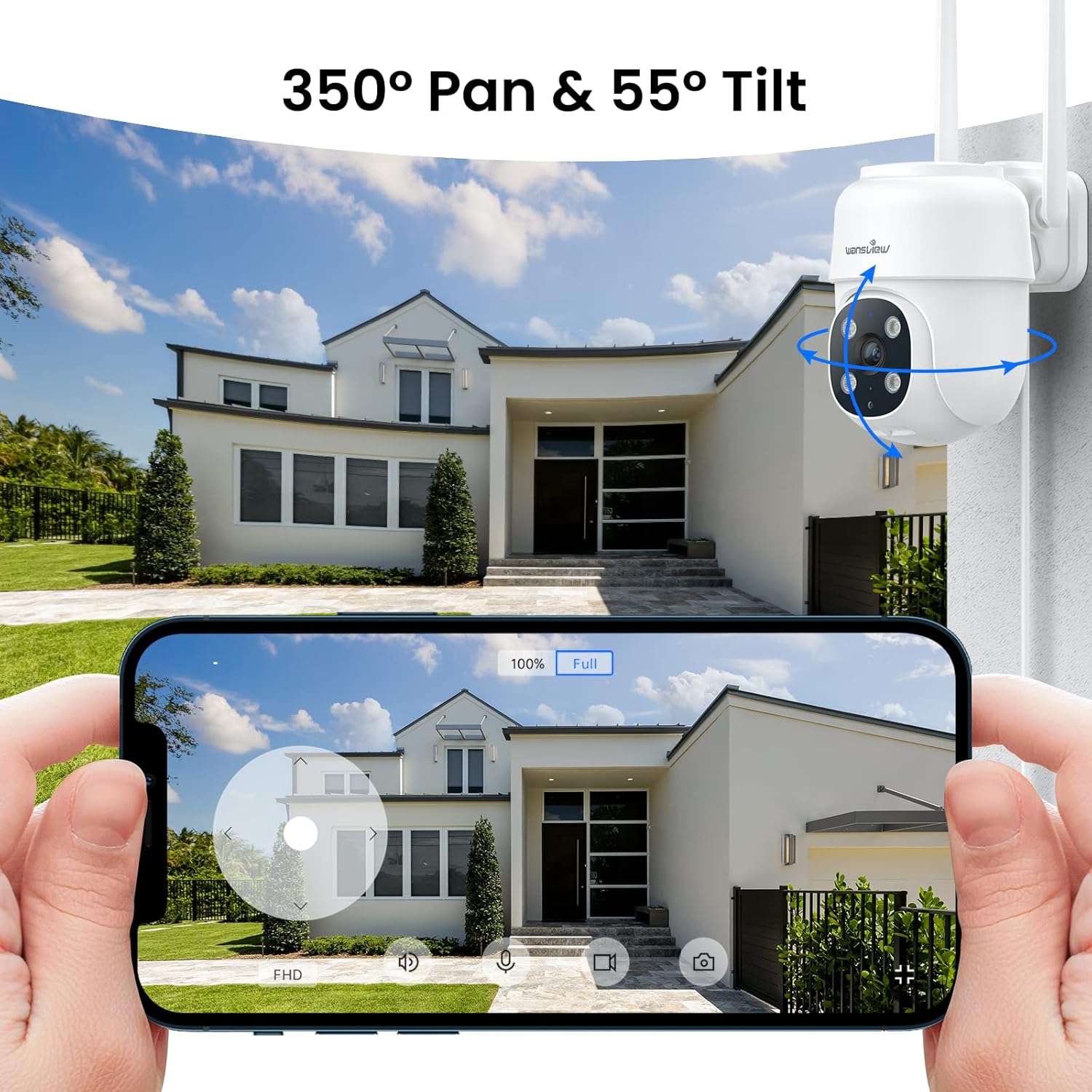
Figure 3.1: Remote pan and tilt control via the Wansview Cloud app.
3.2. Two-Way Audio
The camera features a built-in microphone and speaker, enabling two-way communication. Use the app to speak to visitors or deter unwanted guests from your property.
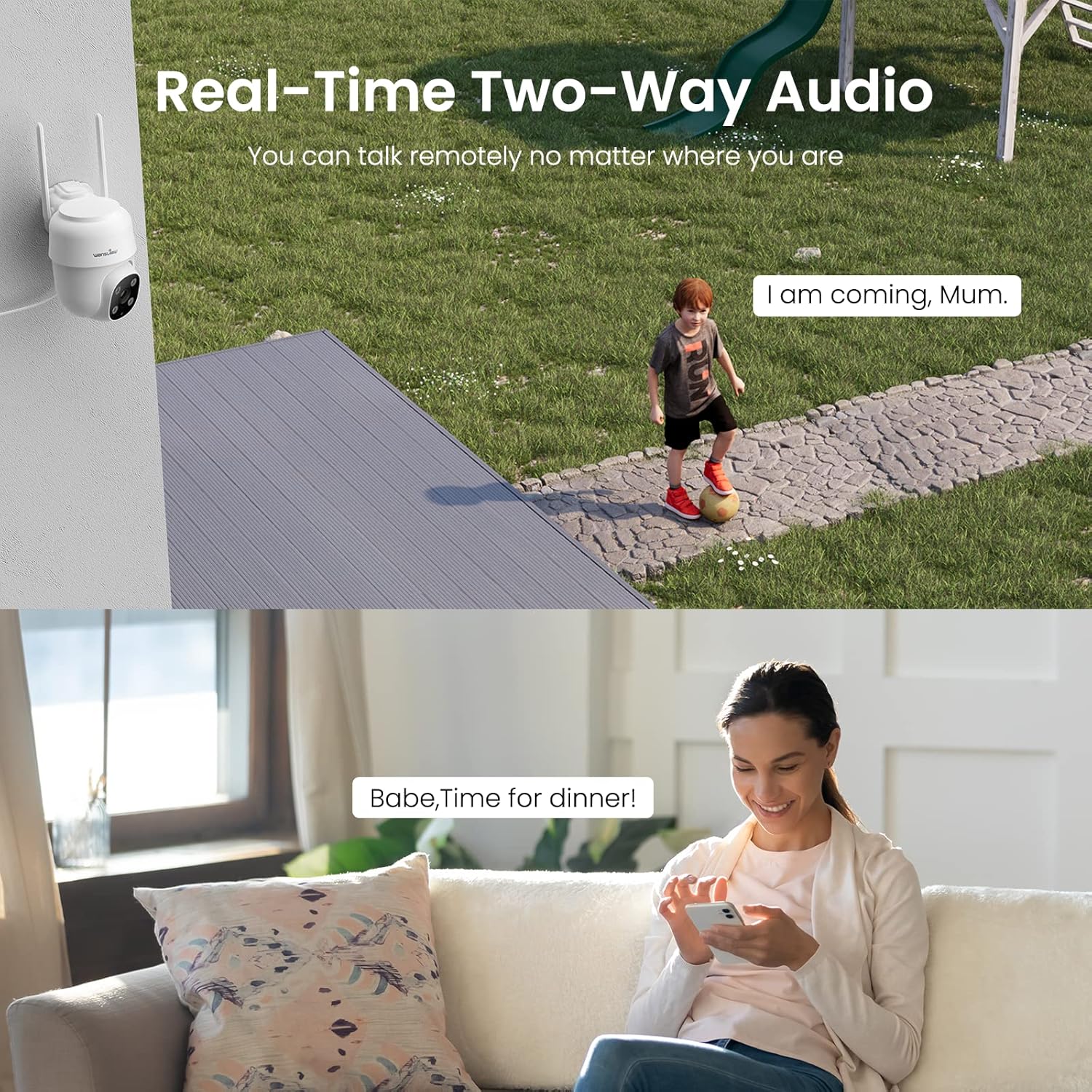
Figure 3.2: Demonstrating the real-time two-way audio functionality.
3.3. Night Vision Modes
The W7 camera offers two night vision modes for clear visibility in low-light conditions:
- Infrared Night Vision: Provides clear black and white images in complete darkness.
- Full-Color Night Vision: Utilizes built-in white lights to display color images at night when activated.

Figure 3.3: Visual comparison of infrared and full-color night vision.
3.4. Motion Detection and Alerts
The camera's built-in sensor detects motion and can trigger real-time alerts to your phone. You can customize the motion detection sensitivity and define specific detection areas within the app to minimize false alarms.
- Light Alarm: The camera's white light can be set to turn on automatically or manually upon motion detection.
- Siren Alarm: An audible siren can be activated to deter intruders.
- Notification: Receive push notifications on your smartphone when motion is detected.
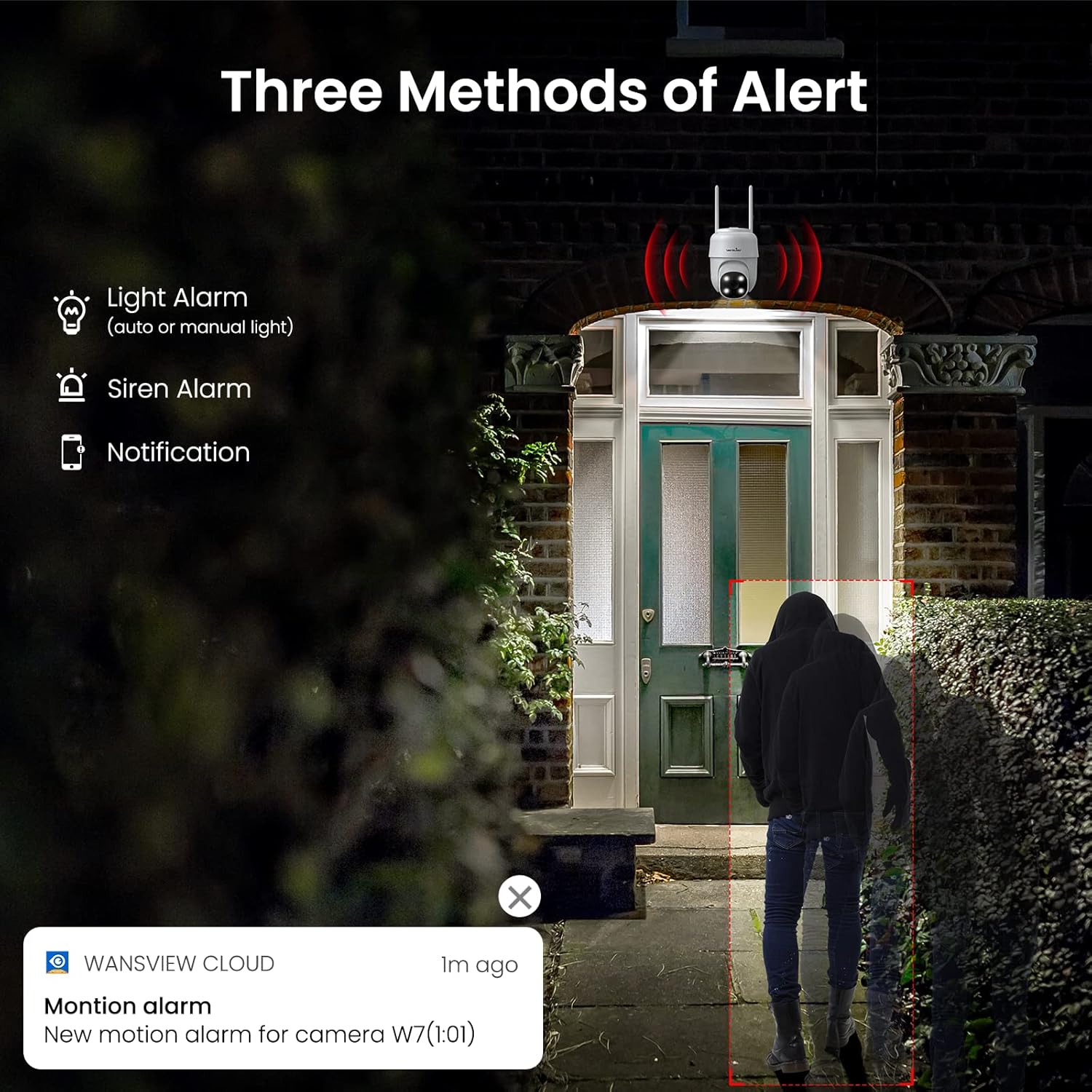
Figure 3.4: Overview of the three alert methods available.

Figure 3.5: Customizing the motion detection area for precise alerts.
3.5. Recording and Storage
The W7 camera supports continuous 24/7 recording to ensure no important moments are missed. You have two primary storage options:
- SD Card Storage: Insert a microSD card (up to 128GB, not included) into the camera for local storage of recordings.
- Cloud Storage: Optional cloud storage provides a secure backup for your video footage.
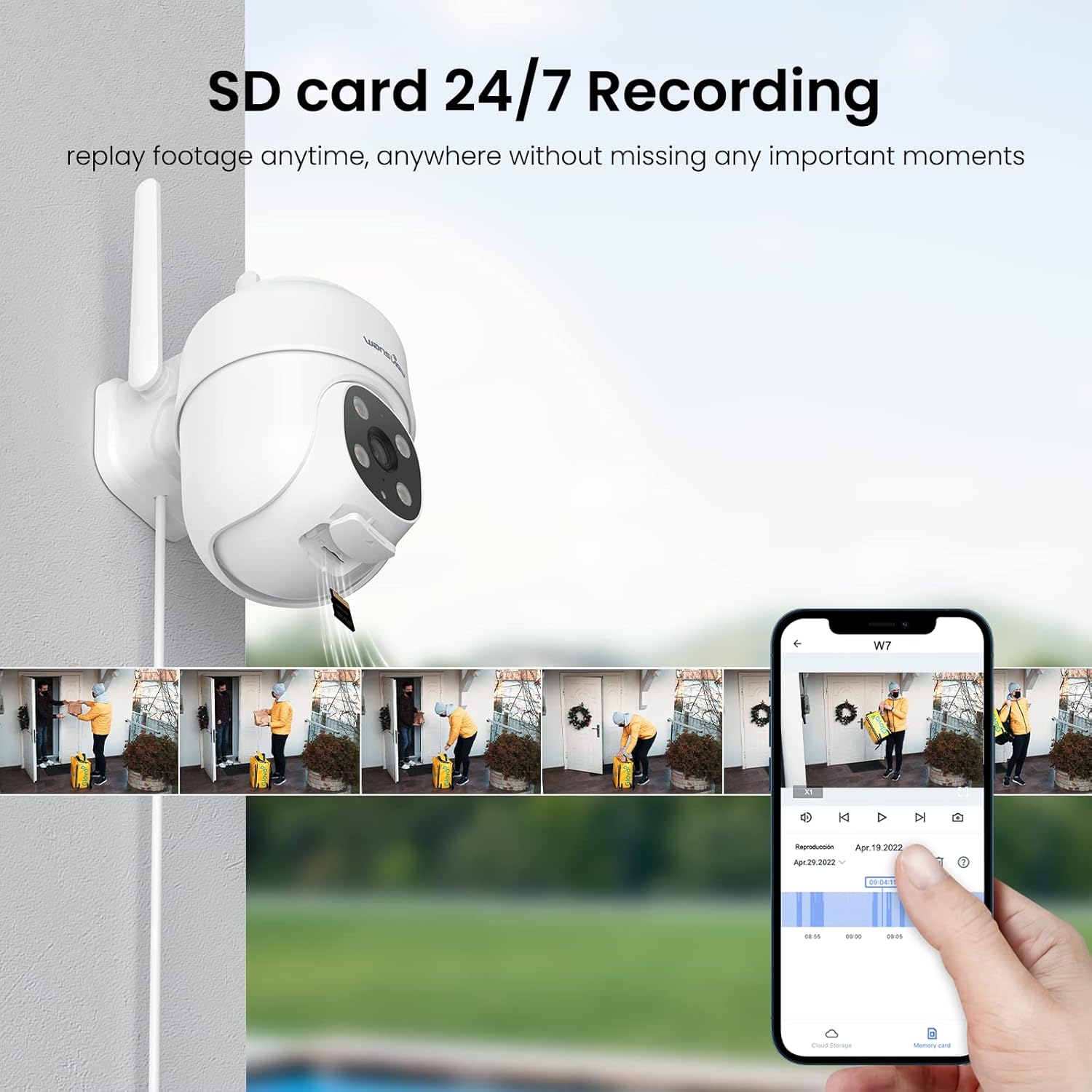
Figure 3.6: SD card storage and playback of recorded footage.
3.6. Smart Home Integration
The wansview W7 camera is compatible with Amazon Alexa Echo Show and Google Home. You can use voice commands to view your camera's live feed on compatible smart displays.

Figure 3.7: Integrating the camera with smart home assistants like Alexa.
3.7. Multi-User Access
You can share camera access with family members or trusted individuals through the Wansview Cloud app, allowing multiple users to view the live feed and recordings simultaneously.

Figure 3.8: Sharing camera access with family and friends.
4. Maintenance
- Cleaning: Regularly clean the camera lens and body with a soft, dry cloth to ensure clear image quality. Avoid using harsh chemicals or abrasive materials.
- Power Connection: Periodically check the power cord and plug for any signs of damage. Ensure the connection remains secure.
- Wi-Fi Signal: Verify that the camera maintains a strong 2.4GHz Wi-Fi signal at its installed location for optimal performance. Consider a Wi-Fi extender if the signal is weak.
- Firmware Updates: Keep the Wansview Cloud app updated to the latest version, as this often includes firmware updates for the camera that improve performance and security.
- SD Card Management: If using an SD card for storage, periodically check its status in the app. Format the SD card as needed to maintain optimal recording performance.
5. Troubleshooting
5.1. Common Issues and Solutions
| Problem | Possible Cause | Solution |
|---|---|---|
| Camera offline/Cannot connect | No power; Weak Wi-Fi signal; Incorrect Wi-Fi password; Router issues. | Check power connection. Ensure camera is within Wi-Fi range. Verify Wi-Fi password. Restart router and camera. |
| Poor video quality | Dirty lens; Insufficient lighting; Network bandwidth issues. | Clean the camera lens. Ensure adequate lighting for optimal 2K resolution. Check network speed. |
| Motion alerts are inaccurate/too frequent | Sensitivity too high; Detection area too broad. | Adjust motion detection sensitivity in the app (e.g., set to 'Normal'). Refine the detection area to focus on critical zones. |
| Night vision not clear/not activating | Obstruction in front of lens; Ambient light interference. | Ensure no objects are blocking the camera's view. Minimize external light sources that might interfere with infrared sensors. |
| Two-way audio issues | Microphone/speaker blocked; App permissions; Network delay. | Check for obstructions around microphone/speaker. Ensure app has microphone permissions. Check network stability. |
| SD card not recording | SD card full/corrupted; Incorrect format; Card not inserted properly. | Format the SD card via the app. Ensure the card is correctly inserted. Replace if corrupted. |
5.2. Resetting the Camera
If issues persist, you can reset the camera to its factory settings through the Wansview Cloud app under device management. This can resolve many software-related problems.
6. Specifications
| Feature | Detail |
|---|---|
| Model Number | W7 |
| Video Resolution | 2K (3 Megapixels) |
| Indoor/Outdoor Usage | Outdoor |
| Power Source | Corded Electric (5 Volts, 5 Watts) |
| Connectivity | 2.4GHz Wi-Fi |
| Pan/Tilt Range | 350° Pan, 55° Tilt |
| Viewing Angle | 95 Degrees |
| Night Vision | Full-Color Night Vision, Infrared Night Vision (up to 10 meters) |
| Waterproof Rating | IP65 |
| Operating Temperature | -10℃ to 50℃ (14°F to 122°F) |
| Storage Options | MicroSD Card (up to 128GB, not included), Cloud Storage |
| Dimensions (L x W x H) | 4.5 x 3.44 x 4.8 inches |
| Item Weight | 13.3 ounces |
| Included Components | Camera, USB cable, Plug, Installation guide, Mounting screws |
7. Warranty and Support
For warranty information and technical support, please refer to the official wansview website or contact wansview customer service directly. Customer support can assist with setup, troubleshooting, and product inquiries.
No official product videos were available for embedding based on the provided data.
Related documentsW7


Ask a question about this manual
Ask about setup, troubleshooting, compatibility, parts, safety, or missing instructions. Manuals+ will review the question and use this page’s manual context to help answer it.