
Camcamp SC17AUS
Camcamp Wireless Security Camera System User Manual
Comprehensive guide for the Camcamp 4MP Solar Powered Security Camera System with 500GB HDD, 6 Cam Kit, and 10CH NVR (Model: SC17AUS).
Product Overview
The Camcamp Wireless Security Camera System provides robust and reliable surveillance for your property. This 4MP Ultra HD system features solar-powered cameras for uninterrupted operation, a 10-channel NVR with a pre-installed 500GB HDD for local storage, and advanced features like full-color night vision, motion detection, and two-way audio. Designed for outdoor use with IP66 weatherproofing, it offers comprehensive security with easy installation and remote monitoring capabilities.
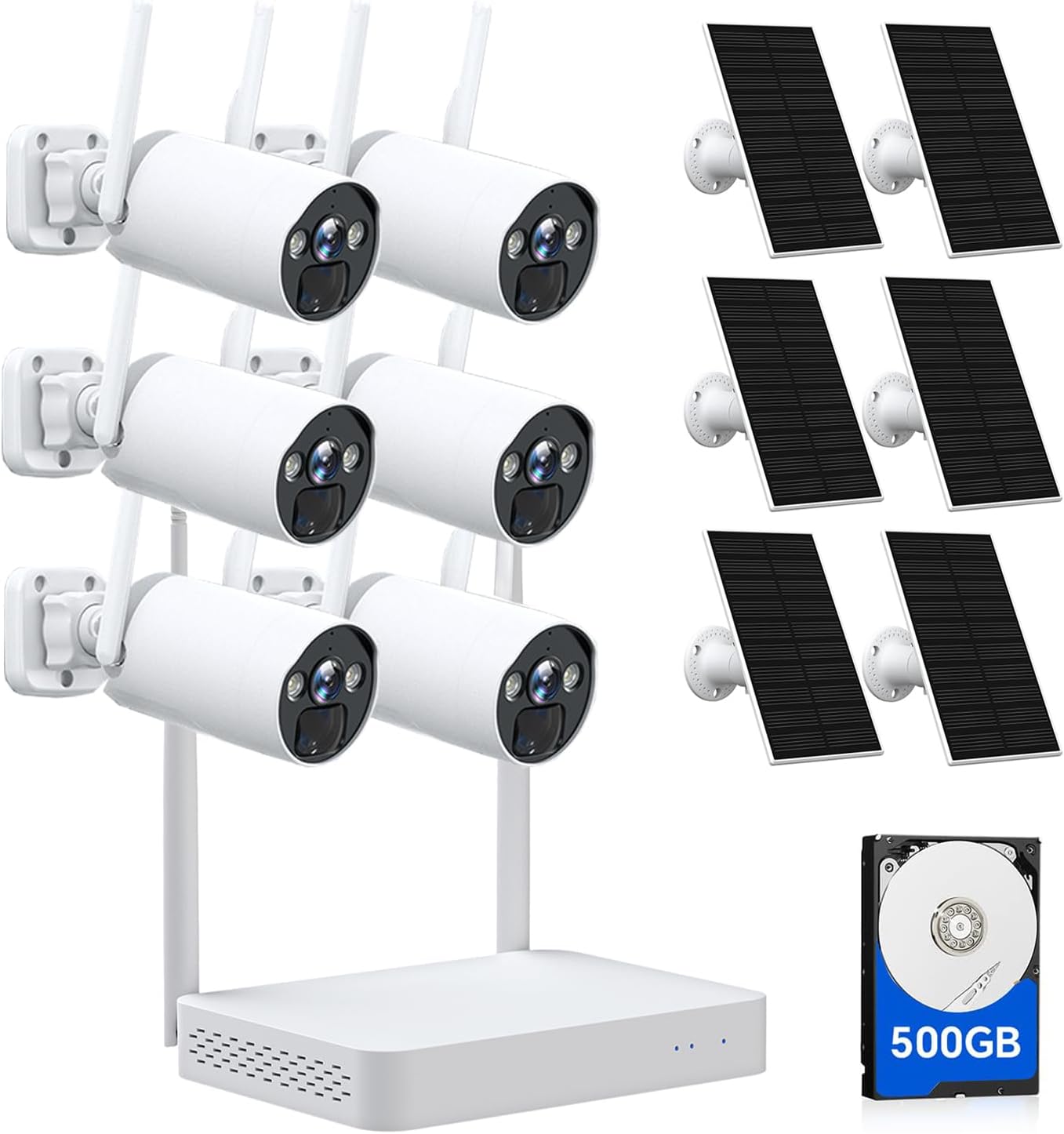
This image displays the complete Camcamp Wireless Security Camera System kit, including six white bullet-style cameras, six black solar panels, a white NVR unit, and a 500GB hard drive. The components are arranged to show the full scope of the system.
What's in the Box
Verify that all components listed below are included in your package:
- 6 x Security Cameras
- 6 x Solar Panel
- 1 x Mini NVR (with HDD)
- 1 x Charging Cable (for NVR)
- 1 x Mouse
- 1 x DC 12V/2A Power Adapter for NVR
- 1 x HDMI Cable
- 1 x Ethernet Cable
- 1 x Type-C Charging Cable for Camera
- 6 x Screws
- 1 x User Manual

This image provides a clear visual inventory of all items included in the package: 6x 4MP Battery Cameras, 6x Solar Panels, 1x Mini-NVR, 1x 500GB Hard Drive (pre-installed), 1x USB Mouse, 1x DC 12V/2A Power Adapter for NVR, 1x HDMI Cable, 1x Ethernet Cable, 1x Type-C Charging Cable for Camera, 6x Screws, and 1x User Manual.
Setup
1. Initial Charging and NVR Connection
Before installation, ensure the cameras are fully charged using the provided Type-C charging cable. Connect the NVR to a power source and your home network. The cameras are pre-paired to the NVR for convenience.

This image demonstrates the solar-powered functionality of the camera system. A solar panel is mounted above a wireless camera, connected by a charging cable, ensuring continuous power without the need for electrical wiring.

This image illustrates the NVR's capability to connect to an external display via HDMI, showing a multi-camera live view. The screen displays feeds from different areas, including a driveway, living room, and swimming pool, highlighting the system's monitoring versatility.
2. Camera Installation
Mount the cameras in desired outdoor locations using the provided screws. Ensure the solar panels are positioned to receive maximum sunlight for optimal charging. The IP66 weatherproof rating ensures durability in various conditions.
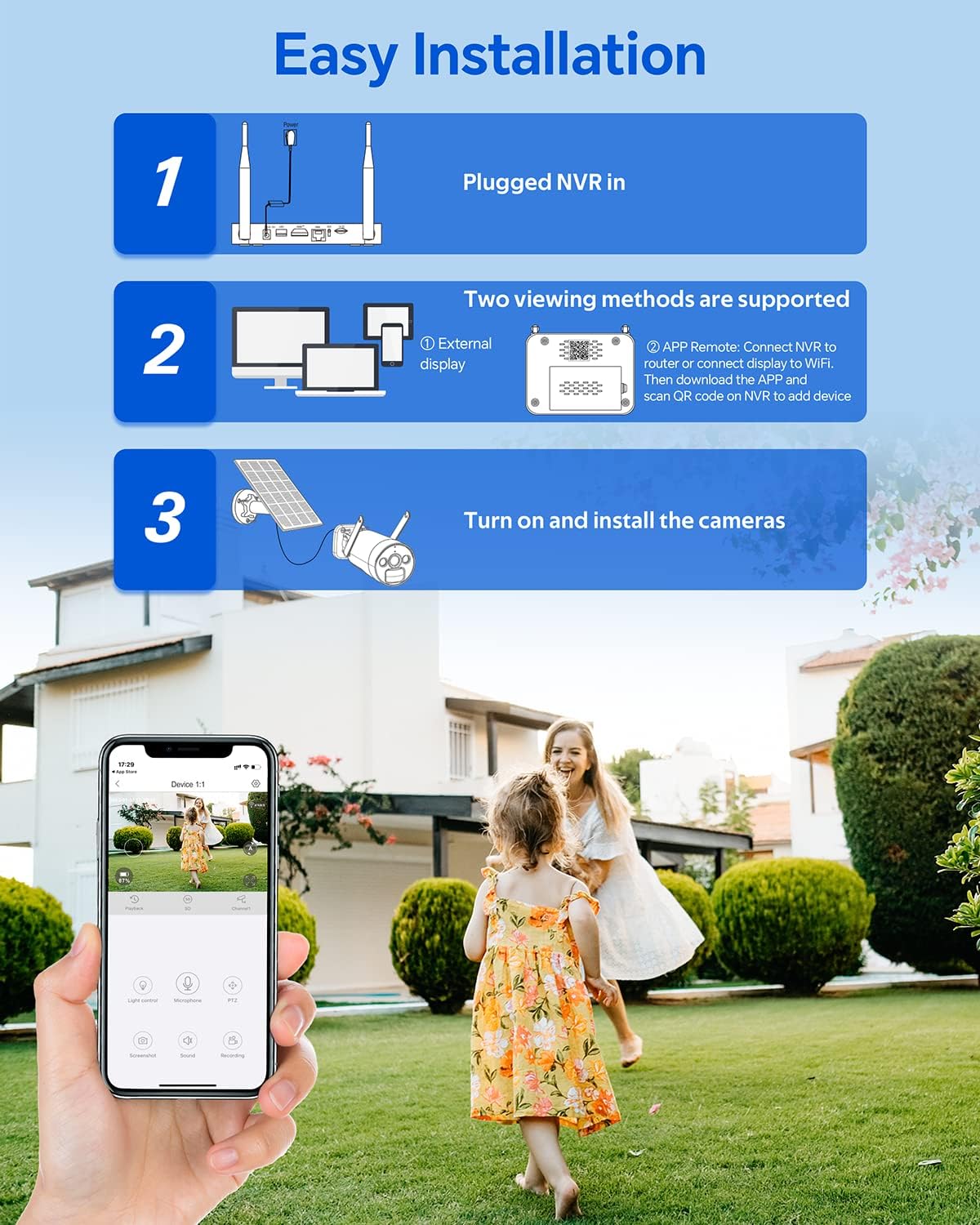
This graphic outlines the simple three-step installation process: plugging in the NVR, connecting to an external display or app, and turning on/installing the cameras. It emphasizes the user-friendly nature of the setup.
Operating
Viewing and Recording
The system captures 4MP Ultra HD video, providing clear and detailed footage. The NVR's 500GB HDD allows for extensive local video storage without monthly fees. You can view live feeds and playback recorded video directly from the NVR connected to a monitor or remotely via the mobile application.
- Full-Color Night Vision: The cameras provide full-color night vision up to 65 feet, offering enhanced detail compared to traditional black-and-white infrared.
- Motion Detection: PIR motion detection with AI humanoid detection minimizes false alarms by accurately identifying people and animals.
- Two-Way Audio: Communicate with visitors or deter intruders using the built-in microphone and speaker.

This visual comparison shows the clarity of the 4MP Ultra HD resolution during the day, the vibrant full-color night vision, and the traditional black-and-white infrared night vision. The full-color mode enhances detail and identification in low-light conditions.

This image highlights the advanced features of humanoid detection, sound alarm, and custom privacy zones. It also depicts the two-way audio function, allowing communication with individuals near the camera, such as a delivery person.
Remote Monitoring
Download the "CloudEye 365" app to your smartphone to access live footage, receive instant alerts, and manage your camera settings from anywhere. The system supports both 2.4G and 5G WiFi for fast and stable connections.
The bottom section of this image shows a smartphone displaying the "CloudEye 365" app, illustrating how users can remotely view live camera feeds and receive notifications.
Maintenance
Solar Panel Care
To ensure optimal charging efficiency, regularly clean the surface of the solar panels to remove dust, dirt, leaves, or snow. A soft, damp cloth is usually sufficient. Avoid using abrasive cleaners or tools that could scratch the panel surface.
Battery Management
The cameras are equipped with 8000mAh batteries. While solar power provides continuous charging, ensure the cameras receive adequate sunlight. In prolonged periods of low sunlight, occasional manual charging via the Type-C port may be necessary to maintain battery health.
Weather Protection
The cameras and solar panels are IP66 weatherproof, designed to withstand various outdoor conditions including rain, snow, and dust. While robust, avoid submerging the devices in water or exposing them to extreme temperatures beyond their operating range (-4°F to 122°F).

This image shows the camera and solar panel enduring rain, emphasizing their IP66 rating for weather resistance. This ensures reliable operation in various outdoor conditions, including rain, snow, and dust.
Troubleshooting
Refer to the table below for common issues and their potential solutions:
| Issue | Possible Cause | Solution |
|---|---|---|
| No video feed from camera | Camera battery low or NVR not powered. | Check camera battery level and solar panel connection. Ensure NVR is powered on and connected. |
| Poor video quality | Lens obstruction, poor Wi-Fi signal, or low light. | Clean camera lens. Relocate camera closer to NVR or Wi-Fi router. Ensure sufficient lighting for optimal night vision. |
| Motion detection not working | PIR sensor blocked, sensitivity too low, or incorrect zone settings. | Clear any obstructions from the PIR sensor. Adjust motion detection sensitivity in the app. Configure detection zones correctly. |
| Cannot connect to app | Incorrect network settings, NVR offline, or app issues. | Verify NVR's network connection. Restart NVR and router. Reinstall or update the "CloudEye 365" app. |
| Hard drive not recording | HDD full, not initialized, or faulty. | Check HDD status in NVR settings. Format HDD if necessary (this will erase data). Contact support if issues persist. |
Specifications
| Feature | Detail |
|---|---|
| Model Name | Solar wireless security camera system |
| Model Number | SC17 |
| Indoor/Outdoor Usage | Outdoor |
| Video Capture Resolution | 1440p (4MP Effective Still Resolution) |
| Power Source | Solar Powered |
| Connectivity Protocol | Wi-Fi (2.4G/5G dual antenna) |
| Controller Type | CloudEye 365/Eseecloud App |
| Number of Channels (NVR) | 10 |
| Storage | 500 GB HDD (pre-installed), supports Micro SD (up to 128GB) |
| Night Vision Range | 65 Feet (Full-Color Night Vision) |
| Water Resistance Level | IP66 Weatherproof |
| Two-Way Audio | Yes |
| Motion Detection | PIR with AI Humanoid Detection |
| Operating Temperature | -4°F to 122°F |
| UPC | 733669443443 |
Warranty and Support
Camcamp offers a 1-year warranty for this product, ensuring peace of mind regarding your purchase. Our dedicated customer service team is available 24/7 to assist you with any questions or issues you may encounter.
For support, please contact us at: (626)-420-9375 (GMT-8 9:00-17:00, Mon-Fri).
You can also visit the official Camcamp store on Amazon for more information and resources: Camcamp Amazon Store.
Related documentsSC17AUS


Ask a question about this manual
Ask about setup, troubleshooting, compatibility, parts, safety, or missing instructions. Manuals+ will review the question and use this page’s manual context to help answer it.