
1. Introduction
Thank you for choosing the FULLJA 10.1-Inch WiFi Digital Photo Frame. This device allows you to display your cherished memories, photos, and videos with ease. With its high-resolution IPS touch screen, ample storage, and smart features like motion sensing and wireless sharing, it's designed to keep your memories alive and connected with loved ones. Please read this manual carefully to ensure proper setup and optimal use of your digital photo frame.
2. Package Contents
Upon unpacking, please verify that all items listed below are included and in good condition.
- 1 x FULLJA 10.1-Inch WiFi Digital Photo Frame
- 1 x User Manual (this document)
- 1 x Power Adapter
- 1 x Frame Stand/Bracket

Figure 2.1: Example of package contents. Actual items may vary slightly.
3. Product Overview
The FULLJA 10.1-Inch WiFi Digital Photo Frame is designed for ease of use and rich functionality.
Key Features:
- 10.1-Inch IPS Touch Screen: Enjoy vivid details and clear picture quality with a 1920x1200 FHD IPS display and a 16:10 aspect ratio.
- 16GB Internal Memory: Store a large number of photos and videos directly on the device.
- Expandable Storage: Supports external SD cards for additional memory.
- Wireless Sharing: Easily send photos and videos via the VPhoto App, email, or USB.
- Unlimited Cloud Storage: Benefit from free unlimited online cloud storage for your memories.
- Motion Sensor: An energy-saving feature that automatically turns the screen on/off when presence is detected.
- Multi-functional: Includes features such as music playback, video playback, calendar, clock, weather station, and slideshow options.
- Family Sharing: Connect multiple family members via the VPhoto App to share moments instantly, regardless of distance.

Figure 3.1: The 10.1-inch IPS Touch Screen with 1920x1200 FHD Display.
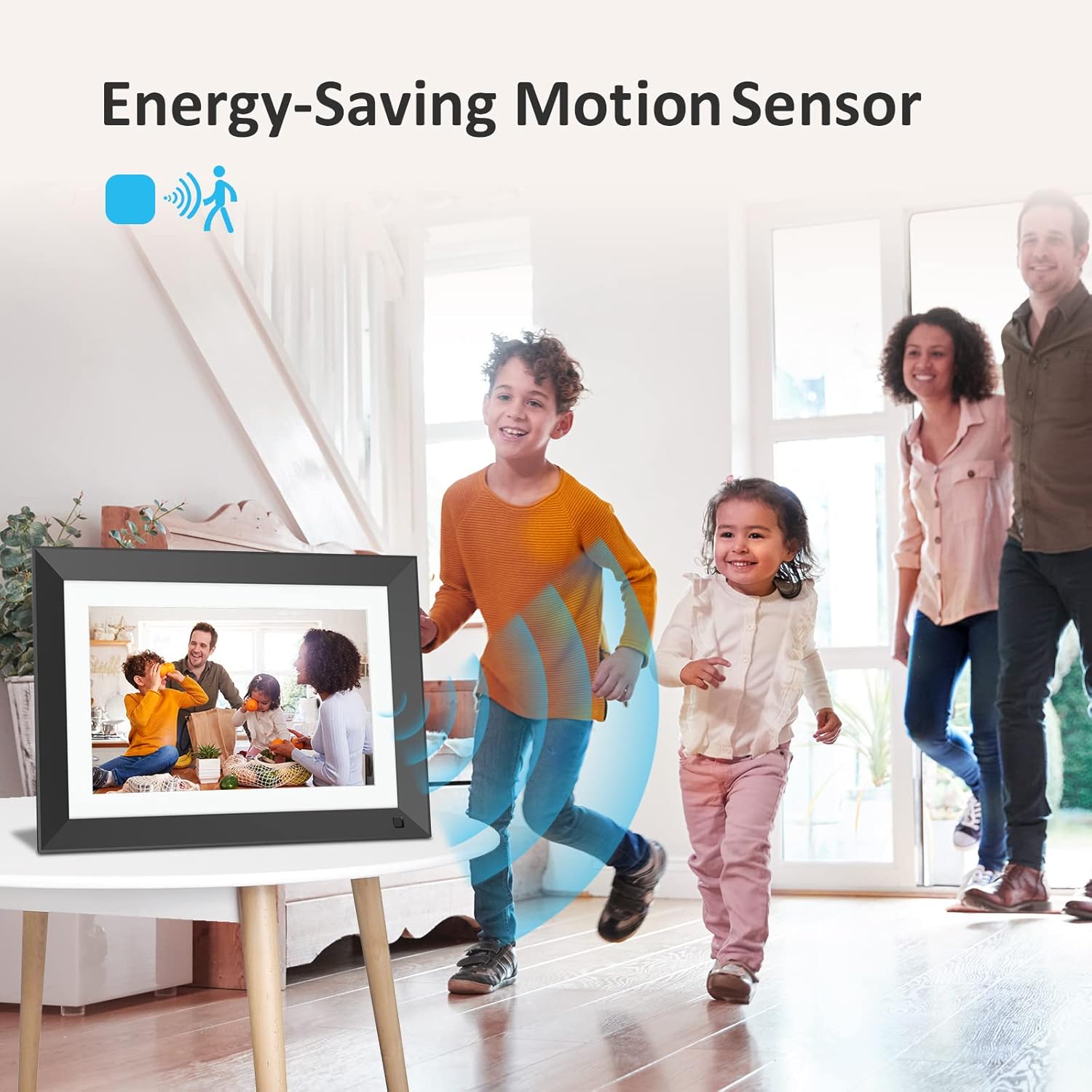
Figure 3.2: Energy-Saving Motion Sensor in action.

Figure 3.3: Deep Bass Box and High Quality Stereo Sound feature.
4. Setup
4.1 Initial Power-On
- Connect the power adapter to the DC port on the back of the frame.
- Plug the adapter into a power outlet. The frame will automatically power on.
- Follow the on-screen prompts to select your language and time zone.
4.2 Wi-Fi Connection
- From the main menu, tap on "Settings" (usually represented by a gear icon).
- Select "Wi-Fi" and turn it on.
- Choose your desired Wi-Fi network from the list and enter the password.
- Once connected, the Wi-Fi icon will appear stable on the screen.
4.3 VPhoto App Setup and Device Binding
The VPhoto App is essential for wireless sharing of photos and videos to your frame.
- Download VPhoto App: Download the "VPhoto" app from the Google Play Store (for Android) or the Apple App Store (for iOS) on your smartphone or tablet.
- Log In/Register: Open the app and create a new account or log in if you already have one.
- Get Connection Code: On your FULLJA Digital Photo Frame, navigate to the "Bind Device" or "Add Friend" section. The frame will generate a unique connection code.
- Bind Device in App: In the VPhoto app on your smartphone, enter the connection code displayed on your digital photo frame. This will link your app to the frame.
- Start Sharing: Once successfully bound, you can begin sending photos and videos from your smartphone to the frame.

Figure 4.1: How to bind your device using the VPhoto App.
5. Operating Instructions
5.1 Sending Photos and Videos
- Via VPhoto App: After binding, open the VPhoto app, select the photos or videos you wish to share, and tap the send button. They will appear on your frame almost instantly.
- Via Email: You can send photos and videos directly to the unique email address associated with your frame. This email address can be found in the frame's settings.
- Via USB Drive/SD Card: Insert a USB drive or SD card containing your media files into the designated port on the frame. The frame will detect the storage and allow you to import files to its internal memory.
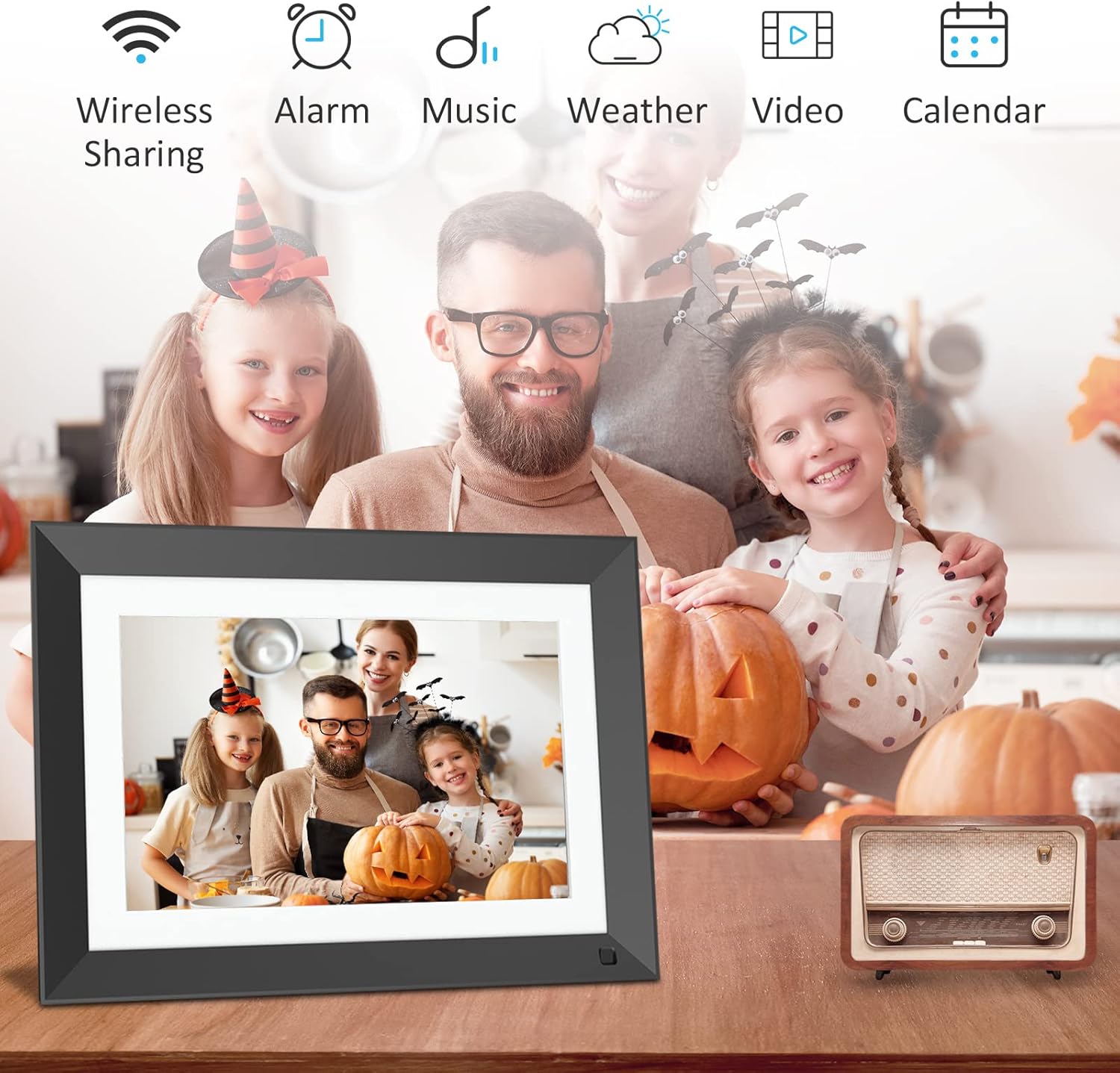
Figure 5.1: Instant sharing of photos and videos via VPhoto App or Email.
5.2 Navigating the Touch Screen Interface
The frame features an intuitive touch screen.
- Tap: Select an item or open an application.
- Swipe: Navigate through photos, menus, or lists.
- Pinch-to-Zoom: Adjust the size of photos (if supported by the software version).
5.3 Using Multi-functional Features
Your frame offers various functions beyond just displaying photos.
- Music: Play background music during slideshows or as a standalone feature.
- Video: Play short video clips.
- Calendar/Clock: Display current date, time, and set alarms.
- Weather Station: View local weather forecasts (requires internet connection).
- Slideshow: Customize slideshow intervals, transition effects, and playback order.

Figure 5.2: Overview of various functions available on the frame.
6. Maintenance
- Cleaning the Screen: Use a soft, lint-free cloth to gently wipe the screen. For stubborn smudges, slightly dampen the cloth with water or a screen-safe cleaner. Avoid harsh chemicals.
- Cleaning the Frame: Wipe the frame's exterior with a dry, soft cloth.
- Power Management: Unplug the frame during electrical storms or when not in use for extended periods.
- Software Updates: Periodically check for software updates in the settings menu to ensure optimal performance and access to new features.
- Storage Management: Regularly review and delete unwanted photos/videos to free up internal memory, or utilize an SD card for expanded storage.
7. Troubleshooting
| Problem | Possible Cause | Solution |
|---|---|---|
| Frame does not power on. | Power adapter not connected or faulty. | Ensure the power adapter is securely connected to both the frame and a working power outlet. Try a different outlet. |
| Cannot connect to Wi-Fi. | Incorrect password, weak signal, or network issue. | Double-check the Wi-Fi password. Move the frame closer to the router. Restart your router. Ensure your Wi-Fi network is 2.4GHz (some frames may not support 5GHz). |
| VPhoto App connection code not appearing or not working. | Temporary software glitch or network issue. | Restart the digital photo frame by unplugging and re-plugging it. Ensure the frame is connected to Wi-Fi. Try generating a new code in the app. |
| Photos/videos not appearing on the frame after sending. | Network delay, incorrect frame ID, or app issue. | Verify the frame is connected to Wi-Fi. Check if the VPhoto app confirms successful sending. Ensure the correct frame is selected in the app. Allow a few minutes for files to transfer. |
| Frame freezes or becomes unresponsive. | Software error or memory overload. | Perform a soft reset by unplugging the power adapter, waiting 10 seconds, and plugging it back in. If the issue persists, consider a factory reset (note: this will erase all data). |
| Motion sensor not working. | Sensor disabled or obstructed. | Check the settings to ensure the motion sensor is enabled. Ensure there are no obstructions in front of the sensor. |
8. Specifications
| Feature | Detail |
|---|---|
| Brand | FULLJA |
| Model | 10.1-Inch Digital Photo Frame |
| Screen Size | 10.1 Inches |
| Resolution | 1920x1200 IPS FHD Display |
| Internal Memory | 16GB |
| Expandable Storage | Supports SD Card |
| Connectivity | Wi-Fi (2.4GHz), USB |
| Compatible Devices | Smartphone (via VPhoto App) |
| Product Dimensions | 11.97 x 8.78 x 0.99 inches |
| Item Weight | 2.83 pounds |
| Color | Light Black |
9. Warranty and Support
9.1 Warranty Information
The FULLJA 10.1-Inch WiFi Digital Photo Frame comes with a 12-month warranty service from the date of purchase. This warranty covers manufacturing defects and ensures your product is free from material and workmanship flaws under normal use. Please retain your proof of purchase for warranty claims.
Note: The warranty does not cover damage caused by misuse, accidents, unauthorized modifications, or normal wear and tear.
9.2 Customer Support
Should you encounter any issues or have questions regarding your FULLJA Digital Photo Frame, please do not hesitate to contact our customer support team. We are committed to providing a great shopping experience and promise to respond to your inquiries within 24 hours.
For support, please visit the FULLJA Store on Amazon or refer to the contact information provided with your purchase.
10. Official Product Video
Watch the official product video for a visual guide on the FULLJA 10.1-Inch WiFi Digital Photo Frame's features and usage.
Video 10.1: Official product overview of the FULLJA 10.1-Inch WiFi Digital Photo Frame. This video demonstrates key features and how the frame operates.

