1. Product Overview
The usergaing Wireless Controller is designed for an enhanced gaming experience across multiple platforms. It features a 2.4GHz wireless connection, a dedicated Share button, and a 3.5mm headphone jack. This manual provides instructions for setup, operation, maintenance, and troubleshooting.

Image 1.1: Front view of the usergaing Wireless Controller.
Controller Components
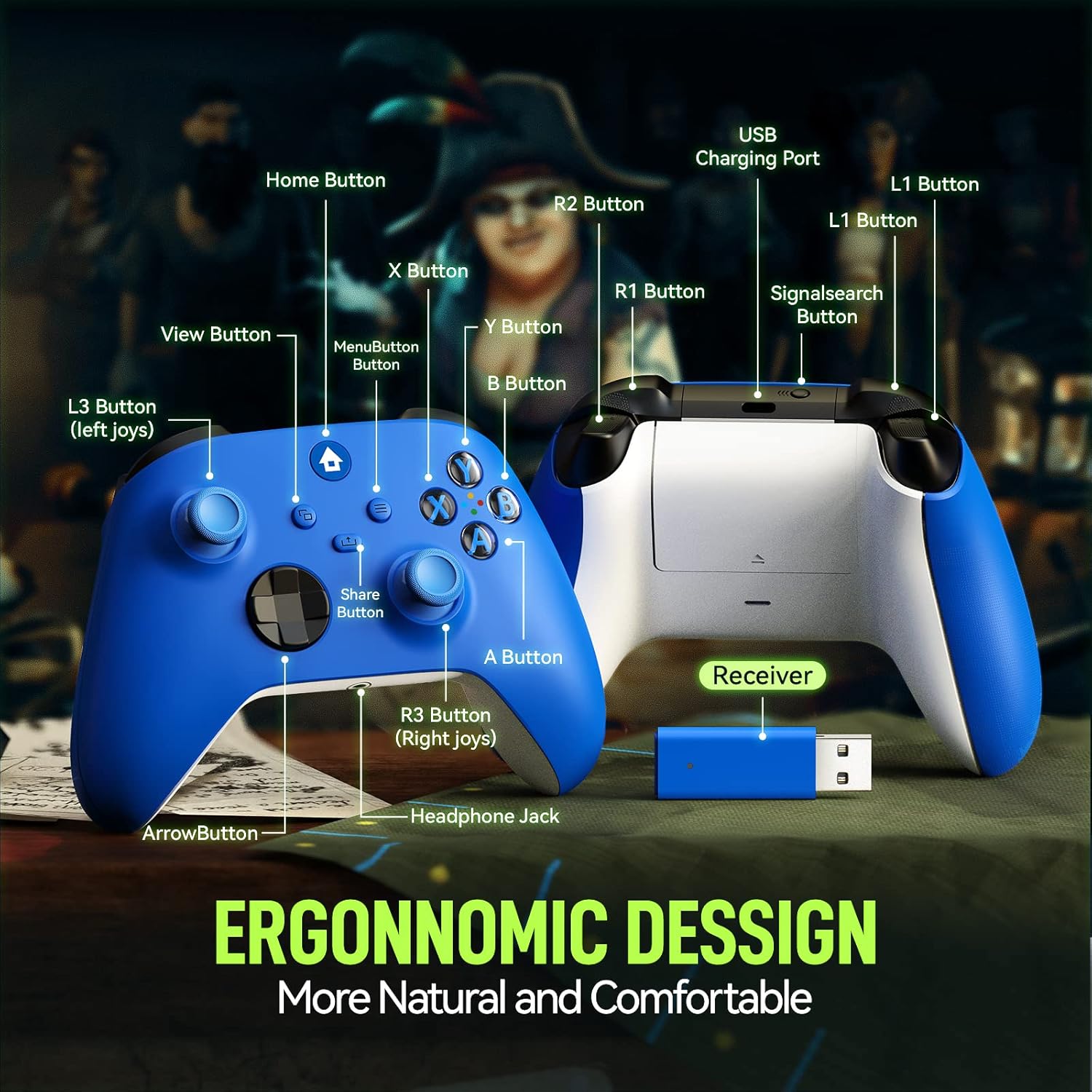
Image 1.2: Detailed diagram of controller components including Home Button, View Button, Menu Button, Share Button, X/Y/A/B Buttons, L3/R3 (joysticks), Arrow Button (D-pad), R1/R2 Buttons, L1/L2 Buttons, USB Charging Port, Signal Search Button, and Headphone Jack.
- Home Button: Powers on/off the controller and accesses system menus.
- View Button: Provides additional in-game information or menu options.
- Menu Button: Accesses game or app menus.
- Share Button: Captures screenshots and video clips.
- X/Y/A/B Buttons: Standard action buttons.
- L3/R3 (Left/Right Joysticks): For movement and camera control, with push-down functionality.
- D-pad (Arrow Button): Directional input.
- L1/R1 (Bumpers): Top shoulder buttons.
- L2/R2 (Triggers): Analog triggers for precise input.
- USB Charging Port: For charging the controller.
- Signal Search Button: Used for pairing.
- 3.5mm Headphone Jack: For connecting compatible headsets.
2. Setup Instructions
Follow these steps to connect your usergaing Wireless Controller to your console or PC.
Connecting to Xbox One / Xbox Series X|S Console or PC
- Insert the 2.4GHz Receiver: Plug the included 2.4GHz wireless receiver into an available USB port on your Xbox console or PC.
- Power On Controller: Press the Home button on the controller. The controller's indicator light will begin to flash, indicating it is searching for a connection.
- Pairing: The receiver's light will flash. Once the controller light and receiver light are solid, the connection is successful.

Image 2.1: Visual guide for syncing the controller to an Xbox console or PC.
The controller is compatible with Xbox One, Xbox Series X, Xbox Series S, Xbox One X/S, Xbox Elite Series, and Windows 10/11/8 devices. For PC, the 2.4GHz adapter is required and included.
3. Operating Instructions
Basic Functions
- Power On/Off: Press and hold the Home button to power on or off the controller.
- Navigation: Use the left joystick or D-pad for menu navigation and character movement.
- Action Buttons: Use A, B, X, Y buttons for in-game actions.
- Triggers and Bumpers: L1/R1 and L2/R2 are used for various in-game functions such as firing weapons or accelerating. The triggers feature a textured surface for improved grip.

Image 3.1: Textured triggers and bumpers for enhanced grip.
Share Button Functionality
The dedicated Share button allows for quick capture and sharing of your gaming moments.
- Short Press: Takes a screenshot.
- Long Press: Records a video clip.

Image 3.2: The dedicated Share button for capturing game content.
Using the 3.5mm Headphone Jack
Plug any compatible 3.5mm headset into the audio jack located at the bottom of the controller for in-game audio and chat functionality.

Image 3.3: Connecting a headset to the 3.5mm audio jack.
4. Maintenance
Proper care and maintenance will extend the life of your controller.
- Cleaning: Use a soft, dry cloth to clean the controller. For stubborn dirt, slightly dampen the cloth with water. Avoid harsh chemicals or abrasive materials.
- Storage: Store the controller in a cool, dry place away from direct sunlight and extreme temperatures.
- Charging: Charge the controller using the provided USB cable. Avoid overcharging or completely draining the battery frequently to prolong battery life.
- Handling: Avoid dropping the controller or subjecting it to strong impacts, as this can damage internal components.
5. Troubleshooting
If you encounter issues with your usergaing Wireless Controller, refer to the following troubleshooting steps.
Connection Issues
- Controller Not Connecting:
- Ensure the 2.4GHz receiver is securely plugged into a USB port on your console or PC.
- Make sure the controller is powered on (Home button light flashing).
- If the controller and receiver lights continue to flash, try re-pairing by briefly pressing the Signal Search button on the receiver (if available) and then the Home button on the controller.
- Try plugging the receiver into a different USB port.
- Ensure the controller is within the 30-foot wireless range of the receiver.
- Frequent Disconnections:
- Check for potential interference from other wireless devices (e.g., Wi-Fi routers, cordless phones).
- Ensure the controller has sufficient battery charge.
- Move closer to the receiver.
- "Not Authorized" or "Not a Microsoft Supported Device" Error:
- This message may appear on some Xbox consoles. While the controller is designed for compatibility, some console updates or security protocols may trigger this notification. The controller should still function.
- Ensure your console's software is up to date.
- If functionality is severely impacted, try restarting the console and re-pairing the controller.
Input Issues
- Buttons Not Responding:
- Ensure the controller is connected and powered on.
- Test buttons in a different game or application to rule out software-specific issues.
- Clean around the buttons to remove any debris that might be causing sticking.
- Joystick Drift or Inaccurate Input:
- Recalibrate the controller if your system offers this option.
- Ensure no physical obstructions are affecting joystick movement.
Audio Issues (3.5mm Jack)
- No Audio or Poor Quality:
- Ensure the headset is fully plugged into the 3.5mm jack.
- Check headset volume settings on both the headset and the console/PC.
- Test the headset with another device to confirm it is working correctly.
- Ensure the controller's firmware is up to date (if applicable, check manufacturer's website).
6. Specifications
| Model | Wireless Controller |
| Brand | usergaing |
| Connectivity | 2.4GHz Wireless (with USB adapter) |
| Compatibility | Xbox One, Xbox Series X|S, Xbox One X/S, Xbox Elite Series, Windows 10/11/8, PS3 |
| Wireless Range | Up to 30 feet (9 meters) |
| Audio Port | 3.5mm Headphone Jack |
| Special Features | Dedicated Share Button, Textured Triggers/Bumpers, Hybrid D-pad, Vibration Feedback |
| Dimensions | 6.5 x 4.61 x 2.91 inches (approximate package dimensions) |
| Weight | 9.9 ounces |
7. Warranty and Support
For warranty information and technical support, please refer to the documentation included with your purchase or contact usergaing customer service directly. Specific warranty terms may vary by region and retailer.
When contacting support, please have your product model and purchase information ready.


