
ComMarker B4-20W
ComMarker B4 20W Fiber Laser Engraver Machine User Manual
Model: B4-20W
1. Introduction
This manual provides essential instructions for the safe and efficient operation, setup, and maintenance of your ComMarker B4 20W Fiber Laser Engraver Machine. Please read this manual thoroughly before using the device.
The ComMarker B4 20W is a versatile 2-in-1 desktop and handheld fiber laser marking machine, compatible with LightBurn and EzCad2 software. It is designed for high-precision engraving on a variety of materials including metals (stainless steel, aluminum, gold, silver, alloy, copper), jewelry, and certain painted products and non-transparent plastics.

Image: The ComMarker B4 20W Fiber Laser Engraver Machine, showcasing its compact design and included 110x110mm and 200x200mm lenses.
2. Safety Information
WARNING: This product contains a Class 1 Laser. Always wear appropriate 1064nm laser safety goggles during operation.
- Ensure the workspace is well-ventilated to avoid inhaling fumes from engraved materials.
- Never look directly into the laser beam or at reflections.
- Keep children and unauthorized personnel away from the operating machine.
- Do not engrave flammable or explosive materials.
- Familiarize yourself with the emergency stop button location and function.
- Ensure proper grounding of the machine.
- Refer to IEC 60825-1 Report Number. 2401T29446E-SF and FDA Accession No.: 2210871-000 for compliance details.

Image: A pair of 1064nm laser safety goggles, essential protective equipment for operating the laser engraver.
3. Package Contents
Verify that all items listed below are present in your package:
- 1x B4 Machine
- 1x 110mm x 110mm Lens
- 1x 200mm x 200mm Lens
- 1x Power Adapter
- 1x Foot Switch
- 1x Positioner
- 1x USB Drive (containing software and drivers)
- 1x Ruler
- 1x Data Cable
- 1x Allen Wrench Set
- 1x 1064nm Goggles
- 2x Paperboard (for testing)
- 2x Steel Plate (for testing)
- 1x Auxiliary Holder
- 1x Material Package (sample materials)

Image: An overview of the ComMarker B4 laser engraver and all its included accessories, such as lenses, cables, safety goggles, and sample materials.
4. Setup Instructions
- Unpacking: Carefully remove all components from the packaging. Inspect for any shipping damage.
- Assembly:
- Place the laser head assembly onto the base unit. Secure it using the provided screws and Allen wrench.
- Attach the desired field lens (110x110mm or 200x200mm) to the laser head. Ensure it is securely fastened.
- Power Connection: Connect the power adapter to the machine and then to a grounded 110V power outlet.
- USB Connection: Connect the data cable from the machine to your computer.
- Software Installation:
- Insert the provided USB drive into your computer.
- Install the EzCad2 software and necessary drivers. For LightBurn compatibility, ensure you have the correct version and drivers installed for your operating system (Windows 7/8/10/11, MAC).
- Initial Focus Adjustment:
- Place a test material on the work platform.
- Use the electric lifting mechanism (up/down buttons on the unit) to adjust the height of the laser head until the red light focusing guides converge into a single, sharp point on the material surface.

Image: Diagram illustrating the electric lifting mechanism for precise height adjustment of the laser head, crucial for focusing.
5. Operating Instructions
5.1. Basic Engraving Process
- Prepare Design: Create or import your design in EzCad2 or LightBurn software. Supported formats include BMP, GIF, JPG, JPEG, DXF, DST, AI, etc.
- Material Placement: Place the material to be engraved on the work platform. Use the auxiliary holder or positioner if needed for stability.
- Focus Adjustment: Adjust the laser head height using the electric lifting buttons until the red light guides achieve optimal focus on the material surface.
- Parameter Settings: In the software, set appropriate laser parameters (power, speed, frequency, passes) based on the material type and desired engraving depth. Refer to the software manual for detailed parameter guidance.
- Laser Wavelength: 1064 nm
- Marking Speed: 0-15000mm/s
- Frequency: 20-60kHz
- Minimum Line Width: 0.01mm
- Engraving Depth: 0.3-0.5mm (typical)
- Preview Engraving Area: Use the software's preview function to ensure the design is positioned correctly on the material.
- Start Engraving: Ensure safety goggles are worn. Press the start button in the software or use the foot switch to begin the engraving process.
- Monitor Process: Observe the engraving process. In case of any issue, immediately press the emergency stop button.
5.2. Handheld Operation
The B4 machine can be detached from its base for handheld operation, allowing for engraving on larger or irregularly shaped objects. Follow these steps:
- Detach Laser Head: Carefully detach the laser head assembly from the vertical column.
- Connect Power and Data: Ensure power and data cables are securely connected for handheld use.
- Manual Focusing: For handheld use, manual focusing is critical. Maintain a consistent distance between the laser head and the material surface to ensure proper focus. The red light guides will assist in this.
- Safety Precautions: Exercise extreme caution during handheld operation. Ensure the laser path is clear and stable. Always wear safety goggles.
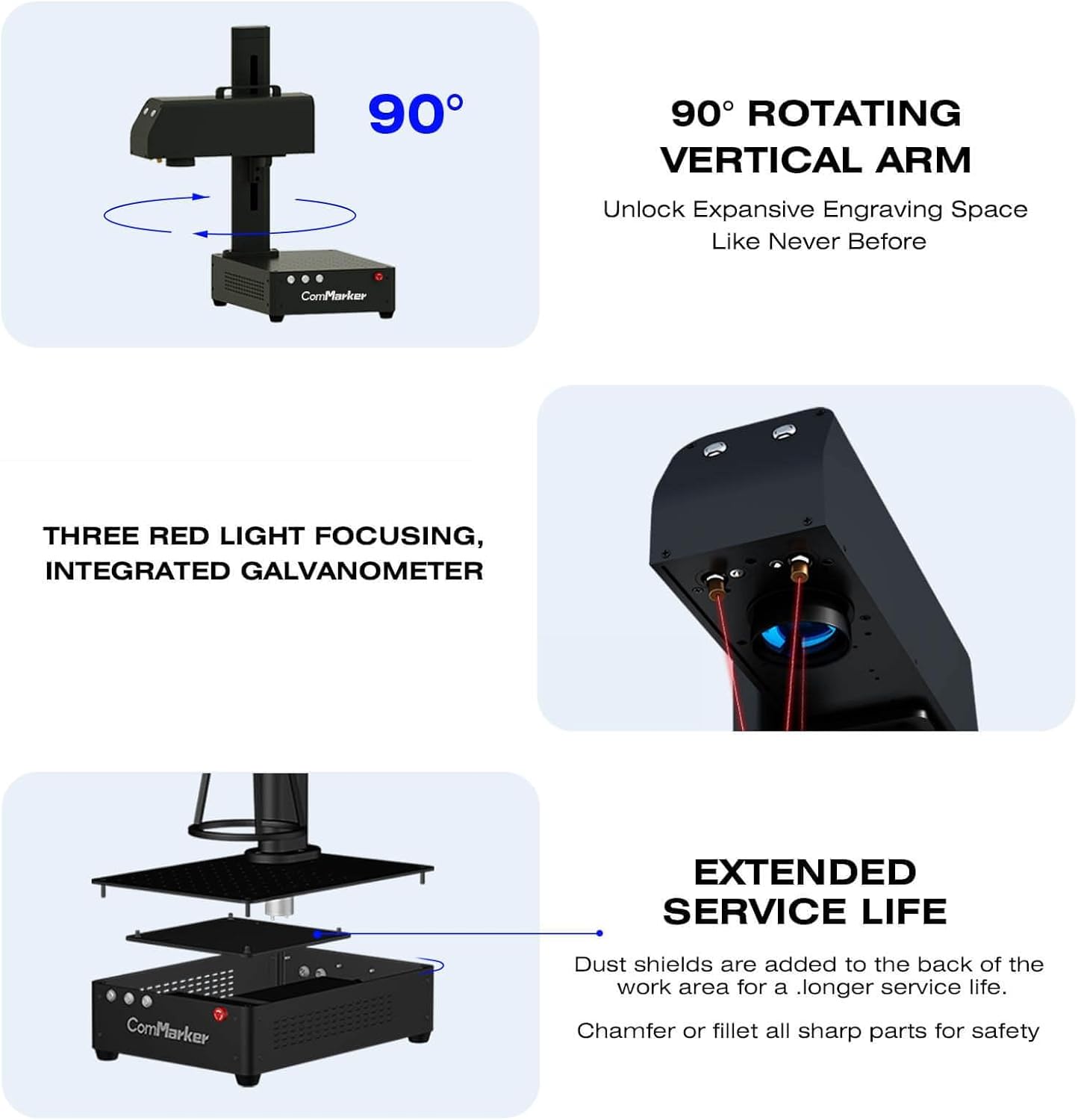
Image: The ComMarker B4 demonstrating its 90-degree rotating vertical arm, enabling flexible engraving positions and handheld use.
5.3. Compatible Materials
The ComMarker B4 fiber laser engraver is suitable for marking and engraving a wide range of materials:
- Metals: Stainless steel, aluminum, gold, silver, alloy, copper, brass, titanium, etc.
- Jewelry: Rings, pendants, bracelets, watches.
- Other: Pens, tags, tumblers, most painted products, and non-transparent plastics.
Note: For optimal results on specific materials, test on scrap pieces first to determine the best laser settings.
5.4. Software Compatibility
The ComMarker B4 is compatible with industry-standard laser engraving software, including LightBurn and EzCad2. It supports various graphic formats for design import.

Image: An illustration of the ComMarker B4's wide software compatibility, including Windows and Mac operating systems, and support for LightBurn and EzCad2, alongside various graphic file formats.
6. Maintenance
Regular maintenance ensures the longevity and optimal performance of your laser engraver.
- Lens Cleaning: Periodically clean the field lens with a soft, lint-free cloth and lens cleaning solution. Avoid abrasive materials.
- Dust Removal: Keep the machine free from dust and debris. Use compressed air to clean vents and internal components. The machine includes dust shields at the back of the work area for extended service life.
- Cable Inspection: Regularly check all cables for wear, damage, or loose connections.
- Software Updates: Keep your EzCad2 or LightBurn software updated to the latest version for improved performance and features.
- Environmental Conditions: Operate the machine in a clean, dry environment with stable temperature and humidity.

Image: An exploded view of the ComMarker B4 base unit, highlighting the internal components and the presence of dust shields for enhanced durability.
7. Troubleshooting
| Problem | Possible Cause | Solution |
|---|---|---|
| Laser not firing | Power cable loose, emergency stop engaged, software error, laser source issue. | Check power connections. Disengage emergency stop. Restart software and machine. Contact support if issue persists. |
| Poor engraving quality / blurry marks | Incorrect focus, wrong laser parameters, dirty lens, material instability. | Re-adjust focus. Verify laser settings for material. Clean the lens. Secure the material. |
| Machine not recognized by computer | USB cable issue, driver not installed, software conflict. | Try a different USB port/cable. Reinstall drivers from the USB drive. Ensure software is compatible with OS. |
| Unexpected machine movement or error | Software glitch, hardware malfunction. | Press emergency stop. Restart machine and software. Check for loose connections. |
8. Specifications
- Model: B4-20W
- Laser Source: 20W Max Fiber Laser
- Input Voltage: 110V
- Laser Wavelength: 1064 nm
- Marking Speed: 0-15000mm/s
- Frequency: 20-60kHz
- System Compatibility: Windows 7/8/10/11, MAC (LightBurn)
- Supported Graphics Formats: BMP, GIF, JPG, JPEG, DXF, DST, AI, etc.
- Minimum Line Width: 0.01mm
- Engraving Depth: 0.3-0.5mm
- Included Lenses: 110x110mm, 200x200mm
- Product Dimensions: 3.94 x 3.94 x 3.94 inches
- Item Weight: 37.9 pounds
- Certifications: IEC 60825-1 Report Number. 2401T29446E-SF, FDA Accession No.: 2210871-000, Class 1 Laser Product (Power output 1.95mW)
9. Warranty and Support
ComMarker provides customer support for their products. For technical assistance, warranty claims, or service inquiries, please refer to the contact information provided with your purchase or visit the official ComMarker website.
The product is covered by a standard return policy (30 days for refund/replacement) as per purchase terms.
For further assistance, you may visit the ComMarker Store on Amazon.
10. Product Videos
ComMarker B4 Laser Engraver Overview
Video: An overview of the ComMarker B4 Fiber Laser Engraver, demonstrating its features and capabilities. This video provides a general introduction to the machine's design and functionality.
ComMarker B4 Engraving Process Demonstration
Video: A demonstration of the ComMarker B4 in action, showcasing the engraving process on various materials. This video illustrates the precision and speed of the laser marking.
ComMarker B4 Versatility and Applications
Video: This video highlights the versatility of the ComMarker B4, showing different applications and types of items that can be engraved, from jewelry to tumblers.
ComMarker B4 Features and Design
Video: A detailed look at the design and key features of the ComMarker B4, including its 2-in-1 desktop and handheld functionality and integrated components.
ComMarker B4 User Experience
Video: This video provides insights into the user experience with the ComMarker B4, demonstrating ease of use and practical applications in a workshop setting.
Related documentsB4-20W


Ask a question about this manual
Ask about setup, troubleshooting, compatibility, parts, safety, or missing instructions. Manuals+ will review the question and use this page’s manual context to help answer it.