
Introduction
Thank you for choosing the ANTEMPER K110 Android Tablet. This manual provides essential information to help you set up, operate, and maintain your device. The K110 tablet features a 10.1-inch display, an Octa-Core processor, 8GB RAM, 128GB internal storage (expandable up to 1TB), dual cameras, and a 7000 mAh battery, running on Android 12. Please read this manual thoroughly before using your tablet.
What's in the Box
Carefully unpack your ANTEMPER K110 tablet and ensure all items are present:
- 1 x ANTEMPER Android 12 Tablet
- 1 x Stylus Pen
- 1 x Tablet Case
- 1 x Mouse
- 1 x OTG Adapter
- 1 x SD Card Ejection Tool
- 1 x User Manual (this document)
- 1 x Charger
- 1 x Screen Protector (pre-applied or separate)
- 1 x Bluetooth Keyboard

Image: The ANTEMPER K110 Tablet shown with its various accessories, including a keyboard, stylus, and case.
Setup
1. Initial Charging
Before first use, fully charge your tablet. Connect the provided charger to the tablet's Type-C port and plug it into a power outlet. The battery indicator on the screen will show charging progress.
2. Powering On/Off
- To Power On: Press and hold the Power button (usually on the side) for a few seconds until the ANTEMPER logo appears.
- To Power Off: Press and hold the Power button until a power-off menu appears. Select 'Power Off'.
- To Restart: From the power-off menu, select 'Restart'.
3. Inserting a MicroSD Card (Optional)
The tablet supports MicroSD card expansion up to 1TB for additional storage.
- Locate the MicroSD card slot on the side of the tablet.
- Use the provided SD card ejection tool to open the tray.
- Place the MicroSD card into the tray with the gold contacts facing down.
- Gently push the tray back into the slot until it clicks into place.
4. Connecting to Wi-Fi
The tablet supports dual-band 5GHz and 2.4GHz Wi-Fi for fast and stable internet access.
- Go to Settings > Network & internet > Wi-Fi.
- Toggle Wi-Fi On.
- Select your desired Wi-Fi network from the list.
- Enter the password if prompted, then tap Connect.
5. Pairing Bluetooth Devices
The tablet features Bluetooth 5.0 for connecting accessories like the included keyboard and mouse.
- Go to Settings > Connected devices > Bluetooth.
- Toggle Bluetooth On.
- Put your Bluetooth device (e.g., keyboard, mouse) into pairing mode.
- Select the device from the list of available devices on your tablet.
- Follow any on-screen prompts to complete pairing.
Operating Instructions
1. Navigating the Android 12 Interface
Your tablet runs on Android 12, offering a user-friendly and secure experience. Use touch gestures to navigate:
- Tap: Select an item.
- Swipe: Scroll through screens or lists.
- Pinch: Zoom in or out on images and web pages.
- Long Press: Access contextual menus or move icons.
2. Installing Applications
As a GMS-certified tablet, you can download and install a wide range of applications from the Google Play Store.
- Ensure you are connected to Wi-Fi.
- Open the Play Store app.
- Search for the desired app.
- Tap Install to download and install the app.

Image: The ANTEMPER K110 Tablet displaying various popular applications, highlighting its GMS certification and storage capabilities (8GB RAM, 128GB ROM, 1TB expandable).
3. Using the Cameras
The tablet is equipped with a 13MP rear camera and an 8MP front camera for photos, videos, and video calls.
- Open the Camera app.
- Switch between front and rear cameras using the camera icon.
- Tap the shutter button to take a photo or start/stop video recording.

Image: A close-up of the ANTEMPER K110 Tablet, illustrating the 8MP front and 13MP rear cameras, and its bright 10.1-inch display.
4. Connecting External Accessories
Enhance your productivity with the included Bluetooth keyboard, mouse, and stylus pen.
- Bluetooth Keyboard/Mouse: Follow the Bluetooth pairing instructions in the Setup section. Once paired, you can use them for typing and navigation.
- Stylus Pen: Use the stylus for precise input, drawing, or note-taking on the touch screen.

Image: A user operating the ANTEMPER K110 Tablet in a 2-in-1 mode with a Bluetooth keyboard, demonstrating its versatility for work.

Image: A user utilizing the stylus pen to draw on the ANTEMPER K110 Tablet, showcasing its touch sensitivity and creative potential.
5. Storage Management
Your tablet comes with 128GB of internal storage, expandable up to 1TB with a MicroSD card. Regularly manage your storage to ensure optimal performance.
- Go to Settings > Storage to view storage usage.
- Delete unnecessary files, apps, or move them to the MicroSD card.
6. Battery Usage and Optimization
The 7000 mAh battery provides extended usage time. To optimize battery life:
- Adjust screen brightness.
- Close unused apps running in the background.
- Turn off Wi-Fi or Bluetooth when not in use.
- Enable battery saver mode in Settings > Battery.
Maintenance
1. Cleaning the Device
To keep your tablet clean and functional:
- Use a soft, lint-free cloth to wipe the screen and body.
- Avoid using harsh chemicals or abrasive materials.
- Ensure ports are free of dust and debris.
2. Software Updates
Regularly check for and install software updates to ensure your tablet has the latest features and security patches.
- Go to Settings > System > System update.
- Follow the on-screen instructions to download and install any available updates.
3. Storage Optimization
Periodically review your stored content to free up space and maintain performance.
- Uninstall apps you no longer use.
- Clear cache data for apps in Settings > Apps > [App Name] > Storage & cache.
- Back up photos and videos to cloud storage or an external drive.
Troubleshooting
If you encounter issues with your ANTEMPER K110 tablet, try the following solutions:
| Problem | Solution |
|---|---|
| Tablet does not power on | Ensure the battery is charged. Connect the charger and wait a few minutes before attempting to power on again. If unresponsive, perform a force restart by holding the power button for 10-15 seconds. |
| Wi-Fi connection issues | Check if Wi-Fi is enabled in settings. Restart your Wi-Fi router. Forget the network and reconnect. Ensure you are within range of the Wi-Fi signal. |
| Apps are crashing or freezing | Close and reopen the app. Clear the app's cache (Settings > Apps > [App Name] > Storage & cache). Restart the tablet. If the issue persists, uninstall and reinstall the app. |
| Tablet is not charging | Ensure the charger and cable are securely connected and undamaged. Try a different power outlet. Clean the charging port gently. |
| Screen freezes or is unresponsive | Perform a force restart by holding the power button for 10-15 seconds. If the issue is frequent, consider a factory reset (back up data first). |
Factory Reset (Last Resort)
If persistent issues cannot be resolved, a factory reset may be necessary. Warning: This will erase all data on your tablet. Back up important data before proceeding.
- Go to Settings > System > Reset options.
- Select Erase all data (factory reset).
- Confirm your choice and follow the on-screen instructions.
Specifications
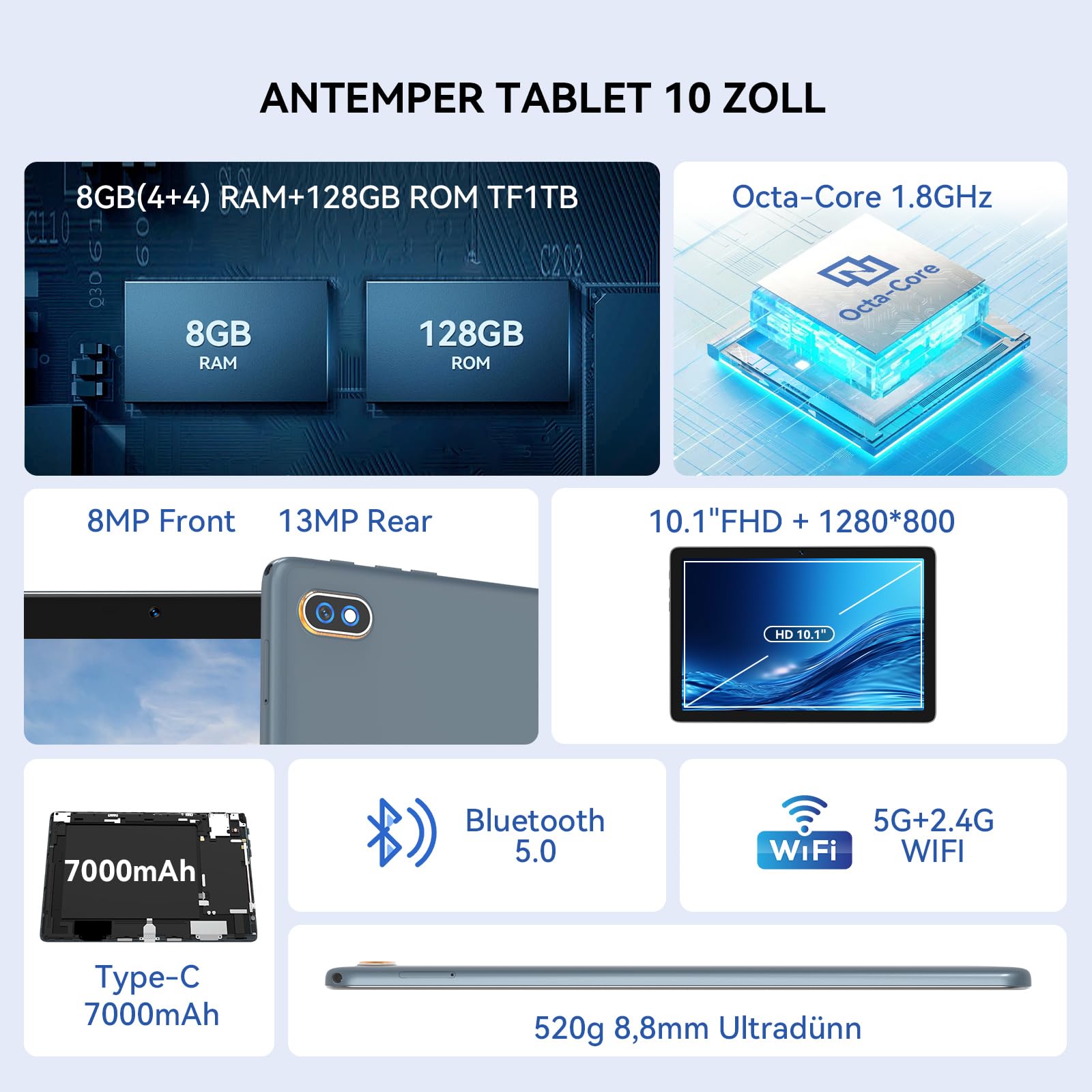
Image: An overview of the ANTEMPER K110 Tablet's key specifications including RAM, ROM, processor, cameras, display, battery, and connectivity.
| Feature | Detail |
|---|---|
| Brand | ANTEMPER |
| Model Number | K110 |
| Operating System | Android 12 |
| Processor | Octa-Core Unisoc, 1.8 GHz |
| RAM | 8 GB (4+4) DDR SDRAM |
| Internal Storage | 128 GB ROM |
| Expandable Storage | Up to 1 TB via MicroSD card |
| Screen Size | 10.1 Inches |
| Screen Resolution | 1280 x 800 pixels (IPS, G+G Technology) |
| Graphics Coprocessor | Mali G52 3EE |
| Rear Camera Resolution | 13 MP |
| Front Camera Resolution | 8 MP |
| Battery Capacity | 7000 mAh Lithium-Polymer |
| Average Battery Life | 18 Hours |
| Wireless Connectivity | Wi-Fi (802.11a/b/g/n/ac, 2.4G & 5G Dual Band), Bluetooth 5.0 |
| Dimensions | 30.48 x 17.78 x 2.54 cm |
| Weight | 1.44 kg |
| Color | Grey |
Warranty and Support
ANTEMPER is committed to providing comprehensive support for your tablet. If you encounter any issues or have questions regarding your product, please contact us through your Amazon purchase portal. We will endeavor to provide a satisfactory resolution.
For further assistance, please refer to the contact information provided with your purchase or visit the ANTEMPER brand store on Amazon.