
Introduction
Thank you for choosing the ROADOM X90A 14-inch Portable Triple Monitor. This device is designed to enhance your productivity by providing two additional Full HD 1080P IPS displays for your laptop, compatible with Windows, macOS, and Android systems. Its innovative foldable design and 360-degree rotation feature offer versatile usage scenarios for both work and entertainment.
1. Setup
1.1. Compatibility Check
Before installation, please verify your laptop's operating system version. The ROADOM X90A supports:
- macOS: 10.10, 10.11, 10.12, 10.13 High Sierra, 10.14 Mojave, 10.15 Catalina, 11 Big Sur, 12 Monterey (M1/M2/M3/M4 & Intel powered), 13 Ventura, 14 Sonoma, 15 Sequoia, 26 Tahoe.
- Windows: 7, 8.1, 10, 11.
- Android.
Important Note: If your laptop is managed by corporate IT policies that restrict software installation, the full functionality of this product may not be available. Please confirm your company's IT policy before purchase.
1.2. Physical Setup
The ROADOM X90A features a unique independent design that does not require attachment to your laptop. It includes a kickstand with adjustable angles (30°-90°) for optimal viewing. Its foldable nature allows for easy storage and portability in a briefcase or backpack.

Image: The ROADOM X90A unfolded, showing the integrated kickstand for stable positioning.
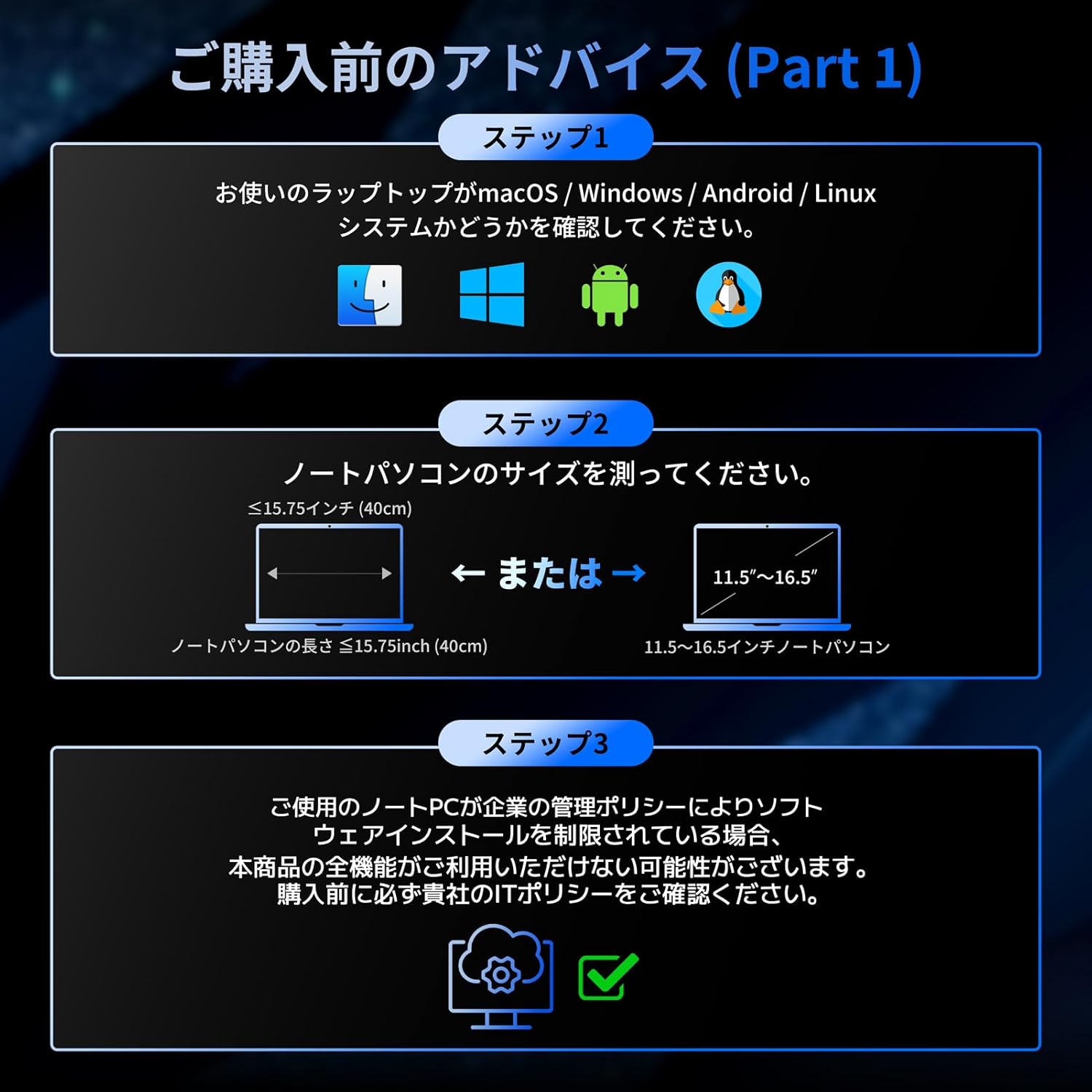
Image: The ROADOM X90A in its compact, folded state, ready for transport.
1.3. Driver Installation
To ensure full functionality, you must install the appropriate driver. A USB disk containing the driver files is included with your product. Simply connect the USB disk to your computer and follow the instructions in the user manual to download and install the correct driver for your operating system (Windows or Mac).
Video: This video demonstrates the driver installation process for macOS and Windows devices. It shows how to insert the USB disk, locate the driver, and complete the installation steps.
1.4. Connection
The X90A supports both Type-C and USB 2.0/3.0 port connections. You can transmit video, audio, and power with a single Type-C/USB-A cable. If your device does not have a full-function Type-C port, use the provided USB-A converter head. For prolonged use, it is recommended to power the monitor using the included adapter.

Image: Illustrates the flexible connection options for the ROADOM X90A, supporting both USB-C and USB-A ports for video signal and power.
2. Operating Instructions
2.1. Controls
Each screen of the X90A has dedicated control buttons for easy adjustment:
- "-" Button: Decrease value or navigate left in menus.
- MENU Button: Access the on-screen display (OSD) menu.
- "+" Button: Increase value or navigate right in menus.
- Power On/Off Button: Turn the monitor on or off.
Note: Long-pressing the MENU button will turn off the corresponding side screen.
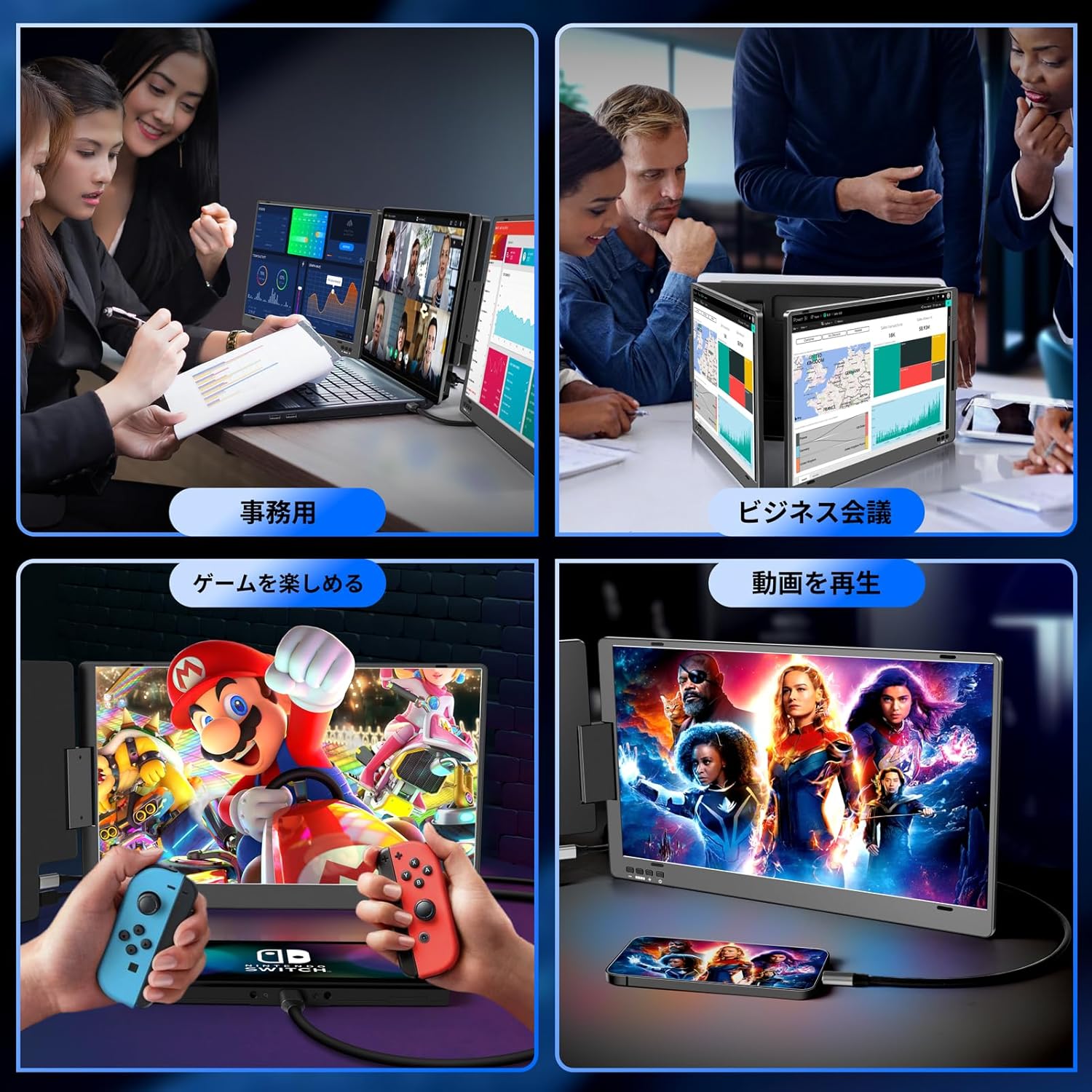
Image: A detailed view of the control buttons on the monitor, including '-', 'MENU', '+', and Power buttons.
2.2. Display Modes and Rotation
The X90A supports various display modes to suit your needs, including extended display, mirror display, and single-screen mode. Each screen can rotate up to 360 degrees, allowing for flexible screen sharing during business meetings or multi-tasking at home or on the go. The FHD1080P IPS panel with 100% sRGB wide color gamut and HDR mode ensures vibrant and vivid colors, while blue light reduction protects your eyes.

Image: Demonstrates the 360-degree rotation capability of the individual screens, enabling various viewing angles.
Video: This segment illustrates the different display modes available, including main display, extended display, and mirror modes, along with configuration steps for macOS and Windows.
3. Maintenance
3.1. Cleaning
To clean the monitor screens, gently wipe them with a soft, lint-free cloth. For stubborn smudges, slightly dampen the cloth with water or a screen-safe cleaning solution. Avoid using harsh chemicals, abrasive materials, or spraying liquid directly onto the screen.
3.2. Storage
When not in use, fold the monitor into its compact form. Store it in a cool, dry place away from direct sunlight and extreme temperatures. The foldable design is specifically engineered for easy and safe storage.
4. Troubleshooting
4.1. No Signal Displayed
- Ensure all cables (Type-C/USB-A) are securely connected to both the monitor and your laptop.
- Verify that your laptop's port supports video output.
- If using USB-A, ensure the USB-A port is capable of data transfer and video output.
- Confirm the monitor is receiving adequate power. Connect the external power adapter if necessary, especially for prolonged use.
4.2. Driver-Related Issues
- Re-install the display driver from the provided USB disk, ensuring you select the correct version for your operating system.
- Check your system's display settings to ensure the external monitors are detected and configured correctly (e.g., extended display mode).
4.3. Screen Not Turning On
- Press the power button on the monitor.
- Ensure the monitor is receiving power from the laptop or the external power adapter.
- If using an Android phone, confirm it supports 5V/3A power supply; otherwise, an external power source is required.
5. Specifications
| Feature | Specification |
|---|---|
| Brand | ROADOM |
| Model Number | X90A |
| Screen Size | 14 inches |
| Resolution | 1920x1080 (FHD 1080p) |
| Aspect Ratio | 16:9 |
| Panel Type | IPS |
| Screen Surface | Matte |
| Product Dimensions | 3 x 35.3 x 20.8 cm |
| Item Weight | 3.33 Kilograms |
| Color | Black |
6. Warranty
Your ROADOM X90A Portable Triple Monitor comes with a 1-year free warranty from the date of purchase. This warranty covers manufacturing defects and ensures reliable performance. Please retain your proof of purchase for warranty claims.
7. Support
For any inquiries regarding the product, usage guidance, or technical concerns, our specialized staff and experienced technical team are available to provide support. We have local warehouses and staff in Japan to ensure prompt after-sales service. Please refer to your purchase details or the included user manual for specific contact information.
