
1. Introduction
This user manual provides detailed instructions for the operation, maintenance, and troubleshooting of your Lenovo XT95 Pro Bluetooth TWS Wireless Earbuds. Please read this manual thoroughly before using the product to ensure proper functionality and to extend the lifespan of your device.

Figure 1.1: Lenovo XT95 Pro Wireless Earbuds in their open charging case, showcasing the sleek black design with green accents.
2. Package Contents
Ensure all items are present in the package:
- Lenovo XT95 Pro Wireless Earbuds (Left and Right)
- Charging Case
- Ear Cushions (various sizes)
- Charging Cable (USB-C)
- User Manual
3. Setup
3.1. Charging the Earbuds and Case
Before first use, fully charge the earbuds and the charging case. Place the earbuds into the charging case. Connect the charging case to a USB power source using the provided USB-C cable. The indicator lights on the case will show the charging status. A full charge typically takes approximately 1.5 to 2 hours.
3.2. Pairing with Your Device
- Ensure the earbuds are fully charged.
- Open the charging case. The earbuds will automatically enter pairing mode, indicated by a flashing light on the earbuds.
- On your device (smartphone, tablet, computer), enable Bluetooth.
- Search for available Bluetooth devices and select "Lenovo XT95 Pro" from the list.
- Once connected, a voice prompt will confirm successful pairing, and the indicator lights on the earbuds will turn off or show a steady light.
The earbuds will automatically reconnect to the last paired device when taken out of the case, provided Bluetooth is enabled on the device.
4. Operating Instructions
4.1. Smart Touch Controls
The Lenovo XT95 Pro earbuds feature intuitive touch controls on each earbud. Refer to the diagram below for specific functions:

Figure 4.1: Detailed touch control functions for the Lenovo XT95 Pro earbuds, including play/pause, track navigation, call management, and voice assistant activation.
- Play/Pause: Single touch on either earbud.
- Next Track: Touch right earbud 3 times.
- Previous Track: Touch left earbud 3 times.
- Answer/End Call: Single touch on either earbud.
- Reject Call: Long touch on either earbud.
- Activate Voice Assistant: Long touch for 2 seconds on either earbud.
4.2. Audio Features
The XT95 Pro earbuds are designed to deliver high-quality audio with enhanced bass and low latency for an immersive listening experience.

Figure 4.2: Exploded view diagram illustrating the 13mm moving coil diaphragm, responsible for the Super Bass Woofer effect and balanced sound.
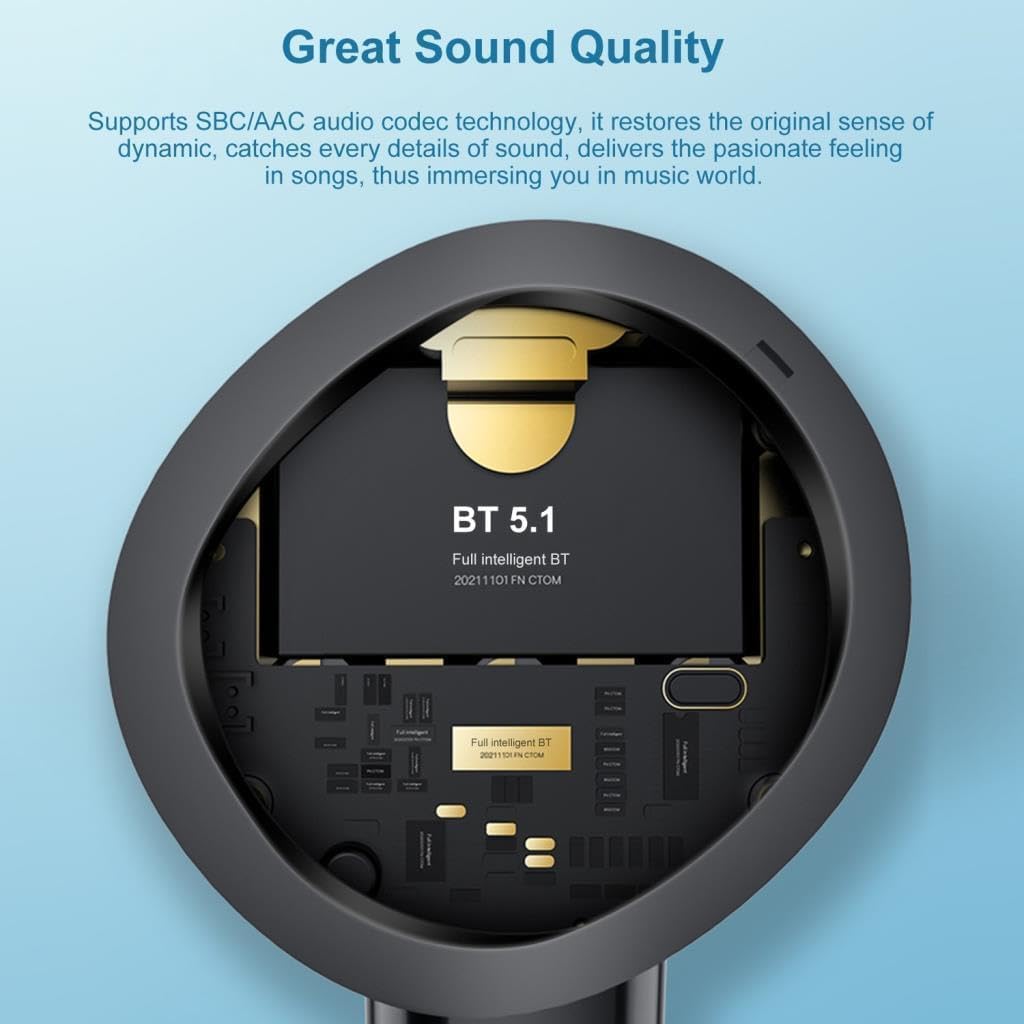
Figure 4.3: Internal component view highlighting the Bluetooth 5.1 chip and support for SBC/AAC audio codecs, ensuring great sound quality.
The earbuds support SBC/AAC audio codec technology, which helps restore the original dynamic sense of sound, delivering clear and passionate audio. They also feature a 13mm moving coil diaphragm for a super bass woofer effect, ensuring a balanced sound with rich details and layers.
4.3. Noise Cancellation
The Lenovo XT95 Pro earbuds are equipped with Active Noise Cancellation (ANC) to reduce ambient noise, allowing for a more focused listening experience. This feature is automatically active during use.
4.4. Built-in Voice Assistant
You can activate your device's voice assistant (e.g., Siri, Google Assistant) by performing a long touch for 2 seconds on either earbud. This allows for hands-free control of your device.
5. Maintenance
5.1. Cleaning
- Gently wipe the earbuds and charging case with a soft, dry, lint-free cloth.
- Do not use abrasive cleaners, alcohol, or chemical solvents.
- Clean the ear tips regularly to prevent wax buildup, which can affect sound quality.
5.2. Storage
When not in use, store the earbuds in their charging case to protect them and keep them charged. Store the device in a cool, dry place away from direct sunlight and extreme temperatures.
6. Troubleshooting
| Problem | Possible Cause | Solution |
|---|---|---|
| Earbuds not pairing | Bluetooth off on device; earbuds not in pairing mode; interference. | Ensure Bluetooth is on. Place earbuds back in case, then open to re-enter pairing mode. Move closer to device. |
| No sound from earbuds | Low battery; not connected; volume too low. | Charge earbuds. Reconnect to device. Increase volume on device and earbuds. |
| Poor sound quality | Ear tips not sealed; dirty earbuds; distance from device. | Adjust ear tips for a snug fit. Clean earbuds. Reduce distance to device. |
| Earbuds not charging | Cable issue; dirty charging contacts; power source issue. | Try a different USB-C cable and power adapter. Clean charging contacts on earbuds and case. |
7. Specifications
| Feature | Detail |
|---|---|
| Model Name | XT95 Pro |
| Brand | Lenovo |
| Connectivity Technology | Wireless (Bluetooth 5.1) |
| Headphones Form Factor | In Ear |
| Noise Control | Active Noise Cancellation |
| Control Type | Voice Control, Touch Control |
| Included Components | Ear Cushions, Protective Case |
| Material | Plastic |
| Package Dimensions | 14.1 x 9.3 x 3.6 cm |
| Item Weight | 80 g |
| Manufacturer | Lenovo |
| Date First Available | 17 February 2023 |
8. Warranty and Support
For warranty information and technical support, please refer to the warranty card included in your product packaging or visit the official Lenovo support website. You can also contact Lenovo customer service for assistance with product inquiries, troubleshooting, and service requests.
Official Lenovo Store: Visit the Lenovo Store on Amazon


