Introduction
This manual provides essential information for setting up, operating, and maintaining your new Samsung 75-Inch Class QLED 4K Q80C Series Smart TV. Please read through these instructions carefully to ensure proper use and to maximize your viewing experience.
What's in the Box
- Samsung 75-Inch Class QLED 4K Q80C Series Smart TV
- Power Cable
- User Manual (this document)
- E-Manual (digital version)
- SolarCell Remote TM2360E

Setup
Physical Installation
Carefully unpack your TV and place it on a stable, flat surface or mount it to a wall using a compatible VESA mount (sold separately). Ensure adequate ventilation around the TV.

Connecting Devices
Connect your external devices such as cable boxes, gaming consoles, or sound systems to the appropriate ports on the back of the TV. The Q80C Series includes multiple HDMI ports (including eARC), USB ports, and a LAN port for network connectivity.

Initial Power-On and Network Setup
- Plug the power cable into the TV and a wall outlet.
- Press the Power button on the remote control to turn on the TV.
- Follow the on-screen instructions to select your language, connect to your Wi-Fi network, and agree to the terms and conditions.
- Complete the initial setup, including channel scanning if using an antenna.
Registering Alexa
To enable voice control with Alexa, follow these steps during initial setup or access the Alexa app from the Smart Hub later:
Operating the Smart TV
Smart Hub Navigation
The Smart Hub is your central access point for all TV functions, including streaming apps, live TV, and connected devices. Use the directional pad on your remote to navigate through the menu. The home button will always return you to the Smart Hub.
Using the Remote Control
The included SolarCell Remote provides intuitive control over your TV. It features dedicated buttons for popular streaming services and a microphone for voice commands.
Voice Assistant Integration
With Alexa built-in, you can control your TV, search for content, get weather updates, and manage smart home devices using voice commands. Simply press the microphone button on your remote or enable hands-free mode (if available on your model) and say "Alexa" followed by your command.
Picture Quality Features
Direct Full Array
Experience enhanced contrast with Direct Full Array technology. This feature uses super-precise LEDs to control the amount of lighting across every part of the picture, delivering ultra-deep blacks and bright whites for refined detail.

Neural Quantum Processor with 4K Upscaling
The high-performance, AI-powered Neural Quantum Processor transforms all your content into sharp 4K resolution. Whether you're streaming an HD movie or watching sports, the processor analyzes and upgrades each scene for optimal clarity.

Quantum HDR+
Quantum HDR+ analyzes and enhances each scene to deliver rich details and more immersive colors. Enjoy excellent brightness and a wide range of contrast, making every viewing experience more vibrant.

100% Color Volume with Quantum Dot
Quantum Dot technology delivers 100% Color Volume, allowing you to experience a billion shades of unwavering, lifelike color at any brightness level. Every shade you see on screen is rendered with exceptional accuracy.

Audio Features
Dolby Atmos & Object Tracking Sound Lite
Immerse yourself in 3D surround sound with Dolby Atmos and Object Tracking Sound Lite. This technology creates a dynamic audio experience where sound follows the movement on screen, using virtual top channel audio.

Q-Symphony 3.0
Enhance your audio by pairing your Samsung TV with a compatible Samsung soundbar. Q-Symphony 3.0 allows the TV speakers and soundbar to operate as one, optimizing all channels for a masterfully orchestrated sound experience.

Gaming Features
Motion Xcelerator Turbo+ (4K @ 120 Hz)
Enjoy smooth performance during fast-paced games and action scenes. Motion Xcelerator Turbo+ ensures seamless gaming action and sensational 4K visuals at speeds up to 120Hz, minimizing lag and motion blur.

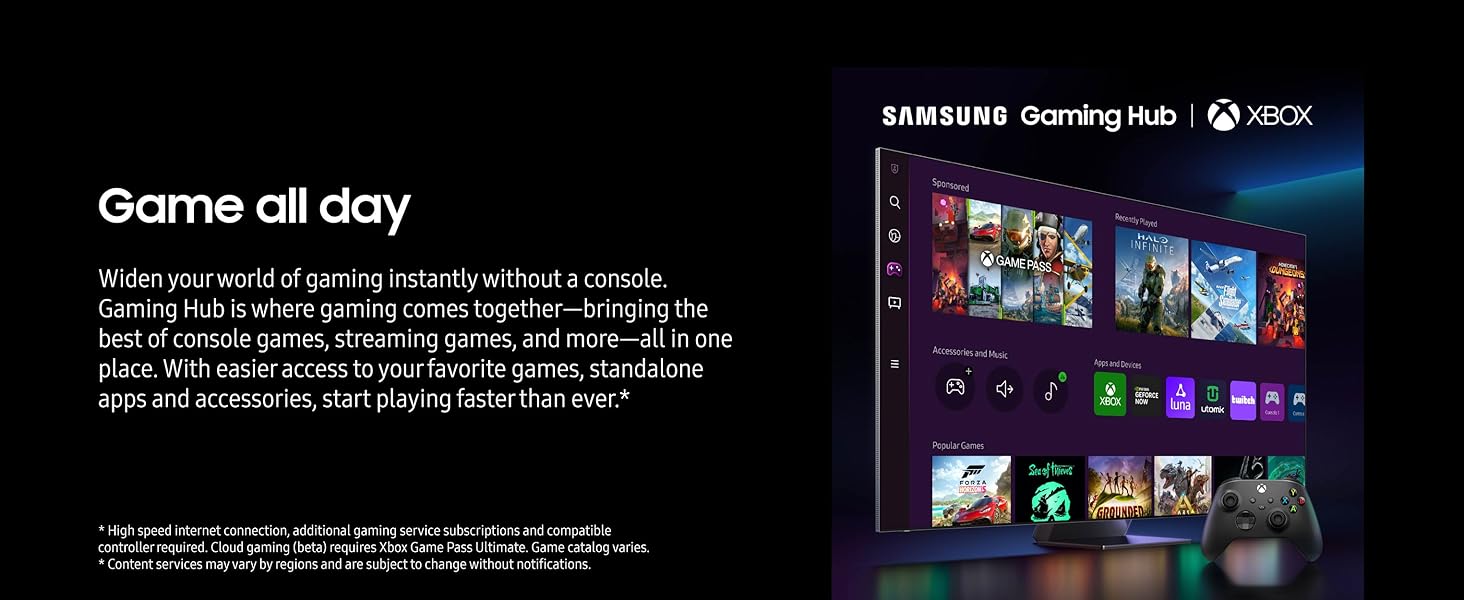
Samsung Gaming Hub
The Samsung Gaming Hub brings together the best of console games, streaming games, and more in one place. Access games, standalone apps, and accessories, get recommendations, and adjust settings for a comprehensive gaming experience.

Remote Control
SolarCell Remote
The innovative SolarCell Remote features a solar panel for charging, reducing the need for disposable batteries. It also includes a built-in microphone for voice assistant commands.
Voice Assistant
Alexa Built-in
Your Samsung QLED 4K Smart TV comes with Alexa built-in, allowing you to control your TV and smart home devices with your voice. You can also use Bixby, another integrated voice assistant.
Recommended Viewing Distance
For an optimal and comfortable viewing experience, it is important to maintain an appropriate distance from your TV. The recommended viewing distance can be calculated based on your screen size.
Specifications
| Feature | Detail |
|---|---|
| Brand | Samsung |
| Model Number | E1SAMQN75Q80CARB |
| Screen Size | 74.5 Inches (Diagonal) |
| Display Technology | QLED |
| Resolution | 4K (3840 x 2160) |
| Refresh Rate | 120 Hz |
| Special Features | Direct Full Array; Neural Quantum Processor with 4K Upscaling; Quantum HDR+; Dolby Atmos and Object Tracking Sound Lite; 100% Color Volume; Works with Google Assistant and Alexa |
| Connectivity Technology | Bluetooth, Ethernet, HDMI, USB, Wi-Fi |
| Product Dimensions | 12.3"D x 65.8"W x 40.1"H |
| Item Weight | 104.8 pounds |
| Speaker Type | Built-In |
| Output Wattage | 40 Watts |
| Voltage | 120 Volts |
| Wattage | 119 watts |
| Color Name | Titan Black |
Maintenance
Cleaning the TV
- Always unplug the TV before cleaning.
- Use a soft, dry microfiber cloth to gently wipe the screen and frame.
- For stubborn smudges, lightly dampen the cloth with water or a screen-specific cleaning solution (avoid harsh chemicals).
- Do not spray liquid directly onto the screen.
General Care
- Avoid placing the TV in direct sunlight or near heat sources.
- Ensure proper ventilation by not blocking the TV's vents.
- Protect the screen from sharp objects or excessive pressure.
Troubleshooting
Common Issues and Solutions
- No Power: Check if the power cable is securely connected to both the TV and the wall outlet. Try a different outlet.
- No Picture/Sound: Verify that the correct input source is selected. Check all cable connections to external devices.
- Remote Not Working: Ensure the SolarCell Remote is charged. Try charging it via the solar panel or USB-C port. Re-pair the remote if necessary.
- Poor Picture Quality: Adjust picture settings (brightness, contrast, sharpness). Ensure your content source is high-quality.
- Network Connection Issues: Restart your router and modem. Check TV network settings and ensure Wi-Fi password is correct.
Factory Reset
If you encounter persistent issues, a factory reset can often resolve software-related problems. Be aware that this will erase all your personalized settings and installed apps.
- Go to Settings on your TV.
- Navigate to General > Reset.
- Enter your PIN (default is 0000) and confirm the reset.
Warranty and Support
Your Samsung QLED 4K Q80C Series Smart TV is covered by a manufacturer's warranty. Please refer to the warranty card included in your product packaging for specific terms and conditions, including coverage duration and service procedures.
For technical assistance, troubleshooting, or warranty claims, please contact Samsung Customer Support. You can find contact information on the Samsung website or in your E-Manual.
Always ensure you have your TV's model number (QN75Q80C) and serial number ready when contacting support.


