
1. Product Overview
This manual provides instructions for the Fortdows 10-inch 5G Wi-Fi Car Radio Stereo, designed for Jeep Compass and Patriot models manufactured between 2010 and 2016. This unit features a 1280x800 HD capacitive touchscreen, integrated Wireless CarPlay and Android Auto, 5G Wi-Fi, Bluetooth 5.0, GPS navigation, FM/RDS radio, and support for steering wheel controls and a backup camera.

Image: The Fortdows 10-inch Car Radio Stereo seamlessly integrated into a Jeep Compass/Patriot dashboard, showcasing its large display and controls.
2. Package Contents
Verify that all components are present in the package before beginning installation.
- Car Radio Unit (10-inch display)
- Power Cable
- CANBUS Decoder
- Radio Antenna
- Microphone
- Backup Camera
- GPS Antenna
- Reversing Cable
- USB Cables (2)
- Crowbar (for trim removal)
- RCA Cable
- User Manual

Image: A visual representation of the complete accessory wire kit and components included with the Fortdows car radio stereo.
3. Setup and Installation
This section outlines the general steps for installing your Fortdows car radio stereo. Professional installation is recommended if you are unfamiliar with car audio system wiring.
- Preparation: Ensure the vehicle's ignition is off and the battery is disconnected before starting.
- Remove Existing Radio: Carefully remove the factory radio and dashboard trim using the provided crowbar tool.
- Connect Wiring Harness: Connect the Fortdows power cable and CANBUS decoder to the vehicle's wiring harness. Ensure all connections are secure.
- Connect Peripherals:
- Connect the GPS antenna and position it for optimal signal reception (e.g., on the dashboard).
- Connect the radio antenna.
- Connect the external microphone for hands-free calling.
- If installing a backup camera, route the reversing cable and connect the camera to the designated input on the head unit.
- Connect USB cables for external devices.
- Connect RCA cables for external amplifiers or video outputs if applicable.
- Mount the Unit: Secure the new Fortdows head unit into the dashboard opening.
- Test Functionality: Reconnect the battery, turn on the ignition, and test all functions of the radio, including audio, touchscreen, GPS, Bluetooth, CarPlay/Android Auto, and backup camera (if installed).
- Reassemble Dashboard: Once all functions are verified, carefully reassemble the dashboard trim.
Video: A demonstration of the car radio installation process, showing how to connect various cables and components to the head unit.
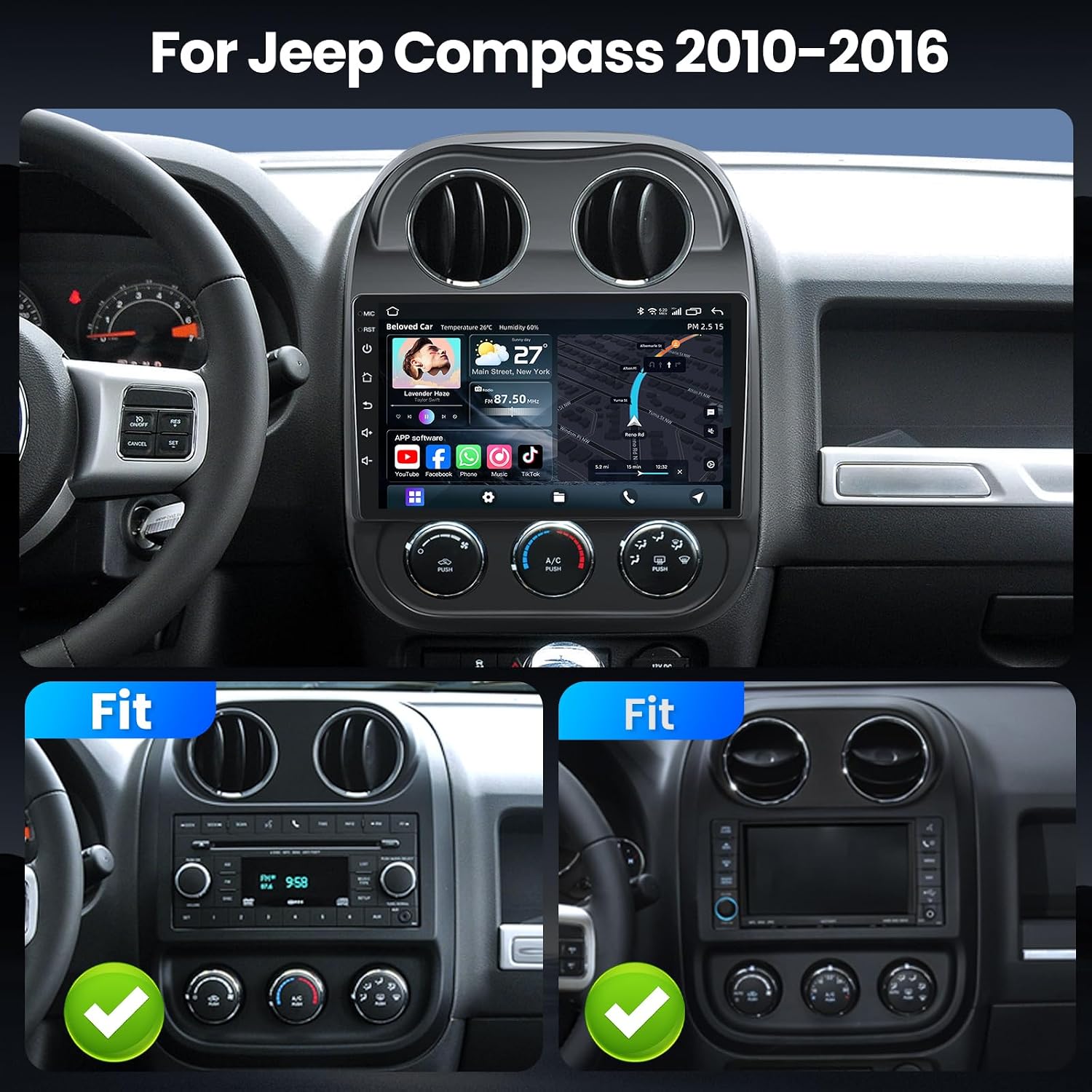
Image: Rear view of the Fortdows car radio stereo with connected wiring harnesses, including GPS antenna and USB cables.
4. Operating Instructions
4.1. Power On/Off and Basic Navigation
To power on the unit, turn the vehicle's ignition to the ACC or ON position. The unit will boot automatically. Use the touchscreen to navigate through applications and settings. The main interface provides access to core functions like Radio, Bluetooth, Navigation, and Media Player.
4.2. Wireless CarPlay & Android Auto
The unit supports wireless CarPlay and wired Android Auto for seamless smartphone integration. Connect your compatible smartphone via Bluetooth for wireless CarPlay or via USB for wired Android Auto. Once connected, you can access navigation, music, messages, and calls directly from the car stereo display.

Image: Visual representation of CarPlay and Android Auto interfaces on the car stereo, showing smartphone integration.
4.3. Bluetooth Hands-Free & Music Streaming
Pair your mobile phone via Bluetooth to enable hands-free calling and wireless audio streaming. Navigate to the Bluetooth settings on the head unit, search for your phone, and pair using the provided PIN (usually 0000 or 1234). Once paired, you can make/receive calls and play music directly from your phone.
Video: A demonstration of the Fortdows car radio stereo's 5G Wi-Fi, CarPlay, and Android Auto features, including navigation and music playback.
4.4. GPS Navigation
The unit includes built-in GPS navigation supporting both online and offline maps. Ensure the GPS antenna is properly connected and positioned. You can download offline maps for areas without internet access. Access navigation applications from the main menu to plan routes and receive turn-by-turn directions.

Image: The car stereo displaying GPS navigation, highlighting both online and offline map capabilities.
4.5. FM/RDS Radio
Access the FM/RDS radio function from the main menu. Use the touchscreen to scan for stations, save presets, and view RDS information (if available) such as station name and song title.
4.6. Audio Equalizer (EQ)
Customize your audio experience using the built-in EQ settings. Adjust bass, midrange, and treble levels to suit your preferences. The unit also features DSP (Digital Signal Processing) for enhanced sound quality.
Video: A demonstration of the multi-band EQ adjustment feature on the Fortdows car radio stereo, showing how to fine-tune audio settings.
4.7. Steering Wheel Controls (SWC)
The unit supports existing steering wheel controls. After installation, you may need to configure the SWC settings in the unit's menu to map the buttons correctly. This allows for safe control of volume, track changes, and call management without taking your hands off the wheel.

Image: Illustration of steering wheel control buttons and their corresponding functions on the Fortdows car stereo.
4.8. Backup Camera
If a backup camera is connected, the display will automatically switch to the camera view when the vehicle is put into reverse. This provides a clear view behind your vehicle for safer parking and reversing.

Image: The car stereo display showing a clear view from the backup camera with dynamic parking guidelines.
4.9. Split Screen Functionality
The split-screen feature allows you to run two applications simultaneously on the display, such as navigation and music playback. Refer to the on-screen instructions for activating and managing split-screen mode.

Image: The car stereo display in split-screen mode, showing navigation on one side and a media player on the other.
4.10. Online OTA System Update
The system supports Over-The-Air (OTA) updates to improve performance and add new features. Connect the unit to a stable Wi-Fi network, then navigate to the system settings and select "Check for Updates." Follow the on-screen prompts to download and install any available firmware updates. The device will automatically restart after the update process.

Image: Step-by-step guide for performing an Online OTA System Update on the car radio stereo.
5. Maintenance
To ensure optimal performance and longevity of your Fortdows car radio stereo, follow these maintenance guidelines:
- Screen Cleaning: Use a soft, lint-free cloth to gently wipe the touchscreen. For stubborn smudges, slightly dampen the cloth with water or a screen-safe cleaner. Avoid abrasive materials or harsh chemicals.
- Software Updates: Regularly check for and install OTA system updates to benefit from performance improvements and new features.
- Cable Connections: Periodically check all cable connections to ensure they are secure and free from damage.
- Avoid Extreme Temperatures: Do not expose the unit to extreme temperatures for prolonged periods, as this can affect its electronic components.
6. Troubleshooting
This section addresses common issues you might encounter. For problems not listed here, please contact customer support.
| Problem | Possible Cause | Solution |
|---|---|---|
| Unit does not power on. | Incorrect wiring, blown fuse, vehicle battery disconnected. | Check power cable connections. Verify vehicle fuses. Ensure battery is connected and charged. |
| No sound. | Volume too low, incorrect audio source, speaker wiring issues. | Increase volume. Select correct audio source. Check speaker connections. |
| GPS signal weak or inaccurate. | GPS antenna improperly installed or obstructed. | Ensure GPS antenna is securely connected and placed in an unobstructed location (e.g., dashboard). |
| Bluetooth connection issues. | Device not in pairing mode, incorrect PIN, interference. | Ensure phone's Bluetooth is on and in pairing mode. Re-enter PIN. Try pairing in a different location. |
| CarPlay/Android Auto not connecting. | Incorrect connection method (wireless vs. wired), software incompatibility, phone settings. | For CarPlay, ensure wireless connection is enabled on phone and unit. For Android Auto, use a quality USB cable. Check phone settings for CarPlay/Android Auto permissions. Update unit firmware. |
| Backup camera not displaying. | Camera not connected, reversing trigger wire not connected, camera malfunction. | Verify camera and reversing cable connections. Ensure the reversing trigger wire is correctly connected to the vehicle's reverse light circuit. |
7. Specifications
| Feature | Detail |
|---|---|
| Brand | Fortdows |
| Model Number | B0BW3PCD9 |
| Compatible Vehicles | Jeep Patriot, Jeep Compass (2010-2016) |
| Screen Size | 10 Inches |
| Resolution | 1280 x 800 HD |
| Touch Screen Type | Capacitive |
| Operating System | Android (supports iOS via CarPlay) |
| Memory (RAM) | 2GB |
| Storage (ROM) | 32GB |
| Connectivity | 5G Wi-Fi, Bluetooth 5.0, USB |
| Navigation | Built-in GPS (supports online/offline maps for North America) |
| Audio Output Mode | Stereo (with customizable EQ) |
| Special Features | Wireless CarPlay, Wired Android Auto, FM/RDS Radio, DSP, Steering Wheel Control, Backup Camera Support, Split Screen, OTA System Update |
8. Warranty and Support
Fortdows is committed to providing reliable customer service and support for your car radio stereo.
- Warranty: This product comes with a 1-year product support warranty.
- Return Policy: A 30-day money-back guarantee is offered.
- Technical Support: 24/7 technical support is available.
- Contact Information: For any questions regarding installation or usage, please contact the seller, Fancygod, or refer to the contact details provided in your purchase documentation.

Image: Icons representing warranty and return policy details.


