
Introduction
This manual provides comprehensive instructions for the setup, operation, and maintenance of your FrSky Twin X-Lite S Transmitter. Please read this manual thoroughly before using the device to ensure safe and optimal performance. Keep this manual for future reference.
Product Overview
The FrSky Twin X-Lite S is a compact and ergonomic dual 2.4G radio system designed for remote control applications. It features advanced technology for reliable and low-latency communication.
Key Features
- Ergonomic and compact lightweight design with a slide screen.
- 3.5-inch color touch-screen display.
- Equipped with 6 trims, 4 quick-mode custom buttons, 2 momentary buttons, 2 sliders, and 4 switches on the top.
- Lite type external module bay for expansion.
- Foldable tab for attaching a radio strap.
- CNC metal gimbals with integrated high-precision Hall sensors for precise control.
- Dual 2.4G band internal RF module supporting ACCST D16, ACCESS, ELRS (Compatible), and TW modes.
- TW Mode offers resilient dual 2.4G signals, long-range control, and low-latency (<4ms) with full telemetry support.
- Built-in 1GB flash storage and an external TF card slot for storage expansion.
- Haptic vibration alerts and voice speech outputs.
- Supports recharging for 2S Li-ion batteries.
- High-speed PARA wireless training system.
- Runs on the ETHOS Operating System.
Transmitter Components
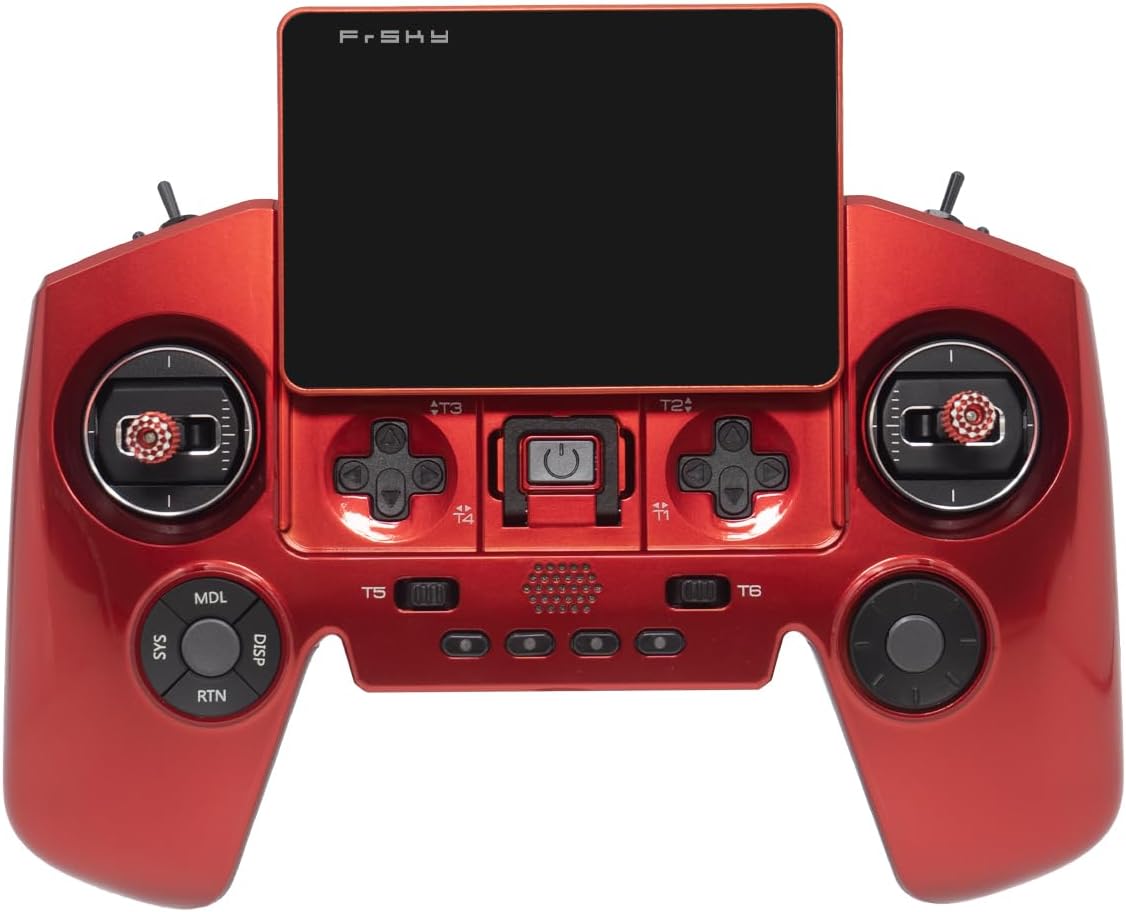
Figure 1: Front View. This image displays the front of the FrSky Twin X-Lite S Transmitter, highlighting the central touch-screen, the two main gimbals, and the array of buttons and switches for control inputs. Note that the product shown is red, while the current model is blue.

Figure 2: Top Ports. This image illustrates the top edge of the transmitter, detailing the various ports available, including the headphone jack, SD card slot, USB-C port for charging and data, and the DSC (Direct Serial Connection) port. Note that the product shown is red, while the current model is blue.

Figure 3: Rear View. This image shows the back of the FrSky Twin X-Lite S Transmitter, including the ergonomic grips, the battery compartment cover, and regulatory information labels. Note that the product shown is red, while the current model is blue.
Setup Guide
1. Initial Charging
Before first use, fully charge the internal 2S Li-ion battery. Connect the transmitter to a suitable USB power source using a USB Type-C cable. The charging status will be indicated on the screen.
2. Powering On/Off
- To Power On: Press and hold the power button located on the front panel until the screen illuminates.
- To Power Off: Press and hold the power button. A confirmation prompt will appear on the screen. Select 'Power Off' to shut down the system.
3. Binding to a Receiver
The binding process establishes a secure connection between your transmitter and receiver. Refer to your receiver's manual for specific binding instructions, as procedures may vary. Generally, the steps involve:
- Accessing the 'Model Setup' menu on your transmitter's ETHOS OS.
- Selecting the appropriate RF protocol (ACCST D16, ACCESS, ELRS, or TW Mode) that matches your receiver.
- Initiating the binding process on the transmitter.
- Placing your receiver into binding mode (usually by pressing a bind button while powering on).
- Confirming successful binding on both the transmitter and receiver.
4. SD Card Installation
The external TF card slot allows for storage extension. Insert a compatible TF (Micro SD) card into the designated slot on the top of the transmitter (refer to Figure 2). Ensure the card is inserted correctly to avoid damage.
Operating Instructions
1. Navigating the ETHOS Operating System
The FrSky Twin X-Lite S utilizes the ETHOS operating system, accessible via the 3.5-inch color touch-screen. Use touch gestures (tap, swipe) to navigate menus and adjust settings. The physical buttons and gimbals also provide input for control and navigation.

Figure 4: ETHOS OS Interface. This image shows the main screen of the ETHOS operating system, displaying various system icons and settings options. Note that the product shown is red, while the current model is blue.
2. Model Creation and Management
To control different models (e.g., drones, planes), you will need to create and configure individual model profiles. Access the 'Model Select' or 'Model Setup' menu within ETHOS to:
- Create new models.
- Select existing models.
- Configure channel assignments, mixes, and flight modes.
- Set up failsafe parameters.
3. Using Gimbals, Trims, and Switches
- Gimbals: Control primary flight surfaces (e.g., aileron, elevator, rudder, throttle).
- Trims: Fine-tune the neutral position of control surfaces. Use the digital trims located near the gimbals.
- Switches & Buttons: Assign these to various functions such as flight modes, gear retraction, or special functions. Refer to the 'Mixer' or 'Special Functions' menu in ETHOS for configuration.
4. Telemetry Data
The Twin X-Lite S supports full telemetry, allowing real-time feedback from your model (e.g., battery voltage, RSSI, altitude). Telemetry data can be displayed on the screen and configured for voice alerts or haptic feedback.
Maintenance
1. Cleaning
Wipe the transmitter with a soft, dry cloth. For stubborn dirt, use a slightly damp cloth with mild soap, then dry thoroughly. Avoid using harsh chemicals or abrasive materials, which can damage the finish or screen.
2. Battery Care
- Store the transmitter with the battery partially charged (around 50%) if not used for extended periods.
- Avoid fully discharging the battery, as this can reduce its lifespan.
- Charge the battery in a well-ventilated area and monitor it during charging.
3. Firmware Updates
FrSky regularly releases firmware updates for the ETHOS operating system and internal RF modules to improve performance and add new features. Visit the official FrSky website for the latest firmware and instructions on how to update your transmitter using the USB-C port and SD card.
Troubleshooting
Common Issues and Solutions
- Transmitter does not power on:
- Ensure the battery is sufficiently charged. Connect to a USB-C charger.
- Verify the power button is pressed and held correctly.
- No signal to receiver / Binding failure:
- Confirm the transmitter and receiver are using the same RF protocol (ACCST D16, ACCESS, ELRS, TW Mode).
- Ensure both devices are in binding mode simultaneously.
- Check the distance between the transmitter and receiver during binding (usually close proximity is required).
- Verify the receiver is powered correctly.
- Screen is unresponsive or frozen:
- Perform a soft reset by holding the power button until the device restarts.
- If the issue persists, try a firmware re-flash (refer to Maintenance section).
- Telemetry data not displayed:
- Ensure the receiver supports telemetry and is correctly configured.
- Check telemetry settings within the ETHOS OS on the transmitter.
For further assistance, please contact FrSky customer support or visit their official website for detailed FAQs and support resources.
Specifications
| Feature | Detail |
|---|---|
| Brand | FrSky |
| Model Name | TWIN X-LITE S |
| Connectivity Technology | Bluetooth, USB |
| Power Source | Battery Powered (2S Li-ion) |
| Material | Aluminum |
| Special Feature | Automatic On/Off |
| Display | 3.5" Color Touch-Screen |
| RF Module | Built-in Dual 2.4G Band (ACCST D16 / ACCESS / ELRS (Compatible) / TW Mode) |
| Storage | 1GB Flash, External TF card slot |
| Operating System | ETHOS |
| Connector Type | USB Type C |
| Color | Blue (as per product listing) |
Warranty and Support
For warranty information, please refer to the documentation included with your purchase or visit the official FrSky website. If you encounter any issues not covered in this manual or require technical assistance, please contact FrSky customer support directly.
FrSky Official Website: www.frsky-rc.com