
UGREEN 15598
UGREEN Revodok 6-in-1 USB C Hub Gigabit Ethernet Adapter Instruction Manual
Model: 15598 | Brand: UGREEN
Product Overview
The UGREEN Revodok 6-in-1 USB C Hub is a versatile multiport adapter designed to expand the connectivity of your USB-C enabled devices. It transforms a single USB-C port into multiple essential ports, enhancing productivity and convenience for laptops, tablets, and smartphones.
Key Features:
- 6-in-1 Connectivity: Integrates 4K@30Hz HDMI, Gigabit Ethernet, 100W Power Delivery (PD) charging, and three USB-A 3.0 data ports.
- 4K HD Visuals: Supports video output up to 4K at 30Hz via the HDMI port for clear display mirroring or extension. (Note: Does not support HDR/3D).
- Stable Gigabit Ethernet: Provides a reliable 1000Mbps wired network connection for faster and more stable internet access compared to Wi-Fi.
- 100W Power Delivery: Offers up to 85W pass-through charging for your laptop via the Type-C port, with 15W reserved for hub operations. (Note: USB-C port supports charging only, no data or video).
- Fast Data Transfer: Three USB-A 3.0 ports allow data transfer speeds up to 5Gbps, ideal for connecting peripherals like external hard drives, USB flash drives, mice, and keyboards.
- Universal Compatibility: Compatible with a wide range of devices including MacBook Neo/Pro/Air M1, M2, M3, M4, M5, iPad, iPhone 16 Pro/Pro Max, Steam Deck, and various laptops, smartphones, and tablets running macOS, Windows, Chrome OS, and iPadOS.
- Durable Design: Features a metallic finish and aluminum alloy construction for efficient heat dissipation and enhanced durability.
Package Contents
- UGREEN Revodok 6-in-1 USB C Hub (Model: 15598)
- User Manual
Setup Instructions
- Connect the Hub to Your Device:
Plug the integrated USB-C cable of the UGREEN Revodok hub into an available USB-C port on your laptop, tablet, or smartphone. Ensure the connection is secure.

Image: The UGREEN Revodok 6-in-1 USB C Hub connected to a laptop, showcasing its compact design and multiple ports.
- Power Delivery (Optional):
If your device requires charging or if you are connecting power-intensive peripherals, connect your original USB-C power adapter to the PD 100W USB-C port on the hub. This will provide pass-through charging to your host device.

Image: A laptop connected to the UGREEN Revodok hub, which is then connected to a 100W power adapter for fast charging.
- Connect External Display (Optional):
For video output, connect an HDMI cable from your monitor or TV to the 4K@30Hz HDMI port on the hub. Your device should automatically detect the external display. Adjust display settings (mirror or extend) as needed in your operating system settings.
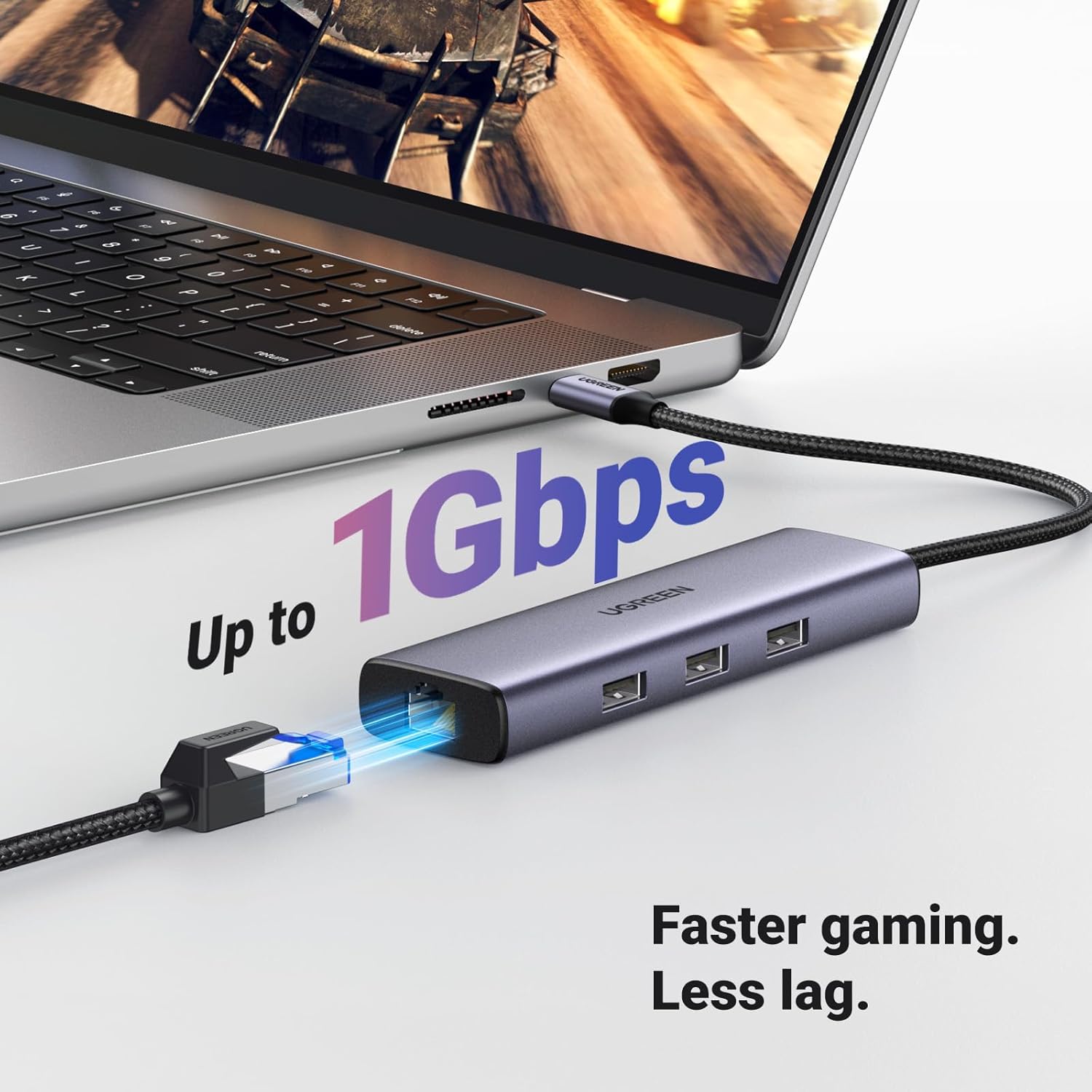
Image: A laptop connected to the UGREEN Revodok hub, which is displaying content on an external 4K monitor via HDMI.
- Connect Ethernet Cable (Optional):
For a wired network connection, plug an Ethernet cable into the Gigabit Ethernet (RJ45) port on the hub. Connect the other end of the Ethernet cable to your router or modem. The connection should be established automatically.

Image: The UGREEN Revodok hub connected to a laptop, with an Ethernet cable plugged into its RJ45 port, indicating a stable network connection.
- Connect USB Peripherals (Optional):
Plug your USB-A devices (e.g., mouse, keyboard, USB flash drive, external hard drive) into the three USB-A 3.0 ports on the hub.

Image: A laptop connected to the UGREEN Revodok hub, with various USB devices like a flash drive and external hard drive plugged into its USB-A ports.
Operating Instructions
The UGREEN Revodok 6-in-1 USB C Hub is designed for plug-and-play functionality, requiring no additional drivers for most operating systems.
- Automatic Detection:
Once connected, your operating system (macOS, Windows, Chrome OS, iPadOS) should automatically detect the hub and its connected peripherals. You can verify this in your device's system settings or device manager.
- Using HDMI Output:
After connecting an HDMI display, navigate to your device's display settings to configure the external monitor. Options typically include "Mirror Displays" (duplicate your primary screen) or "Extend Displays" (use the external monitor as an additional workspace).
- Utilizing Ethernet:
When the Ethernet cable is connected, your device should prioritize the wired connection over Wi-Fi for internet access. Check your network settings to confirm the Gigabit Ethernet connection is active.
- USB Data Transfer:
Files can be transferred to and from connected USB-A devices at speeds up to 5Gbps. Ensure your connected devices and cables support USB 3.0 for optimal performance.
- Powering Your Device:
The 100W PD port allows you to charge your host device while using the hub. Connect your original power adapter to the hub's PD port. The hub will draw power for its own operation and pass the remaining power to your device.
Maintenance
- Cleaning: Use a soft, dry cloth to clean the hub. Avoid liquid cleaners or aerosols.
- Storage: Store the hub in a cool, dry place away from direct sunlight and extreme temperatures.
- Handling: Avoid dropping the device or subjecting it to strong impacts. Do not attempt to disassemble the hub.
- Cable Care: Do not bend or twist the integrated USB-C cable excessively to prevent damage.
Troubleshooting
| Problem | Solution |
|---|---|
| No display on external monitor. |
|
| Ethernet connection is unstable or not working. |
|
| USB devices are not recognized. |
|
| Device is not charging via PD port. |
|
| Hub feels warm during use. |
|
Specifications
| Feature | Detail |
|---|---|
| Brand | UGREEN |
| Model Number | 15598 |
| Color | Grey |
| Hardware Interface | Ethernet, HDMI, USB, USB Type C |
| Special Features | Fast Data Transfer, Heat Resistant, Lightweight, Plug and Play, Portable |
| Compatible Devices | Laptops, MacBook Neo, Macbook M5/M4/M3/M2/M1, Smartphones, Tablets |
| Total USB Ports | 3 (USB-A 3.0) |
| Data Transfer Rate | 5 Gigabits Per Second |
| Number of Ports | 6 |
| HDMI Output | 4K@30Hz |
| Ethernet Port | Gigabit (1000Mbps) RJ45 |
| Power Delivery (PD) | 100W (85W to host, 15W for hub) |
| Minimum Required Operating System | Windows 7 |
| Operating System Compatibility | Mac OS 9, Windows 10, Windows 7, Chrome OS, iPadOS |
| Enclosure Material | Plastic (with Aluminum Alloy for heat dissipation) |
| Item Weight | 140 Grams |
Warranty & Support
Warranty: This product comes with a 24-month warranty from the date of purchase.
Customer Support: For technical assistance, troubleshooting, or warranty claims, please contact UGREEN customer support through their official website or the retailer where the product was purchased. Please have your model number (15598) and proof of purchase ready.
Product Videos
UGREEN USB C Adapter Overview
Video: A seller-created overview of the UGREEN USB C Adapter, highlighting its various ports and functionalities. This video demonstrates the adapter's use with a tablet, showing how multiple USB devices and charging can be managed simultaneously.
UGREEN Revodok 6-in-1 USB C Hub Features
Video: An official seller video showcasing the UGREEN Revodok 6-in-1 USB C Hub. It details the product's design, port types (HDMI, USB-A, USB-C PD, Ethernet), and its compatibility with various devices, emphasizing its utility for expanding connectivity.
Related Documents - 15598
 |
UGREEN Revodok Pro 210 USB C Docking Station: Leitfaden zur Fehlerbehebung Umfassender Leitfaden zur Fehlerbehebung für die UGREEN Revodok Pro 210 USB C Docking Station. Beheben Sie Probleme mit Dual HDMI, Gigabit Ethernet, USB-Ports, PD 100W Schnellladen und SD/TF-Kartenleser. Finden Sie Lösungen für Display-, Lade-, Treiber-, Datenübertragungs- und Kompatibilitätsprobleme. |
 |
UGREEN CM555 USB-C Docking Station with GaN Fast Charger User Guide Comprehensive user guide for the UGREEN CM555 USB-C Docking Station with GaN Fast Charger, covering driver installation, display settings for Windows and macOS, troubleshooting common issues, charging capabilities, and after-sales support. |
 |
UGREEN CM179 80133 9-in-1 USB-C Hub User Manual & Specifications Comprehensive user manual for the UGREEN CM179 80133 9-in-1 USB-C Hub, detailing its features, specifications, connectivity options including 4K HDMI, VGA, Gigabit Ethernet, PD charging, USB 3.0 ports, and SD card reader. Compatible with M1 MacBook Pro/Air and iPad Pro. |
 |
UGREEN USB-C Multifunction Adapter CM252 User Manual and Specifications Comprehensive user guide for the UGREEN CM252 USB-C Multifunction Adapter, covering setup, driver installation, product specifications, precautions, warranty, and FCC compliance. |
 |
UGREEN CM475 USB-C Hub User Manual - Ethernet & USB 3.0 Ports Comprehensive user manual for the UGREEN CM475 USB-C hub, detailing its features, specifications, setup, and warranty information. Connect to Ethernet and expand USB 3.0 ports. |
 |
UGREEN Revodok Pro 7-in-1 Docking Station User Guide Comprehensive user guide for the UGREEN Revodok Pro 7-in-1 Docking Station, covering display, charging, USB port functionality, compatibility, and troubleshooting for laptops and other devices. |
Ask a question about this manual
Ask about setup, troubleshooting, compatibility, parts, safety, or missing instructions. Manuals+ will review the question and use this page’s manual context to help answer it.