
GW Security GW8CH833HDC4
Contents
GW Security 8MP 4K Security Camera System User Manual
Model: GW8CH833HDC4
1. Introduction and System Overview
This manual provides detailed instructions for the installation, operation, and maintenance of your GW Security 8MP 4K Security Camera System. This advanced surveillance system is designed to provide comprehensive security monitoring for your home or business, featuring high-resolution video, intelligent AI detection capabilities, and convenient remote access.
The system includes an 8-channel 4K DVR and eight 8MP HD-TVI coaxial CCTV dome cameras, offering superior image clarity and advanced analytical functions.

Figure 1.1: GW Security 8MP 4K Security Camera System components.
Key Features:
- Ultra High Definition 4K Video: Captures 8MP (3840 x 2160) resolution video, providing significantly more detail than 1080P systems.
- AI Face/Human/Vehicle Detection: Advanced artificial intelligence reduces false alarms by accurately identifying people and vehicles.
- 8-Channel 5-in-1 DVR: Compatible with TVI/CVI/AHD/CVBs and Onvif IP cameras, supporting up to 8 analog and 4 IP cameras.
- 24/7 Reliable Recording: Pre-installed 2TB surveillance-grade hard drive, expandable up to 28TB (2 x 14TB HDDs).
- Remote Access: Easy live view and playback via free mobile apps (iPhone & Android) and computer software.
- Durable Cameras: 8MP 4K dome cameras with 3.6mm lens for 110° wide view, 100ft IR night vision, and IP66 weatherproof rating.
2. System Setup
This section guides you through the initial setup of your security camera system. Ensure all components are present before beginning.
2.1 Package Contents
Verify that your package contains the following items:
- 1 x GW9508XVRAI: 8 Channel 4K DVR with Pre-installed 2TB Hard Drive
- 8 x GW833HD: 8MP 4K Dome Cameras
- 4 x GW60CAW: 60 feet pre-made BNC cable
- 4 x GW100CAW: 100 feet pre-made BNC cable
- 1 x GW12V5A: Power Supply for Security Cameras
- 1 x GW128CA: 1 to 8 Power Splitter Adapter Cables
2.2 Connecting the System
- Connect Cameras to DVR: Use the provided BNC cables to connect each camera to the corresponding video input ports on the back of the DVR. Ensure connections are secure.
- Power the Cameras: Connect the cameras to the power supply using the 1 to 8 power splitter adapter cable. Plug the power supply into a standard electrical outlet.
- Connect DVR to Monitor: Use an HDMI or VGA cable (not included) to connect the DVR to a monitor or TV. This is essential for local viewing and initial configuration.
- Connect DVR to Network (Optional for Remote Viewing): For remote access, connect the DVR's LAN port to your router using an Ethernet cable.
- Power the DVR: Connect the DVR to its power adapter and plug it into an electrical outlet. The DVR will power on automatically.

Figure 2.1: DVR connections and mobile app setup via QR code.
2.3 Mobile App Setup for Remote Viewing
To view your security system remotely on your smartphone or tablet:
- Download the free "RXcamView" app from your device's app store (available for iPhone and Android).
- Open the app and scan the QR code located on the DVR or within the DVR's system settings to quickly add your device.
- Follow the on-screen prompts to complete the setup and begin live viewing.
3. Operating the System
This section covers the primary operational features of your GW Security system, including intelligent detection, recording, and playback.
3.1 Intelligent AI Detection
The system features advanced AI capabilities to enhance security and minimize false alarms:
- Face Recognition: Automatically recognizes familiar faces and can be configured to send notifications for known or unknown individuals.
- Human/Vehicle Detection: Distinguishes between human and vehicle movement, reducing alerts from non-relevant motion sources like animals or swaying branches.

Figure 3.1: AI-powered Face, Human, and Vehicle Detection capabilities.
When a person or vehicle is detected, the system can activate multiple security responses, including buzzer alerts, email notifications, and app notifications.
3.2 Recording and Playback
The DVR supports various recording modes and efficient video compression.
- Recording Modes: Manual, alarm trigger, motion detection, and timed recording.
- Smart Playback: Easily review footage with intelligent search functions based on detected events.
- H.265 Video Compression: Utilizes advanced H.265 HEVC (High Efficiency Video Coding) to reduce file sizes by up to 50% compared to H.264, saving hard drive space and bandwidth while maintaining video quality.

Figure 3.2: H.265 Video Compression benefits.
3.3 Image Quality and Digital Zoom
The 8MP cameras provide exceptional detail, and the system supports digital zoom for closer inspection of recorded or live footage.

Figure 3.3: 8 Megapixel image resolution provides enhanced detail.

Figure 3.4: Utilize 20x digital zoom for detailed viewing.
4. Maintenance
Proper maintenance ensures the longevity and optimal performance of your security system.
4.1 Hard Drive Management
The DVR is equipped with a pre-installed 2TB hard drive. To ensure continuous recording, the DVR can be set to automatically overwrite the oldest footage when the hard drive is full. You can also manually export video files to a USB drive for backup.

Figure 4.1: DVR with 24/7 recording capability and expandable storage.
4.2 Camera Care
The dome cameras are designed for outdoor and indoor use with an IP66 weatherproof rating, making them resistant to dust and strong jets of water. They also have a wide operating temperature range.
- Regularly clean the camera lenses with a soft, damp cloth to ensure clear image quality.
- Ensure cables are securely connected and protected from environmental damage.
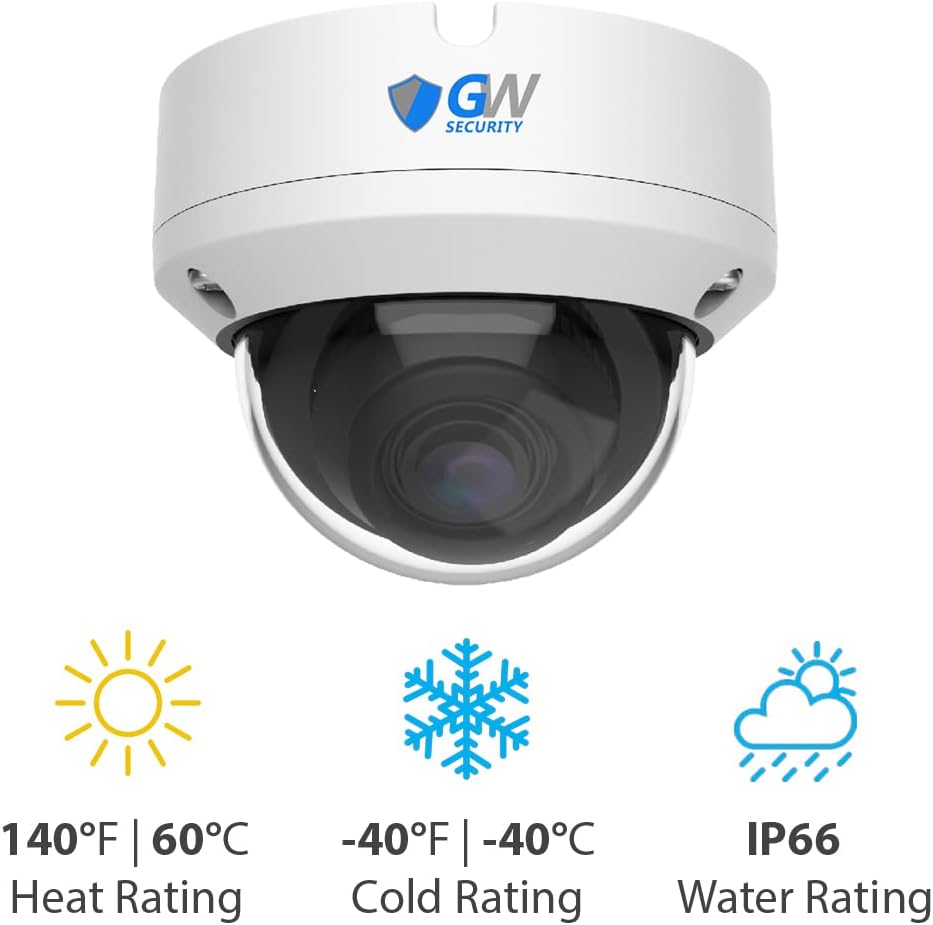
Figure 4.2: Camera environmental ratings for durability.
5. Troubleshooting
This section provides solutions to common issues you might encounter with your GW Security system.
| Problem | Possible Cause | Solution |
|---|---|---|
| No video display on monitor. | Loose video cable connection; DVR not powered on; incorrect monitor input. | Check HDMI/VGA cable connections. Ensure DVR power adapter is plugged in. Select correct input source on monitor/TV. |
| No image from a specific camera. | Camera power issue; BNC cable disconnected or damaged; camera malfunction. | Check camera power connection and splitter. Verify BNC cable is securely connected at both ends. Test camera with a different cable or port if possible. |
| Remote viewing not working. | DVR not connected to network; incorrect app settings; network firewall issues. | Ensure DVR is connected to your router via Ethernet. Verify QR code scan was successful in the app. Check router settings for any firewall blocks. Restart DVR and router. |
| False motion detection alerts. | Sensitivity too high; non-human/vehicle motion triggering alerts. | Adjust motion detection sensitivity in DVR settings. Utilize AI Human/Vehicle detection features to filter out irrelevant motion. Define specific detection zones. |
| Poor night vision. | Infrared LEDs obstructed; insufficient ambient light. | Ensure camera lens and IR LEDs are clean and unobstructed. Verify power supply is adequate for IR illumination. |
If you encounter issues not listed here or require further assistance, please contact GW Security technical support.
6. Product Specifications
Detailed technical specifications for the GW Security 8MP 4K Security Camera System.
| Feature | Detail |
|---|---|
| Brand | Camstar (GW Security) |
| Model Number | GW8CH833HDC4 |
| Connectivity Technology | Wired |
| Video Capture Resolution | 4K UHD 2160p (8MP) |
| Special Features | Night Vision, Vehicle Detection, Motion Sensor, Face Recognition, Human Detection |
| Number of Channels | 8 (Analog) + 4 (IP) |
| Memory Storage Capacity (Pre-installed) | 2TB (Expandable up to 28TB with 2 x 14TB HDDs) |
| Power Source | Corded Electric |
| Item Dimensions (L x W x H) | 15 x 10 x 12 inches |
| Compatible Devices | Smartphones, Cameras , Tablets |
| Signal Format | Digital |
| Night Vision Range | Up to 100 feet |
| Frame Rate | 24, 25 or 30 FPS |
| Recording Mode | Manual, Alarm Trigger, Motion Detection, Timed |
| Optical Sensor Technology | CMOS |
| Hardware Interface | Ethernet, BNC, RJ45 |
| Lens Type | 3.6mm fixed lens (110° wide view angle) |
| Waterproof Rating | IP66 |
| Operating Temperature | -40°F to 140°F (-40°C to 60°C) |
| UPC | 810025438203 |
7. Warranty and Support
GW Security is committed to providing high-quality products and excellent customer service.
7.1 Product Warranty
Your GW Security Camera System comes with a Two-Year Warranty from the date of purchase. This warranty covers defects in materials and workmanship under normal use. Please retain your proof of purchase for warranty claims.
7.2 Technical Support
We offer free, US-based professional technical support to assist you with any questions or issues regarding your system. Our highly-trained support staff are available to help with setup, troubleshooting, and general inquiries.
- Support Hours: Monday - Friday, 6:00 AM - 7:00 PM PST
- Contact Information: Please refer to the contact details provided on the GW Security official website or your product packaging.

Figure 7.1: GW Security Warranty and Support Information.
Documents and downloads
Ask a question about this manual
Ask about setup, troubleshooting, compatibility, parts, safety, or missing instructions. Manuals+ will review the question and use this page’s manual context to help answer it.