1. Introduction
This manual provides detailed instructions for the setup, operation, and maintenance of your LG UltraGear 27GR75Q-B Gaming Monitor. Please read this manual thoroughly before using the product to ensure proper usage and to prevent damage. Keep this manual for future reference.
2. Product Overview
2.1 Key Features
- 27-inch IPS display with QHD (2560 x 1440) resolution and 99% sRGB color gamut for vibrant visuals.
- High refresh rate of 165 Hz and 1ms Gray-to-Gray (GtG) response time for smooth gaming.
- Supports NVIDIA G-SYNC Compatible and AMD FreeSync Premium for tear-free gameplay.
- HDR10 support with 300 cd/m² brightness for enhanced contrast and detail.
- Multiple connectivity options: 2x HDMI, 1x DisplayPort 1.4, and Headphone Jack.
- OnScreen Control for intuitive monitor settings adjustment via mouse.
2.2 Package Contents
Verify that all components are present in the package:
- LG UltraGear 27GR75Q-B Monitor
- Power Supply Unit
- Power Cord
- DisplayPort Cable
- User Manual (this document)
3. Setup Instructions
3.1 Assembling the Stand
Carefully remove the monitor and stand components from the packaging. Attach the stand base to the stand neck, then secure the assembled stand to the back of the monitor. Ensure all connections are firm.

Image: Front view of the LG UltraGear 27GR75Q-B monitor, showcasing its design and stand.

Image: Various angles of the monitor demonstrating its adjustable stand, including height, tilt, and pivot capabilities.
3.2 Connecting to a Computer
Connect the monitor to your computer using the provided DisplayPort cable for optimal performance, or an HDMI cable.
- DisplayPort Connection: Connect one end of the DisplayPort cable to the DisplayPort input on the monitor and the other end to the DisplayPort output on your computer's graphics card.
- HDMI Connection: Connect one end of an HDMI cable to an HDMI input on the monitor and the other end to the HDMI output on your computer's graphics card.
- Power Connection: Connect the power cord to the power supply unit, then to the monitor's DC-IN port, and finally plug the power cord into a wall outlet.
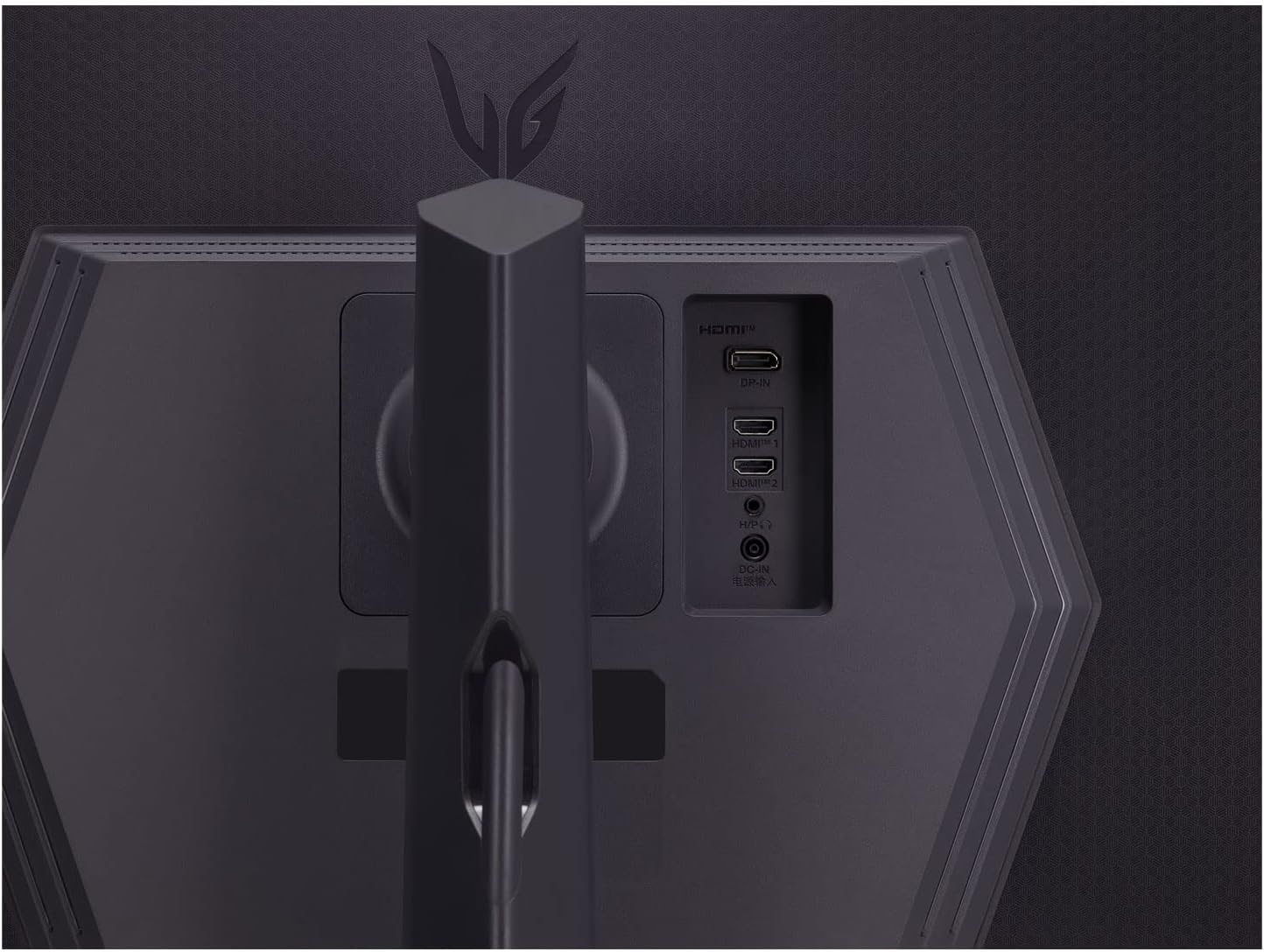
Image: Detailed view of the monitor's rear input panel, showing the HDMI, DisplayPort, and headphone jack connections.

Image: Rear view of the LG UltraGear monitor, highlighting the stand attachment point and the general area for cable connections.
4. Operating Instructions
4.1 Powering On/Off
Press the joystick button located at the bottom center of the monitor to power it on or off.
4.2 Navigating the On-Screen Display (OSD) Menu
The monitor features an intuitive joystick control for navigating the OSD menu.
- Press the joystick: Opens the main OSD menu.
- Move the joystick Up/Down/Left/Right: Navigates through menu options.
- Press the joystick again: Selects the highlighted option.
- Move the joystick Left (from main menu): Exits the current menu or goes back to the previous level.
Alternatively, you can use the LG OnScreen Control software for convenient mouse-based adjustments.
4.3 Adjusting Display Settings
Through the OSD menu, you can adjust various settings including:
- Picture Mode: Select from various presets (e.g., Gamer 1, FPS, RTS, Vivid, Reader, HDR Effect).
- Brightness/Contrast: Adjust the overall luminance and contrast levels.
- Color: Fine-tune color temperature, gamma, and individual RGB values.
- Game Adjust: Configure response time, FreeSync/G-SYNC Compatible, Black Stabilizer, and Crosshair.
- Input: Select the active input source (DisplayPort, HDMI1, HDMI2).
- General: Access language settings, OSD lock, power saving, and information.
4.4 Utilizing Adaptive Sync (G-SYNC Compatible / FreeSync Premium)
This monitor supports both NVIDIA G-SYNC Compatible and AMD FreeSync Premium technologies. To enable, ensure your graphics card drivers are up-to-date and activate the feature in your graphics card control panel (NVIDIA Control Panel or AMD Radeon Software) and within the monitor's OSD menu under "Game Adjust". This synchronizes the monitor's refresh rate with your GPU's frame rate, eliminating screen tearing and stuttering.
5. Maintenance
5.1 Cleaning the Monitor
To clean the monitor screen, gently wipe it with a soft, lint-free cloth. For stubborn marks, lightly dampen the cloth with water or a specialized screen cleaner. Avoid using harsh chemicals, abrasive cleaners, or spraying liquids directly onto the screen.
5.2 General Care
- Avoid placing heavy objects on the monitor or its cables.
- Do not block the ventilation openings on the monitor.
- Keep the monitor away from direct sunlight, heat sources, and excessive moisture.
- Unplug the monitor from the power outlet during lightning storms or when unused for extended periods.
6. Troubleshooting
6.1 No Power
- Ensure the power cord is securely connected to the monitor and a working electrical outlet.
- Check if the power adapter is properly connected to the monitor.
- Press the joystick button to confirm the monitor is powered on.
6.2 No Signal / Blank Screen
- Verify that the DisplayPort or HDMI cable is securely connected to both the monitor and the computer.
- Ensure the correct input source is selected in the monitor's OSD menu.
- Check if your computer is powered on and not in sleep mode.
- Test with a different cable or input port if available.
6.3 Image Issues (Flickering, Distorted, Incorrect Colors)
- Adjust the resolution and refresh rate settings on your computer to match the monitor's native resolution (2560x1440) and supported refresh rates (up to 165Hz).
- Update your graphics card drivers.
- Reset the monitor to factory default settings via the OSD menu.
- Disable G-SYNC Compatible/FreeSync Premium temporarily to see if the issue persists.
7. Specifications
| Feature | Specification |
|---|---|
| Brand | LG |
| Model Number | 27GR75Q-B.AEU |
| Screen Size | 27 Inches (68.5 cm) |
| Panel Type | IPS |
| Resolution | 2560 x 1440 (QHD) |
| Aspect Ratio | 16:9 |
| Refresh Rate | 165 Hz |
| Response Time | 1ms GtG |
| Color Gamut | 99% sRGB |
| HDR Support | HDR10 |
| Brightness | 300 cd/m² |
| Adaptive Sync | NVIDIA G-SYNC Compatible, AMD FreeSync Premium |
| Connectivity | 2x HDMI, 1x DisplayPort 1.4, Headphone Jack |
| Product Dimensions | 11.46 x 24.15 x 22.43 inches |
| Voltage | 240 Volts (AC) |
For detailed product information and energy efficiency ratings, please refer to the official EPREL database: EPREL Product Information Sheet.

Image: EU Energy Label for the LG 27GR75Q-B monitor, indicating its energy efficiency class and consumption details.

Image: Technical information sheet for the LG 27GR75Q-B monitor, detailing various specifications and compliance information.
8. Warranty and Support
For warranty information and technical support, please refer to the warranty card included with your product or visit the official LG Electronics website. You can also contact LG customer service for assistance.
LG Customer Support: For the most up-to-date contact information, please visit LG Support.