
1. Overview
The OPPO A78 5G is a powerful and versatile smartphone designed for seamless connectivity and an immersive user experience. Featuring a 6.56-inch display, a 50MP AI camera, a long-lasting 5000mAh battery with 33W SUPERVOOC fast charging, and a MediaTek Dimensity 700 processor, it offers robust performance for daily tasks, entertainment, and photography.
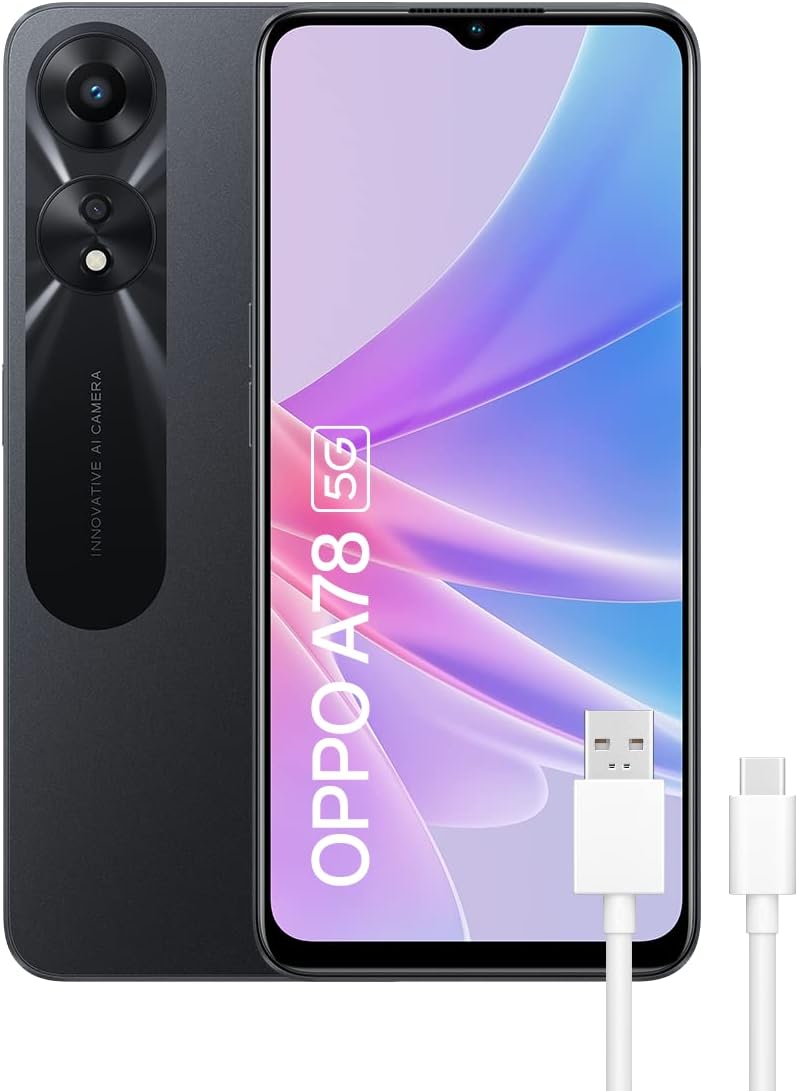
Figure 1.1: The OPPO A78 5G smartphone, showcasing its sleek design and included USB cable.
2. What's in the Box
Upon unboxing your OPPO A78 5G, you should find the following items:
- OPPO A78 5G Smartphone
- Charger (Power Adapter)
- USB Cable (Type-C)
- Pre-applied Screen Protector
- SIM Ejector Tool
3. Product Components and Controls
Familiarize yourself with the physical layout of your OPPO A78 5G.
3.1. Device Layout

Figure 3.1: Detailed view of the OPPO A78 5G's camera system, highlighting the 8MP front camera, 50MP main rear camera, and 2MP portrait camera.
- Front Camera: 8MP for selfies and video calls.
- Rear Camera System: Includes a 50MP main sensor and a 2MP portrait lens for versatile photography.
- Power Button: Located on the side, used to turn the device on/off or wake/sleep the screen.
- Volume Buttons: Located on the side, used to adjust media and call volume.
- USB-C Port: For charging and data transfer.
- SIM Card Tray: For inserting Nano-SIM cards and a microSD card.
- Speakers: Dual stereo speakers for enhanced audio experience.

Figure 3.2: Physical dimensions and weight of the OPPO A78 5G, showing its compact and lightweight design.
4. Setup
4.1. Inserting SIM Cards and MicroSD Card
- Locate the SIM card tray on the side of your device.
- Insert the SIM ejector tool into the small hole next to the tray and push gently until the tray pops out.
- Place your Nano-SIM card(s) and/or microSD card into the designated slots on the tray, ensuring correct orientation.
- Carefully push the tray back into the device until it is flush.
4.2. Initial Power On and Setup Wizard
- Press and hold the Power button until the OPPO logo appears.
- Follow the on-screen instructions to complete the initial setup, which includes selecting your language, connecting to Wi-Fi, and setting up your Google account.
4.3. Charging the Device
Before first use, it is recommended to fully charge your OPPO A78 5G.
- Connect the USB cable to the USB-C port on your phone and the other end to the power adapter.
- Plug the power adapter into a wall outlet.
- The device supports 33W SUPERVOOC fast charging, allowing for rapid battery replenishment.

Figure 4.1: The OPPO A78 5G connected to its 33W SUPERVOOC charger, illustrating the fast charging capability.
5. Operating Your Device
5.1. Basic Navigation
The OPPO A78 5G runs on ColorOS 13, based on Android. Navigate using touch gestures:
- Tap: Select an item or open an app.
- Swipe: Scroll through screens or lists.
- Pinch: Zoom in or out on photos and web pages.
- Long Press: Access contextual menus or move icons.
5.2. Calls and Contacts
- Making a Call: Open the Phone app, enter the number, and tap the call icon.
- Adding Contacts: Open the Contacts app, tap the '+' icon, and fill in the contact details.
5.3. Camera Usage
Capture stunning photos and videos with the versatile 50MP AI camera system.

Figure 5.1: Sample images taken with the OPPO A78 5G's 50MP AI Camera, demonstrating its high-resolution capabilities.
- Photo Modes: Access various modes like Portrait, Night, Pro, and Panorama from the camera interface.
- AI Features: The AI camera automatically optimizes settings for different scenes.
- Video Recording: Record high-quality videos with AI Color options for unique visual styles.

Figure 5.2: Overview of advanced camera features including AI Retouching, Ultra-clear Image, Portrait Mode, Monochrome Video, and Night Mode.
5.4. Connectivity
- Wi-Fi: Go to Settings > Wi-Fi to connect to available networks.
- Bluetooth: Go to Settings > Bluetooth to pair with other devices like headphones or speakers.
- 5G Network: The device supports 5G connectivity for faster data speeds (requires 5G network availability from your carrier).
5.5. Sound and Display
Enjoy an immersive multimedia experience with the OPPO A78 5G's display and audio features.

Figure 5.3: The 90Hz display of the OPPO A78 5G, showcasing its rich color reproduction for an enhanced viewing experience.
- 90Hz Display: Provides a smoother visual experience, especially when scrolling or gaming.
- Dual Stereo Speakers: Delivers rich, immersive audio.
- Ultra Volume Mode: Boosts speaker volume up to 200% for clearer audio in noisy environments.

Figure 5.4: Illustration of the dual stereo speakers and the Ultra Volume feature, allowing users to increase audio output significantly.
5.6. Battery Management
The 5000mAh battery provides all-day power. Optimize battery life using these tips:

Figure 5.5: Battery performance metrics for the 5000mAh battery, showing estimated usage times for gaming, calls, and video playback.
- Power Saving Mode: Activate in Settings > Battery to extend battery life.
- Super Night-time Standby: Reduces power consumption during sleep.
- Close Background Apps: Swipe up from the bottom of the screen and clear apps from recent tasks.
6. Maintenance
6.1. Cleaning Your Device
- Use a soft, lint-free cloth to wipe the screen and body.
- Avoid harsh chemicals or abrasive materials.
- Do not spray cleaners directly onto the device.
6.2. Software Updates
Regularly check for software updates to ensure optimal performance and security:
- Go to Settings > About device > Up to date / ColorOS version.
- Download and install any available updates.
6.3. Storage Management
To free up storage space:
- Delete unnecessary apps and files.
- Move large files to a microSD card (if installed) or cloud storage.
- Clear cache data for apps in Settings > Apps > App management.
6.4. Water Resistance (IPX4)
The OPPO A78 5G is rated IPX4 for water resistance, meaning it is protected against splashing water from any direction. This does not mean it is waterproof. Avoid submerging the device in water or exposing it to high-pressure water jets.

Figure 6.1: Visual representation of the OPPO A78 5G's IPX4 water resistance, indicating protection against splashes.
7. Troubleshooting
If you encounter issues with your OPPO A78 5G, try the following solutions:
7.1. Common Issues
- Device Not Turning On: Ensure the battery is charged. Press and hold the Power button for at least 10 seconds to force restart.
- Charging Problems: Check the charging cable and adapter for damage. Try a different outlet. Ensure the charging port is clean.
- Network Issues: Restart the device. Check if Airplane Mode is off. Verify your SIM card is properly inserted. Contact your carrier if problems persist.
- Apps Crashing/Freezing: Close the app and reopen it. Clear the app's cache (Settings > Apps > App management > [App Name] > Storage usage > Clear cache). Update the app.
- Slow Performance: Close unnecessary background apps. Clear storage space. Restart the device regularly.
7.2. Factory Reset
Warning: A factory reset will erase all data on your phone. Back up important data before proceeding.
- Go to Settings > System settings > Back up and reset > Reset phone.
- Select 'Erase all data' and confirm.
8. Specifications
Detailed technical specifications for the OPPO A78 5G:
| Feature | Specification |
|---|---|
| Model Name | A78 5G |
| Operating System | Android (ColorOS 13) |
| RAM | 8GB (expandable up to 16GB with RAM Expansion) |
| Internal Storage | 128 GB |
| Display Size | 6.56 Inches |
| Display Resolution | 720 x 1612 |
| Refresh Rate | 90 Hz |
| Main Camera | 50 MP |
| Front Camera | 8 MP |
| Battery Capacity | 5000 mAh |
| Charging Technology | 33W SUPERVOOC |
| Processor | MediaTek Dimensity 700 |
| Wireless Technology | 5G, Cellular |
| Connectivity | USB Type-C |
| Dimensions (L x W x H) | 16.38 x 7.51 x 0.8 cm |
| Weight | 179 g |
| Water Resistance | IPX4 |
9. Warranty and Support
Your OPPO A78 5G comes with a standard manufacturer's warranty. For specific warranty terms and conditions, please refer to the warranty card included in your product packaging or visit the official OPPO website.
For further assistance, technical support, or service inquiries, please visit the official OPPO support website or contact their customer service. You can find more information and resources at the OPPO Brand Store on Amazon.


