
1. Product Overview
The MiLESEEY DP20 PRO is a multifunctional bilateral laser measurement tool designed for precise distance and angle measurements. It features dual laser emitters, a digital angle sensor, and seamless integration with the 'Smart Life' mobile application for enhanced data management and floor plan creation. This device is ideal for professionals and DIY enthusiasts requiring accurate and efficient measurements.

Image 1: The MiLESEEY DP20 PRO Bilateral Laser Distance Meter, highlighting its smart features and long-range capabilities.
2. Package Contents
Upon unboxing your MiLESEEY DP20 PRO, please ensure all the following items are present:
- DP20 PRO Laser Measure
- Carrying Bag
- User Manual
- Lanyard Strap
- USB-C Charging Cable

Image 2: Contents of the MiLESEEY DP20 PRO package, including the device, carrying case, and accessories.
3. Setup and Charging
3.1 Charging the Device
The DP20 PRO is equipped with a 1000mAh rechargeable Lithium-Ion battery. To charge, connect the provided USB-C cable to the device's charging port and a compatible power source. A full charge typically takes approximately 2 hours and provides power for up to 20,000 measurements.

Image 3: The MiLESEEY DP20 PRO connected to a USB-C charger, illustrating its rechargeable battery feature.
3.2 Powering On/Off
To power on the device, press and hold the 'MEAS ON' button. The OLED display will illuminate. To power off, press and hold the 'CLEAR OFF' button.
3.3 Bluetooth Pairing and App Connection
The DP20 PRO can connect to the 'Smart Life' mobile application for enhanced functionality, including real-time data synchronization and floor plan creation. Ensure Bluetooth and location services are enabled on your smartphone. Open the 'Smart Life' app and follow the on-screen instructions to add the device. The app allows for enhanced Excel spreadsheet functionality, enabling manual input and real-time synchronization of distance values.

Image 4: The MiLESEEY DP20 PRO connected to a smartphone app, demonstrating real-time data synchronization for construction plans.
Video 1: Official MiLESEEY video demonstrating the Smart Life App's enhanced Excel spreadsheet functionality, including data synchronization and manual input.
4. Operating Instructions
4.1 Basic Measurement
The DP20 PRO supports both one-way and two-way laser measurements. In two-way mode, it measures distances from both ends simultaneously, providing three values at once (left, right, and total). This is particularly useful for finding the center point of a room or measuring over obstacles.
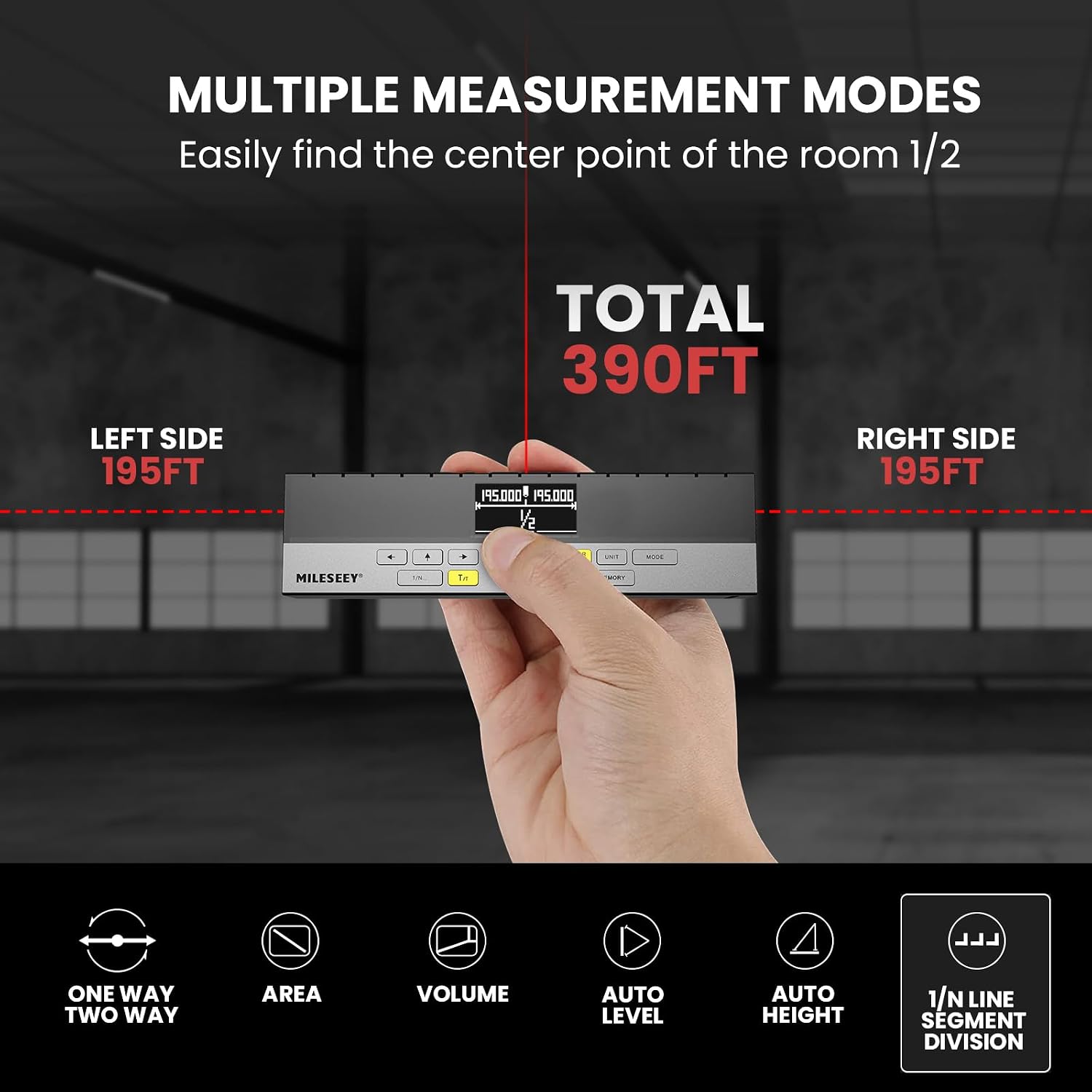
Image 5: Illustration of multiple measurement modes, including one-way and two-way measurement, area, volume, auto level, auto height, and 1/N line segment division.

Image 6: Demonstrates switching between one-way measurement (from rear reference point) and two-way measurement (from middle reference point).
4.2 Switching Units
The device supports various units of measurement, including meters (m), feet (ft), and inches (in). Press the 'UNIT' button to cycle through the available units on the display.
4.3 Changing Measurement Modes
The DP20 PRO offers several measurement modes. Press the 'MODE' button to switch between them:
- Distance Measurement: Standard single or continuous measurement.
- Area Measurement: Calculate the area of a surface.
- Volume Measurement: Determine the volume of a space.
- Auto Level: Use the built-in digital tilt sensor to check horizontal alignment.
- Auto Height: Measure vertical distances.
- 1/N Segment Division: Divide a line segment into N equal smaller segments for staking out.
Video 2: Official MiLESEEY video providing button instructions for the DP20 PRO, demonstrating mode and unit switching.
4.4 Using the Middle Laser Mark
The middle laser mark beam provides a visual reference point, allowing for precise marking of the measuring point. This feature helps in accurately capturing reference points in complex geometric spaces.

Image 7: Illustrates how the middle laser mark helps in easily capturing and pinpointing reference points in complex spaces.
4.5 Using the Leveling Feature
The integrated digital angle sensor allows the device to function as a level. The display shows the angle, helping you ensure surfaces are perfectly horizontal or vertical. This is particularly useful for tasks like hanging pictures or installing shelves.

Image 8: Shows a user measuring height without bending down, highlighting the convenience of the digital angle feature.
4.6 Memory Function
The device can store multiple measurement data points. Press the 'MEMORY' button to access and review previously recorded measurements. When connected to the 'Smart Life' app, these measurements can be synchronized and managed digitally.
5. Maintenance
To ensure the longevity and accuracy of your MiLESEEY DP20 PRO, follow these maintenance guidelines:
- Keep the device clean and dry. Use a soft, damp cloth for cleaning.
- Avoid exposing the device to extreme temperatures or direct sunlight for prolonged periods.
- Store the device in its provided carrying bag when not in use to protect it from dust and physical damage.
- Regularly charge the battery to maintain its health, even if not in frequent use.
6. Troubleshooting
If you encounter issues with your DP20 PRO, consider the following:
- Device not powering on: Ensure the battery is charged. Connect to a USB-C power source.
- Inaccurate measurements: Ensure the laser emitters are clean and unobstructed. Verify the measurement mode and reference point settings.
- App connectivity issues: Confirm Bluetooth and location services are enabled on your smartphone. Restart both the device and the app. Some user experiences indicate that phone-specific settings or older phone models might affect connectivity, not necessarily a device fault.