
1. Introduction
This manual provides detailed instructions for the AITRIP ESP32-S3-DevKitC-1-N16R8 Development Board. This board integrates complete Wi-Fi and Bluetooth Low Energy (BLE) functions, making it suitable for a wide range of Internet of Things (IoT) and embedded projects. It features dual Type-C USB ports for easy programming and communication, alongside AI IoT capabilities and W2812B RGB lighting.

Figure 1: Overview of the AITRIP ESP32-S3-DevKitC-1-N16R8 Development Boards.
2. Product Overview
2.1 Board Layout
The ESP32-S3-DevKitC-1-N16R8 board is designed for ease of use, featuring clearly labeled components and dual USB Type-C ports for power and data transfer.

Figure 2: Front and Back View of the Development Board. The front displays the ESP32-S3-WROOM-1 module, RST and BOOT buttons, RGB LED, and dual USB Type-C ports. The back shows the ESP32-S3 label and USB-OTG/USB ports.

Figure 3: Detailed view of key components including the ESP32-S3-WROOM-1 module, reset and boot buttons, and USB-C connectors.
2.2 Pin Definitions
Understanding the pinout is crucial for connecting peripherals and programming the board. The board provides 31 general-purpose input/output (GPIO) pins.
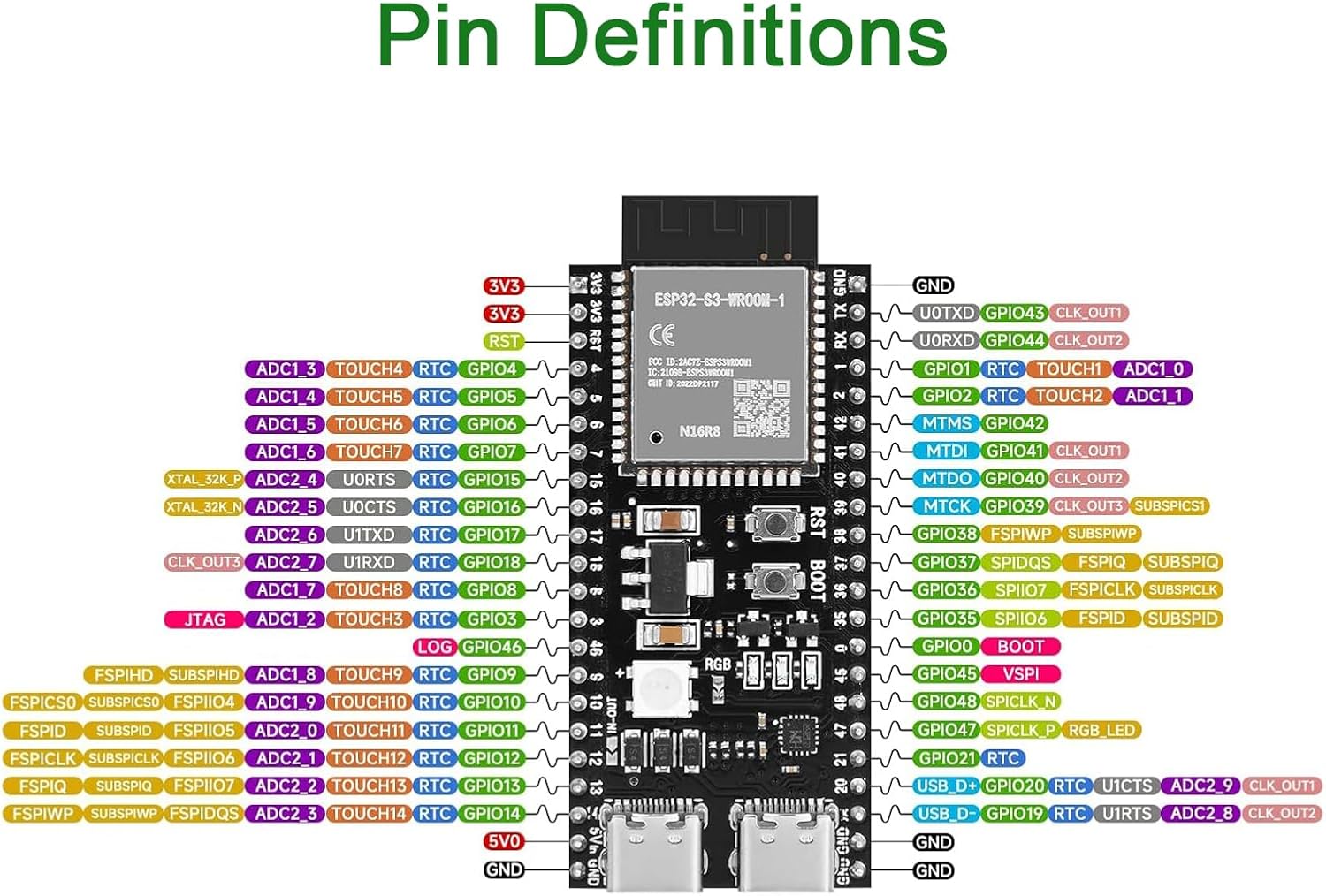
Figure 4: Pin Definitions for the ESP32-S3-DevKitC-1-N16R8. This diagram illustrates the various GPIO pins, power pins (3V3, 5V, GND), and their alternative functions such as ADC, DAC, I2C, SPI, UART, and JTAG.
2.3 Module Architecture
The core of the development board is the ESP32-S3-WROOM-1 module, which integrates a powerful microcontroller with Wi-Fi and BLE capabilities.

Figure 5: Block Diagram of the ESP32-S3-DevKitC-1. This diagram shows the internal connections for power supply, programming via USB-to-UART bridge and ESP32-S3 USB port, and connections to the RGB LED and header blocks.
3. Features
- Integrated Wi-Fi and Bluetooth 5.0 (BLE) connectivity.
- Dual USB Type-C ports for power, data, and programming.
- Supports AI IoT applications.
- Onboard W2812B RGB lighting.
- Equipped with 16MB Flash (Quad SPI) and 8MB PSRAM (Octal SPI).
- Provides 31 General Purpose Input/Output (GPIO) pins.
- Supports various interfaces including ADC, DAC, I2C, SPI, UART, and USB OTG.
- Compatible with MicroPython, Arduino IDE, and ESP-IDF development frameworks.
4. Setup and Initial Use
4.1 Powering the Board
The ESP32-S3-DevKitC-1-N16R8 can be powered via its dual USB Type-C ports. It supports both USB-to-UART and direct ESP32-S3 USB port connections for power and programming.
- USB-to-UART Port: Connect a USB Type-C cable to this port for power and serial communication.
- ESP32-S3 USB Port: Connect a USB Type-C cable to this port for power and native USB functionality.
- 5V and 3V3 Pins: The board can also be powered via the 5V and 3V3 pins, connecting to G (GND) pins.
Important Note regarding 5V Output:
By default, the 5V output on the 5Vin pin may be disabled. To enable 5V output, it is necessary to bridge the tiny pads located next to pins labeled 11 and 12 on the board. This action allows external 5V peripherals or addressable LEDs to function correctly without an additional external 5V power source.
5. Operating Instructions
The ESP32-S3-DevKitC-1-N16R8 is versatile and can be programmed using various environments. This section outlines the general steps for MicroPython and Arduino.
Video 1: Overview of the ESP32-S3 Development Board, including features, pinout, and initial setup guidance for MicroPython and Arduino. This video provides visual and textual instructions for getting started with programming the board.
5.1 Programming with MicroPython
The boards are typically pre-flashed with MicroPython firmware. If you need to re-flash or update the firmware, follow these steps:
Requirements:
- Python installed on your computer.
esptool: A utility for flashing ESP devices. Install usingpip install esptool.- CH340 Driver: Required for USB-to-UART communication. Find the appropriate driver on GitHub or the manufacturer's website.
Flashing MicroPython Firmware:
- Download the S3 MicroPython firmware (
.binfile) from the MicroPython official site or GitHub. - Connect the ESP32-S3 board to your computer via a USB Type-C cable.
- Identify the serial port name (e.g.,
/dev/ttyUSB0on Linux,COMxon Windows). - Use
esptool.pyto erase and flash the firmware:
esptool.py --port PORT_NAME erase_flash
esptool.py --port PORT_NAME --baud 1000000 write_flash -z 0x0 FIRMWARE.bin
Replace PORT_NAME with your board's serial port and FIRMWARE.bin with the path to your firmware file.
5.2 Programming with Arduino IDE
To use the ESP32-S3 with the Arduino IDE, you need to install the ESP32 board package.
Requirements:
- Python installed on your computer.
- Arduino IDE installed.
- CH340 Driver: Required for USB-to-UART communication.
Installing Hardware Package:
- Open Arduino IDE. Go to File > Preferences.
- In the 'Additional Boards Manager URLs' field, add the ESP32 Arduino package URL (refer to the Espressif official site for the latest URL).
- Go to Tools > Board > Boards Manager.... Search for "ESP32" and install the latest version of the ESP32 by Espressif.
Configure Board:
- After installation, go to Tools > Board > ESP32 Arduino and select the appropriate ESP32-S3 board model (e.g., "ESP32S3 Dev Module").
- Select the correct serial port under Tools > Port.
6. Specifications
| Feature | Specification |
|---|---|
| Module Model | ESP32-S3-DevKitC-1-N16R8 |
| Wireless Connectivity | Wi-Fi, Bluetooth 5.0 (BLE) |
| Flash Memory | 16MB (Quad SPI) |
| PSRAM | 8MB (Octal SPI) |
| Operating Voltage | 3.3V (via LDO), 5V (via USB) |
| Digital I/O Pins | 31 |
| Clock Speed | 240MHz |
| USB Ports | Dual USB Type-C (USB-to-UART, ESP32-S3 USB) |
| Operating System Support | FreeRTOS, MicroPython, Arduino, ESP-IDF |
| Item Weight | 1.13 ounces |
| Package Dimensions | 3.98 x 2.99 x 0.71 inches |
7. Troubleshooting
- No 5V Output on 5Vin Pin: If you are not getting 5V output from the 5Vin pin, ensure that the small pads next to pins 11 and 12 on the board are bridged. This action is required to enable the 5V output for external components.
- Wi-Fi Connectivity Issues: If experiencing intermittent or no Wi-Fi connection, verify the following:
- Ensure correct Wi-Fi credentials (SSID, password) are used in your code.
- Check for proper installation of CH340 drivers and ESP32 board packages in your IDE.
- Confirm that the board's firmware is up-to-date and correctly flashed.
- Test in different environments to rule out local network interference.
- Board Not Detected by Computer: Ensure the correct USB Type-C cable is used and properly connected. Install or update the CH340 USB-to-Serial driver for your operating system.
- Firmware Flashing Errors: Double-check the serial port name and baud rate in your flashing command. Ensure the board is in bootloader mode (usually by holding the BOOT button while connecting or resetting, then releasing).
8. Support and Warranty
For technical support, please refer to the official Espressif documentation for the ESP32-S3 series, or contact AITRIP customer service through your purchase platform. Specific warranty information may vary; please consult your retailer or the product packaging for details.