1. Introduction
This manual provides detailed instructions for the safe and effective operation of your Hti-Xintai HT-18+ Handheld Thermal Camera. The HT-18+ is an advanced infrared thermal imaging device designed for various applications, including home inspections, electrical diagnostics, and industrial maintenance. Please read this manual thoroughly before using the device to ensure proper functionality and to prevent damage.
2. What's in the Box
Upon unpacking, please verify that all items listed below are present and in good condition:
- Hti-Xintai HT-18+ Thermal Imaging Camera
- Travel Pouch
- User Manual
- USB Charging Adapter
- Micro USB Cable

Figure 2.1: Contents of the HT-18+ package, including the thermal camera, USB cable, and power adapter.
3. Product Overview
Familiarize yourself with the components and controls of the HT-18+ thermal camera.
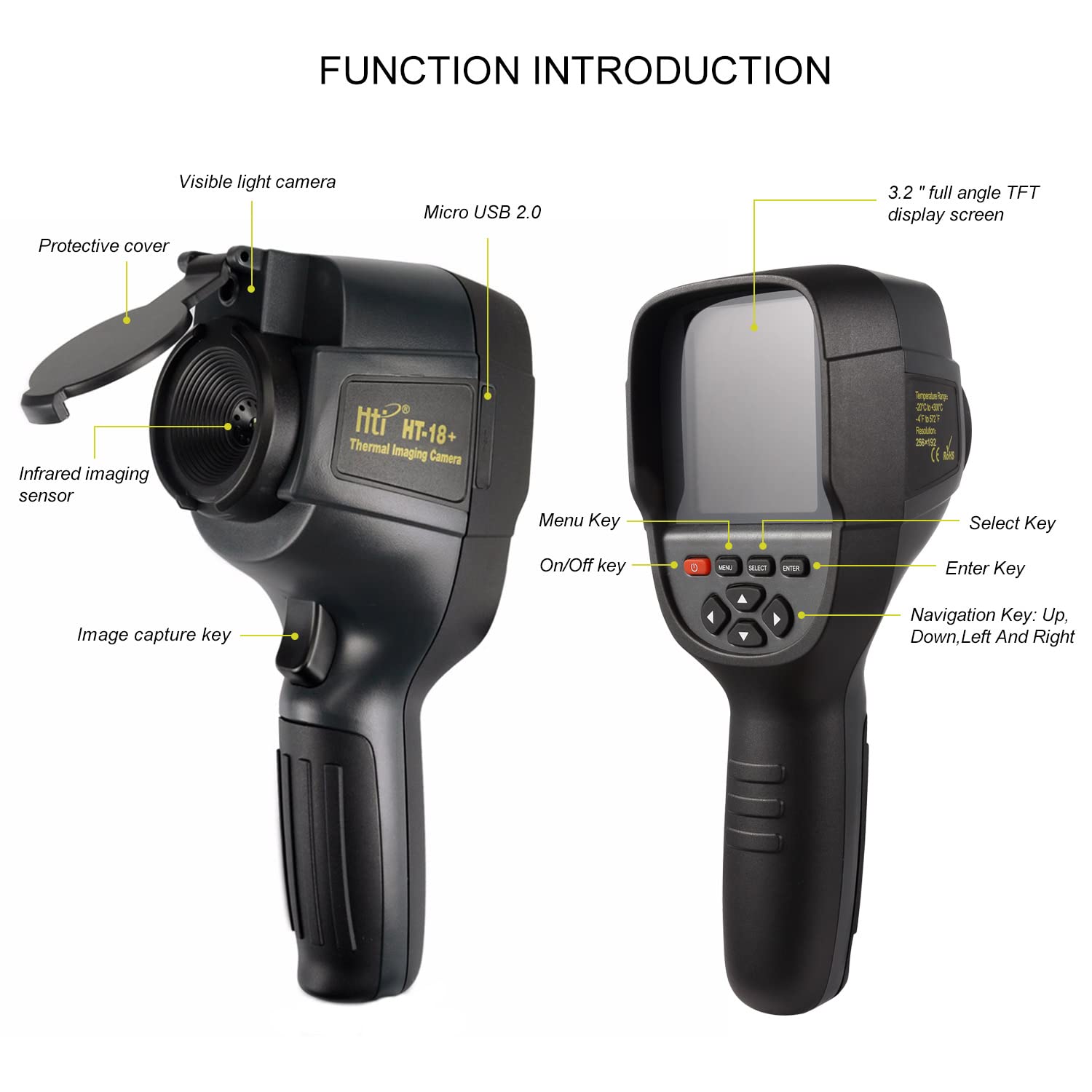
Figure 3.1: Labeled diagram of the HT-18+ thermal camera, showing the display, keypad, handheld area, USB Type-C interface, visible light camera, infrared thermal image sensor, and graphic capture button.
- Infrared Imaging Sensor: Captures thermal data.
- Visible Light Camera: Provides a visual image for fusion modes.
- Display: 3.2-inch color screen for viewing thermal and visual images, and menu navigation.
- On/Off Key: Powers the device on or off.
- Menu Key: Accesses the main menu.
- Select Key: Used for selection within menus.
- Enter Key: Confirms selections.
- Navigation Keys (Up, Down, Left, Right): Navigates through menus and adjusts settings.
- Image Capture Key: Captures thermal images or starts/stops video recording.
- Micro USB 2.0 Port: For charging and data transfer.
4. Setup
4.1 Charging the Battery
The HT-18+ is equipped with a built-in rechargeable Lithium Polymer battery. Before first use, fully charge the device.
- Connect the Micro USB cable to the camera's Micro USB port.
- Connect the other end of the USB cable to the provided USB charging adapter.
- Plug the adapter into a standard wall outlet.
- The charging indicator on the display will show the charging status. A full charge typically takes 4-5 hours.
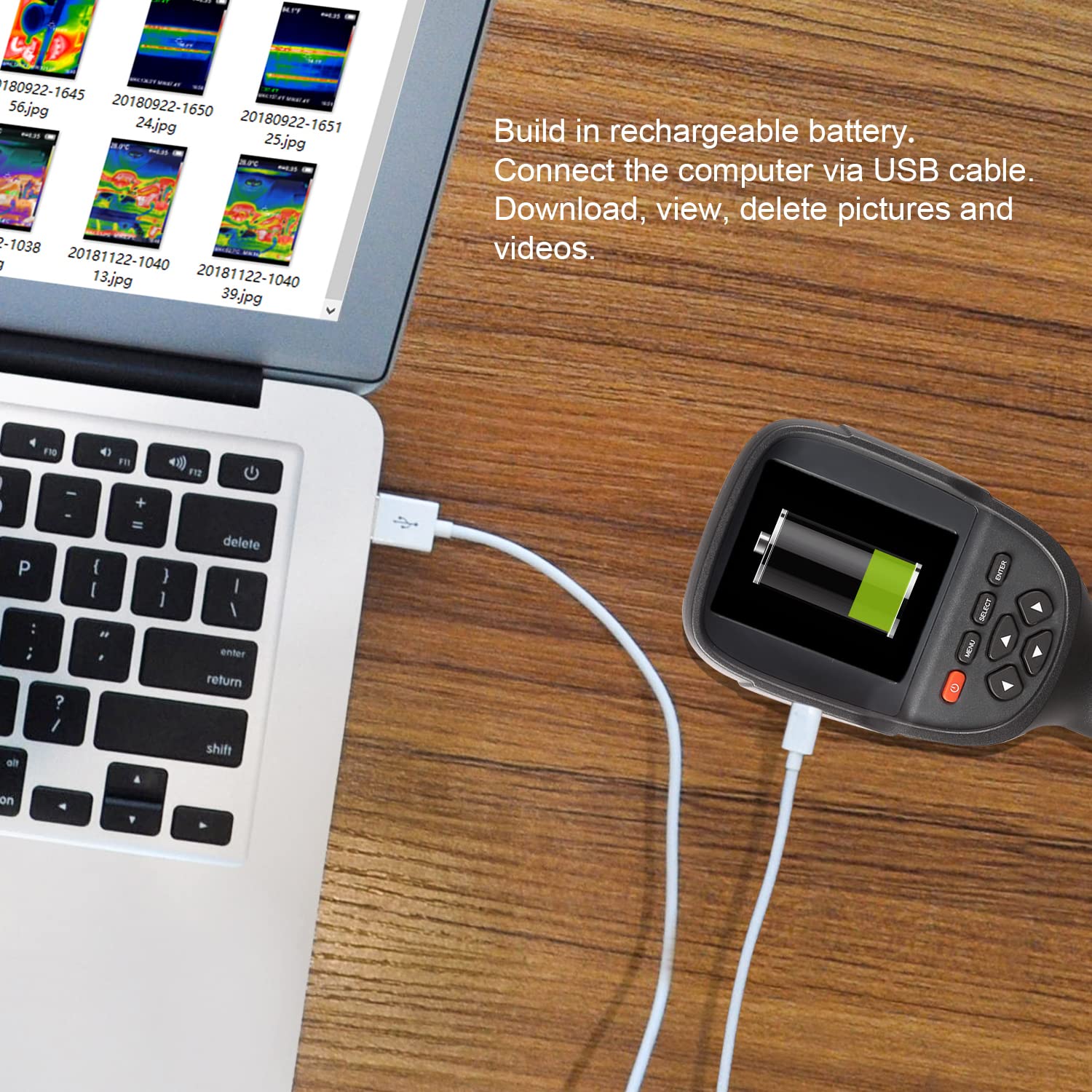
Figure 4.1: The HT-18+ connected to a power source via USB for charging. The battery icon on the screen indicates charging status.
4.2 Powering On/Off
- To power on: Press and hold the On/Off Key until the display illuminates.
- To power off: Press and hold the On/Off Key until the device shuts down.
5. Operating Instructions
5.1 Basic Operation
Once powered on, the camera will display a live thermal image. The screen shows temperature readings, emissivity settings, and battery status.

Figure 5.1: The HT-18+ in operation, showing a thermal image on its display with temperature readings and menu options.
5.2 Capturing Images and Videos
- To capture an image: Press the Image Capture Key once. The image will be saved to the internal memory.
- To record video: Press and hold the Image Capture Key to start recording. Press again to stop. Videos are saved in MP4 format.
5.3 Menu Navigation and Settings
Press the Menu Key to access the main menu. Use the Navigation Keys to scroll through options, Select Key to highlight, and Enter Key to confirm.

Figure 5.2: The HT-18+ display showing the 'Settings' menu, including options for auto shutdown, intensity, language, temperature unit, temperature range, time format, and spot measurement.
Key settings include:
- Auto Shutdown: Configures automatic power-off to conserve battery.
- Intensity: Adjusts screen brightness.
- Language: Selects the display language.
- Unit: Changes temperature units between Celsius (°C) and Fahrenheit (°F).
- Temperature Range: Sets the measurement range (e.g., Low: -20°C to 120°C, High: 120°C to 550°C).
- Time Format: Adjusts time display.
- Set Time: Sets the current date and time.
- Spot: Enables or disables spot temperature measurement.
- Palettes: Selects different color palettes for thermal display (e.g., Iron Red, Rainbow, White Hot, Black Hot).

Figure 5.3: Visual representation of the six thermal imaging modes available on the HT-18+ for different scene interpretations.
5.4 Simultaneous Measurement and Tracking
The HT-18+ can perform simultaneous temperature measurements at three points (center, hot spot, cold spot) with automatic tracking, providing comprehensive thermal analysis.

Figure 5.4: The HT-18+ display illustrating simultaneous measurement at a center point, hot spot, and cold spot, with automatic tracking of these temperature extremes.
5.5 Data Transfer and Analysis Software
Connect the HT-18+ to a computer using the Micro USB cable to transfer captured images and videos. The device appears as a removable storage drive.
The camera includes Thermal Imaging Image Analysis Software (for Windows) to load onto your computer for detailed review and analysis of thermal data.

Figure 5.5: The HT-18+ connected to a computer, demonstrating the use of analysis software to review thermal images and export video files.
6. Maintenance
6.1 Cleaning
- Wipe the camera body with a soft, dry cloth.
- For stubborn dirt, use a soft cloth lightly dampened with water or a mild cleaning solution. Do not use abrasive cleaners or solvents.
- Gently clean the lens with a lens cleaning cloth or a soft, lint-free cloth. Avoid touching the lens directly with fingers.
6.2 Storage
- Store the device in its travel pouch when not in use to protect it from dust and physical damage.
- Keep the camera in a cool, dry place, away from direct sunlight and extreme temperatures.
- If storing for extended periods, ensure the battery is partially charged (around 50%) to prolong its lifespan.
7. Troubleshooting
| Problem | Possible Cause | Solution |
|---|---|---|
| Device does not power on. | Low or depleted battery. | Charge the battery using the provided USB cable and adapter. |
| Screen is dim or unreadable in bright light. | Display intensity is too low. | Adjust the 'Intensity' setting in the menu to a higher level. |
| Cannot transfer files to computer. | Incorrect USB cable or connection issue. | Ensure the provided Micro USB cable is used and properly connected. Try a different USB port on the computer. |
| Thermal image appears blurry or inaccurate. | Lens is dirty or parallax error. | Clean the lens. Be aware of parallax between the visible and IR sensors, especially at close distances. |
8. Specifications
The following are the technical specifications for the Hti-Xintai HT-18+ Handheld Thermal Camera:
- IR Resolution: 256 x 192 pixels
- Refresh Rate: 25 Hz
- Thermal Sensitivity (NETD): <40mK
- Temperature Range: -4°F to +1022°F (-20°C to +550°C)
- Measurement Accuracy: ±2°C or ±2% (whichever is greater) for -15°C to 550°C; ±4°C for -20°C to -15°C
- Display: 3.2-inch Color Display
- Pixel Count: 300,000 pixels
- Battery: 1 Lithium Polymer battery (included), rechargeable
- Battery Life: 4 to 5 hours (continuous use)
- Image Format: JPG
- Video Format: MP4
- Connectivity: Micro USB
- Dimensions: Approximately 10.79 x 7.36 x 4.49 inches
- Weight: Approximately 2.2 Pounds
9. Warranty and Support
Hti-Xintai provides a three-year product warranty for the HT-18+ thermal camera. This warranty covers manufacturing defects and ensures professional after-sales service for customers in the United States through our USA branch in North Carolina.
For technical support, warranty claims, or service inquiries, please contact Hti-Xintai customer service. Refer to the product packaging or the official Hti-Xintai website for the most current contact information.
Manufacturer: XT Instrument


