
1. Introduction
This manual provides comprehensive instructions for the installation, operation, and maintenance of your XTRONS TE723L Autoradio Car Tablet. This device integrates advanced features such as Android 12 operating system, GPS navigation, Wi-Fi connectivity, Digital Sound Processor (DSP), and compatibility with Apple CarPlay and Android Auto, designed to enhance your in-car entertainment and navigation experience.

Image: The XTRONS TE723L main unit, showcasing its Android 12 interface and highlighting key features such as Octa Core processor, 2GB RAM, 32GB ROM, Built-in CarPlay & Android Auto, Built-in DSP, Dual UI, Dual Band WiFi, and Bluetooth 5.0.
2. Key Features
- Operating System: Android 12
- Processor: Octa Core
- Memory: 2GB RAM, 32GB ROM
- Display: High-resolution touchscreen
- Connectivity: Built-in Wi-Fi (Dual Band), Bluetooth 5.0, USB
- Audio: Integrated Digital Sound Processor (DSP) with Equalizer
- Smartphone Integration: Supports Apple CarPlay and Android Auto
- Navigation: Built-in GPS module for accurate positioning
- Power Output: 180 Watts
- User Interface: Dual UI support
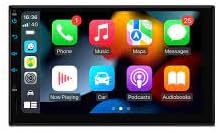
Image: The XTRONS TE723L screen displaying the Apple CarPlay interface, showing common applications like Phone, Music, Maps, and Messages.
3. Setup and Installation
Proper installation is crucial for optimal performance. It is recommended that installation be performed by a qualified professional.
3.1. Package Contents
Before installation, verify that all components are present:
- XTRONS TE723L Head Unit
- Power Harness
- GPS Antenna
- USB Cables
- RCA Cables
- Mounting Brackets and Screws
- User Manual (this document)

Image: A comprehensive view of the accessories included with the XTRONS TE723L, such as various wiring harnesses, a GPS antenna, USB cables, RCA cables, mounting brackets, and the user manual.
3.2. Wiring Diagram
Connect the power harness, speaker wires, and other auxiliary cables according to your vehicle's wiring specifications. Ensure all connections are secure to prevent short circuits or malfunctions.
3.3. Mounting the Unit
Use the provided mounting brackets and screws to secure the head unit into your vehicle's dashboard. Ensure the unit is firmly seated and does not obstruct any vehicle controls.

Image: Technical drawing showing the dimensions of the XTRONS TE723L head unit, including width, height, and depth measurements, crucial for installation planning.
4. Operating Instructions
This section details the primary functions and how to operate your XTRONS TE723L.
4.1. Initial Power On and System Setup
Upon first power-on, the system may guide you through initial setup steps, including language selection, time zone, and Wi-Fi connection.
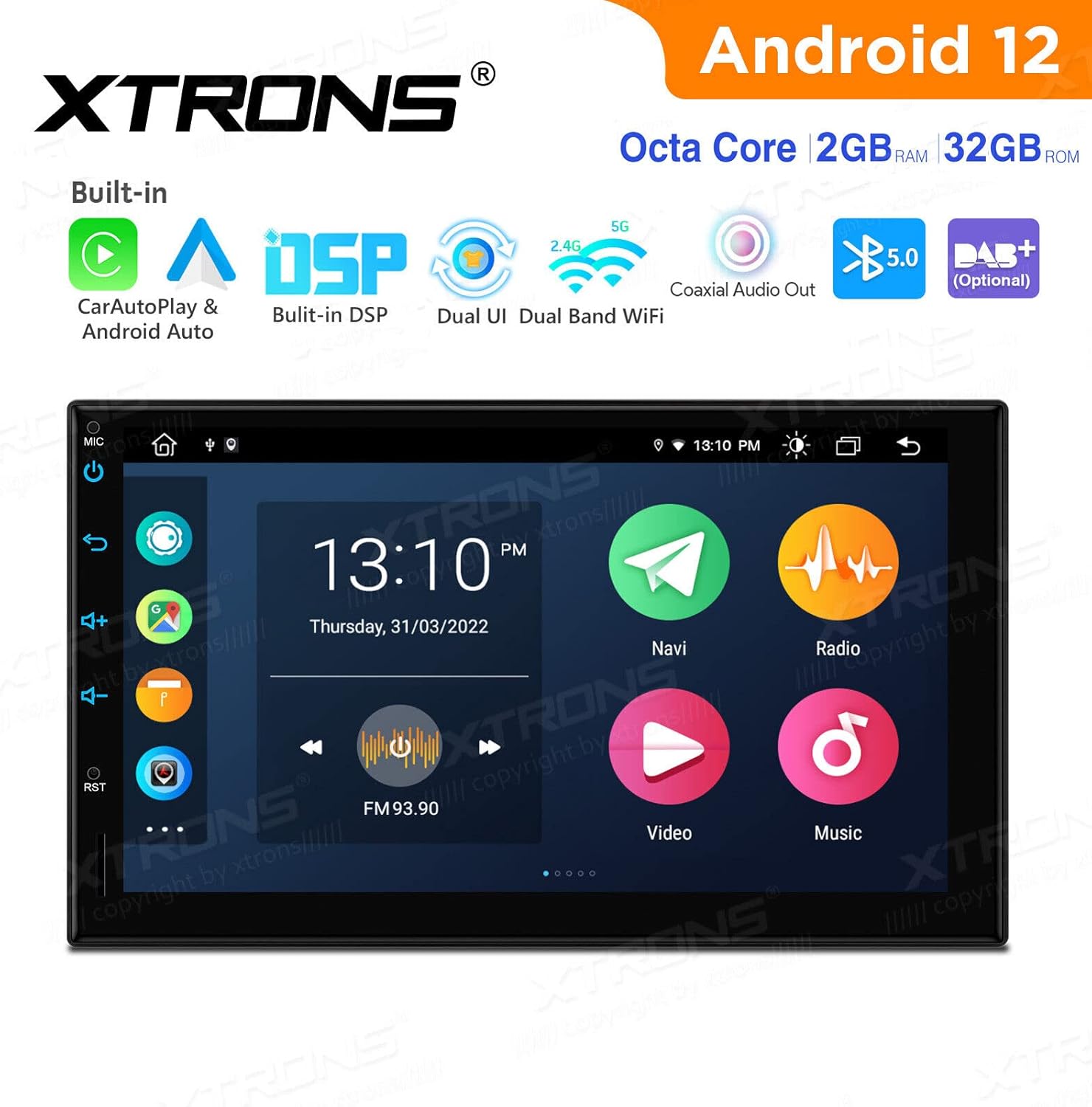
Image: The main home screen of the XTRONS TE723L, displaying common applications such as Navigation, Radio, Video, Music, Bluetooth, and BT Music, along with date and time.
4.2. Navigation (GPS)
Access the navigation application from the home screen. Ensure the GPS antenna is properly installed for accurate location services. You can download and use various navigation apps from the Google Play Store.

Image: The XTRONS TE723L screen displaying a navigation map with route information, current speed, and estimated arrival time.
4.3. Radio Operation
Select the "Radio" icon to access the FM/AM tuner. Use the on-screen controls to scan for stations, save presets, and adjust settings like AF (Alternative Frequencies) and TA (Traffic Announcement).

Image: The XTRONS TE723L radio interface, showing frequency display, preset buttons, and controls for AF, TA, and PTY (Program Type).
4.4. Bluetooth Connectivity
Pair your mobile device via Bluetooth for hands-free calling and audio streaming. Navigate to the Bluetooth settings, enable Bluetooth on your phone, and select "XTRONS TE723L" from the available devices.
4.5. Apple CarPlay & Android Auto
Connect your compatible smartphone via USB to activate Apple CarPlay or Android Auto. This allows you to access phone functions, navigation, music, and messaging apps directly on the head unit's screen.
4.6. Digital Sound Processor (DSP) and Equalizer
The built-in DSP allows for advanced audio customization. Access the equalizer settings to adjust sound frequencies, balance, fader, and preset sound modes to optimize your listening experience.
4.7. Wi-Fi Connection
Connect the unit to a Wi-Fi hotspot (e.g., from your smartphone) to access online features, download apps, and receive system updates. Go to Settings > Network & Internet > Wi-Fi.

Image: The XTRONS TE723L screen showing the app drawer, including icons for Maps, Podcasts, Phone, Exit, Calendar, Settings, and SmartThings, indicating access to various system functions and applications.
5. Maintenance
Regular maintenance ensures the longevity and optimal performance of your XTRONS TE723L.
5.1. Cleaning the Unit
Use a soft, dry cloth to clean the screen and exterior. For stubborn smudges, slightly dampen the cloth with water. Avoid using abrasive cleaners or solvents, as they can damage the display and finish.
5.2. Software Updates
Periodically check for system software updates via the Wi-Fi connection. Updates can improve performance, add new features, and resolve bugs. Navigate to Settings > About device > System updates.
6. Troubleshooting
This section addresses common issues you might encounter and provides solutions.
| Problem | Possible Cause | Solution |
|---|---|---|
| Unit does not power on. | Loose power connection, blown fuse. | Check power wiring and vehicle's fuse box. Ensure proper grounding. |
| No sound from speakers. | Incorrect speaker wiring, volume too low, mute enabled. | Verify speaker connections, increase volume, check if mute is active. |
| GPS signal weak or unavailable. | GPS antenna not properly installed or obstructed. | Ensure GPS antenna is placed in an unobstructed location (e.g., dashboard). |
| Bluetooth connection issues. | Device not in pairing mode, interference, incorrect pairing process. | Ensure both devices are in pairing mode. Delete previous pairings and try again. Restart both devices. |
| Touchscreen unresponsive. | Temporary software glitch. | Perform a soft reset (refer to the device's reset button, usually a small pinhole). |
7. Specifications
| Feature | Detail |
|---|---|
| Brand | XTRONS |
| Model Number | TE723L |
| Operating System | Android 12 |
| Processor | Octa Core |
| RAM | 2GB |
| ROM | 32GB |
| Connectivity | Bluetooth 5.0, USB, Wi-Fi (Dual Band) |
| Special Features | Equalizer, Built-in DSP, CarPlay, Android Auto, Dual UI |
| Compatible Devices | Tablet (as a general category for head units), Smartphones |
| Power Output | 180 Watts |
8. Warranty and Support
8.1. Warranty Information
Please refer to your purchase documentation or the XTRONS official website for detailed warranty terms and conditions. The warranty typically covers manufacturing defects for a specified period from the date of purchase.
8.2. Customer Support
For technical assistance, troubleshooting beyond this manual, or warranty claims, please contact XTRONS customer support through their official website or the retailer from whom you purchased the product.
Note: Information regarding spare parts availability is not provided.
