
1. Introduction
Thank you for purchasing the Roadstar IR-540D+BT Micro Hi-Fi System. This system offers a wide range of audio options including Internet Radio, DAB+/FM digital radio, CD-MP3 playback, Bluetooth connectivity, and USB media support. This manual provides essential information for safe operation, setup, and troubleshooting to ensure optimal performance of your device.
2. Safety Information
- Read all instructions carefully before use.
- Keep this manual for future reference.
- Do not expose the unit to rain or moisture to prevent fire or electric shock.
- Ensure proper ventilation; do not block any ventilation openings.
- Use only attachments/accessories specified by the manufacturer.
- Unplug the unit during lightning storms or when unused for long periods.
- Refer all servicing to qualified service personnel.
3. Package Contents
Please check that all items are present:
- Roadstar IR-540D+BT Micro Hi-Fi System
- Remote Control
- Power Adapter
- User Manual (this document)
4. Product Overview
Familiarize yourself with the main components and controls of your Hi-Fi system.
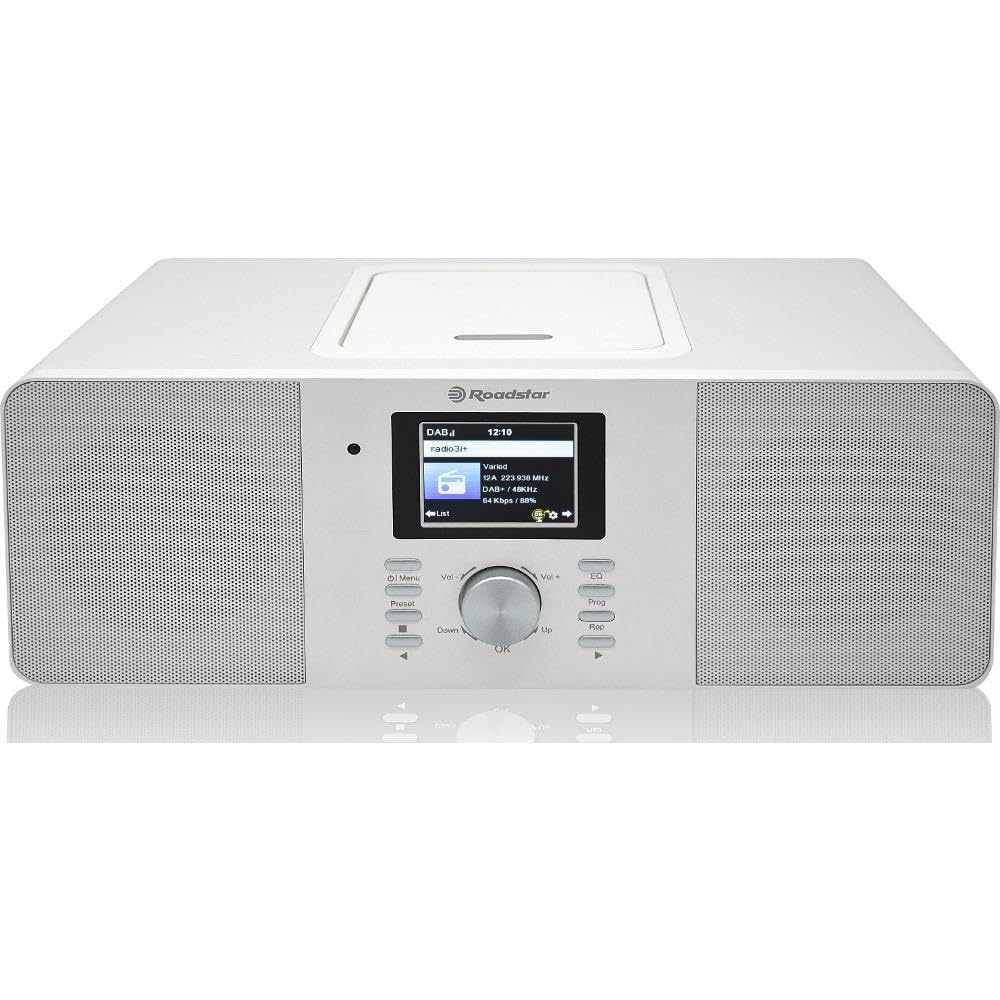
Figure 4.1: Front view of the Roadstar IR-540D+BT Micro Hi-Fi System.

Figure 4.2: Close-up of the LCD display and main control buttons/knobs.
Front Panel Controls:
- LCD Display: Shows current mode, track information, radio station, time, etc.
- Power Button: Turns the unit on/off.
- Mode Button: Switches between CD, Internet Radio, DAB+, FM, Bluetooth, AUX, USB.
- Volume Knob: Adjusts the audio output level.
- Navigation Buttons (Up/Down/Left/Right/OK): For menu navigation and selection.
- Play/Pause Button: Controls playback for CD/USB/Bluetooth.
- Skip/Search Buttons: Skips tracks or searches radio stations.
- USB Port: For USB media playback and fast charging.
- Headphone Jack: For private listening.
Rear Panel Connections:
- AUX IN: 3.5mm jack for connecting external audio devices.
- FM/DAB Antenna Input: For connecting the included antenna.
- DC IN: Power adapter connection.

Figure 4.3: The Roadstar IR-540D+BT system shown with its multi-function remote control.
Remote Control Functions:
- All basic functions (Power, Volume, Mode, Playback controls).
- Direct access buttons for different modes (e.g., CD, BT, Internet Radio).
- Numeric keypad for direct track/station entry.
- Alarm setting and sleep timer functions.
5. Setup
5.1 Power Connection
- Connect the power adapter to the DC IN jack on the rear of the unit.
- Plug the power adapter into a standard wall outlet.
5.2 Antenna Connection
For optimal DAB+ and FM radio reception, connect the supplied antenna to the FM/DAB Antenna Input on the rear panel. Extend the antenna fully and adjust its position for the best signal.
5.3 Initial Wi-Fi Setup (for Internet Radio)
Upon first power-on or when selecting Internet Radio mode, the system will prompt you to configure network settings.
- Use the navigation buttons to select 'Network Setup' or 'Wi-Fi Setup'.
- The system will scan for available Wi-Fi networks. Select your network from the list.
- Enter your Wi-Fi password using the navigation buttons and 'OK' to confirm each character.
- Once connected, the system will confirm the connection. You can now access Internet Radio stations.
6. Operating Instructions
6.1 General Operation
- Power On/Off: Press the Power button on the unit or remote.
- Select Mode: Press the 'Mode' button repeatedly to cycle through available sources (CD, Internet Radio, DAB+, FM, Bluetooth, AUX, USB).
- Adjust Volume: Rotate the Volume knob or use the VOL +/- buttons on the remote.
6.2 CD/MP3 Playback
- Open the CD compartment cover.
- Place a CD or MP3 CD with the label side facing up.
- Close the CD compartment cover. The system will automatically switch to CD mode and begin playback.
- Use the Play/Pause, Skip, and Search buttons for control.
6.3 Radio Operation
6.3.1 Internet Radio
- Select 'Internet Radio' mode.
- Use the navigation buttons to browse stations by genre, location, or search.
- Press 'OK' to select a station.
6.3.2 DAB+/FM Radio
- Select 'DAB+' or 'FM' mode.
- For DAB+, the system will perform an auto-scan for available stations. For FM, use the search buttons to find stations.
- To save a preset, press and hold the 'Preset' button, then select a preset number and press 'OK'.
6.4 Bluetooth Connectivity
- Select 'Bluetooth' mode. The display will show 'Pairing' or 'Waiting for connection'.
- On your mobile device (smartphone, tablet), enable Bluetooth and search for available devices.
- Select 'IR-540D+BT' from the list.
- Once paired, you can play audio from your device through the Hi-Fi system.
6.5 USB Playback and Charging
- Insert a USB flash drive into the USB port. The system will automatically switch to USB mode and begin playing compatible audio files (e.g., MP3).
- The USB port also supports fast charging for compatible devices.
6.6 AUX IN Connection
Connect an external audio device (e.g., MP3 player, smartphone) to the AUX IN jack on the rear panel using a 3.5mm audio cable. Select 'AUX' mode to listen to audio from the connected device.
6.7 Alarm Function

Figure 6.1: The display showing alarm clock settings.
The system features a dual alarm function.
- Press the 'Alarm' button on the remote or navigate through the menu to 'Alarm Settings'.
- Select Alarm 1 or Alarm 2.
- Set the desired alarm time, source (Buzzer, FM, DAB+, Internet Radio), and volume.
- Enable the alarm.
7. Maintenance
- Cleaning: Use a soft, dry cloth to clean the unit. Do not use abrasive cleaners or solvents.
- CD Care: Handle CDs by their edges. Clean with a soft, lint-free cloth, wiping from the center outwards.
- Ventilation: Ensure the ventilation openings are not blocked to prevent overheating.
8. Troubleshooting
| Problem | Possible Cause | Solution |
|---|---|---|
| No power | Power cable not connected; Power outlet faulty. | Check power cable connection; Try a different outlet. |
| No sound | Volume too low; Incorrect mode selected; Headphones connected. | Increase volume; Select correct source mode; Disconnect headphones. |
| Poor radio reception | Antenna not extended/positioned correctly; Weak signal. | Extend and reposition the antenna; Try auto-tuning again. |
| Bluetooth pairing failed | Device not in pairing mode; Distance too far; Interference. | Ensure unit is in Bluetooth mode; Keep devices close; Restart both devices. |
| Internet Radio not connecting | Incorrect Wi-Fi password; Router issues; Weak Wi-Fi signal. | Re-enter Wi-Fi password; Restart router; Move unit closer to router. |
9. Specifications
| Feature | Specification |
|---|---|
| Brand | Roadstar |
| Model Number | IR-540D+BT |
| Connectivity Technology | Auxiliary, USB, Bluetooth, Wi-Fi |
| Supported Standards | CD, CD-R, CD-RW, MP3, WAV, AAC, WMA |
| Speaker Type | Stereo |
| Output Power (RMS) | 2 x 10 W (Total 20W RMS) |
| Power Source | Corded Electric |
| Compatible Devices | MP3 Player, Smartphone, Tablet |
| Radio Tuner | Internet Radio, DAB+, FM |
| USB Port | Playback and Fast Charging |
| Display | Digital LCD |
| Special Features | Dual Alarm, Equalizer Presets |
10. Warranty and Support
For warranty information and technical support, please refer to the warranty card included with your product or visit the official Roadstar website. Keep your proof of purchase for any warranty claims.