
1. Introduction
This manual provides detailed instructions for the proper use and maintenance of your Luqeeg 4G LTE USB Portable Router. Please read this manual thoroughly before operating the device to ensure optimal performance and safety.
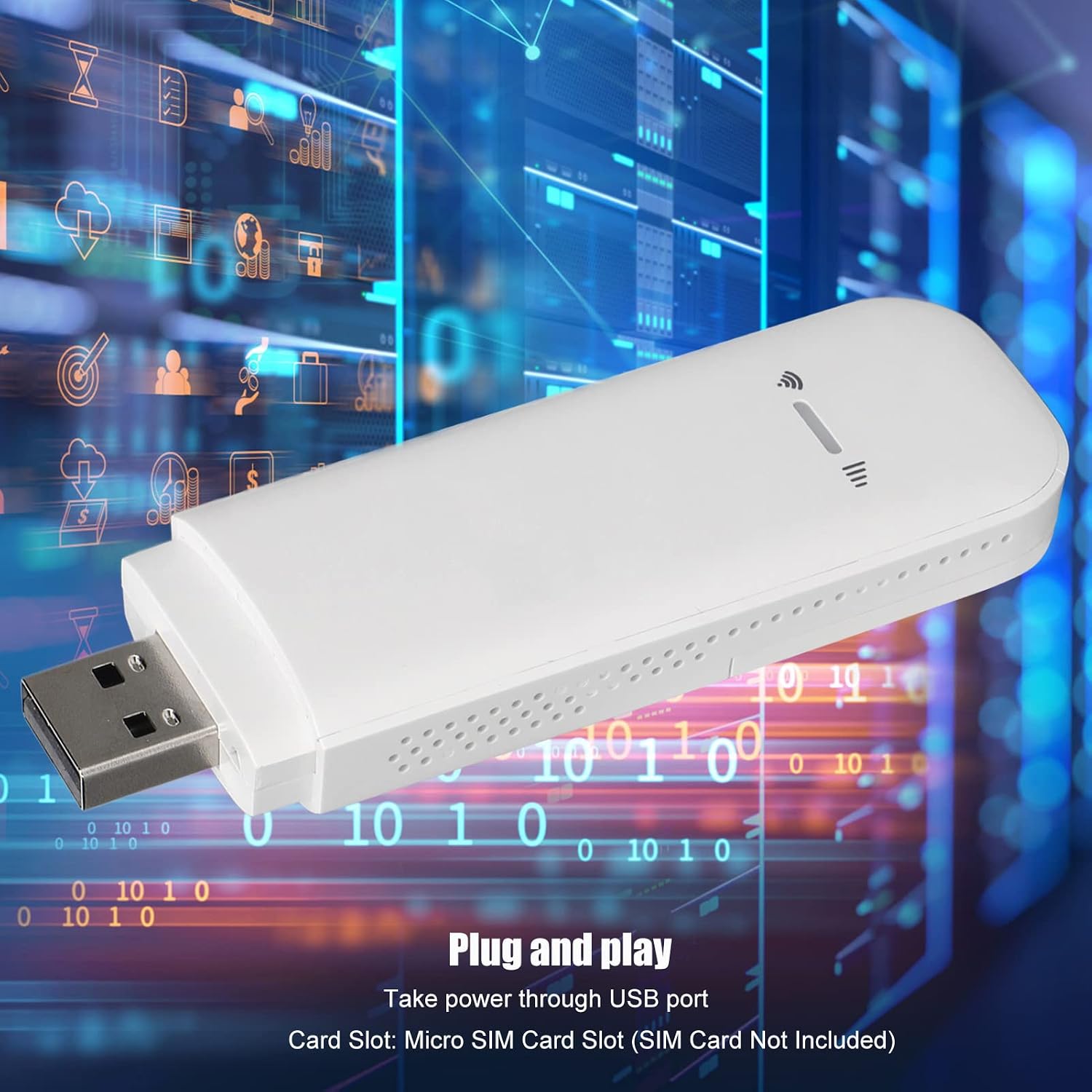
The Luqeeg 4G LTE USB Portable Router is designed to provide high-speed internet access on the go, functioning as both a portable Wi-Fi hotspot and a USB modem. It supports 3G and 4G networks and can share internet connectivity with up to 8 devices simultaneously.
2. Package Contents
- 1 x Luqeeg 4G Router
- 1 x User Manual
Note: A Micro SIM Card is not included and must be purchased separately.
3. Specifications
| Feature | Description |
|---|---|
| Model | Luqeeg2h65obewvz |
| Material | ABS |
| Color | White |
| USB Port | Standard USB |
| SIM Card Slot | Micro SIM Card Slot |
| Max Rate | 150Mbps |
| 4G Speed | 150Mbps Downlink |
| 4G LTE FDD Bands | 1/3/5/7/8/20 |
| LTE TDD Bands | 38/40/41 |
| WCDMA UMTS Bands | B1/B8 |
| Wi-Fi Standard | IEEE802.11b/g/n |
| Wi-Fi Range | Approx. 5 to 10 meters (5.5 to 10.9 yards) |
| Supported Connections | Up to 8 Wi-Fi devices + 1 USB user |
| Compatible Devices | Tablet, Laptop, Phone |
| Operating System | ZyNOS (Internal OS) |
| Security Protocol | WPS |
| Item Weight | 1.27 ounces |
| Package Dimensions | 4.33 x 2.76 x 0.79 inches |
4. Safety Information
Please observe the following safety precautions:
- Keep the device away from water and moisture.
- Do not expose the device to extreme temperatures.
- Avoid dropping or subjecting the device to strong impacts.
- Store the product separately from children's toys and other items to avoid accidental ingestion or choking.

5. Setup Guide
Follow these steps to set up your 4G LTE USB Portable Router:
- Open the Device: Gently push down on the back cover of the router to remove it.
- Insert SIM Card: Insert your Micro SIM card into the designated slot with the card core facing down. Ensure it is securely seated.
- Connect to Power: Plug the USB port of the router into a power supply. This can be a USB wall adapter, a power bank, or a computer's USB port.
- Power On: The device will automatically power on once connected to a power source. The indicator lights will illuminate.


6. Operating Instructions
6.1. Connecting to Wi-Fi
- Ensure the 4G Router is powered on.
- On your device (tablet, laptop, phone), search for available Wi-Fi networks.
- Select the Wi-Fi network name (SSID) broadcast by the router. The default SSID and password can usually be found on a label inside the device or in the accompanying documentation.
- Enter the Wi-Fi password when prompted.
- Once connected, you will be able to access the internet.

6.2. Accessing Router Settings
To customize your network settings, such as Wi-Fi name (SSID) and password, follow these steps:
- Connect your device to the router's Wi-Fi network.
- Open a web browser on your connected device.
- Enter the router's default IP address (usually printed on the device or in the manual) into the browser's address bar and press Enter.
- Log in using the default username and password (also typically found on the device or in the manual).
- From the administration panel, you can modify settings such as Wi-Fi name, password, and APN (Access Point Name) settings if required by your SIM card provider.
7. Maintenance
- Cleaning: Use a soft, dry cloth to clean the exterior of the device. Do not use liquid cleaners or aerosols.
- Storage: When not in use for extended periods, store the device in a cool, dry place away from direct sunlight.
- Software Updates: Periodically check the manufacturer's website or the router's administration panel for any available firmware updates to ensure optimal performance and security.
8. Troubleshooting
| Problem | Possible Cause | Solution |
|---|---|---|
| No internet connection | SIM card not inserted correctly or not activated. No data plan. Incorrect APN settings. |
|
| Cannot connect to Wi-Fi | Incorrect Wi-Fi password. Router not powered on. Wi-Fi signal too weak. |
|
| Slow internet speed | Weak 4G signal. Too many connected devices. Network congestion. |
|
| Cannot access router settings page | Incorrect IP address. Not connected to router's Wi-Fi. Browser issues. |
|
9. Warranty and Support
For warranty information and technical support, please refer to the documentation provided at the time of purchase or visit the official Luqeeg website. Keep your purchase receipt as proof of purchase for warranty claims.
You can also visit the Luqeeg Store on Amazon for more product information and support resources.