
1. Introduction
This manual provides comprehensive instructions for the installation, operation, and maintenance of your owltron Home Security Camera. Please read this manual thoroughly before using the product to ensure proper functionality and safety. Keep this manual for future reference.
The owltron Home Security Camera is designed to provide reliable surveillance for your home, pets, or nursery. It features 2-way audio, WiFi connectivity, motion detection, and night vision capabilities.
2. Product Overview
The owltron Home Security Camera is a compact and versatile device. Below are its main components and features.

Figure 2.1: Front view of the owltron Home Security Camera, showing the lens and main body.
Key Features:
- 1080P HD Resolution: Provides clear and detailed video footage.
- 2-Way Audio: Allows for real-time communication through the camera.
- WiFi Connectivity: Enables wireless connection to your home network for remote access.
- Motion Detection: Alerts you to detected movement within the camera's field of view.
- Night Vision: Ensures clear monitoring even in low-light or dark conditions.
- Dome Form Factor: Designed for discreet placement and wide coverage.
- Wall Mountable: Can be securely mounted for optimal positioning.

Figure 2.2: The owltron camera is designed with an IP65 rating, indicating resistance to dust and water splashes, suitable for various indoor environments.

Figure 2.3: Illustration of the camera's night vision capabilities, providing clear images in low-light conditions.
3. Setup
Follow these steps to set up your owltron Home Security Camera:
- Unpack the Camera: Carefully remove all components from the packaging. Verify that all accessories are present.
- Power On: Connect the power adapter to the camera's power port and plug it into a standard electrical outlet. The camera will power on and initiate its startup sequence.
- Download the App: Search for the "owltron" app (or specified app in product documentation) on your smartphone's app store (iOS or Android) and install it.
- Create an Account: Open the app and follow the on-screen instructions to create a new user account or log in if you already have one.
- Add Device: In the app, select "Add Device" or the '+' icon. Choose your camera model from the list.
- Connect to Wi-Fi: Follow the app's instructions to connect the camera to your 2.4GHz Wi-Fi network. This typically involves scanning a QR code generated by the app with the camera's lens or entering Wi-Fi credentials.
- Mount the Camera: Once connected, decide on the optimal mounting location. Use the provided mounting hardware to secure the camera to a wall or ceiling. Ensure the camera has a clear view of the area you wish to monitor.
- Final Adjustments: Adjust the camera's angle and pan/tilt (if applicable) through the app to achieve the desired viewing coverage.
For detailed visual guides, refer to the in-app tutorials or the manufacturer's official support website.
4. Operating Instructions
Once your owltron Home Security Camera is set up, you can begin monitoring and utilizing its features through the mobile application.
4.1 Live View and Recording
- Access Live Feed: Open the owltron app and select your camera from the device list to view the live video feed.
- Manual Recording: Tap the record button in the live view interface to manually start or stop video recording. Recordings are saved to your phone or the camera's storage (if a microSD card is installed).
- Screenshot: Use the screenshot button to capture still images from the live feed.
4.2 Two-Way Audio
- Speak: In the live view, press and hold the microphone icon to speak through the camera's speaker. Release to stop speaking.
- Listen: The camera's microphone is active by default, allowing you to hear audio from the camera's environment.
4.3 Motion Detection and Alerts
- Enable/Disable: Navigate to the camera settings in the app to enable or disable motion detection.
- Sensitivity: Adjust the motion detection sensitivity to minimize false alarms.
- Alerts: Configure push notifications to receive alerts on your smartphone when motion is detected.
4.4 Night Vision
The camera automatically switches to night vision mode in low-light conditions. Some models may offer different night vision modes (e.g., infrared, full-color night vision) which can be configured in the app settings.
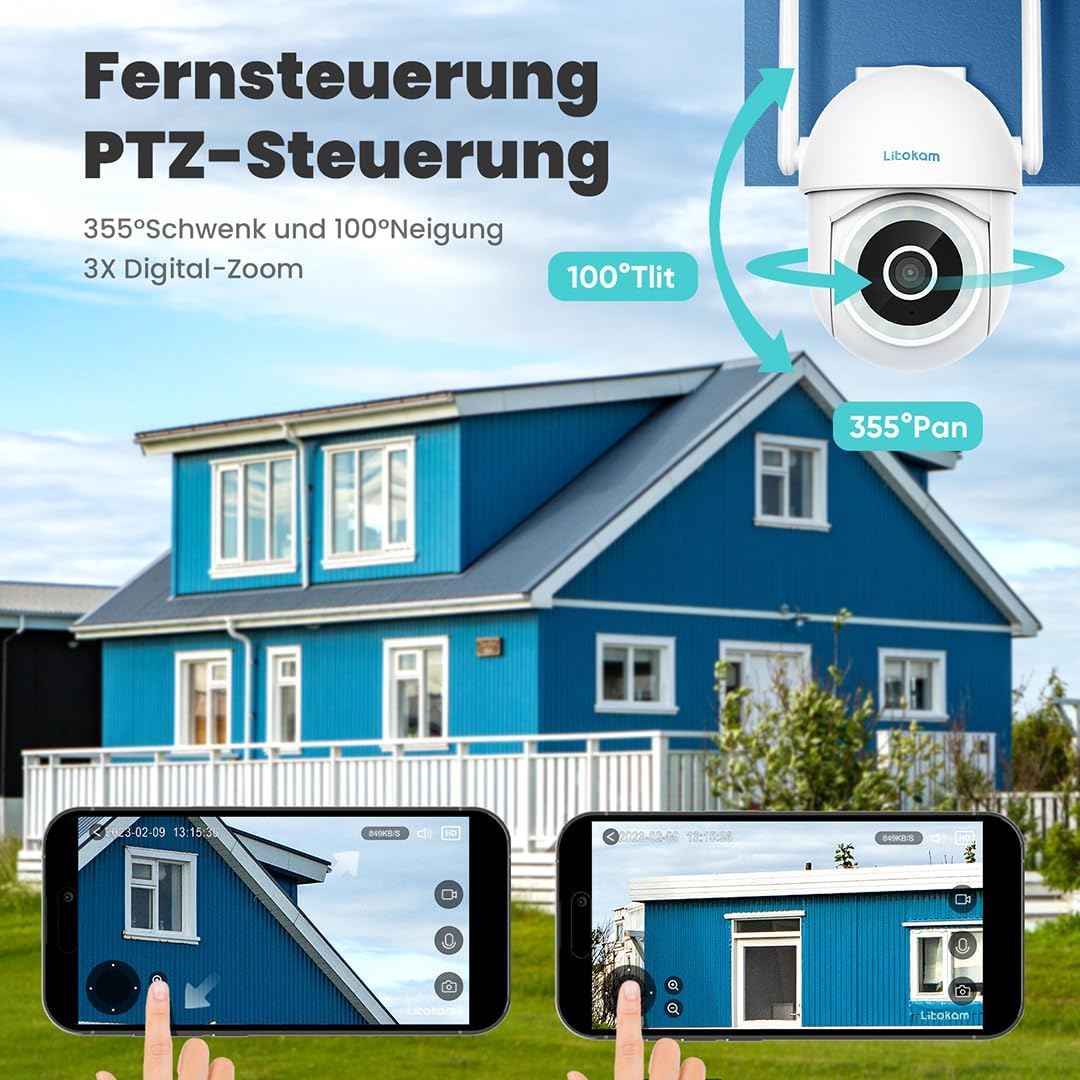
Figure 4.1: Example of the mobile application interface for controlling camera pan and tilt functions.
5. Maintenance
Regular maintenance ensures the longevity and optimal performance of your owltron Home Security Camera.
- Clean the Lens: Gently wipe the camera lens with a soft, dry, lint-free cloth to remove dust or smudges. Do not use harsh chemicals or abrasive materials.
- Check Connections: Periodically inspect all cable connections (power, network) to ensure they are secure.
- Software Updates: Keep the camera's firmware and the mobile app updated to the latest versions. Updates often include performance improvements and security enhancements. Check for updates within the app settings.
- Environmental Conditions: Ensure the camera is operating within its specified temperature and humidity ranges. While rated IP65, avoid direct exposure to heavy rain or prolonged submersion.
6. Troubleshooting
If you encounter issues with your owltron Home Security Camera, refer to the following common problems and solutions:
| Problem | Possible Cause | Solution |
|---|---|---|
| Camera offline/Cannot connect to Wi-Fi | Weak Wi-Fi signal, incorrect Wi-Fi password, camera too far from router, router issues. |
|
| Poor video quality | Dirty lens, insufficient lighting, weak network connection. |
|
| Motion detection not working or too many false alarms | Motion detection disabled, sensitivity too low/high, environmental factors (e.g., shadows, moving branches). |
|
| Two-way audio issues | Microphone/speaker muted, app permissions, network latency. |
|
If the problem persists, please contact customer support.
7. Specifications
| Feature | Detail |
|---|---|
| Brand | owltron |
| Model Number | O1 |
| Effective Video Resolution | 1080 Pixels |
| Wireless Communication Technology | Wi-Fi |
| Connectivity Protocol | Wi-Fi |
| Form Factor | Dome |
| Mounting Type | Wall Mount |
| Alert Type | Motion Only |
| International Protection Rating | IP65 |
| Item Weight | 1.34 pounds |
| Package Dimensions | 7.44 x 7.01 x 4.37 inches |
| Wattage | 3 watts |
| Batteries Required? | No |
| Recommended Uses For Product | Baby Monitoring |
| Compatible Devices | Smartphone |
| Video Capture Format | MPEG-4 |
| Number of Channels | 2 |
| Unit Count | 1.0 Count |
| Room Type | Nursery |
| Date First Available | September 5, 2023 |
8. Warranty and Support
Warranty Information: The owltron Home Security Camera comes with a standard manufacturer's warranty. Please refer to the product packaging or the official owltron website for specific warranty terms and conditions, including coverage period and claim procedures.
Customer Support: For technical assistance, troubleshooting not covered in this manual, or warranty claims, please contact owltron customer support through the following channels:
- Official Website: Visit the owltron official website for FAQs, support articles, and contact forms.
- Email Support: Refer to your product documentation or the website for the customer support email address.
- In-App Support: Some issues can be resolved directly through the support section within the owltron mobile application.
When contacting support, please have your product model number (O1) and purchase information ready.