
1. Product Overview
The Keychron Q3 Pro SE is a state-of-the-art full metal QMK/VIA wireless custom mechanical keyboard designed to provide an exceptional typing experience. It features a tenkeyless (TKL) layout, an aluminum knob, and additional special size keys for enhanced efficiency. This keyboard supports both wireless (Bluetooth 5.1) and wired (USB Type-C) connections, offering seamless multitasking across various devices.

An overhead view of the Keychron Q3 Pro SE keyboard, showcasing its TKL layout, dedicated macro keys, and rotary knob.
Key Features:
- Wireless and Full Metal Design: Constructed with a full aluminum body, the Q3 Pro SE offers a premium feel and robust durability, supporting both wireless Bluetooth 5.1 and wired USB Type-C connections.
- Custom Macro Keys and Knob: Features four customizable macro keys and an aluminum rotary encoder on the left side, programmable via VIA software for enhanced workflow efficiency.
- Multitasking Connectivity: Connects wirelessly to up to 3 devices via Broadcom Bluetooth 5.1, compatible with Mac, Windows, and Linux. Also supports wired mode with a 1000 Hz polling rate.
- QMK/VIA Programmability: Easily remap keys and create macros using the Keychron Launcher web app or open-source QMK firmware for a fluid workflow across different operating systems.
- Hot-swappable Switches: Equipped with pre-lubed K Pro mechanical linear red switches, the keyboard allows for easy hot-swapping of most 3-pin and 5-pin MX mechanical switches without soldering.
- Durable PBT Keycaps & South-facing Backlight: Features unique Keychron spherical-angle (KSA profile) double-shot PBT keycaps that are oil-resistant and durable. South-facing RGB lighting ensures better illumination from the typist's perspective.
- Double-Gasket Design: Incorporates silicone pads between the top and bottom cases, in addition to plate gaskets, to significantly reduce sound resonance and improve typing acoustics.
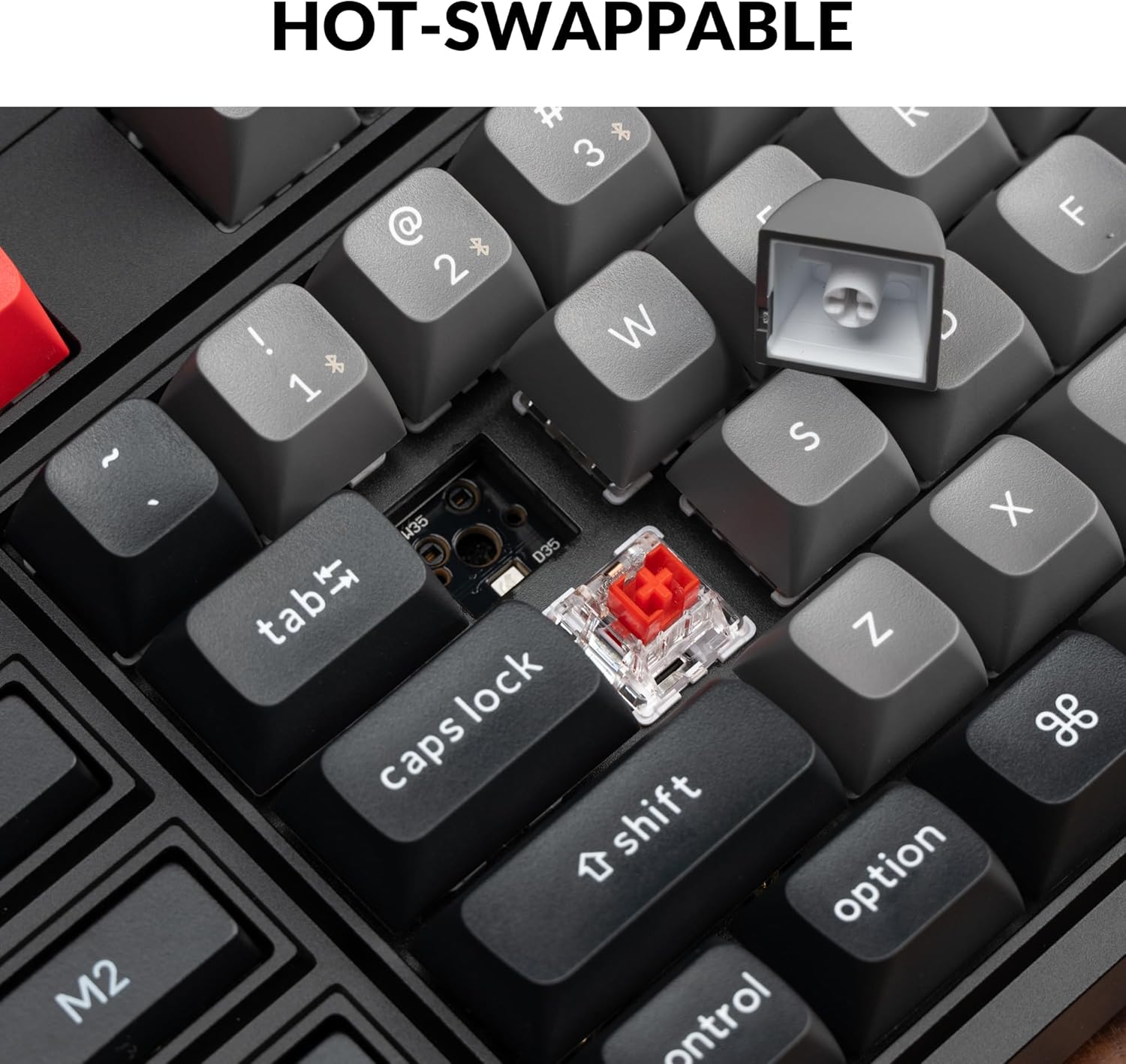
A close-up view demonstrating the hot-swappable feature, with a keycap removed and a switch visible, ready for replacement.

An illustration of the QMK/VIA software interface, showing how users can customize key assignments and macros for the keyboard.

The Keychron Q3 Pro SE keyboard shown in use with a laptop and smartphone, highlighting its wireless Bluetooth and wired Type-C connectivity options.
2. Setup Guide
2.1 Initial Connection
The Keychron Q3 Pro SE supports both wired and wireless (Bluetooth) connections. Choose the method that best suits your needs.
Wired Connection:
- Locate the USB Type-C port on the back of the keyboard.
- Connect one end of the provided USB Type-C cable to the keyboard.
- Connect the other end of the cable to an available USB port on your computer.
- The keyboard will be automatically recognized by your operating system.
Bluetooth Wireless Connection:
- Ensure the keyboard's mode switch (located on the back) is set to 'BT' (Bluetooth).
- On your computer or device, enable Bluetooth and search for new devices.
- The keyboard should appear as 'Keychron Q3 Pro SE'. Select it to pair.
- If prompted, enter the pairing code displayed on your screen using the keyboard, then press Enter.
- The keyboard can store up to 3 Bluetooth devices. Switch between them using the Fn + 1/2/3 key combinations.
2.2 Operating System Layout Switch
The Keychron Q3 Pro SE features a physical switch on the back to toggle between Windows and macOS layouts, ensuring proper key mapping for your operating system.

A close-up of the physical switch on the side of the keyboard, allowing users to easily toggle between Windows and macOS layouts for optimal compatibility.
- Set the switch to 'Win' for Windows and Linux systems.
- Set the switch to 'Mac' for macOS systems.
3. Operating Instructions
3.1 Customizing Macro Keys and Knob
The Q3 Pro SE's four macro keys (M1-M4) and the rotary knob are fully programmable using the VIA software. This allows for extensive customization to streamline your workflow.
- VIA Software: Download and install the VIA software from the official Keychron website.
- Key Remapping: Use VIA to remap any key on the keyboard to a different function, including standard keys, multimedia controls, or special characters.
- Macro Creation: Create complex macros (sequences of key presses) and assign them to the M1-M4 keys for quick execution of repetitive tasks.
- Knob Customization: The rotary knob can be assigned various functions such as volume control, zoom in/out, brush size adjustment, or backlight hue control.

A close-up of the programmable rotary knob and macro keys (M1-M4) on the left side of the keyboard, highlighting their accessibility for custom functions.
3.2 Hot-swappable Switches
The hot-swappable design allows you to easily change the mechanical switches without soldering. This provides flexibility to customize your typing feel.
- Use the provided switch puller tool to gently remove the keycap.
- Position the switch puller around the switch and apply gentle pressure to pull it straight up.
- Align the pins of the new switch with the holes on the PCB.
- Gently push the new switch down until it clicks into place. Ensure it is fully seated.

A detailed view of the hot-swappable sockets on the keyboard's PCB, with some switches removed and others in place, illustrating the ease of switch replacement.
3.3 PBT Keycaps and RGB Backlight
The keyboard comes with durable KSA profile double-shot PBT keycaps. The south-facing RGB backlight is designed to provide optimal illumination from the typist's angle.
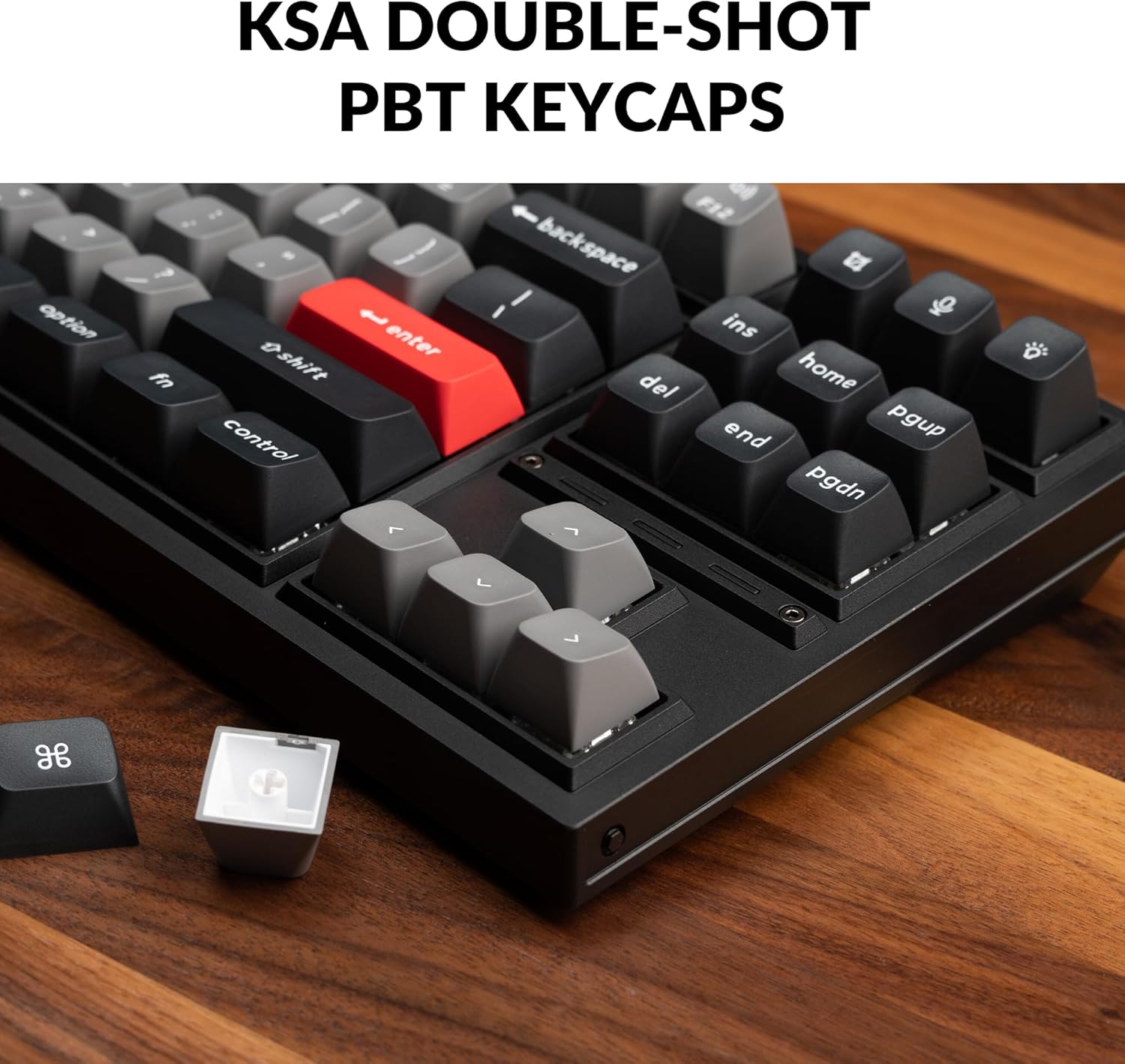
A close-up of the KSA double-shot PBT keycaps on the Keychron Q3 Pro SE, highlighting their texture and profile, with a detached keycap showing its internal structure.

A view of the keyboard's RGB backlighting, with light emanating from beneath the keycaps and through the transparent switch housings, showcasing the south-facing LED design.
4. Maintenance
4.1 Cleaning the Keyboard
Regular cleaning helps maintain the keyboard's appearance and functionality.
- Dust Removal: Use a can of compressed air to blow away dust and debris from between the keycaps.
- Surface Cleaning: Wipe the keycaps and keyboard frame with a soft, lint-free cloth slightly dampened with water or a mild, non-abrasive cleaning solution. Avoid excessive moisture.
- Deep Cleaning (Keycaps): For thorough cleaning, keycaps can be removed using the provided keycap puller and washed with mild soap and water. Ensure they are completely dry before reattaching.
4.2 Switch and Stabilizer Maintenance
The hot-swappable design simplifies switch maintenance and replacement.
- Switch Replacement: If a switch becomes faulty or you wish to change the typing feel, refer to section 3.2 for instructions on hot-swapping switches.
- Stabilizer Lubrication: The PCB-mounted screw-in stabilizers are pre-lubed. Over time, if you notice rattling or stickiness on larger keys (Spacebar, Shift, Enter), you may consider re-lubricating the stabilizers with a suitable lubricant (e.g., Krytox 205g0). This typically requires removing the keycap and applying lubricant to the stabilizer wires and housings.

An exploded diagram illustrating the various components of the Keychron Q3 Pro SE, including the knob, keycaps, switches, top case, gaskets, sound absorbing foam, plate, PCB, case foam, battery, silicone gaskets, and bottom case, useful for understanding assembly and disassembly.
5. Troubleshooting
5.1 Common Issues and Solutions
- Keyboard Not Responding (Wired):
- Ensure the USB-C cable is securely connected to both the keyboard and the computer.
- Try a different USB port on your computer.
- Test with a different USB-C cable if available.
- Keyboard Not Connecting (Bluetooth):
- Ensure the keyboard's mode switch is set to 'BT'.
- Verify Bluetooth is enabled on your device and the keyboard is in pairing mode (Fn + 1/2/3 for 4 seconds).
- Remove the keyboard from your device's Bluetooth list and attempt to re-pair.
- Ensure the keyboard battery has sufficient charge.
- Keys Not Registering or Double-Typing:
- This could indicate a faulty switch. Use the hot-swappable feature to replace the affected switch (refer to section 3.2).
- Ensure the switch is fully seated in its socket.
- Incorrect Key Output (OS Layout):
- Check the OS layout switch on the back of the keyboard and ensure it matches your operating system (Windows/macOS).
- Customization Issues (VIA):
- Ensure the keyboard is connected via USB-C when using the VIA software.
- Verify you are using the correct VIA firmware for your specific Q3 Pro SE model.
- Visit the Keychron website for the latest VIA software and firmware updates.
6. Specifications
| Feature | Detail |
|---|---|
| Product Dimensions | 16.34 x 5.68 x 1.24 inches (414.98 x 144.16 x 31.5 mm) |
| Item Weight | 6.93 pounds (3.14 kg) |
| Manufacturer | Keychron |
| Model Number | Keychron Q3 Pro SE |
| Battery | 1 Lithium Ion battery required (included), 4000 mAh |
| Connectivity Technology | Bluetooth 5.1 / USB Type-C Wired |
| Polling Rate | 1000 Hz (Wired) / 90 Hz (Wireless) |
| Number of Keys | 82 |
| Keycaps | KSA Double-shot PBT (Non-shine through) |
| Switches | Keychron K Pro Red Switch (Linear) |
| Hot-swappable | Yes, with 3-pin & 5-pin MX Mechanical Switches |
| Backlight | South-facing RGB Backlight |
| Compatible Devices | Laptop, PC, Smartphone, Tablet |
| Compatible OS | macOS/Windows/Linux |

A visual representation of the Keychron Q3 Pro SE keyboard alongside a detailed list of its technical specifications.
6.1 What's in the Box
- 1x Fully Assembled Keyboard (including Aluminum Case, PCB, PC Plate, Sound Absorbing Foam, Case Foam, 16x Gaskets (12 Installed and 4 in the Box), 5 sets x Stabilizers, 1 set x Keycaps (Double-Shot KSA PBT), 1 set x Switches)
- 1x Type-C to Type-C Cable
- 1x Type-A to Type-C Adapter
- 1x Switch Puller
- 1x Keycap Puller
- 1x Screwdriver
- 1x Hex Key

An image displaying the Keychron Q3 Pro SE keyboard and all its included accessories, such as cables, tools, and extra components, as listed in the package contents.
7. Warranty and Support
7.1 Warranty Information
Keychron products typically come with a limited warranty covering manufacturing defects. For specific warranty terms and conditions, please refer to the warranty card included with your product or visit the official Keychron website.
7.2 Customer Support
For technical assistance, troubleshooting, or inquiries regarding your Keychron Q3 Pro SE keyboard, please contact Keychron customer support through their official website. You can also find additional resources, FAQs, and community forums on their support pages.
Visit the official Keychron Store for more information and support: Keychron Store on Amazon


