1. Introduction
The ENDGAME GEAR XM2we is a high-performance wireless gaming mouse designed for competitive play. It features a lightweight, ergonomic design, precise optical sensor, and durable switches to enhance your gaming experience. This manual provides detailed instructions for setup, operation, and maintenance of your XM2we mouse.
2. Package Contents
Please verify that all items are present in your package:
- ENDGAME GEAR XM2we Wireless Gaming Mouse
- USB-C to USB-A Charging/Data Cable (180 cm) with Angled Connector
- 2.4 GHz Wireless USB Dongle

Image: The XM2we Wireless Gaming Mouse, showing its ergonomic shape and included USB-C cable.
3. Setup
3.1 Connecting the Mouse
- Insert the 2.4 GHz wireless USB dongle into an available USB-A port on your computer.
- Turn on the XM2we mouse using the power switch located on the bottom of the mouse.
- The mouse should automatically connect to the dongle. If not, ensure the dongle is properly inserted and the mouse is powered on.
3.2 Wired Mode
The XM2we can also be used in wired mode. Connect the supplied USB-C cable to the front port of the mouse and the USB-A end to your computer. The mouse will function as a wired device and charge simultaneously.

Image: Bottom view of the XM2we mouse, highlighting the USB-C port for charging and wired connection, and the PixArt PAW3370 optical sensor.
4. Operating Instructions
4.1 Button Functions
The XM2we mouse features 5 programmable buttons:
- Left Click Button: Primary action.
- Right Click Button: Secondary action.
- Scroll Wheel Click: Middle button function.
- Side Button 1 (Forward): Default forward navigation.
- Side Button 2 (Back): Default back navigation.

Image: Top view of the XM2we mouse, illustrating the main left and right click buttons and the scroll wheel.
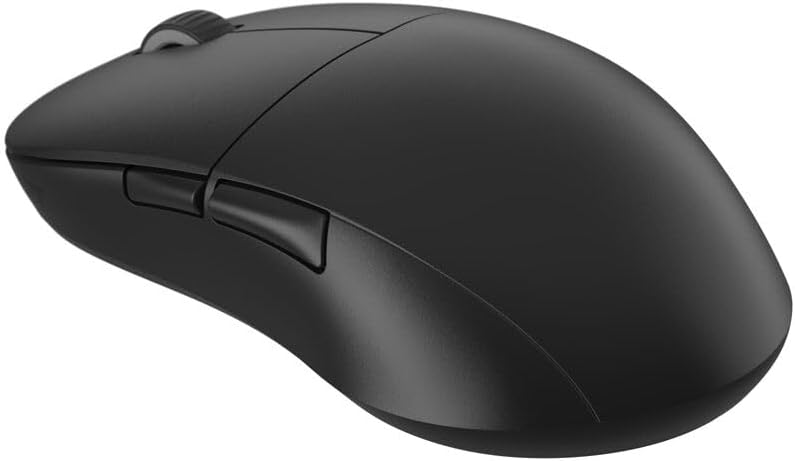
Image: Side view of the XM2we mouse, highlighting the two thumb buttons.
4.2 DPI and Polling Rate Adjustment
The XM2we features a PixArt PAW3370 optical sensor with up to 19,000 DPI. DPI and polling rate settings can be adjusted using the ENDGAME GEAR software. The mouse supports stable 1000 Hz polling rate for responsive performance.
5. Customization and Software
To unlock the full potential of your XM2we mouse, download the official ENDGAME GEAR software from the manufacturer's website. The software allows you to:
- Remap all 5 buttons to custom functions or macros.
- Adjust DPI levels and create multiple DPI profiles.
- Configure polling rate (125, 250, 500, 1000 Hz).
- Customize lift-off distance (LOD).
- Update mouse firmware.
6. Charging and Battery
The XM2we is equipped with a 410 mAh Lithium Polymer battery, providing up to a week of gameplay on a single charge. To charge the mouse:
- Connect the supplied USB-C cable to the front port of the mouse.
- Connect the USB-A end of the cable to your computer or a USB power adapter.
- The angled connector on the USB-C cable is designed to minimize cable drag if you choose to use the mouse while charging.

Image: The USB-C charging cable with its angled connector, designed for comfortable use during charging.
7. Maintenance
To ensure the longevity and optimal performance of your XM2we mouse:
- Cleaning: Use a soft, dry cloth to clean the mouse surface. For stubborn dirt, a slightly damp cloth can be used, but ensure no moisture enters the mouse.
- Sensor Care: Keep the optical sensor area on the bottom of the mouse clean and free from dust or debris.
- Teflon Feet: The large Teflon feet provide a smooth glide. Avoid scratching or damaging them. Replacement feet may be available from the manufacturer.
- Storage: Store the mouse in a cool, dry place away from direct sunlight and extreme temperatures.
8. Troubleshooting
- Mouse not responding:
- Ensure the mouse is powered on.
- Verify the USB dongle is securely plugged into your computer.
- Try connecting the mouse in wired mode to check if it functions.
- Recharge the mouse if the battery is low.
- Intermittent connection:
- Move the USB dongle closer to the mouse, ideally to a front USB port or via a USB extension cable.
- Ensure there are no strong wireless interference sources (e.g., Wi-Fi routers, other wireless devices) nearby.
- Update mouse firmware using the ENDGAME GEAR software.
- DPI/Button settings not applying:
- Ensure the ENDGAME GEAR software is installed and running.
- Apply changes within the software and save them to the mouse's onboard memory if available.
- Restart your computer.
9. Specifications
| Feature | Specification |
|---|---|
| Model | XM2we |
| Connectivity | 2.4 GHz Wireless, USB-C Wired |
| Sensor | PixArt PAW3370 Optical Sensor |
| DPI | Up to 19,000 DPI |
| Polling Rate | 125, 250, 500, 1000 Hz |
| Switches | Kailh GO Optical Switches (Main Buttons) |
| Buttons | 5 Programmable Buttons |
| Battery | 410 mAh Lithium Polymer |
| Weight | Under 64 g (2.22 oz) |
| Dimensions (L x W x H) | 122 x 66 x 38 mm (4.80 x 2.59 x 1.50 inches) |
| Cable Length | 180 cm |

Image: Diagram illustrating the dimensions of the XM2we mouse: 122 mm length, 66 mm width, and 38 mm height, with a weight of 63g.
10. Warranty and Support
For warranty information, technical support, or further assistance, please refer to the official ENDGAME GEAR website or contact their customer service directly. Keep your proof of purchase for warranty claims.