
1. Introduction
This manual provides detailed instructions for the installation, operation, and maintenance of your AXAGON HMC-HCR3A USB-C Hub. Please read this manual thoroughly before using the device to ensure proper functionality and to prevent damage.
The AXAGON HMC-HCR3A is a versatile USB-C hub designed to expand the connectivity of your USB-C enabled device. It offers multiple ports including USB-A, HDMI, and card reader slots, enhancing your productivity and multimedia experience.
2. Product Overview
The AXAGON HMC-HCR3A USB-C Hub provides essential ports for modern computing needs. It features a compact design and a durable build, making it suitable for both desktop and portable use.
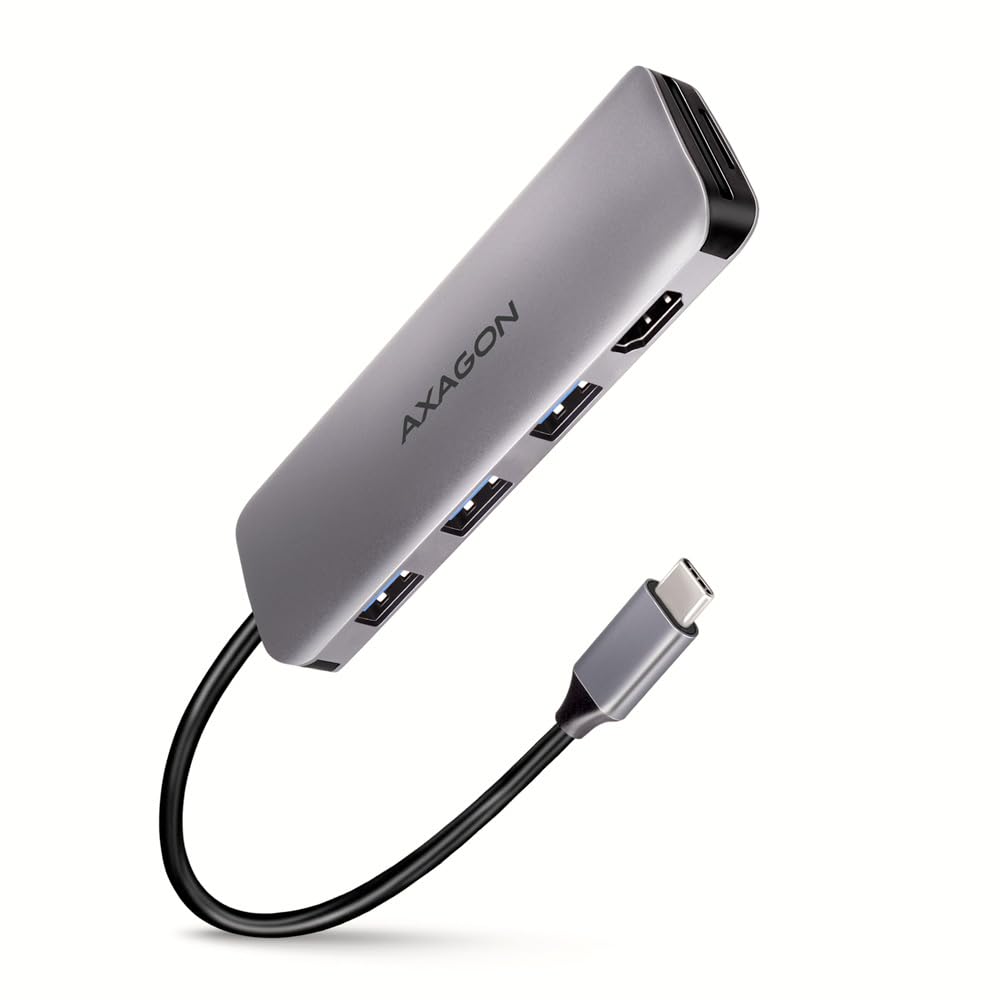
An image showing the AXAGON HMC-HCR3A USB-C Hub, a compact gray device with the AXAGON logo. It features three USB-A ports, an HDMI port, and slots for SD and microSD cards. A black USB-C cable extends from one end, terminating in a USB-C connector.
Package Contents:
- AXAGON HMC-HCR3A USB-C Hub
- User Manual (this document)
3. Setup
The AXAGON HMC-HCR3A USB-C Hub is designed for plug-and-play functionality, requiring no driver installation for most operating systems.
Connection Steps:
- Locate an available USB-C port on your host device (laptop, tablet, etc.).
- Connect the USB-C connector of the AXAGON HMC-HCR3A hub into the USB-C port of your host device.
- The hub will be automatically detected by your operating system.
- You can now connect your peripherals to the available ports on the hub.
Note: Ensure your host device's USB-C port supports data transfer, video output (for HDMI functionality), and power delivery (if applicable for charging through the hub, though this model does not specify power delivery).
4. Operating the Hub
Once connected, the hub allows you to utilize its various ports simultaneously.
USB-A Ports (3x USB 3.2 Gen 1):
- Connect USB devices such as flash drives, external hard drives, keyboards, mice, or other USB peripherals.
- These ports support data transfer speeds up to 5 Gbps.
HDMI Port:
- Connect an HDMI cable from the hub to an external monitor, TV, or projector.
- This allows you to extend or mirror your display.
- Ensure your host device's USB-C port supports DisplayPort Alternate Mode (Alt Mode) for video output.
SD/microSD Card Reader:
- Insert SD or microSD cards into the respective slots to access data.
- Both slots can be used simultaneously.
5. Maintenance
Proper care and maintenance will extend the lifespan of your AXAGON HMC-HCR3A USB-C Hub.
Cleaning:
- Disconnect the hub from your device before cleaning.
- Use a soft, dry, lint-free cloth to wipe the surface of the hub.
- Do not use liquid cleaners, aerosols, or solvents, as these may damage the device.
Storage:
- Store the hub in a cool, dry place away from direct sunlight and extreme temperatures.
- Avoid bending or kinking the attached USB-C cable excessively.
6. Troubleshooting
If you encounter issues with your AXAGON HMC-HCR3A USB-C Hub, refer to the following common problems and solutions.
Device Not Recognized:
- Ensure the USB-C connector is fully inserted into your host device's port.
- Try connecting the hub to a different USB-C port on your device.
- Restart your host device.
- Verify that your host device's USB-C port supports external hubs.
No Display Output via HDMI:
- Confirm that your host device's USB-C port supports DisplayPort Alternate Mode (Alt Mode). Not all USB-C ports support video output.
- Check the HDMI cable connection between the hub and the monitor.
- Ensure the monitor is set to the correct HDMI input source.
- Try a different HDMI cable or monitor if possible.
- Update your graphics drivers on your host device.
Slow Data Transfer Speeds:
- Ensure the connected USB device (e.g., flash drive, external HDD) is USB 3.0/3.1/3.2 compatible to achieve maximum speeds.
- Some older USB devices may operate at USB 2.0 speeds.
- Avoid connecting multiple high-bandwidth devices simultaneously if performance issues arise.
7. Specifications
| Feature | Specification |
|---|---|
| Brand | AXAGON |
| Model Number | HMC-HCR3A |
| Host Interface | USB-C 3.2 Gen 1 |
| USB-A Ports | 3x USB-A 3.2 Gen 1 (5 Gbps) |
| Video Output | 1x HDMI |
| Card Reader | SD, microSD (simultaneous use) |
| Cable Length | 20 cm |
| Color | Black |
| Item Weight | Approximately 2.2 pounds (product weight, not shipping) |
| Package Dimensions | 3.94 x 3.94 x 1.97 inches |
8. Safety Information
- Do not expose the device to water, moisture, or extreme temperatures.
- Avoid dropping or subjecting the device to strong impacts.
- Do not attempt to disassemble or repair the device yourself. Refer to qualified service personnel.
- Keep out of reach of children.
9. Warranty and Support
AXAGON products are covered by a manufacturer's warranty. For detailed warranty terms and conditions, please refer to the official AXAGON website or contact your local dealer.
For technical support, product inquiries, or further assistance, please visit the official AXAGON support page or contact their customer service department. Contact information can typically be found on the AXAGON website: www.axagon.eu


