1. Introduction
The Gigastone SP-20000 Solar Power Bank is a versatile portable charging device designed for outdoor activities. It integrates a 20000mAh battery capacity with multiple charging capabilities, including wired and wireless charging, a built-in flashlight, and an SOS signal light. This manual provides essential information for the safe and efficient use of your power bank.

Image 1.1: Front and back view of the Gigastone SP-20000 Solar Power Bank, showcasing the solar panel and LED light panel.
2. Product Features
The Gigastone SP-20000 Solar Power Bank offers a range of features for reliable power on the go:
- Multifunctionality: Operates as a power bank, wireless charging pad, flashlight, and SOS signal light.
- Durability: Constructed with dust, water, and shock-resistant materials, rated IP54 for outdoor use.
- High Capacity: Features a 20000mAh battery, providing ample power for multiple device charges.
- Multiple Charging Outputs: Equipped with Type-C, dual USB-A ports, and Qi wireless charging, allowing up to four devices to charge simultaneously.
- Integrated Lighting: Includes 28 LED lamps with three adjustable brightness levels for illumination and an SOS function for emergencies.
- Safety Mechanisms: Built-in protections against overheating, short circuits, overcharging, overcurrent, overvoltage, and over-discharge. Includes FOD (Foreign Object Detection), Reset protection, and ESD (Electrostatic Discharge) protection.

Image 2.1: Illustration of the power bank's shockproof, dustproof, and waterproof (IP54) design, highlighting its robust construction.

Image 2.2: Diagram detailing the various safety mechanisms, including over heat, short circuit, over charge, over current, over voltage, over discharge, FOD, Reset, and ESD protection.

Image 2.3: An annotated diagram showing the physical features of the power bank, including the solar panel, status indicators, power indicators, switch, wireless charging area, SOS LED light, Micro USB input, Type-C input & output, Lightning input, USB-A1 output, and USB-A2 output, along with dimensions.
3. Setup
Before initial use, fully charge the power bank using a wall adapter to ensure optimal performance.
- Unpack: Remove the power bank and any included cables from the packaging.
- Initial Charge: Connect the power bank to a wall charger using a compatible USB cable (Type-C, Micro USB, or Lightning input). The power indicators will illuminate to show charging status. A full charge is indicated when all four LED indicators are solid.
4. Operating Instructions
4.1 Charging the Power Bank
The power bank can be charged via a wall adapter or solar energy.
- Adapter Charging (Recommended for fastest charge): Connect the power bank to a 5V/2A wall adapter using a Type-C, Micro USB, or Lightning cable. The LED indicators will show charging progress.
- Solar Charging: Place the power bank in direct sunlight. The solar panel will convert sunlight into electrical energy to charge the internal battery. Solar charging is slower and primarily intended for emergency power maintenance or topping up the battery in outdoor environments. A dedicated solar charging indicator will light up when solar charging is active.

Image 4.1: Illustration of the two primary charging methods for the power bank: adapter charging via a wall outlet (5V/2A input) and solar charging (5V/300mA).
4.2 Charging External Devices
The power bank supports wired and wireless charging for various devices.
- Wired Charging: Connect your device to one of the USB-A output ports or the Type-C input/output port using a compatible charging cable. The power bank will automatically begin charging your device.
- Wireless Charging: Place your Qi-compatible device on the wireless charging pad area of the power bank. Ensure the device is centered for optimal charging. The wireless charging indicator will illuminate when a device is being charged wirelessly.
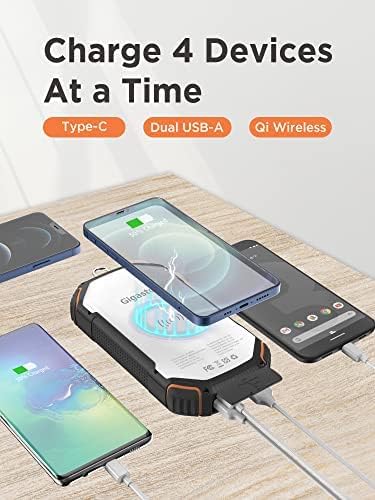
Image 4.2: Depiction of the power bank simultaneously charging four devices using its Type-C, dual USB-A, and Qi wireless charging capabilities.
4.3 Flashlight and SOS Function
The integrated LED light can be used as a flashlight or an SOS signal.
- Activate Flashlight: Press and hold the power button for approximately 3 seconds to turn on the flashlight.
- Adjust Brightness: With the flashlight on, short press the power button to cycle through three brightness levels.
- Activate SOS Mode: From any flashlight brightness level, double-press the power button to activate the SOS flashing mode.
- Turn Off: Press and hold the power button for approximately 3 seconds to turn off the flashlight or SOS mode.
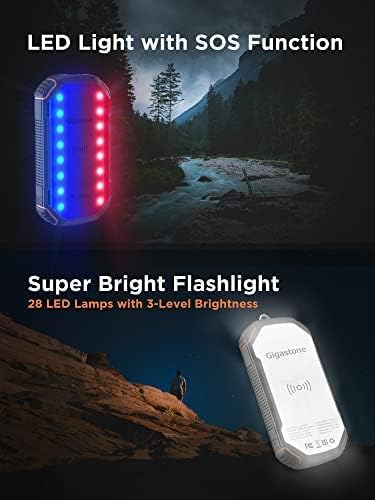
Image 4.3: Visual representation of the power bank's LED light functioning as an SOS signal (red and blue flashing lights) and as a super bright flashlight with 28 LEDs and 3-level brightness.
5. Maintenance
Proper care ensures the longevity and performance of your power bank.
- Cleaning: Wipe the device with a soft, dry cloth. Avoid using harsh chemicals or abrasive materials.
- Storage: Store the power bank in a cool, dry place away from direct sunlight and extreme temperatures.
- Charging Cycle: For optimal battery health, fully charge and discharge the power bank at least once every three months if not in regular use.
- Avoid Impacts: Despite its shock-resistant design, avoid dropping or subjecting the power bank to severe impacts.
6. Troubleshooting
Refer to the table below for common issues and their solutions.
| Problem | Possible Cause | Solution |
|---|---|---|
| Power bank not charging | Charging cable or adapter faulty; power bank fully charged; poor connection. | Try a different cable and adapter. Ensure connections are secure. Check LED indicators for full charge status. |
| Device not charging from power bank | Power bank battery low; device cable faulty; device not Qi-compatible (for wireless); poor wireless alignment. | Recharge the power bank. Try a different device cable. Ensure device supports Qi wireless charging and is centered on the pad. |
| Solar charging is slow or not working | Insufficient direct sunlight; solar panel obstructed or dirty. | Place the power bank in direct, unobstructed sunlight. Clean the solar panel surface. Note that solar charging is supplementary and slower than adapter charging. |
| Flashlight not turning on | Power button not pressed correctly; power bank battery low. | Press and hold the power button for 3 seconds. Recharge the power bank. |
7. Specifications
| Feature | Detail |
|---|---|
| Model Number | SP-20000 |
| Battery Capacity | 20000mAh |
| Input (Adapter) | 5V/2A (Type-C, Micro USB, Lightning) |
| Input (Solar) | 5V/300mA |
| Output (USB-A) | Dual USB-A Ports |
| Output (Wireless) | Qi Wireless Charging |
| LED Light | 28 LED lamps with 3 brightness levels, SOS function |
| Durability Rating | IP54 (Dust, Water, Shock Resistant) |
| Safety Features | Over heat, short circuit, over charge, over current, over voltage, over discharge, FOD, Reset, ESD protection |
| Dimensions | 167mm x 86mm x 33.5mm (approx. 6.57 x 3.39 x 1.32 inches) |
| Weight | 1.28 pounds (approx. 0.58 kg) |
| What's in the Box | Solar Power Bank |
8. Warranty and Support
The Gigastone SP-20000 Solar Power Bank comes with a 1-year limited manufacturer warranty. This warranty covers defects in materials and workmanship under normal use.
For warranty claims, technical support, or further assistance, please contact Gigastone customer service through their official website or the retailer where the product was purchased. Please retain your proof of purchase for warranty validation.


