1. Introduction
This user manual provides comprehensive instructions for the E-YOOSO Z-14 Mechanical Gaming Keyboard. Designed for both gaming and professional use, this full-size 104-key keyboard features durable brown mechanical switches, vibrant yellow backlighting, and an ergonomic design for comfortable extended use. Please read this manual thoroughly to ensure proper setup, operation, and maintenance of your new keyboard.

Figure 1: E-YOOSO Z-14 Mechanical Gaming Keyboard (Black & Grey with Brown Switches)
2. Product Features
- Brown Mechanical Switches: Excellent tactile feedback, soft and quiet, suitable for both office and gaming environments. Equivalent to Cherry MX brown switches.
- LED Backlit Modes: Features 9 adjustable backlit modes via FN key combinations. Backlight customization is software-free, allowing for personalized stylish keyboard setups.
- Hot-Swappable Switches: The mechanical switches can be replaced, allowing for easy customization and maintenance.
- Ergonomic Design: Features an ergonomic layout with high-quality durable ABS keycaps. The backplate includes 2 collapsible feet and 2 non-slip rubber feet for adjustable typing angles.
- Anti-Ghosting 104 Keys, N-key Rollover: Allows multiple keys to be pressed simultaneously with high speed and accurate response, ideal for gaming. Each key is controlled by an independent switch.
- Double Colors Keycaps: The keyboard features keycaps in black and grey, providing a distinct visual appeal.
- Wide Compatibility: Supports various computer systems including Windows 10, Windows 8, Windows 7, Windows XP, and Windows VISTA.

Figure 2: Brown Mechanical Switches, offering tactile typing experience and quiet operation.
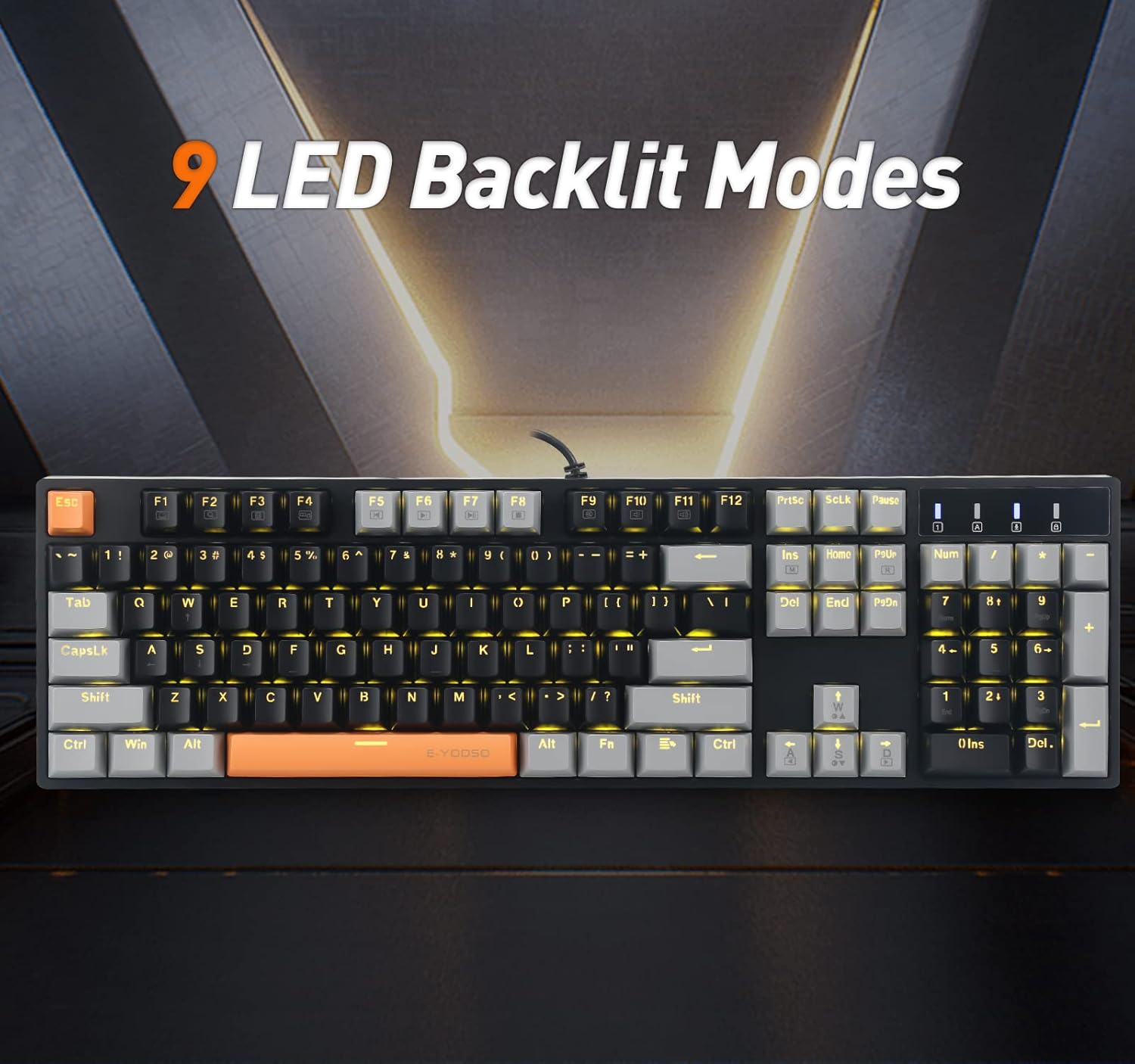
Figure 3: The keyboard displaying various LED backlit modes.

Figure 4: Detail of hot-swappable switches and double shot keycaps.

Figure 5: Ergonomic design with adjustable feet for comfortable use.

Figure 6: The full 104-key layout with anti-ghosting capability.
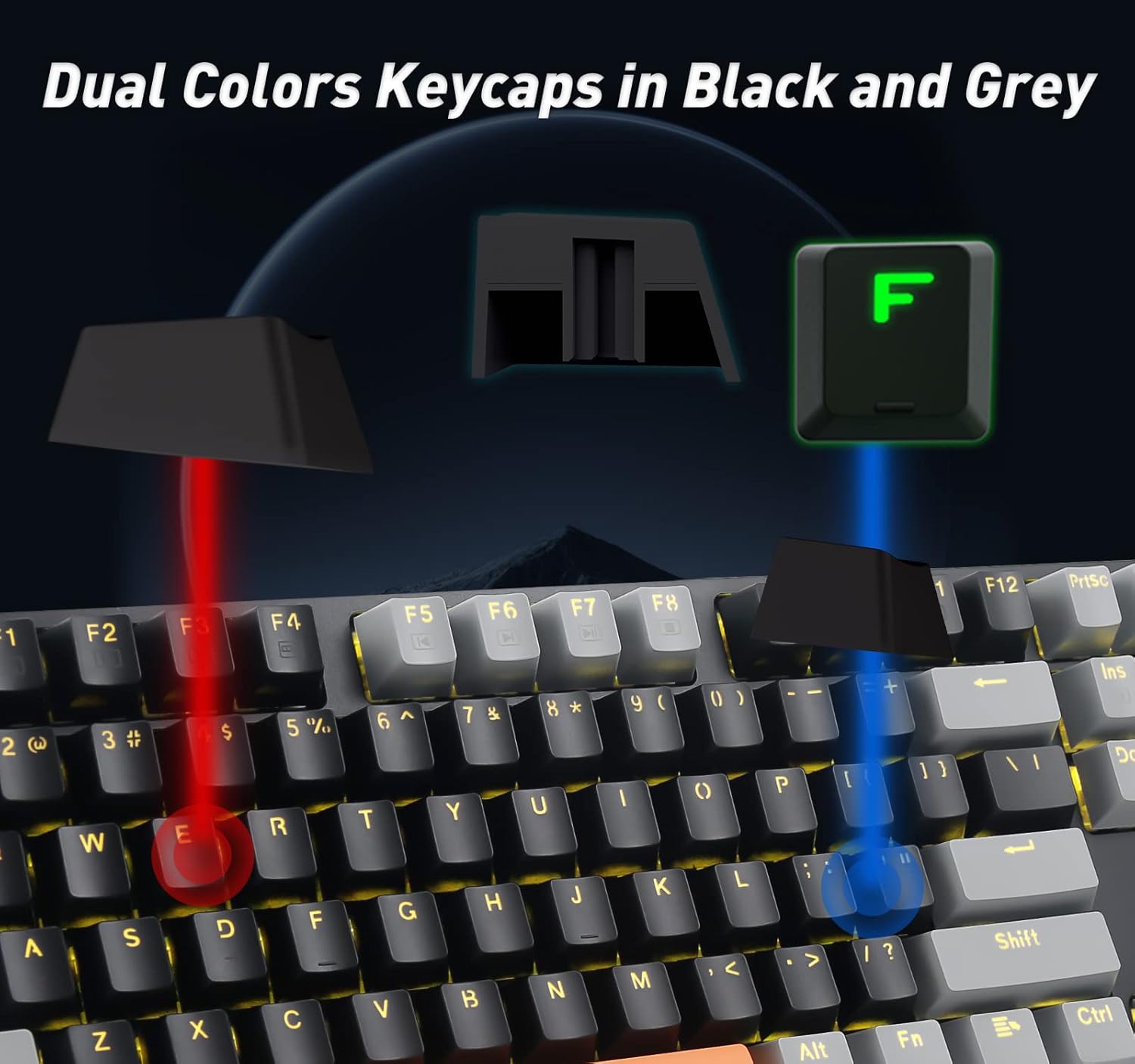
Figure 7: Dual color keycaps in black and grey.
3. What's in the Box
Upon opening the product packaging, you should find the following items:
- E-YOOSO Z-14 Mechanical Gaming Keyboard
- USB Cable
4. Setup
4.1 Connecting the Keyboard
The E-YOOSO Z-14 keyboard connects to your computer via a USB-C cable. Simply plug the USB-C end into the keyboard's port and the standard USB-A end into an available USB port on your computer.
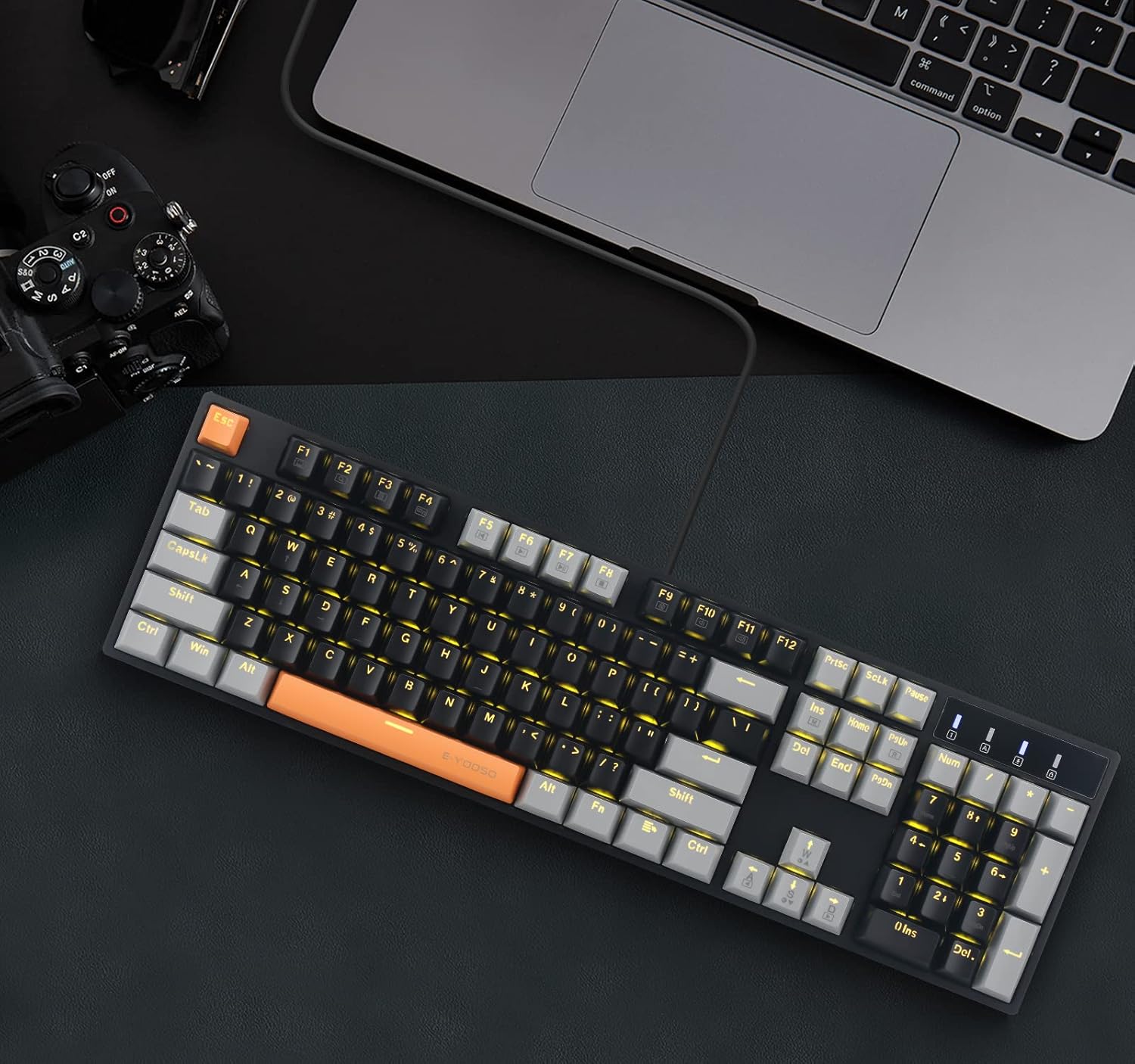
Figure 8: Keyboard connected to a PC via USB-C cable.
4.2 Adjusting Keyboard Angle
For optimal typing comfort, the keyboard features two collapsible feet on its backplate. Gently pull out these feet to elevate the keyboard to a more ergonomic angle. Ensure both feet are extended evenly for stability. The non-slip rubber feet provide additional grip on your desk surface.
Figure 9: Adjustable rear feet for ergonomic positioning.
5. Operating Instructions
5.1 Backlight Control
The E-YOOSO Z-14 keyboard offers 9 distinct LED backlight modes. You can cycle through these modes and adjust brightness and speed using the FN key combinations:
- FN + INS: Switch between the 9 different backlight modes.
- FN + ↑ (Up Arrow): Increase backlight brightness.
- FN + ↓ (Down Arrow): Decrease backlight brightness.
- FN + ← (Left Arrow): Decrease backlight speed (for dynamic modes).
- FN + → (Right Arrow): Increase backlight speed (for dynamic modes).
Video 1: Demonstrating backlight modes and keycap features of the Z-14 Mechanical Keyboard.
5.2 Multimedia Keys
The keyboard includes 12 multimedia keys accessible via FN key combinations, allowing quick control over media playback, volume, and other functions. Refer to the keycap legends for specific functions (e.g., FN+F1 for media player, FN+F2 for volume down, etc.).
5.3 N-Key Rollover and Anti-Ghosting
The E-YOOSO Z-14 features full 104-key anti-ghosting with N-key rollover. This ensures that every keypress is registered accurately, even when multiple keys are pressed simultaneously, providing a reliable and responsive experience for fast-paced gaming or typing.
6. Maintenance
6.1 Cleaning the Keyboard
To clean your keyboard, disconnect it from your computer. Use a soft, lint-free cloth slightly dampened with water or a mild cleaning solution to wipe down the keycaps and chassis. For deeper cleaning, you may use a keycap puller to remove keycaps and clean underneath. Avoid spraying liquids directly onto the keyboard.
6.2 Replacing Switches (Hot-Swappable Feature)
The E-YOOSO Z-14 supports hot-swappable mechanical switches, allowing you to easily replace individual switches without soldering. Use the provided switch puller tool to carefully remove a switch. Align the pins of the new switch with the holes on the PCB and gently press it into place until it clicks. Ensure the switch is fully seated before replacing the keycap.
Video 2: Demonstrating the hot-swappable switch feature and keycap removal/installation.
7. Troubleshooting
- Keyboard not responding:
- Ensure the USB cable is securely connected to both the keyboard and the computer.
- Try plugging the keyboard into a different USB port on your computer.
- Restart your computer.
- Backlight not working or flickering:
- Check backlight brightness settings using FN + Up/Down Arrow keys.
- Ensure no software conflicts are present.
- If individual keys are affected, consider replacing the switch using the hot-swappable feature.
- Keys not registering or double-typing:
- Clean around and under the affected keycap to remove any debris.
- If the issue persists, the switch may be faulty and can be replaced due to the hot-swappable design.
8. Specifications
| Feature | Detail |
|---|---|
| Brand | E-YOOSO |
| Model Number | Z-14 |
| Product Dimensions | 15.8 x 5.98 x 1.53 inches |
| Item Weight | 2.07 pounds |
| Connectivity Technology | USB-C |
| Keyboard Description | Mechanical |
| Number of Keys | 104 |
| Switch Type | Brown Mechanical Switches |
| Backlighting Color Support | Single Color (Yellow) |
| Special Features | Ergonomic, Backlit, Hot-Swappable Switches, Anti-Ghosting, N-Key Rollover |
| Compatible Devices | PC (Windows 10, 8, 7, XP, VISTA) |
| Country of Origin | China |
9. Warranty and Support
E-YOOSO is committed to providing high-quality products and customer satisfaction.
- Quality Assurance: This product comes with a 1-year quality assurance from the date of purchase.
- Exchange Policy: We offer a 30-day exchange policy for eligible products.
- Customer Support: For any inquiries, technical assistance, or warranty claims, please contact our 24-hour customer support team.

Figure 10: E-YOOSO Warranty and Support details.