
1. Introduction
Thank you for choosing the MAONO PD200X USB/XLR Dynamic Microphone. This manual provides detailed instructions for setting up, operating, and maintaining your microphone to ensure optimal performance for singing, PC use, and YouTube recording. The PD200X features dual-mode output (USB and XLR), programmable software, and zero-latency monitoring, making it a versatile tool for various audio applications.

Figure 1: MAONO PD200X Dynamic Microphone. This image shows the microphone with its integrated RGB lighting and shock mount, ready for use.
2. Package Contents
Please verify that all items listed below are included in your package. If any items are missing or damaged, please contact customer support.
- Dynamic Microphone (MAONO PD200X)
- Shock Mount
- 2.5m USB-C to USB-A/C Cable
- 5/8'' to 3/8'' Adapter
- User's Manual
NOTE: XLR CABLE and MIC STAND are NOT INCLUDED.
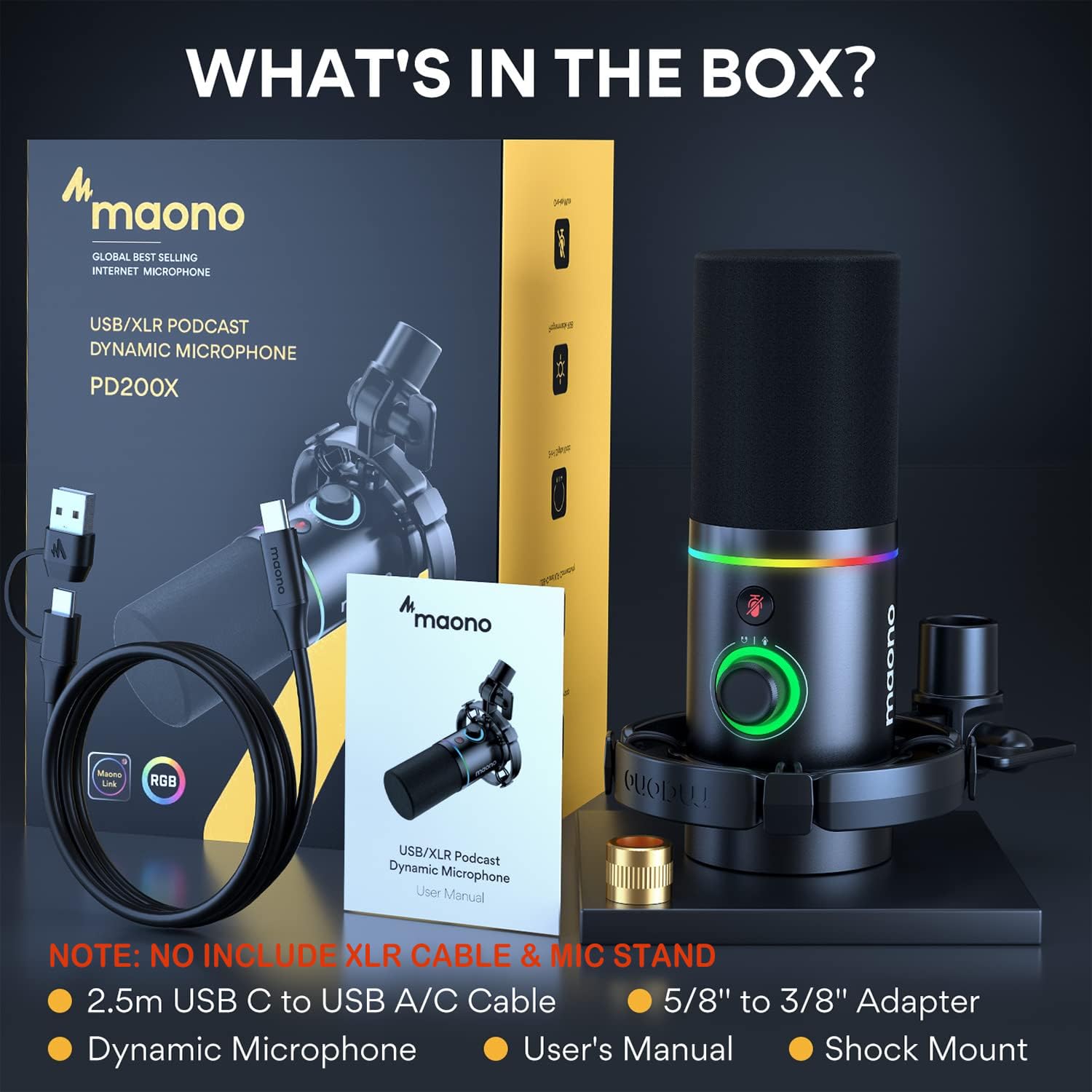
Figure 2: What's in the Box. This image displays all the components included with the MAONO PD200X microphone.
3. Setup Guide
3.1 Mounting the Microphone
Attach the MAONO PD200X microphone to the included shock mount. The shock mount helps to isolate the microphone from vibrations and handling noise. If using a standard microphone stand, utilize the provided 5/8'' to 3/8'' adapter as needed.
3.2 Connectivity Options
The MAONO PD200X offers dual-mode output for versatile connectivity:
- USB Connection: For direct connection to a Personal Computer (PC), Laptop, Mac OS, PS4, or PS5. Use the provided 2.5m USB-C to USB-A/C Cable. This mode allows access to the MAONO LINK software for advanced controls.
- XLR Connection: For professional audio setups, connect the microphone to a mixer or audio interface using an XLR cable (not included). This provides a balanced analog signal for high-quality audio recording.

Figure 3: USB and XLR Connectivity. This image highlights the USB-C and XLR ports on the microphone, demonstrating its dual-mode output capability.
4. Operating Instructions
4.1 2-in-1 Smart Knob
The MAONO PD200X features a versatile 2-in-1 smart knob for easy control:
- Mic Gain Adjustment: Rotate the knob to adjust the microphone's input sensitivity.
- Headphone Volume Control: Press the knob to switch to headphone volume control, then rotate to adjust the monitoring volume.
- One-Click Mute: The microphone includes a one-click mute key with an LED indicator, allowing you to instantly mute the mic.
- Real-time Monitoring: The 3.5mm headphone jack provides zero-latency monitoring of your output voice.

Figure 4: 2-in-1 Smart Knob. This image details the multi-functional knob and mute button on the microphone.
4.2 Controlled RGB Lighting
Customize your microphone's appearance with dynamic multi-color gradients and 8 static solid-color effects.
- Switch Colors: Press the button at the bottom of the microphone to cycle through different colors.
- Turn On/Off RGB: Press and hold the button for approximately 2 seconds to turn the RGB lighting on or off.

Figure 5: Controlled RGB Lighting. This image illustrates the various color options available for the microphone's RGB lighting.
4.3 MAONO LINK Software
Unlock the full potential of your MAONO PD200X microphone by using the MAONO LINK software (available for download from the official MAONO website). This software provides advanced customization options in USB mode:
- Tone Adjustment: Choose the perfect tone for your microphone.
- RGB Light Control: Turn on/off the RGB light or switch between 9 different colors.
- Audio Effects: Supports EQ, limiter, and compressor adjustments for fine-tuning your sound.

Figure 6: MAONO LINK Software Interface. This image shows the MAONO LINK software on a computer screen, demonstrating its various audio and lighting control features.
5. Maintenance
The MAONO PD200X is constructed with high-standard metal materials for durability. To ensure the longevity and optimal performance of your microphone:
- Cleaning: Use a soft, dry cloth to wipe the microphone body. Avoid using liquid cleaners or abrasive materials.
- Storage: Store the microphone in a dry, dust-free environment when not in use.
- Handling: Handle the microphone with care to prevent drops or impacts, which could damage internal components.
- Cable Care: Avoid sharp bends or kinks in the USB cable to prevent internal wire damage.
6. Troubleshooting
If you encounter issues with your MAONO PD200X microphone, please refer to the following common troubleshooting steps:
| Problem | Possible Cause | Solution |
|---|---|---|
| No sound output / Microphone not detected (USB) |
|
|
| Low volume / Weak signal |
|
|
| Background noise / Hum |
|
|
| Headphone monitoring not working / No sound from headphone jack |
|
|
If the problem persists after trying these solutions, please contact MAONO customer support for further assistance.
7. Specifications
| Feature | Detail |
|---|---|
| Model | PD200X |
| Compatible Devices | Personal Computer, Audio interface, Laptop, PC |
| Color | Black |
| Included Components | Dynamic Microphone, Shock Mount, 2.5m USB-C to USB-A/C Cable, 5/8'' to 3/8'' Adapter |
| Polar Pattern | Unidirectional |
| Audio Sensitivity | 45 dB |
| Item Weight | 140 Grams |
| Impedance | 600 Ohm |
| Microphone Form Factor | Desktop |
| Item Dimensions (L x W x H) | 20 x 8 x 8 Centimeters |
| Power Source | Corded Electric |
| Material | Metal |
| Signal-to-Noise Ratio | 60 dB |
| Number of Channels | 1 |
| Frequency Range | 70 Hz - 15 KHz |
| Frequency Response | 16 KHz |
| Noise Level | 60 dB |
| Connectivity Technology | USB, XLR |
| Special Feature | Dual-mode Output, RGB, Voice Isolation Technology |
8. Warranty and Support
The MAONO PD200X Dynamic Microphone comes with a 12 Months Free Warranty from the date of purchase. This warranty covers manufacturing defects and ensures your product is free from material and workmanship flaws under normal use.
For technical support, warranty claims, or any inquiries regarding your MAONO product, please contact MAONO Technology Inc. directly:
- Email: service@maono.com
- Manufacturer: Maono Technology Inc.
Please retain your proof of purchase for warranty validation.


