
Introduction
This manual provides detailed instructions for the setup, operation, and maintenance of your Guiheng Bluetooth Keyboard and Mouse Combo. This wireless combo features a 7-color LED backlit keyboard and a precision optical mouse, designed for compatibility with various operating systems including iOS, Android, Windows, and Mac OS. Please read this manual thoroughly before use to ensure optimal performance and longevity of your devices.
Package Contents
- 1 x Bluetooth Keyboard
- 1 x Wireless Mouse
- 1 x USB Charging Cable
- 1 x User Manual (this document)
Product Overview
The Guiheng Bluetooth Keyboard and Mouse Combo offers a seamless wireless experience with enhanced features for productivity and comfort.

Figure 1: Guiheng Bluetooth Keyboard and Mouse Combo. This image displays the white keyboard with its multi-color backlit keys and the matching white wireless mouse.
Key Features:
- 7-Color LED Backlit Keyboard: Offers customizable backlighting for improved visibility in various lighting conditions.
- Wireless Bluetooth Connection: Provides a stable and reliable connection to your devices.
- Rechargeable Battery: Both keyboard and mouse feature built-in rechargeable lithium batteries.
- Scissor Key Structure: Delivers a comfortable and responsive typing experience.
- Automatic Sleep Mode: Conserves battery life by entering sleep mode after 10 minutes of inactivity.
- Wide Compatibility: Supports iOS, Android, Windows, and Mac OS devices.
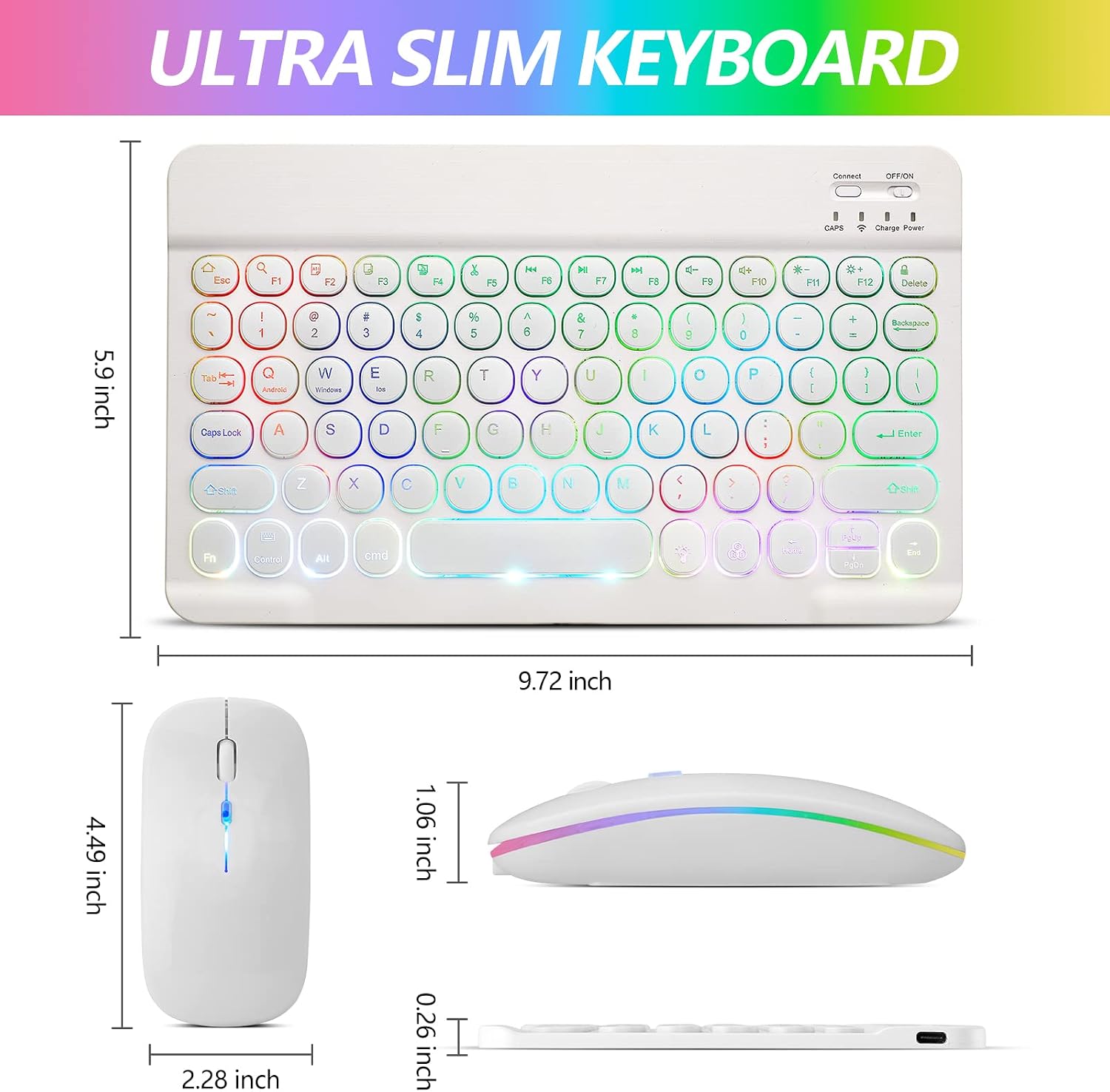
Figure 2: Dimensions of the Guiheng Ultra Slim Keyboard and Mouse. The keyboard measures 9.72 inches in length and 5.9 inches in width. The mouse measures 4.49 inches in length, 2.28 inches in width, and 1.06 inches in height, with a slim profile of 0.26 inches at its thinnest point.
Setup Instructions
1. Charging the Devices
Before initial use, ensure both the keyboard and mouse are fully charged.
- Connect the provided USB charging cable to the charging port on the keyboard and mouse.
- Connect the other end of the USB cable to a USB power source (e.g., computer USB port, USB wall adapter).
- For first-time use, charge for at least 6 hours. Subsequent charges should take at least 2 hours.
- The red charging indicator light will flash during charging and turn off once the battery is full.
- A flashing red indicator signifies low battery and requires charging.
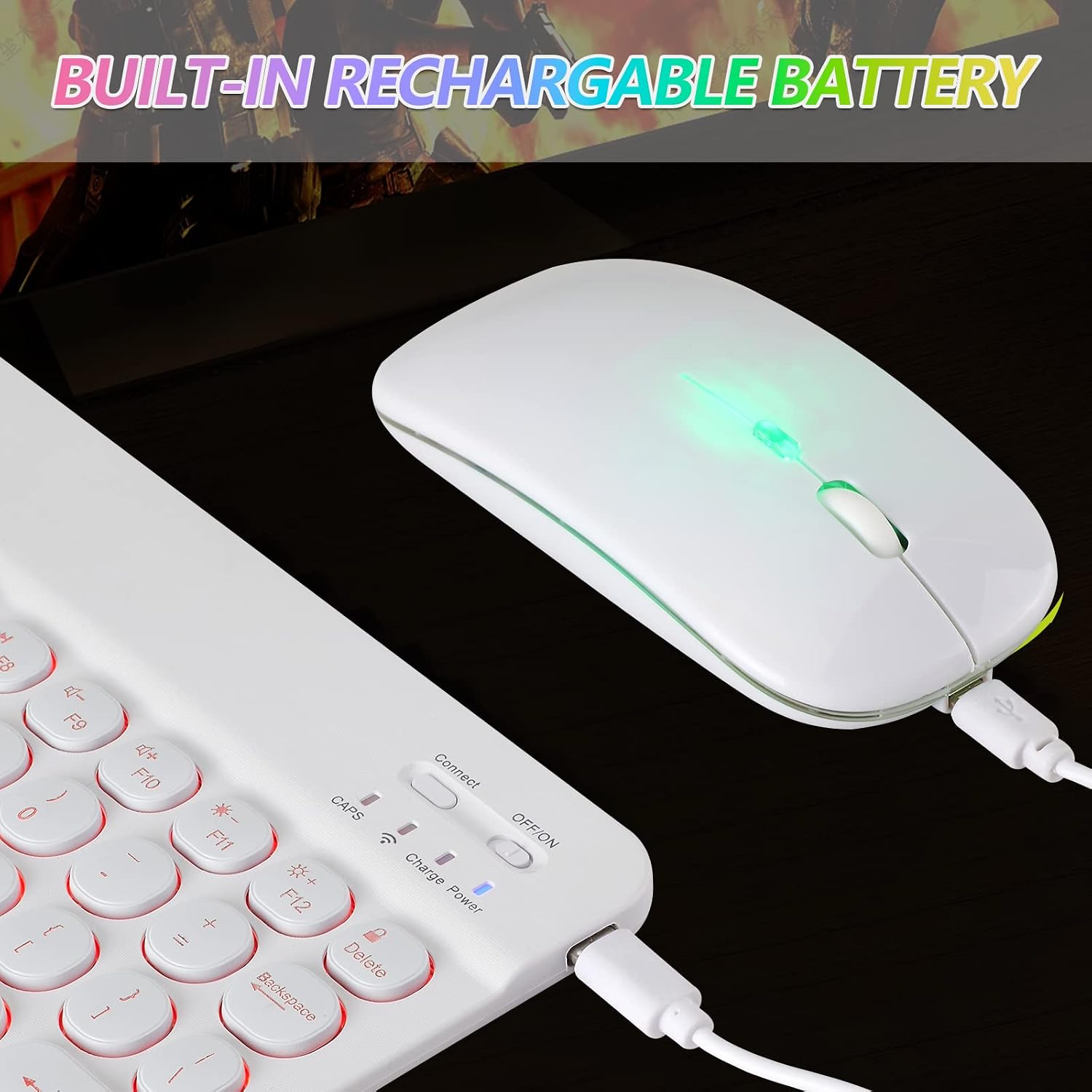
Figure 3: Charging the Guiheng Wireless Mouse. The image shows the mouse connected to a USB charging cable, indicating its built-in rechargeable battery.
2. Pairing the Keyboard
Follow these steps to connect your keyboard via Bluetooth:
- Turn on the keyboard using the ON/OFF switch located on the top right.
- Press the "Connect" button for 3 seconds. The blue Bluetooth indicator light will begin to blink, indicating it is in pairing mode.
- On your device (e.g., iPad, tablet, computer), open the Bluetooth settings.
- Search for "Bluetooth Keyboard" in the list of available devices.
- Select "Bluetooth Keyboard" to connect. No password is required for connection.
- Once successfully paired, the blue Bluetooth indicator light will turn off. The keyboard will automatically reconnect to your device in the future.
3. Pairing the Mouse
To connect your mouse via Bluetooth:
- Turn on the mouse using its ON/OFF switch.
- On your device, open the Bluetooth settings.
- Search for the mouse in the list of available devices (it may appear as "BT Mouse" or similar).
- Select the mouse to connect.
- Once successfully paired, the mouse will be ready for use.
Operating Instructions
Keyboard Hotkeys and Indicators
- FN + Function Keys: Press the FN key in combination with the F1-F12 keys to access various multimedia and system functions.
- Power LED: Flashes for 1-2 seconds when the keyboard is turned on, then goes out automatically.
- Charging LED: Flashes while the keyboard is charging and turns off when fully charged.
- BT LED: Flashes when the keyboard is connecting and turns off after a successful connection.
Keyboard Backlight Control
The keyboard features a 7-color LED backlight with two modes.

Figure 4: Keyboard Backlight Controls. The image illustrates how to turn the backlight on/off and switch between the 7 available backlight colors using dedicated keys.
- Press the light bulb icon key to turn the backlight on or off.
- Press the RGB icon key to cycle through the 7 available backlight colors.
Mouse DPI Adjustment
The mouse offers adjustable DPI settings for precision control.
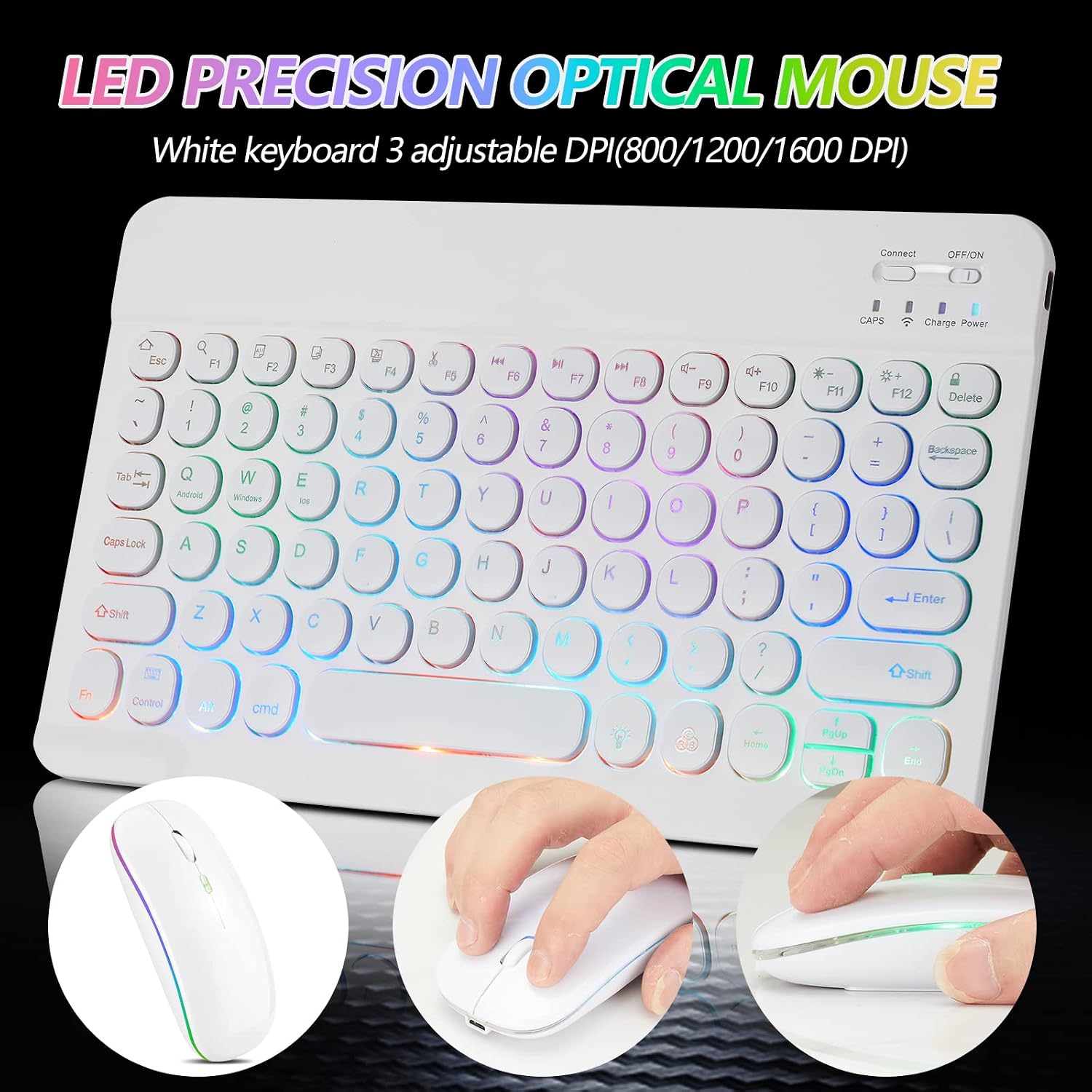
Figure 5: LED Precision Optical Mouse with DPI Settings. This image highlights the mouse's adjustable DPI settings (800/1200/1600 DPI) for varied cursor speed and precision.
- The mouse supports 3 adjustable DPI levels: 800, 1200, and 1600 DPI.
- Press the DPI button (usually located near the scroll wheel) to cycle through the DPI settings.
Compatibility
The keyboard and mouse are designed for broad compatibility.

Figure 6: Wide Compatibility of Guiheng Keyboard and Mouse. The image shows the combo is compatible with Windows, Linux, Chrome OS, and Mac OS, indicating broad device support.
Compatible with:
- iOS devices (iPad 9th/8th Gen, iPad Pro/Air/Mini, iPhone 14/13/12 Pro, etc.)
- Android Tablets and Phones (Samsung, Surface, etc.)
- Windows (2000/ME/XP/7/8/10/Vista)
- Mac OS
- Linux
- Chrome OS
Maintenance
Proper maintenance ensures the longevity and optimal performance of your keyboard and mouse.
- Cleaning: Use a soft, dry cloth to clean the surfaces of the keyboard and mouse. For stubborn dirt, a slightly damp cloth with mild soap can be used, ensuring no liquid enters the device.
- Storage: Store the devices in a cool, dry place away from direct sunlight and extreme temperatures.
- Battery Care: Avoid fully discharging the battery frequently. Charge the devices when the low battery indicator appears. If storing for an extended period, charge the devices to about 50% every few months.
- Avoid Drops: Protect the devices from physical impact, as this can damage internal components.
Troubleshooting
If you encounter issues with your Guiheng Bluetooth Keyboard and Mouse Combo, please refer to the following troubleshooting steps:
- Keyboard/Mouse Not Working Properly:
- Ensure your device's Bluetooth function is enabled.
- Verify the keyboard/mouse is within 10 meters (33 feet) of your device.
- Check if the keyboard/mouse battery is too low; charge if necessary.
- If previously paired, try deleting the device from your device's Bluetooth list and re-pairing.
- Connection Issues or Input Delay (after successful pairing):
- Delete all Bluetooth devices from your tablet/computer's Bluetooth settings.
- Turn off the Bluetooth option on your tablet/computer.
- Restart both the tablet/computer and the keyboard/mouse.
- Attempt to pair the keyboard/mouse with your device again following the "Pairing Instructions" section.
- Mouse Goes to Sleep Too Quickly (e.g., on Steam Deck):
- This behavior can be device-specific. A button press is typically required to wake the mouse, followed by a second press for input. This is often a power-saving feature of the mouse or the connected device.
- Keyboard Keys Require More Pressure / Missed Letters:
- Ensure the keyboard is fully charged.
- Verify the keyboard is properly connected and not experiencing interference.
- If the issue persists, try re-pairing the keyboard.
Specifications
| Brand | Guiheng |
| Model | Bluetooth Keyboard and Mouse Combo |
| Color | White |
| Connectivity Technology | Bluetooth, USB (for charging) |
| Special Feature | Rechargeable, 7-Color Backlit Keyboard |
| Compatible Devices | Tablets (iPad, Android), Smartphones (iPhone, Android), Computers (Windows, Mac OS, Linux, Chrome OS) |
| Keyboard Dimensions | 9.72 x 5.9 inches (approx.) |
| Mouse Dimensions | 4.49 x 2.28 x 1.06 inches (approx.) |
| Item Weight | 11.7 ounces (approx.) |
| Mouse DPI Settings | 800/1200/1600 DPI |
Warranty and Support
For warranty information or technical support, please contact Guiheng customer service through the retailer where the product was purchased or refer to the official Guiheng website for contact details. Please retain your proof of purchase for warranty claims.