
Introduction
This manual provides instructions for the Fodsports FX8 Pro USB Charge Cable. This cable is designed specifically for charging the Fodsports FX8 Pro Motorcycle Bluetooth Headset. Please read this manual carefully to ensure proper use and maintenance of your charging cable.
Setup
The Fodsports FX8 Pro USB Charge Cable is a plug-and-play accessory. No complex setup is required. Simply connect it to your Fodsports FX8 Pro headset and a compatible USB power source.
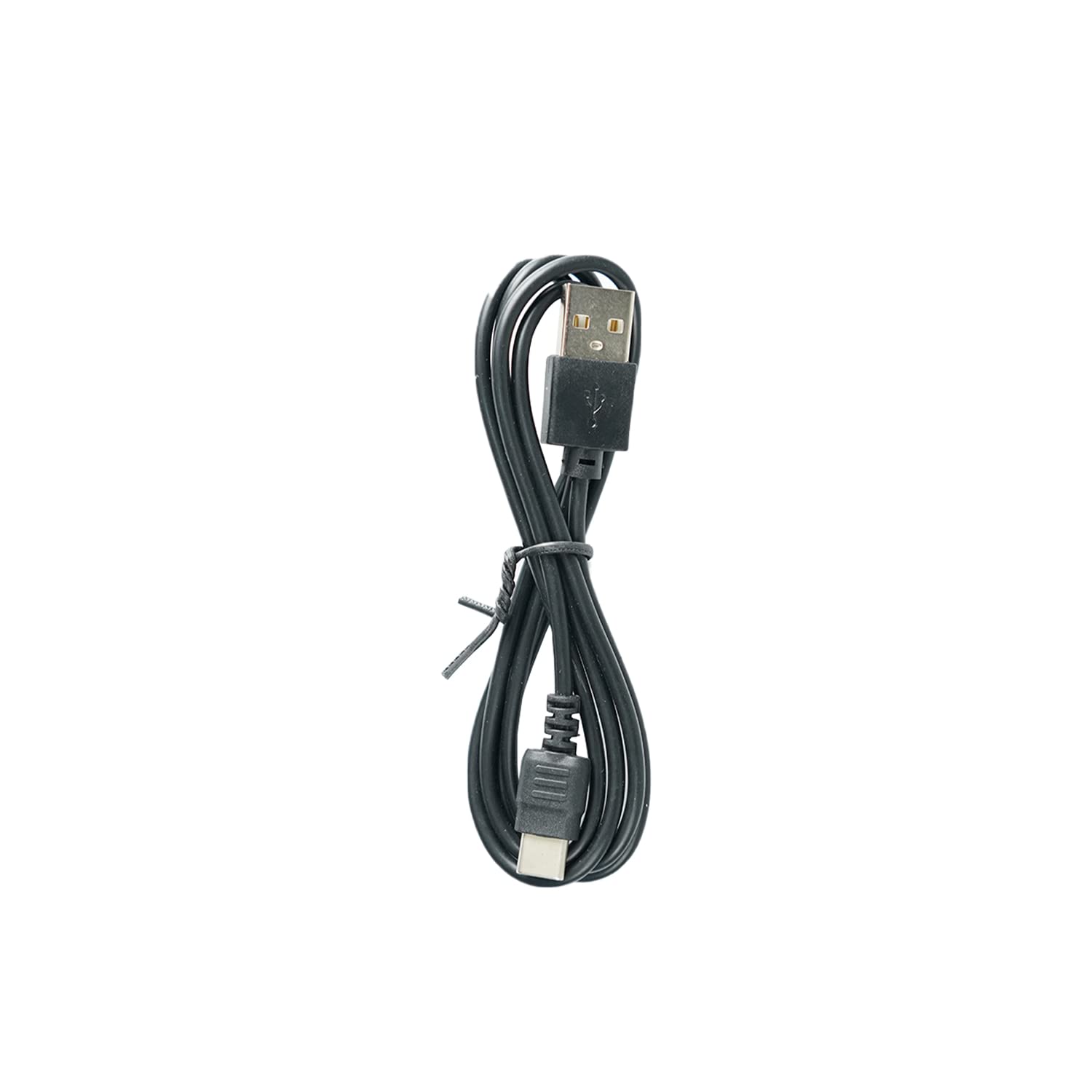
Image: The Fodsports FX8 Pro USB Charge Cable. This cable features a standard USB-A connector on one end and a proprietary connector designed for the FX8 Pro headset on the other.
Connecting the Cable
- Locate the charging port on your Fodsports FX8 Pro Bluetooth Headset. This port is typically covered by a rubber flap to protect it from dust and moisture.
- Gently open the rubber flap to expose the charging port.
- Insert the smaller, proprietary end of the USB charge cable into the headset's charging port, ensuring it is fully seated.
- Insert the standard USB-A end of the cable into a compatible USB power source, such as a wall adapter, computer USB port, or power bank.

Image: The Fodsports FX8 Pro Bluetooth Headset. The charging cable connects to a port on this device.
Operating (Charging)
Once the USB charge cable is correctly connected to both the FX8 Pro headset and a power source, the headset should begin charging. Refer to your Fodsports FX8 Pro headset's main instruction manual for specific charging indicators (e.g., LED light behavior) and estimated charging times.
Charging Guidelines
- Use only certified USB power adapters that meet the voltage and current requirements specified for the Fodsports FX8 Pro headset.
- Avoid charging in extreme temperatures. Optimal charging occurs at room temperature.
- Do not force the cable into the port. If it does not connect easily, check the orientation and ensure there are no obstructions.
Maintenance
Proper care of your USB charge cable will extend its lifespan and ensure reliable performance.
Cleaning
- Wipe the cable with a soft, dry cloth to remove dust or dirt.
- Avoid using harsh chemicals, solvents, or abrasive cleaners, as these can damage the cable's insulation or connectors.
- Ensure the connectors are clean and free of debris before plugging them in.
Storage
- Store the cable in a cool, dry place away from direct sunlight and extreme temperatures.
- Avoid tightly coiling or bending the cable at sharp angles, as this can damage the internal wires.
- Keep the cable away from pets and small children to prevent damage.
Troubleshooting
If your Fodsports FX8 Pro headset is not charging, consider the following:
| Problem | Possible Cause | Solution |
|---|---|---|
| Headset not charging | Cable not fully connected | Ensure both ends of the cable are securely plugged into the headset and the power source. |
| Headset not charging | Faulty power source | Try a different USB wall adapter, computer USB port, or power bank. |
| Headset not charging | Damaged cable | Inspect the cable for any visible damage (frays, bends, broken connectors). If damaged, replace the cable. |
| Headset not charging | Dirty charging port/connector | Gently clean the charging port on the headset and the cable connectors with a dry, soft brush or compressed air. |
Specifications
- Product Type: USB Charge Cable
- Compatibility: Fodsports FX8 Pro Motorcycle Bluetooth Headset
- Input Device Interface: USB
- Included Components: USB cable
- Color: Black
- Item Weight: Approximately 1.13 ounces (32 grams)
Warranty Information
This USB charge cable is an accessory for the Fodsports FX8 Pro headset. Warranty coverage for accessories typically aligns with the warranty provided for the main product, or a standard limited warranty for accessories. Please refer to the warranty information provided with your Fodsports FX8 Pro Bluetooth Headset or visit the official Fodsports website for detailed warranty terms and conditions.
Customer Support
For further assistance, technical support, or inquiries regarding your Fodsports FX8 Pro USB Charge Cable or headset, please contact Fodsports customer service.
- Official Website: www.fodsports.com (Please check the website for the most current contact information and support resources.)
- Email Support: Refer to the contact section on the official Fodsports website.


