
1. Introduction
Thank you for choosing the CAMECHO Android 13 Autoradio. This manual provides essential information for the proper installation, operation, and maintenance of your new car stereo system. Please read this manual thoroughly before installation and use to ensure optimal performance and safety. This unit is designed to integrate seamlessly with BMW X1 E84 models manufactured between 2010 and 2016, offering advanced features such as wireless Apple CarPlay, Android Auto, GPS navigation, and a high-definition touchscreen display.
2. Safety Information
- Always consult a professional for installation if you are unsure about any steps. Incorrect installation can damage the vehicle's electrical system or the device.
- Do not operate the device in a way that distracts you from driving. Always prioritize road safety.
- Ensure all wiring is properly connected and insulated to prevent short circuits and electrical hazards.
- Keep the device away from water and excessive moisture.
- Do not attempt to repair the unit yourself. Refer to qualified service personnel for any repairs.
3. Package Contents
Verify that all items listed below are included in your package:
- 1 x Android Car Stereo Unit
- 1 x Power Harness
- 1 x GPS Antenna
- 1 x RCA Cable
- 1 x CAM-IN Cable
- 2 x USB Cables
- 1 x External Microphone
- 1 x AHD Rear Camera
- 1 x Installation Frame (Black)
- 1 x Canbus Decoder
- 1 x User Manual

Image: All included accessories for the CAMECHO Android 13 Autoradio, including cables, antennas, and the rear camera.
4. Product Overview and Features
The CAMECHO Android 13 Autoradio is a feature-rich multimedia system designed to enhance your driving experience. It boasts a 10.1-inch HD capacitive touchscreen and runs on the Android 13 operating system, powered by a 4-core processor with 2GB RAM and 64GB ROM.
Key Features:
- Android 13 System: Latest operating system for smooth performance and access to a wide range of applications.
- 10.1-inch HD Capacitive Touchscreen: Provides a clear, responsive display with 1024x600 pixel resolution.
- Wireless Apple CarPlay & Android Auto: Seamlessly integrate your smartphone for navigation, calls, messages, and music. Supports both wired and wireless connections.
- Built-in GPS Navigation: Compatible with popular navigation software like Waze, Navfree, and Google Maps, including offline map support.
- Bluetooth 4.0: For hands-free calling (with external microphone) and A2DP audio streaming.
- FM/RDS Radio: Auto memory store and preset scan for your favorite radio stations.
- Rear Camera Input: Supports AHD rear cameras for safe parking (camera included).
- Steering Wheel Control (SWC): Retains original car steering wheel control functionality via Canbus.
- Multi EQ/HiFi Settings: Customize your audio experience with various equalizer presets.
- Wi-Fi Connectivity: Connect to Wi-Fi hotspots for online features and app downloads.

Image: Illustration of the system's 2GB RAM and 64GB ROM, highlighting high-speed car-level chip and 4-core processor.

Image: Car dashboard display unit showing a multimedia interface with various app icons, including '2+64 GB', Spotify, MLB, and WhatsApp.
5. Installation (Setup)
Professional installation is recommended. Ensure the vehicle's power is disconnected before starting the installation process.
5.1. Compatibility
This autoradio is compatible with the following BMW X1 E84 models:

Image: Comparison of a BMW X1 E84 dashboard before and after the CAMECHO Autoradio installation, showing the integrated display.
| Model | Years |
|---|---|
| BMW sDrive 16d | 2012-2015 |
| BMW sDrive 18d | 2009-2015 |
| BMW sDrive 18i | 2010-2015 |
| BMW sDrive 20d | 2009-2015 |
| BMW sDrive 20i | 2011-2015 |
| BMW sDrive 28i | 2012-2015 |
| BMW xDrive 18d | 2009-2015 |
| BMW xDrive 20d | 2009-2015 |
| BMW xDrive 20i | 2011-2015 |
| BMW xDrive 23d | 2009-2015 |
| BMW xDrive 25d | 2009-2015 |
| BMW xDrive 25i | 2010-2011 |
| BMW xDrive 28i | 2009-2015 |
| BMW xDrive 28i Flex | 2011-2015 |
| BMW xDrive 35i | 2011-2015 |
5.2. General Installation Steps
- Preparation: Disconnect the car battery's negative terminal. Remove the original car radio and trim panels carefully.
- Power Connection: Connect the provided power harness to the car's wiring and the new head unit. Ensure the Canbus decoder is correctly integrated if your vehicle requires it for steering wheel controls or other functions.
- GPS Antenna: Mount the GPS antenna in a location with a clear view of the sky, typically on the dashboard or under the windshield, ensuring it is securely attached.
- USB Cables: Route the USB cables to a convenient location, such as the glove compartment or center console, for connecting external devices.
- Rear Camera (Optional/Included): If installing the rear camera, connect the CAM-IN cable to the head unit and route the camera cable to the rear of the vehicle. Connect the camera's power to the reverse light circuit.
- External Microphone: Connect the external microphone and route it to a suitable position for clear voice pickup, such as near the sun visor.
- RCA Cables: Connect any additional RCA cables for external amplifiers, subwoofers, or video outputs as needed.
- Mounting: Secure the new head unit into the dashboard opening using the provided installation frame and brackets.
- Testing: Reconnect the car battery. Turn on the ignition and test all functions of the autoradio, including audio, touchscreen, GPS, Bluetooth, and camera.
- Final Assembly: Reinstall all trim panels and ensure a neat finish.
6. Operation
This section details the primary functions and how to operate your CAMECHO Android 13 Autoradio.
6.1. Wireless Apple CarPlay & Android Auto
Connect your smartphone wirelessly or via USB to access navigation, communication, and entertainment apps directly on the head unit's screen. Follow the on-screen prompts to pair your device.

Image: The head unit displaying both Apple CarPlay and Android Auto interfaces, illustrating wired and wireless connection options for smartphones.
6.2. GPS Navigation
Utilize the built-in GPS module for precise navigation. You can use pre-installed maps or download additional navigation apps from the Google Play Store. The system supports both online and offline maps.
6.3. Wi-Fi Connectivity & App Downloads
Connect the autoradio to a Wi-Fi hotspot (e.g., from your smartphone) to access online content, browse the internet, and download applications like Spotify, YouTube, and more from the Google Play Store.
6.4. Bluetooth Functions
Pair your phone via Bluetooth for hands-free calling and wireless audio streaming (A2DP). Access your phonebook directly from the head unit.

Image: Displays the GPS navigation interface, icons for Wi-Fi connectivity and popular apps like Spotify and YouTube, and the Bluetooth call interface with a phonebook download option.
6.5. FM/RDS Radio
Tune into your favorite FM radio stations. The RDS (Radio Data System) feature provides additional information like station name and traffic announcements where available.
6.6. Steering Wheel Control (SWC)
The unit supports your vehicle's original steering wheel controls. Access the 'Steering Learn' function in the settings menu to configure the buttons according to your preference.
6.7. Reversing Image
When the vehicle is shifted into reverse gear, the display automatically switches to the rear camera view, providing a clear image with parking guidelines for safer maneuvering.
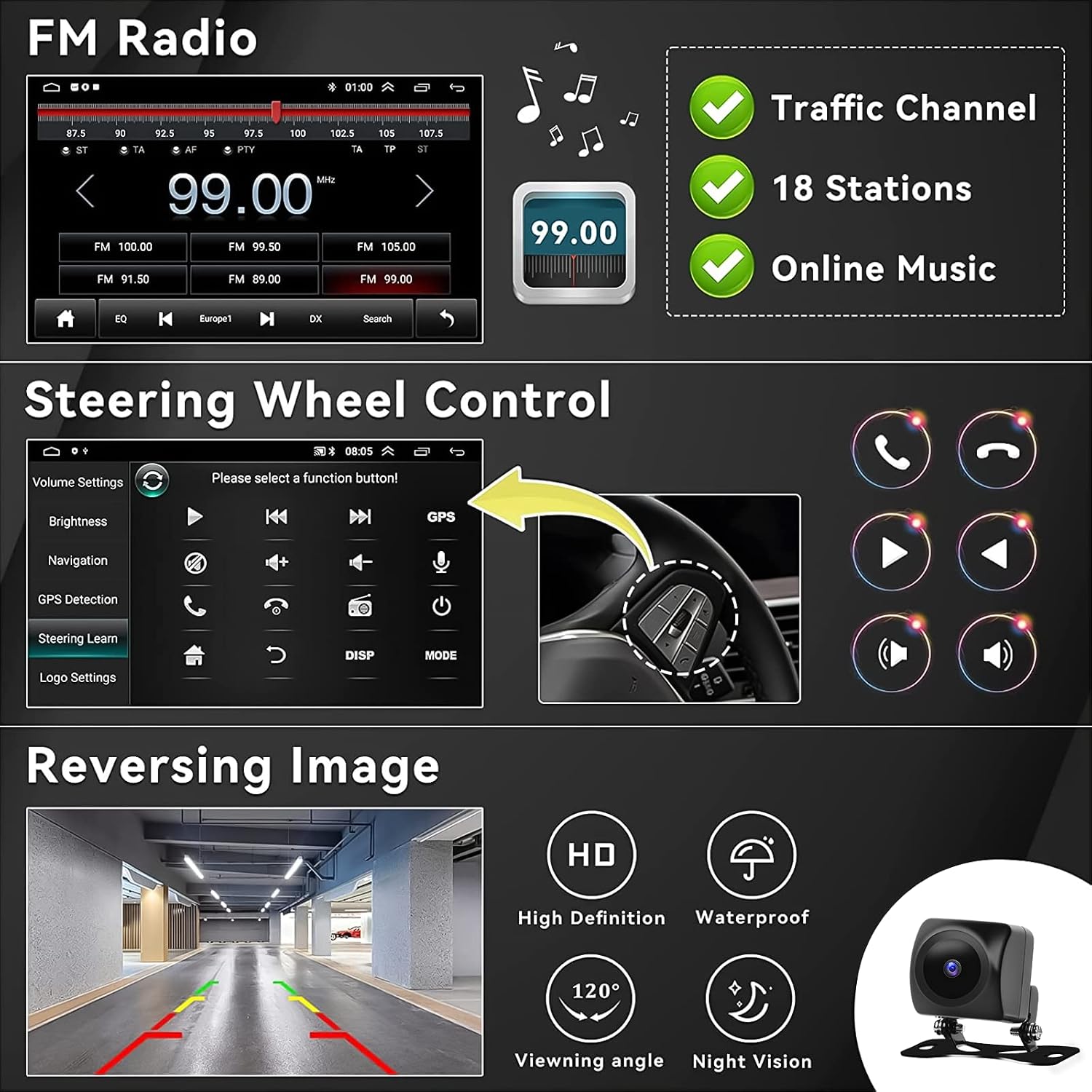
Image: Shows the FM radio interface, the steering wheel control setup screen, and the reversing camera view with parking lines, highlighting features like HD, waterproof, 120° viewing angle, and night vision.
6.8. HIFI Audio Settings
Adjust the audio output to your liking using the built-in equalizer and HiFi settings. Choose from various presets (e.g., Classical, Jazz, Pop) or customize your own.
6.9. Optional Functions
The autoradio supports several external accessories to expand its functionality. These typically need to be purchased separately:
- OBD (On-Board Diagnostics): Connect an OBD adapter to monitor vehicle data.
- DAB+ (Digital Audio Broadcasting): For enhanced digital radio reception.
- DVR (Digital Video Recorder): Connect a USB dash camera for recording driving footage.
- USB Interface: For connecting USB drives for media playback or charging.

Image: Displays the HIFI equalizer settings, the steering wheel control learning interface, and various optional accessories such as USB interface, OBD scanner, USB recorder, DAB module, internal microphone, and rear camera.

Image: Car multimedia system display unit with various application icons, including WhatsApp, illustrated with accessories such as a microphone and headphones, indicating expandability.
7. Maintenance
- Cleaning the Screen: Use a soft, lint-free cloth to gently wipe the touchscreen. For stubborn smudges, slightly dampen the cloth with water or a screen-cleaning solution. Avoid harsh chemicals.
- Software Updates: Periodically check for software updates to ensure optimal performance and access to new features. Updates can usually be performed via Wi-Fi.
- General Care: Avoid exposing the unit to extreme temperatures or direct sunlight for prolonged periods. Ensure all connections remain secure.
8. Troubleshooting
If you encounter issues with your autoradio, please refer to the following common troubleshooting steps:
- No Power: Check all power connections and fuses. Ensure the car battery is properly connected and charged.
- No Sound: Verify speaker connections. Check volume levels and audio settings (EQ, balance, fader). Ensure the mute function is not activated.
- Touchscreen Unresponsive: Try restarting the unit. If the issue persists, a factory reset might be necessary (note: this will erase all user data).
- GPS Not Working: Ensure the GPS antenna is properly connected and has a clear view of the sky. Check GPS settings within the unit.
- Bluetooth Connection Issues: Ensure Bluetooth is enabled on both the autoradio and your smartphone. Delete previous pairings and try reconnecting.
- Rear Camera Not Displaying: Check the CAM-IN cable connection and ensure the camera is receiving power when reverse gear is engaged.
- Steering Wheel Controls Not Working: Verify Canbus connection and ensure the 'Steering Learn' function has been correctly configured in the settings.
If these steps do not resolve the issue, please contact customer support for further assistance.
9. Specifications
| Feature | Specification |
|---|---|
| Brand | CAMECHO |
| Model Number | 2G+64G HIFI Carplay |
| Operating System | Android 13 |
| RAM + ROM | 2GB + 64GB |
| Screen Size | 10.1 inches |
| Screen Resolution | 1080P (1024x600 pixels) |
| Bluetooth Version | 4.0 |
| Connectivity Technology | Bluetooth, USB, Wi-Fi |
| Output Power | 45 Watts |
| Audio Channels | 2.0 Stereo |
| Compatible Devices | Smartphone |
| Control Method | Touchscreen |
| Digital Media Format | AVI, MP3 audio, WMA |
| Video Encoding | H.264, MPEG-2, MPEG-4 |
| Item Weight | 1.2 Kilograms |
10. Warranty
This product comes with a 2-year warranty from the date of purchase. This warranty covers manufacturing defects and malfunctions under normal use. It does not cover damage caused by improper installation, misuse, accidents, unauthorized repairs, or normal wear and tear. Please retain your proof of purchase for warranty claims.
11. Support
For technical assistance, troubleshooting, or any questions regarding your CAMECHO Android 13 Autoradio, please contact our customer support team. We are dedicated to providing prompt and helpful service.
Email: CAMECHOVIP@126.com

Image: A professional customer service representative wearing a headset, ready to assist with inquiries.


