1. Introduction
Thank you for choosing the Varmilo Minilo VXB67 65% Bluetooth Mechanical Keyboard. This manual provides detailed instructions for setting up, operating, maintaining, and troubleshooting your new keyboard. Please read this manual thoroughly to ensure optimal performance and longevity of your device.
The Varmilo Minilo VXB67 is a compact 65% layout mechanical keyboard featuring both wired USB-C and wireless Bluetooth connectivity. It includes a rechargeable battery, white LED backlighting, and Varmilo EC Iris V2 switches for a premium typing experience.
2. Package Contents
Please verify that all items are present in your package:
- Varmilo Minilo VXB67 Mechanical Keyboard
- USB-C Cable
- User Manual (this document)
3. Keyboard Overview
Familiarize yourself with the layout and key functions of your Varmilo Minilo VXB67 keyboard.
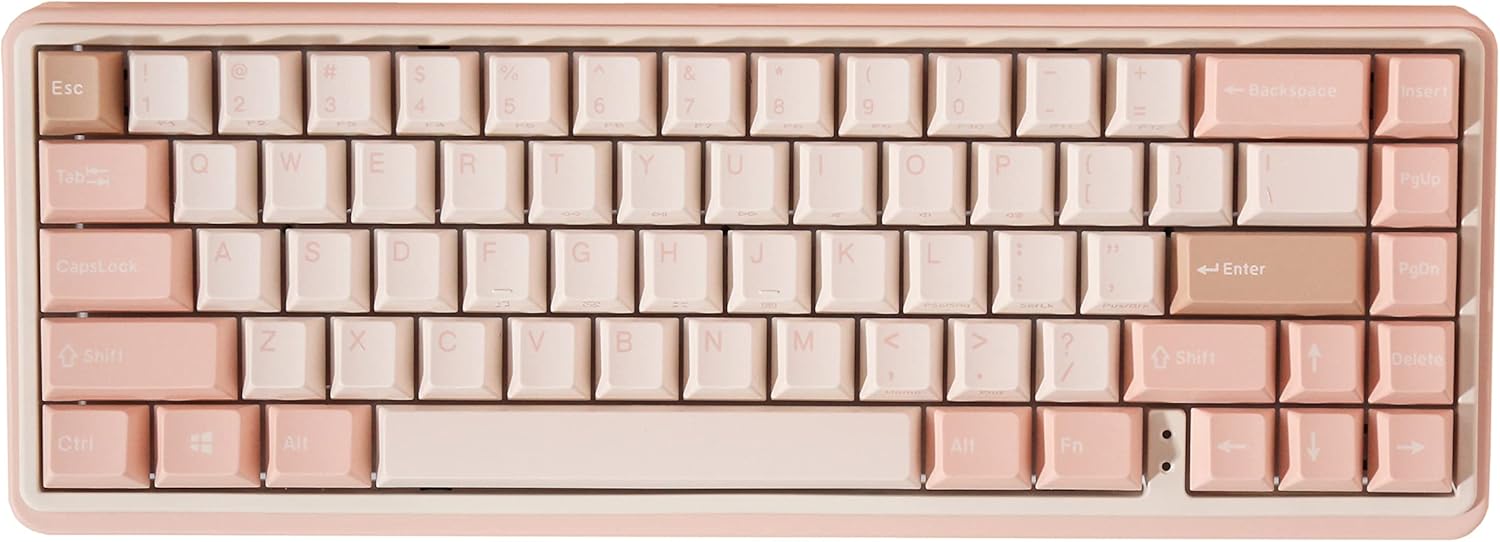
Figure 3.1: Top-down view of the Varmilo Minilo VXB67 keyboard.

Figure 3.2: Angled view showcasing the keyboard's keycap design and compact form factor.
4. Setup
4.1 Wired Connection
- Locate the USB-C port on the back of the keyboard.
- Connect one end of the provided USB-C cable to the keyboard.
- Connect the other end of the USB-C cable to an available USB port on your computer.
- The keyboard will be automatically recognized by your operating system and is ready for use.
4.2 Wireless Bluetooth Connection
The Varmilo Minilo VXB67 supports connecting to up to 3 Bluetooth devices.
- Ensure the keyboard is charged or connected via USB-C initially.
- Turn on the Bluetooth function on your computer or device.
- On the keyboard, press Fn + Q, Fn + W, or Fn + E to select a Bluetooth profile (e.g., BT1, BT2, BT3). The corresponding key will flash, indicating pairing mode.
- On your device, search for Bluetooth devices. The keyboard should appear as "Varmilo VXB67" or similar.
- Select the keyboard to pair. If prompted, enter the pairing code displayed on your screen using the keyboard and press Enter.
- Once paired, the flashing light will become solid, indicating a successful connection.
- To switch between paired Bluetooth devices, press Fn + Q, Fn + W, or Fn + E for the desired profile.
5. Operating Instructions
5.1 Function Keys (Fn Combinations)
The Varmilo Minilo VXB67 utilizes an Fn key for accessing secondary functions printed on the keycaps. Hold down the Fn key and press the desired function key.

Figure 5.1: Fn key combinations for multimedia and system controls.
- Fn + F1-F12: Access multimedia controls (e.g., volume, play/pause, brightness) or system functions. Refer to the legends on your keycaps.
- Fn + Q/W/E: Switch between Bluetooth profiles (BT1, BT2, BT3).
- Fn + R: Reset Bluetooth pairing (hold for 3 seconds).
- Fn + Right Shift: Toggle Caps Lock indicator.
- Fn + Arrow Keys: Adjust LED backlight brightness or effects (if applicable).
5.2 LED Indicators
- Low Battery Warning: A flashing indicator light will alert you when the battery level is low.
- Charging Indicator: The Escape key will light up while the keyboard is charging.
- Caps Lock / F-row Function: Indicator lights are located next to the arrow keys to show the status of Caps Lock and F-row function activation.
6. Maintenance
6.1 Cleaning
- Disconnect the keyboard from your computer before cleaning.
- Use a soft, lint-free cloth slightly dampened with water or a mild cleaning solution to wipe the keycaps and casing.
- For deeper cleaning, you may use a keycap puller to remove keycaps and clean underneath with compressed air or a small brush.
- Avoid using harsh chemicals, abrasive materials, or excessive moisture, as these can damage the keyboard.
6.2 Battery Care
- Charge the keyboard regularly to maintain battery health.
- Avoid fully discharging the battery frequently.
- If storing the keyboard for an extended period, charge it to approximately 50% and store in a cool, dry place.
7. Troubleshooting
7.1 Keyboard Not Responding (Wired)
- Ensure the USB-C cable is securely connected to both the keyboard and the computer.
- Try connecting the keyboard to a different USB port on your computer.
- Test the keyboard with a different USB-C cable if available.
- Restart your computer.
7.2 Bluetooth Connection Issues
- Ensure the keyboard is in Bluetooth mode (Fn + Q/W/E) and the selected profile key is flashing.
- Verify that Bluetooth is enabled on your device and it is discoverable.
- Try unpairing and re-pairing the keyboard from your device's Bluetooth settings.
- Ensure the keyboard battery is sufficiently charged.
- Move the keyboard closer to your device to rule out range issues.
- If connecting to multiple devices, ensure you are selecting the correct Bluetooth profile (Fn + Q/W/E).
7.3 Backlighting Not Working
- Ensure the keyboard battery is charged, as backlighting consumes power.
- Use Fn + Arrow Keys (or other designated keys) to adjust brightness or toggle lighting effects.
- Check if the backlighting feature is enabled in any associated software (if applicable).
8. Specifications
| Brand | Varmilo |
| Model Number | Minilo VXB67 |
| Layout | 65% |
| Connectivity | Wired (USB-C), Wireless (Bluetooth) |
| Switches | Varmilo EC Iris V2 |
| Backlighting | White LED, Single Color |
| Compatible Devices | PC |
| Special Features | Rechargeable Battery, Type-Cool Sound Dampening, Connects up to 3 Bluetooth devices |
| Material | Plastic |
9. Warranty and Support
9.1 Warranty Information
Varmilo products are manufactured to high-quality standards. For specific warranty terms and conditions, please refer to the warranty card included with your product or visit the official Varmilo website. Keep your proof of purchase for warranty claims.
9.2 Customer Support
If you encounter any issues not covered in this manual or require further assistance, please contact Varmilo customer support through their official website or the retailer from whom you purchased the product. You can visit the Varmilo Store on Amazon for more information.


