
1. Introduction
This manual provides detailed instructions for the installation, operation, maintenance, and troubleshooting of your MUNBYN P047 Bluetooth 5.0 Thermal Receipt Printer. Please read this manual thoroughly before using the printer to ensure proper function and longevity of the device.
The MUNBYN P047 is designed for efficient receipt printing in various business environments, offering both wired USB and wireless Bluetooth connectivity. It is compatible with Windows, Android, Linux, and Chrome OS systems.
2. Safety Information
- Ensure the printer is connected to a power source with the correct voltage as specified.
- Do not expose the printer to water, moisture, or extreme temperatures.
- Avoid placing the printer in direct sunlight or near heat sources.
- Do not attempt to disassemble or repair the printer yourself. Contact customer support for assistance.
- Use only recommended thermal paper rolls to prevent damage to the print head.
3. Package Contents
Verify that all items are present in the package:
- MUNBYN P047 Thermal Receipt Printer
- Power Adapter
- USB Cable
- Starter Thermal Paper Roll
- User Manual (this document)
4. Product Overview
The MUNBYN P047 printer features a compact design with essential ports for connectivity and operation.

Image: Front view of the MUNBYN P047 printer, illustrating its compact design and the output of a sample receipt with USB and Bluetooth connectivity indicators.
4.1. Components and Ports
- Power Button: Turns the printer on or off.
- Power Port: Connects to the power adapter.
- USB Port: For wired connection to a computer.
- Bluetooth Module: For wireless connection to compatible devices.
- Paper Cover Release: Opens the paper compartment for roll installation.
- Status Indicators: LEDs to show power, error, and paper status.
5. Setup
5.1. Power Connection
- Connect the power adapter to the printer's power port.
- Plug the power adapter into a wall outlet.
- Press the power button to turn on the printer. The power indicator light should illuminate.
5.2. Paper Roll Installation
- Press the paper cover release button to open the top cover.
- Insert a new 80mm thermal paper roll into the compartment, ensuring the paper feeds from the bottom and the leading edge extends out of the printer.
- Close the top cover firmly until it clicks into place.
5.3. Connectivity Options

Image: The MUNBYN P047 printer demonstrating both Bluetooth and USB connection capabilities to a desktop computer and a smartphone, highlighting its versatile connectivity.
5.3.1. USB Connection (Windows, Android, Linux, Chrome OS, Mac)
- Connect the USB cable from the printer's USB port to an available USB port on your computer or Android device (with appropriate adapter).
- For Windows, Linux, Chrome OS, and Mac, the printer will typically be recognized as a standard thermal printer. You may need to download and install specific drivers from the MUNBYN website for full functionality.
- Follow the on-screen instructions for driver installation.
5.3.2. Bluetooth Connection (Windows, Android)
- Ensure the printer is powered on and within range of your device.
- On your Windows or Android device, navigate to the Bluetooth settings.
- Search for available Bluetooth devices. The printer should appear as 'MUNBYN P047' or a similar name.
- Select the printer to pair. If prompted for a PIN, enter '0000' or '1234'.
- Once paired, the printer will be ready for use with compatible applications.
5.4. Wall Mount Installation (Optional)

Image: The MUNBYN P047 printer shown mounted on a kitchen wall, demonstrating its space-saving installation option in a commercial setting.
The printer includes two hanging holes on its base, allowing for wall-mounted installation. This can be beneficial for saving counter space in busy environments.
- Identify a suitable location on a wall, ensuring it is sturdy and allows for easy access to power and data cables.
- Mark the positions for two screws based on the printer's mounting holes.
- Install two screws into the wall, leaving a small gap between the screw head and the wall.
- Align the printer's mounting holes with the screws and slide the printer down to secure it.
6. Operating Instructions
6.1. Basic Printing

Image: The MUNBYN P047 printer actively printing a receipt, illustrating its fast printing speed of 260 mm/s, designed to reduce customer waiting times.
Once the printer is set up and connected to your device, you can initiate printing from your point-of-sale (POS) software or application. The P047 supports high-speed printing up to 260mm/sec.
- Open your desired application (e.g., POS software, text editor).
- Select the print option within the application.
- Choose the MUNBYN P047 as your printer.
- Adjust any necessary print settings (e.g., paper size, margins) and confirm the print job.
6.2. Automatic Paper Cutting

Image: The MUNBYN P047 printer demonstrating its automatic paper cutting function, which helps shorten transaction times and provides neat receipts.
The P047 printer is equipped with an automatic paper cutter to provide clean and efficient receipt separation. This feature can typically be enabled or disabled through the printer's driver settings or your POS software.
6.3. Compatibility Notes
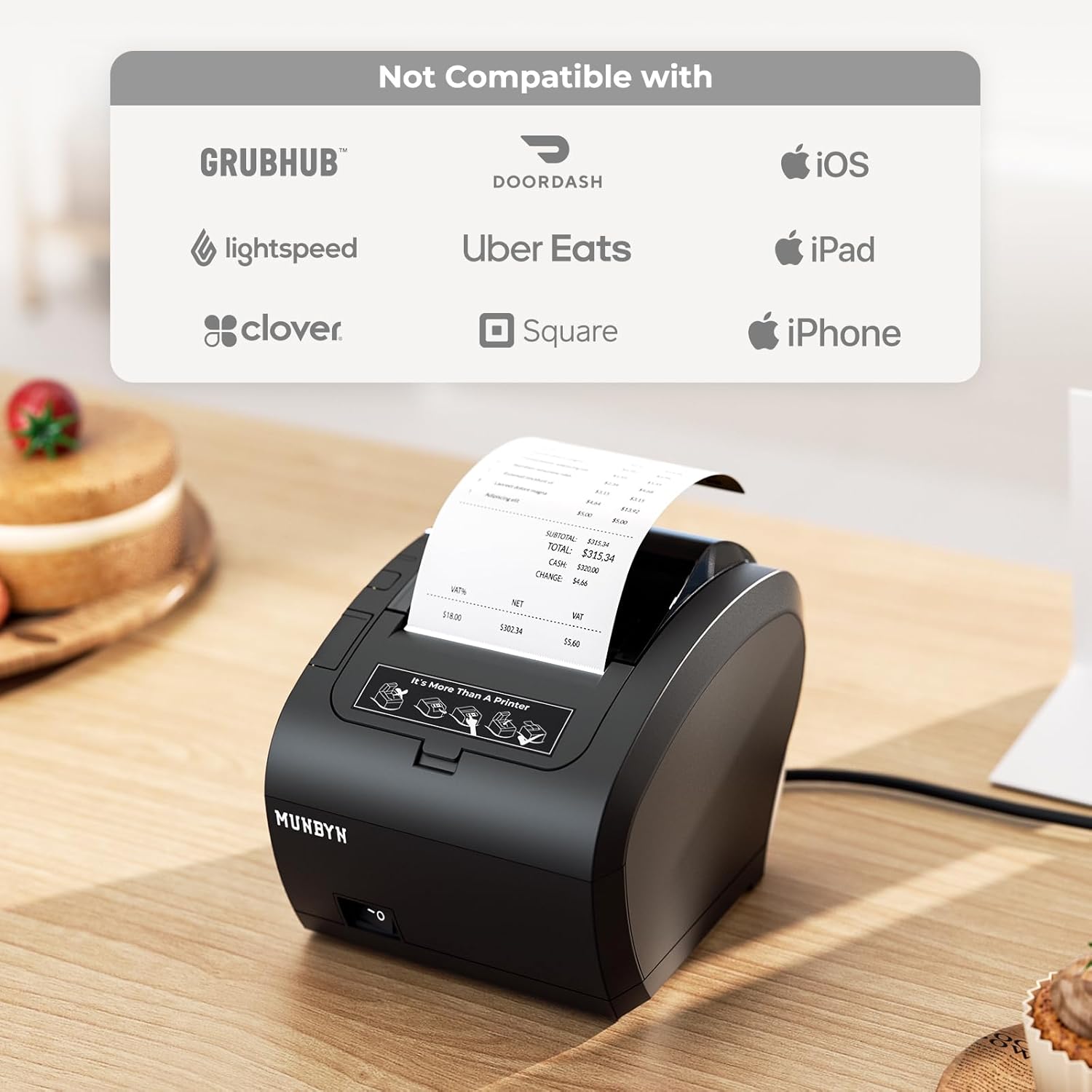
Image: The MUNBYN P047 printer displayed alongside a graphic indicating its incompatibility with certain platforms and devices, including Grubhub, DoorDash, Uber Eats, Lightspeed, Clover, Square (via Bluetooth), iOS, iPad, and iPhone.
Please note the following important compatibility information:
- The Bluetooth receipt printer is not compatible with Uber Eats, iPad, iPhone, DoorDash, Grubhub, Lightspeed, Clover, and Square Stand POS (specifically via Bluetooth).
- Compatibility with specific POS software should be verified with the software vendor.
7. Maintenance
7.1. Cleaning the Print Head
Regular cleaning of the print head ensures optimal print quality and extends the printer's lifespan.
- Turn off the printer and disconnect the power cable.
- Open the paper cover.
- Gently wipe the thermal print head (the dark strip inside the cover) with a cotton swab lightly dampened with isopropyl alcohol.
- Allow the print head to dry completely before closing the cover and reconnecting power.
7.2. Paper Roll Replacement
Replace the paper roll when the paper-out indicator illuminates or when print quality degrades due to low paper.
- Open the paper cover.
- Remove the empty paper core.
- Insert a new 80mm thermal paper roll as described in Section 5.2.
- Close the paper cover.
8. Troubleshooting
Refer to the following table for common issues and their solutions:
| Problem | Possible Cause | Solution |
|---|---|---|
| Printer does not power on | No power, faulty adapter, or power button issue. | Check power cable connection. Ensure outlet is functional. Try a different power adapter if available. |
| No print output | Paper out, paper installed incorrectly, print head dirty, or connectivity issue. | Check paper roll and re-install if necessary. Clean print head. Verify USB/Bluetooth connection and driver installation. |
| Poor print quality (faded, blank lines) | Low quality paper, dirty print head, or print head damage. | Replace paper roll with high-quality thermal paper. Clean the print head. If issue persists, contact support. |
| Bluetooth connection fails | Incorrect pairing, device incompatibility, or Bluetooth interference. | Ensure printer is in pairing mode. Re-attempt pairing with PIN '0000' or '1234'. Check compatibility (refer to Section 6.3). Try connecting via USB. |
| Printer not recognized by computer | Driver not installed, incorrect USB port, or faulty USB cable. | Install/reinstall printer drivers from MUNBYN website. Try a different USB port or cable. Restart computer and printer. |
9. Specifications
| Feature | Specification |
|---|---|
| Model Name | P047 |
| Brand | MUNBYN |
| Printing Technology | Direct Thermal |
| Connectivity Technology | Bluetooth 5.0, USB |
| Maximum Print Speed (Monochrome) | 260 mm/s |
| Printer Output | Monochrome |
| Maximum Media Size | 80mm (3 1/8") x 230' Thermal Receipt Paper |
| Operating System Compatibility | Windows, Android (via Bluetooth/USB), Mac, Chrome OS, Linux (via USB) |
| Product Dimensions | 28.6 x 16.38 x 15.98 cm |
| Item Weight | 1.67 Kilograms |
| Special Features | Automatic Paper Cutter, Energy Star |
10. Warranty and Support
MUNBYN provides technical support for its products. If you encounter any issues not covered in this manual or require further assistance, please contact MUNBYN customer support.
For the latest support information, drivers, and contact details, please visit the official MUNBYN website or their Amazon store page: MUNBYN Amazon Store.
Information regarding product warranty is typically provided with your purchase documentation or available on the MUNBYN website. Please retain your proof of purchase for warranty claims.


