
TECURS KB510-UK
TECURS Wireless Mechanical Gaming Keyboard User Manual
Model: KB510-UK
1. Introduction
Thank you for choosing the TECURS Wireless Mechanical Gaming Keyboard. This compact TKL (Tenkeyless) 65% layout keyboard features a UK QWERTY layout, Red Switches for a responsive typing experience, and dynamic RGB backlighting. It offers versatile connectivity options including Bluetooth, 2.4G wireless, and wired USB Type-C, making it suitable for a wide range of devices and uses, from gaming to office work.

Image: The TECURS Wireless Mechanical Gaming Keyboard in white, showcasing its compact design and vibrant RGB backlighting. A red switch and a 2.4G USB receiver are also visible, highlighting key components.
2. Setup
2.1 Package Contents
- TECURS Wireless Mechanical Gaming Keyboard
- USB Type-C Cable
- Keycap Puller
- User Manual (this document)
2.2 Connection Modes
The keyboard supports three connection methods: Wired (USB Type-C), 2.4G Wireless, and Bluetooth. A switch on the bottom of the keyboard allows you to select the desired mode.
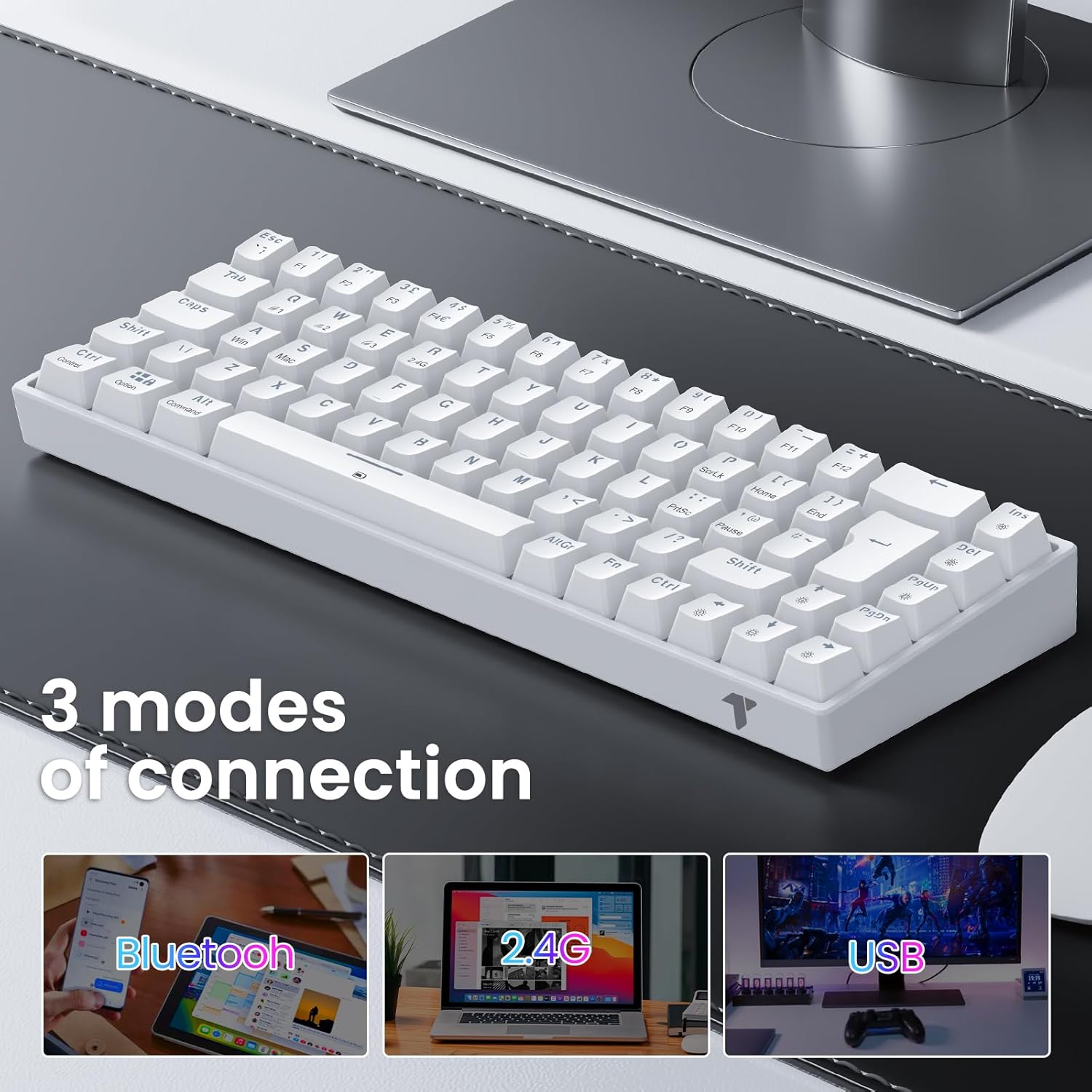
Image: An illustration demonstrating the three versatile connection modes of the keyboard: Bluetooth for mobile devices, 2.4G wireless for laptops, and wired USB for desktop PCs.

Image: The underside of the TECURS keyboard, clearly showing the physical switch used to toggle between Bluetooth, 2.4G, and wired connection modes.
2.2.1 Wired Connection
Connect the provided USB Type-C cable to the keyboard's port and the other end to your computer's USB port. Ensure the mode switch on the bottom of the keyboard is set to the wired position (usually indicated by a cable icon or 'USB'). The keyboard will be recognized automatically.
2.2.2 2.4G Wireless Connection
Locate the 2.4G USB receiver (dongle) included in the package. Plug the receiver into an available USB port on your device. Set the mode switch on the bottom of the keyboard to the 2.4G position. The keyboard should connect automatically. If not, press Fn + R to initiate pairing.
2.2.3 Bluetooth Connection
Set the mode switch on the bottom of the keyboard to the Bluetooth position. The keyboard can store up to three Bluetooth devices. To pair a new device, press and hold Fn + A, Fn + Z, or Fn + E for 3-5 seconds until the corresponding key (A, Z, or E) flashes rapidly, indicating pairing mode. On your device, search for "TECURS Keyboard" in your Bluetooth settings and select it to connect. Once paired, a short press of Fn + A/Z/E will switch between connected devices.
2.3 System Compatibility
The keyboard is compatible with a wide range of operating systems:
- Windows (XP/Vista/7/8/10/11)
- Mac OS
- iOS (iPad)
- Android
- Linux OS
- Gaming Consoles (PS4, PS5, Xbox - wired or 2.4G mode recommended)

Image: A visual representation of the keyboard's broad compatibility, showing logos for Mac OS, Linux OS, Android, Windows XP/Vista, and Windows 11/10/8/7.
3. Operation
3.1 Key Layout and Functions
This keyboard features a compact 65% UK QWERTY layout with 68 keys. Many keys have secondary functions accessible via the Fn key. Refer to the keycaps for specific secondary functions (e.g., F1-F12, multimedia controls, lighting adjustments).

Image: A clear top-down view of the TECURS keyboard, illustrating the UK QWERTY layout and the dual functions of many keys, accessible with the 'Fn' modifier key.
3.2 RGB Lighting Control
The keyboard offers 15 dynamic RGB lighting modes and 7 monochrome backlighting options. You can customize the lighting effects to enhance your gaming or typing experience.
- Fn + PgUp: Cycle through different RGB lighting modes.
- Fn + Del: Switch the current lighting mode to monochrome. Repeated presses cycle through different colors.
- Fn + Ins: Turn RGB lighting On/Off. (Useful for saving battery in wireless modes).
- Fn + Up Arrow: Increase backlight brightness (4 levels).
- Fn + Down Arrow: Decrease backlight brightness (4 levels).
- Fn + Left Arrow: Decrease lighting effect speed (4 levels).
- Fn + Right Arrow: Increase lighting effect speed (4 levels).

Image: Two TECURS keyboards displaying the adjustable RGB lighting feature, with one showing a mixed color pattern and the other a single color, highlighting the customization options.
3.3 Special Features
- Red Switches: Provides faster, lighter, and smoother actuation compared to membrane keyboards, ideal for gaming and fast typing.
- Anti-Ghosting & N-Key Rollover: Ensures every keystroke is registered accurately, even during rapid, simultaneous key presses.
- Ergonomic Design: Features adjustable feet to provide a comfortable typing angle, reducing wrist strain.

Image: A close-up shot of a finger pressing a key on the TECURS mechanical keyboard, emphasizing the quick response and tactile feel of the Red Switches.
3.4 Battery Management
The keyboard is equipped with a 3000mAh Lithium Ion battery for wireless operation.
- Charging: Connect the keyboard via the USB Type-C cable to a power source (e.g., computer USB port, USB wall adapter). The keyboard can be used while charging.
- Check Battery Level: In wireless mode, press Fn + Spacebar. The number keys (1-0) will light up to indicate the battery percentage (e.g., 1 for 10%, 10 for 100%).
4. Maintenance
4.1 Cleaning the Keyboard
To maintain optimal performance and appearance, regularly clean your keyboard:
- Disconnect the keyboard from all power sources and devices.
- Use a soft, lint-free cloth slightly dampened with water or a mild cleaning solution to wipe down the keycaps and chassis. Avoid excessive moisture.
- For dust and debris between keys, use compressed air or a small brush.
4.2 Keycap Removal and Installation
The included keycap puller can be used to remove keycaps for deeper cleaning or customization. Gently attach the puller to the keycap and pull straight up. When reinstalling, align the keycap with the switch stem and press down firmly until it clicks into place.
5. Troubleshooting
- Keyboard not responding:
- Ensure the correct connection mode (Wired, 2.4G, Bluetooth) is selected via the switch on the bottom.
- For wired connection, try a different USB port or cable.
- For 2.4G wireless, ensure the USB receiver is securely plugged in and try a different USB port. Re-pair if necessary (Fn + R).
- For Bluetooth, ensure the keyboard is in pairing mode or correctly connected to the selected channel (Fn + A/Z/E). Check your device's Bluetooth settings.
- Ensure the keyboard battery is charged.
- RGB lighting not working or stuck:
- Press Fn + Ins to toggle the lighting on/off.
- Cycle through different modes using Fn + PgUp.
- Adjust brightness using Fn + Up/Down Arrow.
- Keys not registering or ghosting:
- Ensure the keyboard is clean and free of debris under the keycaps.
- Try connecting the keyboard via a different mode (e.g., wired) to rule out wireless interference.
6. Specifications
| Brand | TECURS |
| Model Number | KB510-UK |
| Product Dimensions | 9.91 x 3.81 x 30.99 cm |
| Item Weight | 940 g |
| Connectivity Technology | Bluetooth, 2.4G Wireless, USB-C |
| Keyboard Description | Mechanical (Red Switches) |
| Keyboard Layout | TKL 65% UK QWERTY |
| Backlighting | RGB (15 dynamic modes, 7 monochrome options) |
| Battery | 3000 mAh Lithium Ion (included) |
| Operating System Compatibility | Android, iOS, Mac OS, Windows |
| Included Components | USB Cable |
7. Warranty and Support
TECURS products are designed for reliability and performance. This product typically comes with a standard warranty period, which may vary by region and retailer. Please retain your proof of purchase for warranty claims.
For technical support, troubleshooting assistance, or warranty inquiries, please contact TECURS customer service through the retailer where you purchased the product or visit the official TECURS website for contact information.
Related documentsKB510-UK


Ask a question about this manual
Ask about setup, troubleshooting, compatibility, parts, safety, or missing instructions. Manuals+ will review the question and use this page’s manual context to help answer it.