
Introduction
This manual provides detailed instructions for the setup, operation, maintenance, and troubleshooting of your Satechi 7-in-1 USB-C Hub Multiport Adapter Pro Slim. This versatile hub is designed to expand the connectivity of your MacBook, offering a range of ports for enhanced productivity and convenience.

Image: The Satechi 7-in-1 USB-C Hub connected to a MacBook, illustrating its compact design and multiple port capabilities with various peripherals like USB drives and SD cards.
Product Overview
The Satechi 7-in-1 USB-C Hub is engineered to seamlessly integrate with your MacBook, providing essential ports for data transfer, video output, and power delivery. Its slim and portable design makes it an ideal companion for both desktop and travel use.
Key Features:
- USB4 Port: Supports 6K @ 60Hz resolution, 40Gbps data transfer, and 100W power delivery.
- HDMI Port: Provides 4K @ 60Hz video output for extended or mirrored display modes.
- USB 3.2 Gen 2 Ports (2x): Offers 10Gbps data transfer speeds, backward compatible with USB 3.0/2.0/1.1.
- USB-C Data Port: Delivers 10Gbps data transfer speeds.
- SD/Micro Card Reader: Supports UHS-I speeds and capacities up to 2TB.
- Dual USB-C Connectors: Ensures stable and compatible connection with MacBook Air/Pro M4/M3/M2/M1.
- Aluminum Construction: Efficiently dissipates heat and includes safety mechanisms for protection.
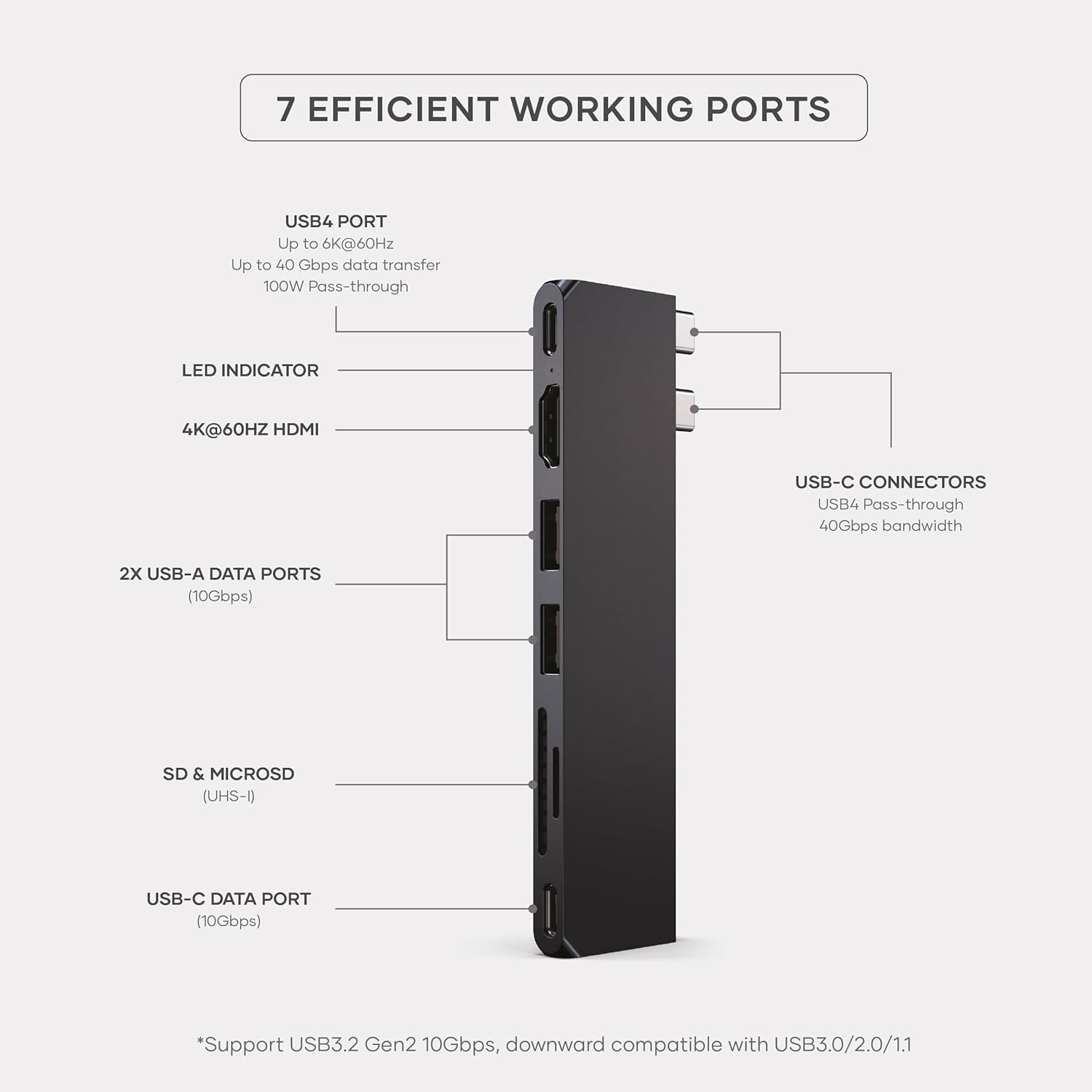
Image: A detailed diagram illustrating the layout and function of the seven ports on the Satechi USB-C Hub, including USB4, HDMI, USB-A, SD/MicroSD, and USB-C data ports.
Setup
- Compatibility Check: Ensure your MacBook is a MacBook Air/Pro M4/M3/M2/M1 model for optimal compatibility.
- Prepare Your MacBook: If your MacBook has a protective cover, ensure it has an opening for the dual USB-C connectors of the hub. Some covers may need to be removed or adjusted.
- Connect the Hub: Align the dual USB-C connectors of the Satechi hub with the corresponding USB-C ports on your MacBook. Gently push the hub firmly into place until it is securely connected.
- Verify Connection: An LED indicator on the hub (if present, as shown in the product diagram) may illuminate to confirm a successful connection. Your MacBook should recognize the connected hub automatically.

Image: The Satechi 7-in-1 USB-C Hub displayed with various compatible devices such as USB-C cables, USB flash drives, and SD cards, demonstrating its readiness for use.
Operating Instructions
Using the Ports:
- USB4 Port (with Power Delivery): Connect compatible USB4 or Thunderbolt devices for high-speed data transfer up to 40Gbps, 6K @ 60Hz video output, and power delivery up to 100W to charge your MacBook.
- HDMI Port: Connect an HDMI cable from the hub to an external monitor or TV. The hub supports 4K @ 60Hz resolution. Your MacBook can be set to Mirror Mode (duplicate your MacBook screen) or Extended Mode (use the external display as an additional workspace). Adjust display settings in your MacBook's System Settings.
- USB 3.2 Gen 2 Ports (2x): Plug in USB-A devices such as external hard drives, keyboards, mice, or flash drives. These ports support data transfer speeds of up to 10Gbps.
- USB-C Data Port: Connect USB-C peripherals for data transfer up to 10Gbps. Note that this port is for data only and does not support power delivery or video output.
- SD & MicroSD Card Slots: Insert your SD or MicroSD memory cards into the respective slots. The hub supports UHS-I speeds, allowing for quick transfer of photos and videos. Both card slots can be used simultaneously.

Image: A visual representation demonstrating the functionality of the HDMI port, showing a MacBook connected to an external monitor in both Mirror Mode (duplicating the display) and Extended Mode (extending the desktop).

Image: A bar chart illustrating the comparative data transfer speeds of USB 3.2 Gen 2 (10Gbps), USB 3.0 (5Gbps), and USB 2.0 (480Mbps), highlighting the high performance of the hub's ports.
Maintenance
To ensure the longevity and optimal performance of your Satechi USB-C Hub, follow these maintenance guidelines:
- Cleaning: Use a soft, dry, lint-free cloth to clean the exterior of the hub. Avoid using harsh chemicals, solvents, or abrasive cleaners.
- Storage: When not in use, store the hub in a cool, dry place away from direct sunlight and extreme temperatures.
- Heat Management: The aluminum casing of the hub is designed for efficient heat dissipation. A safety mechanism is integrated that will automatically shut off the hub if its temperature exceeds 40°C (104°F) or during high current/voltage conditions to prevent damage. This is normal operation for safety.
- Handling: Handle the hub with care. Avoid dropping it or subjecting it to strong impacts, which could damage internal components.

Image: An illustration detailing the heat management system of the Satechi USB-C Hub, highlighting its anti-static, short circuit, over current, overheat, and over voltage protection features, along with the normal operating temperature range.
Troubleshooting
If you encounter issues with your Satechi USB-C Hub, please refer to the following common troubleshooting steps:
- No Recognition / Intermittent Connection:
- Ensure the hub is firmly and correctly seated in both USB-C ports of your MacBook.
- Try disconnecting and reconnecting the hub.
- Restart your MacBook.
- Ensure no protective case is obstructing the connection.
- Display Issues (HDMI):
- Check that the HDMI cable is securely connected to both the hub and the external display.
- Verify the external display is set to the correct input source.
- Adjust display settings in your MacBook's System Settings (Display preferences).
- Try a different HDMI cable or external display if possible.
- Slow Data Transfer Speeds:
- Ensure the connected device (e.g., external drive, USB stick) supports the higher USB 3.2 Gen 2 speeds. Older devices will operate at their maximum supported speed (e.g., USB 2.0 or USB 3.0).
- Avoid connecting multiple high-bandwidth devices simultaneously if experiencing slowdowns.
- Power Delivery Not Working:
- Ensure your power adapter is connected to the USB4 port on the hub and is capable of delivering sufficient power (up to 100W).
- Verify your MacBook supports USB-C Power Delivery.
- Hub Feels Warm:
- It is normal for the aluminum hub to feel warm during operation, especially when multiple ports are in use or when charging. This is due to its heat dissipation design.
- If the hub becomes excessively hot and shuts off, it indicates the safety mechanism has activated. Disconnect it, allow it to cool, and ensure proper ventilation around the hub and MacBook.
Specifications
| Attribute | Detail |
|---|---|
| Brand | Satechi |
| Model Number | ST-HUCPHSD |
| Color | Midnight |
| Item Weight | 1.41 ounces |
| Product Dimensions (LxWxH) | 4.92 x 1.18 x 0.31 inches |
| Compatible Devices | MacBook Pro M4/M3/M2/M1, MacBook Air M4/M3/M2/M1 |
| Hardware Interface | USB4, HDMI, USB 3.2 Gen 2, USB-C Data, SD, MicroSD |
| USB4 Port | Up to 6K@60Hz, 40Gbps Data, 100W Power Delivery |
| HDMI Port | Up to 4K@60Hz |
| USB-A Data Ports (2x) | 10Gbps (USB 3.2 Gen 2) |
| USB-C Data Port | 10Gbps |
| SD/MicroSD Card Reader | UHS-I speeds, up to 2TB capacity |
| Special Feature | Plug and Play, Heat Management System |
Warranty and Support
Satechi products are designed for reliability and performance. For specific warranty information, please refer to the documentation included with your purchase or visit the official Satechi website.
Additional Resources:
- Official User Guide (PDF): For a more detailed guide, you can download the official PDF user guide from here.
- Satechi Support: For further assistance, technical support, or warranty claims, please visit the Satechi official website or contact their customer service directly.