
Introduction
This manual provides comprehensive instructions for the setup, operation, and maintenance of your Bandai Grogu Tamagotchi Nano Blue Version. This digital pet allows you to care for Grogu, the character from The Mandalorian TV series, in a compact, portable format. Please read this manual thoroughly to ensure proper use and enjoyment of your device.
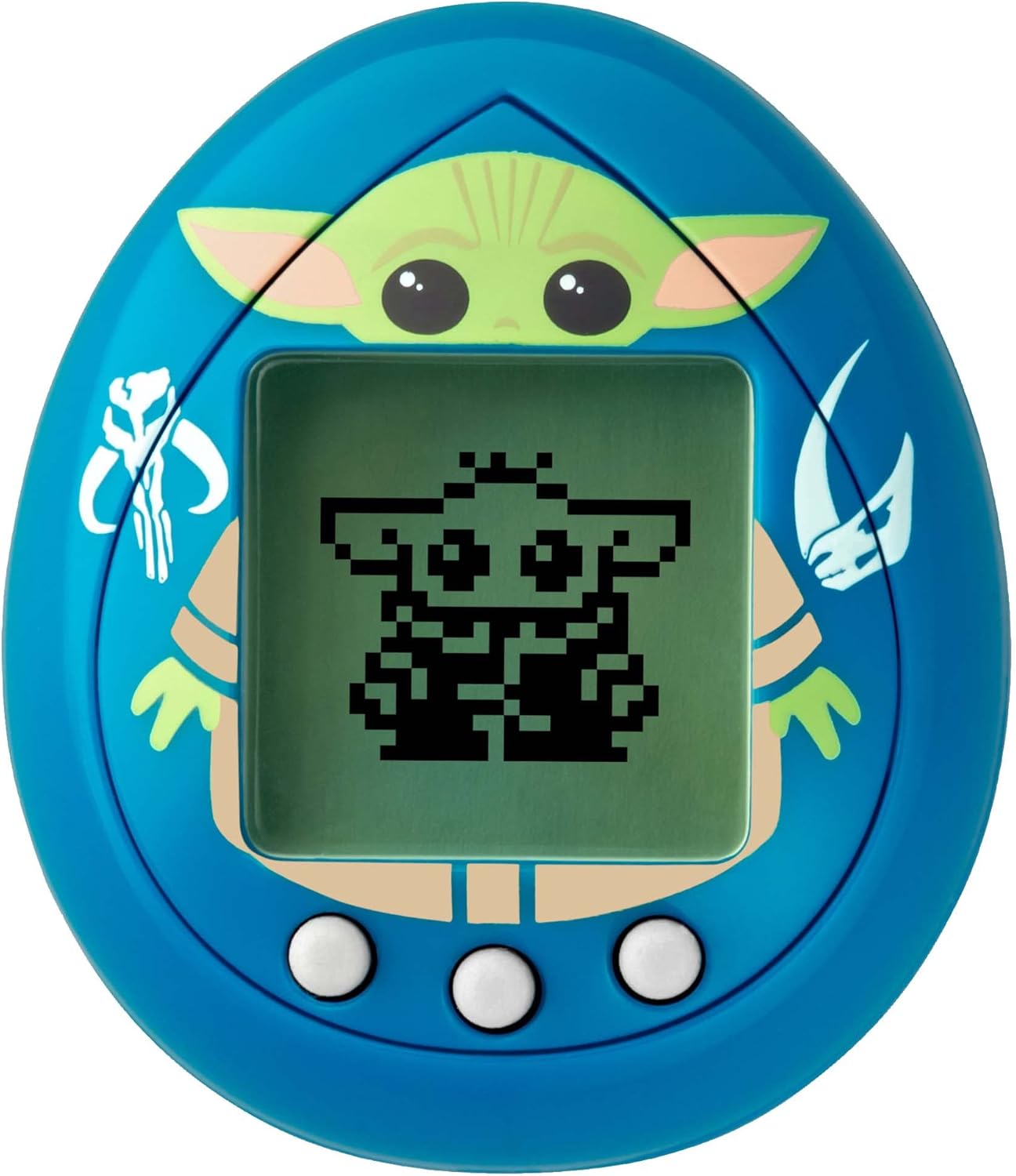
Image 1: Front view of the Bandai Grogu Tamagotchi Nano Blue Version, displaying Grogu in pixel art on its screen.
Safety Information
Warning: Not suitable for children under 8 years of age.
- Keep batteries out of reach of small children.
- Do not attempt to open or modify the device.
- Avoid exposing the device to extreme temperatures or moisture.
Package Contents
- 1 x Bandai Grogu Tamagotchi Nano Blue Version device
- 1 x Keychain attachment
- 1 x CR2032 battery (pre-installed)

Image 2: The Grogu Tamagotchi Nano with its attached keychain, ready for portability.
Setup
1. Initial Activation
- Your Grogu Tamagotchi Nano comes with a pre-installed CR2032 battery.
- To activate, pull out the clear plastic tab protruding from the side or back of the device. This connects the battery.
- The screen should display the initial setup sequence.
2. Setting the Time
- Use the buttons (A, B, C) located below the screen to set the current time.
- Button A (left) typically selects or confirms.
- Button B (middle) typically changes values.
- Button C (right) typically cancels or returns.
- Refer to the on-screen prompts to adjust the hour and minute.

Image 3: A close-up view highlighting the three control buttons on the Grogu Tamagotchi Nano.
Operating Instructions
Caring for Grogu involves monitoring his satiety and happiness levels, feeding him, and playing games. Your actions will influence Grogu's development and appearance.
1. Basic Controls
- Button A (Left): Selects menu options or confirms actions.
- Button B (Middle): Navigates through menu options or changes values.
- Button C (Right): Cancels an action or returns to the previous screen.
- Pressing A and C simultaneously may reset the device or access special functions (refer to on-screen prompts).
2. Feeding Grogu
- Monitor Grogu's satiety meter. When it is low, Grogu will indicate hunger.
- Navigate to the feeding menu.
- Offer Grogu his favorite foods: squid chowder and macaroons.
- Caution: Avoid overfeeding Grogu, as this may lead to negative consequences, such as the "squid attack" event.
3. Playing Games
- To increase Grogu's happiness meter, play mini-games with him.
- Two mini-games are available at all times.
- Additional mini-games may unlock as Grogu evolves into different forms.
- Regular interaction through games is crucial for Grogu's well-being.
4. Grogu's Transformations
- Grogu will transform into one of 12 different forms based on how you care for him.
- These transformations are inspired by events and appearances in The Mandalorian TV series.
- Experiment with different care routines to discover all possible forms.

Image 4: The Grogu Tamagotchi Nano showcasing one of Grogu's various pixel art forms.
5. Character Appearances
Throughout the day, other characters from The Mandalorian TV series may make appearances on your Tamagotchi screen. These are random events that add to the interactive experience.
Maintenance
1. Cleaning
- Wipe the device gently with a soft, dry cloth.
- Do not use liquid cleaners or abrasive materials.
2. Battery Replacement
- The device uses one CR2032 battery.
- When the battery is low, the screen display may dim or show a low battery indicator.
- To replace, carefully open the battery compartment on the back of the device using a small screwdriver (not included).
- Insert a new CR2032 battery, ensuring correct polarity (+/-).
- Securely close the battery compartment.
Troubleshooting
- Device not turning on: Ensure the battery tab has been removed. Check if the CR2032 battery is correctly installed and has sufficient charge.
- Screen is dim or unresponsive: Replace the CR2032 battery.
- Grogu is unhappy or sick: Ensure you are regularly feeding him and playing games. Follow the on-screen prompts for care.
- Device reset: If the device resets unexpectedly, check the battery connection. If issues persist, replace the battery.
Specifications
| Feature | Detail |
|---|---|
| Model Number | NT88886 |
| Brand | Tamagotchi (Bandai) |
| Product Dimensions | 1.18"L x 1.18"W x 1.57"H |
| Item Weight | 21 Grams (0.741 ounces) |
| Screen Size | 4 Centimeters |
| Controller Type | Push Button (3 buttons) |
| Power Source | Battery Powered |
| Battery Type | 1 x CR2032 (included) |
| Material | Plastic |
| Recommended Age | 8 years and up |
| Release Date | February 27, 2023 |

Image 5: The Grogu Tamagotchi Nano displayed in a setting, illustrating its compact size.
Warranty Information
Specific warranty details for the Bandai Grogu Tamagotchi Nano Blue Version are typically provided at the point of purchase or within the product packaging. Please retain your proof of purchase for any warranty claims. For further information, contact the manufacturer or retailer.
Support
For technical assistance or further inquiries regarding your Bandai Grogu Tamagotchi Nano, please refer to the official Bandai website or contact their customer support services. Contact information can usually be found on the product packaging or their official online resources.