1. Product Overview
The Cleiscry USB Bluetooth SP620E Mini Controller is designed for controlling addressable LED pixel strip lights such as WS2812B, SM16703, and UCS1903. It offers versatile control options including mobile APP, infrared (IR) remote, and built-in microphone for music synchronization. This controller supports group control of multiple devices and features a timer function for automated operation. It is powered via a DC5V USB interface.
Key Features:
- Supports mobile APP and infrared (IR) remote control.
- Automatic device connection and reconnection via APP.
- Group control functionality for multiple devices.
- Multiple music collection modes: mobile phone microphone, player streaming, and onboard microphone.
- Customizable settings: device name, RGB channel sequence calibration, and timer.
- Compatible with common single-line LED driver ICs, supporting up to 600 pixels.
- 142 built-in dynamic modes with adjustable effect length and collection features.
- 18 built-in music modes with adjustable effect length, sensitivity, and color selection.
- DC5V USB input for power.
- Automatic saving of setting parameters upon power off.
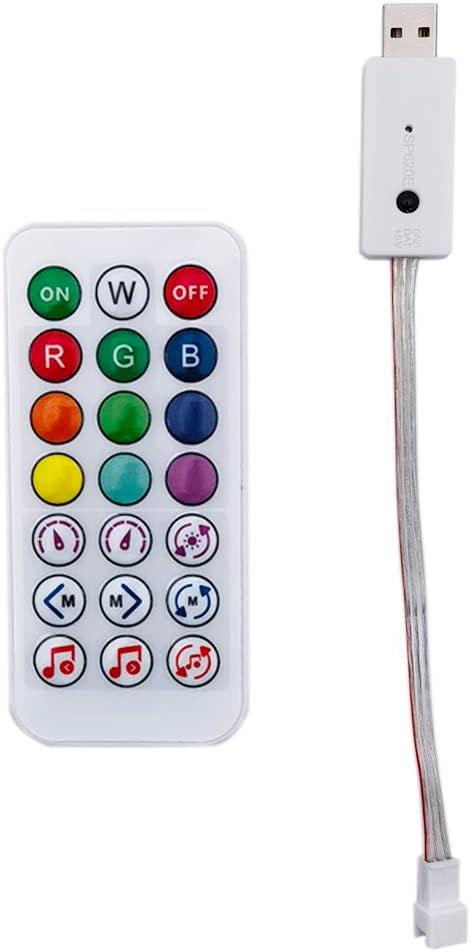
Figure 1: The SP620E Mini Controller (USB dongle) and its accompanying IR remote control.
2. Setup Instructions
2.1. Component Identification

Figure 2: Close-up view of the SP620E controller and IR remote, showing the USB connector and LED strip output wires.
Before beginning installation, ensure all components are present: the SP620E USB controller, the IR remote control, and your compatible LED pixel strip light (not included).
2.2. Connection Diagram

Figure 3: Wiring diagram illustrating the connection of the SP620E controller to a USB power source and an LED light strip.
- Connect LED Strip: Identify the data input (DI) and ground (GND) pins on your LED light strip. Connect the corresponding wires from the SP620E controller to these pins. The controller typically has a 3-pin connector for the LED strip (Data, Ground, and sometimes Power, though power for the strip usually comes from a separate source for larger installations). Ensure correct polarity.
- Power Connection: Insert the USB plug of the SP620E controller into a DC5V USB power source (e.g., a USB wall adapter, power bank, or computer USB port). The controller requires a stable 5V DC supply.
- Initial Power-On: Once connected, the LED strip should illuminate, indicating the controller is receiving power.
Important Note: This controller is designed for DC5V input only. It is suitable for projects with less than 100 LEDs. Ensure your LED strip is compatible with the supported IC types (WS2812B, SK6812RGB (NOT RGBW), 1903, 6803, etc.).
3. Operation
3.1. Mobile APP Control
The SP620E controller can be controlled via a dedicated mobile application, available for both iOS (iOS 10.0 or later) and Android (Android 4.4 or later) devices. Search for "SPLEDX" in your device's app store (App Store for iOS, Google Play for Android) or scan the QR code provided in the product packaging/manual to download and install the app.
APP Operations:
- Device Connection: Open the APP. The device should automatically connect. If not, tap the "+" icon in the upper right corner of the homepage to scan for devices.
- Individual Control: Click on a device in the device list to access its control page.
- Group Control: Click on a group in the group list to control multiple devices simultaneously. You can create multiple groups.
- Settings: Modify device name, calibrate RGB channel sequence, and set timers from the settings menu within the app.
- Dynamic Modes: Explore 142 built-in dynamic modes. Adjust effect length and save favorite modes to a collection.
- Music Modes: Utilize 18 built-in music modes. Adjust effect length, sensitivity, and select effect colors.
- Timer Function: Set up to five timing events for automated on/off cycles. Note that all set timing events will be deleted when the controller is powered off.
- Effect Details: For detailed information on non-music effects, brightness, color, and effect length, refer to the help section within the app (usually indicated by a "!" button in the top right corner).
3.2. IR Remote Control
The included IR remote provides direct control over the LED strip's functions without needing the mobile app. Ensure the remote has a working CR2 battery (not included) and is pointed towards the controller's IR receiver.
Remote Functions:
| Button | Function |
|---|
| ON / OFF | Turns the LED strip on or off. |
| R, G, B, W | Directly selects Red, Green, Blue, or White static colors. |
| Color Buttons | Selects various static colors. |
| Brightness +/- | Adjusts the brightness level of the current mode or color. |
| Speed +/- | Adjusts the speed of dynamic modes. |
| Mode +/- | Cycles through dynamic lighting modes. |
| Music Mode Buttons | Activates and cycles through music synchronization modes. |
4. Maintenance
The SP620E Mini Controller is designed for low maintenance. Follow these guidelines to ensure optimal performance and longevity:
- Cleaning: Gently wipe the controller and remote with a dry, soft cloth to remove dust. Do not use liquid cleaners or abrasive materials.
- Environment: Operate the controller within its specified temperature range (-20°C to 60°C). Avoid exposure to extreme temperatures, high humidity, or direct water contact.
- Connections: Periodically check all connections (USB and LED strip wires) to ensure they are secure and free from damage.
- Battery Replacement (IR Remote): If the IR remote's responsiveness decreases, replace the CR2 battery. Ensure correct polarity when inserting the new battery.
- Software Updates: Keep the mobile application updated to the latest version to benefit from new features and bug fixes.
7. Warranty and Support
7.1. Warranty Information
Specific warranty details for the Cleiscry SP620E Mini Controller may vary. Please refer to the product packaging or the seller's information at the point of purchase for precise warranty terms and conditions. Typically, electronic products come with a limited manufacturer's warranty covering defects in materials and workmanship under normal use.
7.2. Customer Support
For technical assistance, troubleshooting, or inquiries regarding your Cleiscry SP620E Mini Controller, please contact the seller or manufacturer directly. Contact information can usually be found on the product packaging, the seller's storefront on the purchase platform, or the manufacturer's official website.
When contacting support, please be prepared to provide the following information:
- Product Model: SP620E
- Date of Purchase
- Description of the issue
- Your contact information
