
1. Product Overview
The Womier S-K75 is a 75% layout gasket-mounted mechanical gaming keyboard designed for both Windows and Mac operating systems. It features an 82-key layout, RGB backlighting, and hot-swappable PCB for easy switch customization. The keyboard is built with high-quality transparent PC keycaps and pre-lubed tactile switches, providing a comfortable and responsive typing experience. Its gasket-mounted design, along with silicone spacers and pads, significantly reduces typing noise and enhances overall feel.

Image: The Womier S-K75 keyboard showcasing its transparent design and vibrant RGB backlighting.
2. Package Contents
Please verify that all items listed below are included in your package:
- Womier S-K75 Mechanical Gaming Keyboard
- USB-C Cable
- Keycap Puller
- Switch Puller
- User Manual
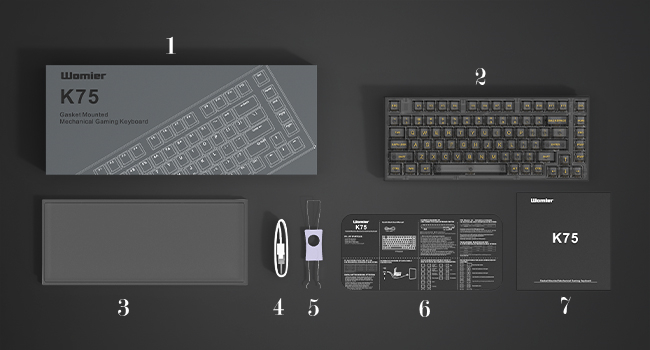
Image: A visual representation of the Womier S-K75 keyboard and its accompanying accessories, including the USB cable, keycap puller, and switch puller.
3. Setup Guide
3.1 Connecting the Keyboard
- Locate the USB-C port on the Womier S-K75 keyboard, typically found on the rear or side.
- Connect one end of the provided USB-C cable to the keyboard.
- Connect the other end of the USB-C cable to an available USB port on your computer (Windows PC or Mac).
- The keyboard should be automatically recognized by your operating system.
3.2 Operating System Switchover
The Womier S-K75 keyboard supports both Windows and Mac operating systems. A physical switch located on the keyboard allows for easy toggling between modes to ensure proper key mapping and functionality.

Image: An illustration detailing key features of the Womier S-K75, including the MAC/WIN system switchover, custom stabilizers, and 2-gear height adjustment.
4. Key Features and Operation
4.1 Gasket Mounted Design
The S-K75 utilizes a gasket-mounted structure, which incorporates silicone spacers and a sandwich silicone silencer, along with a silicone pad at the bottom. This design minimizes percussion noise and provides a flexible, comfortable typing experience, enhancing the acoustic profile of keystrokes.

Image: An exploded view diagram illustrating the internal layers of the gasket-mounted keyboard, highlighting the silicone pads and silencing components.
4.2 Hot-Swappable Switches
The keyboard features a hot-swappable PCB, allowing users to easily replace or change switches without soldering. It is compatible with most 3-pin and 5-pin mechanical switches. The pre-installed switches are pre-lubed tactile switches, offering a responsive feel and a lifespan of up to 50 million keystrokes.

Image: A detailed view of the hot-swappable PCB and a pre-lubed tactile white switch, demonstrating the ease of customization.
4.3 RGB Backlighting and Software Customization
The S-K75 offers up to 15 factory-set lighting and music rhythm modes, which can be selected directly from the keyboard. For advanced customization, dedicated software is available to design new lighting effects, build macros, and set up per-key lighting and effects.

Image: A computer screen displaying the Womier keyboard software, illustrating the various options for RGB lighting effects and customization.
4.4 Anti-Ghosting and Ergonomics
Full keys anti-ghosting ensures that all keystrokes are registered accurately, even during rapid and complex gaming sequences. The keyboard features transparent cherry profile keycaps and a curved layout, designed to provide a comfortable and lasting experience, reducing fatigue during prolonged use.
Video: A demonstration of the Womier S-K75 keyboard, highlighting its black transparent design, RGB backlighting, pre-lubed stabilizers, and the hot-swappable feature for easy switch replacement.
5. Maintenance
5.1 Cleaning the Keyboard
- Dust Removal: Use a can of compressed air to blow away dust and debris from between the keycaps.
- Surface Cleaning: Wipe the surface of the keyboard and keycaps with a soft, lint-free cloth lightly dampened with water or a mild, non-abrasive cleaning solution. Avoid excessive moisture.
- Deep Cleaning (Keycaps): For thorough cleaning, use the provided keycap puller to remove keycaps. Wash them gently with mild soap and water, rinse thoroughly, and ensure they are completely dry before reattaching.
5.2 Replacing Switches and Keycaps
- Keycap Removal: Use the keycap puller to gently grip and pull keycaps straight up.
- Switch Removal: Use the switch puller to carefully depress the two clips on the top and bottom of the switch, then pull the switch straight up from the PCB.
- Switch Installation: Align the pins of the new switch with the holes on the PCB. Press the switch firmly until it clicks into place. Ensure pins are straight to avoid bending.
- Keycap Installation: Align the keycap stem with the switch stem and press down firmly until it is seated.
6. Troubleshooting
6.1 Keyboard Not Responding
- Ensure the USB-C cable is securely connected to both the keyboard and the computer.
- Try connecting the keyboard to a different USB port on your computer.
- Test the keyboard on another computer to rule out a computer-specific issue.
- Verify the Mac/Win switch is set to the correct operating system mode.
6.2 RGB Lighting Issues
- Check the keyboard's lighting controls (usually Fn + specific keys) to ensure lighting is enabled and brightness is adjusted.
- If using customization software, ensure it is running correctly and the settings are applied.
- Restart your computer and reconnect the keyboard.
6.3 Keys Not Registering / Double Typing
- For hot-swappable switches, gently remove and re-insert the affected switch to ensure it is properly seated.
- Inspect the switch pins for any bends or damage. Straighten bent pins carefully before re-inserting.
- Clean around the switch stem to remove any debris that might be interfering with its operation.
7. Specifications
| Feature | Detail |
|---|---|
| Brand | Womier |
| Model | S-K75 |
| Layout | 75% (82 Keys) |
| Mounting Style | Gasket Mount |
| Connectivity | Wired (USB-C) |
| Switches | Pre-lubed Tactile White Switches |
| Hot-Swappable | Yes (Compatible with 3-pin/5-pin mechanical switches) |
| Keycaps | High-Quality Transparent PC Keycaps |
| Backlighting | RGB |
| Compatible Devices | Gaming Console, PC (Mac/Win) |
| Item Weight | 2.84 pounds |
| Package Dimensions | 15.55 x 6.5 x 2.36 inches |
8. Warranty and Support
For warranty information, technical support, or service inquiries regarding your Womier S-K75 keyboard, please refer to the official Womier website or contact their customer support directly. Details can typically be found on the product packaging or the manufacturer's official online channels.
You can also visit the official Womier Store for additional product information and support resources: Womier Store on Amazon

